Sirius RF Module ELRS MAVLink Telemetry for iNav
Overview
ELRS MAVLink mode enables bidirectional telemetry data transmission through the ExpressLRS RF link, allowing the RC transmitter to not only send control commands but also receive real-time aircraft status data. This article will guide you through the entire process, from firmware upgrade to ground control station connection.
1. How MAVLink Mode Works
1.1 Data Link Architecture
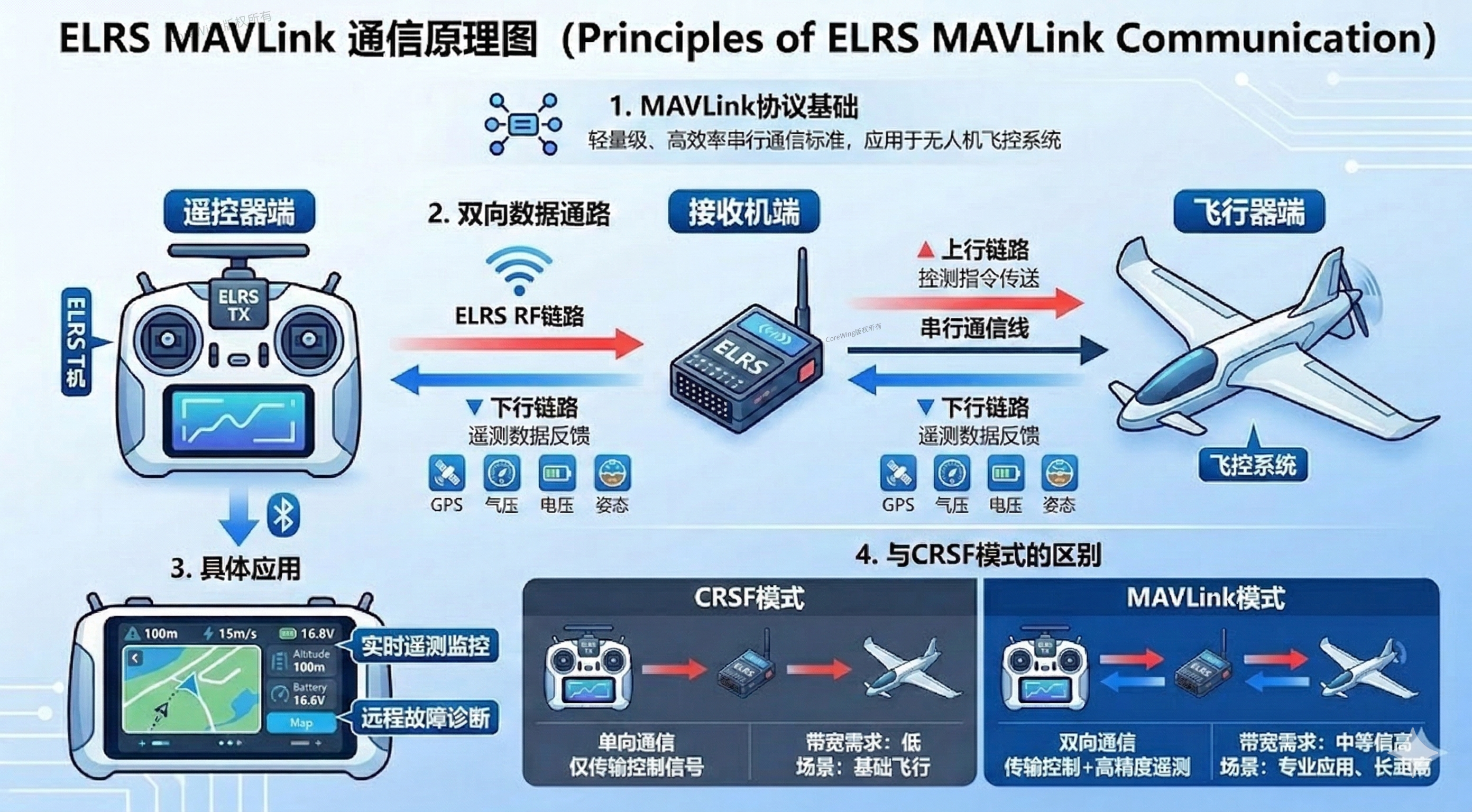
After enabling MAVLink functionality, the system establishes a complete bidirectional communication link:
Downlink (Telemetry): The aircraft sends data such as GPS position, barometric altitude, battery voltage, and attitude angles back to the RC transmitter through the receiver.
Uplink (Control): The RC transmitter's channel commands are sent to the aircraft through the receiver.
1.2 MAVLink vs CRSF Mode Comparison
| Feature | CRSF Mode | MAVLink Mode |
|---|---|---|
| Communication Direction | Unidirectional (Transmitter→Aircraft) | Bidirectional (Transmitter↔Aircraft) |
| Transmission Content | Control signals + limited telemetry | Control signals + telemetry data |
| Bandwidth Requirements | Low | Medium to High |
| Typical Applications | Basic flight control | Long-range flight, mission planning, real-time monitoring |
1.3 Practical Application Scenarios
Real-time Monitoring: RC transmitter screen displays aircraft position, altitude, battery level, speed, and other critical data
Remote Diagnostics: Analyze aircraft status through telemetry data to quickly locate faults
Ground Control Station Connection: Use with ground control stations like MissionPlanner for mission planning and flight monitoring
2. Equipment List
2.1 Flight Controller
- CoreWing F405 WING V2
2.2 Wireless Communication Modules
RF Module: Sirius 2.4G ELRS
Receiver: SkyGuy Nano 2G4 RX
2.3 RC Transmitter
Recommended: RadioMaster TX16S
Compatible: Other RC transmitters supporting CRSF protocol
3. RC Transmitter Basic Settings
3.1 Enable External RF Module
Enter the model settings menu and find the "SETUP" page
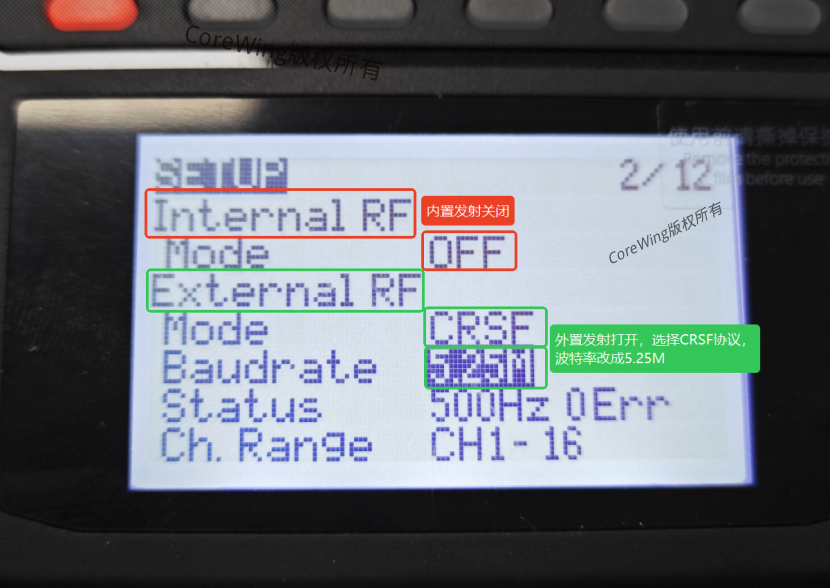
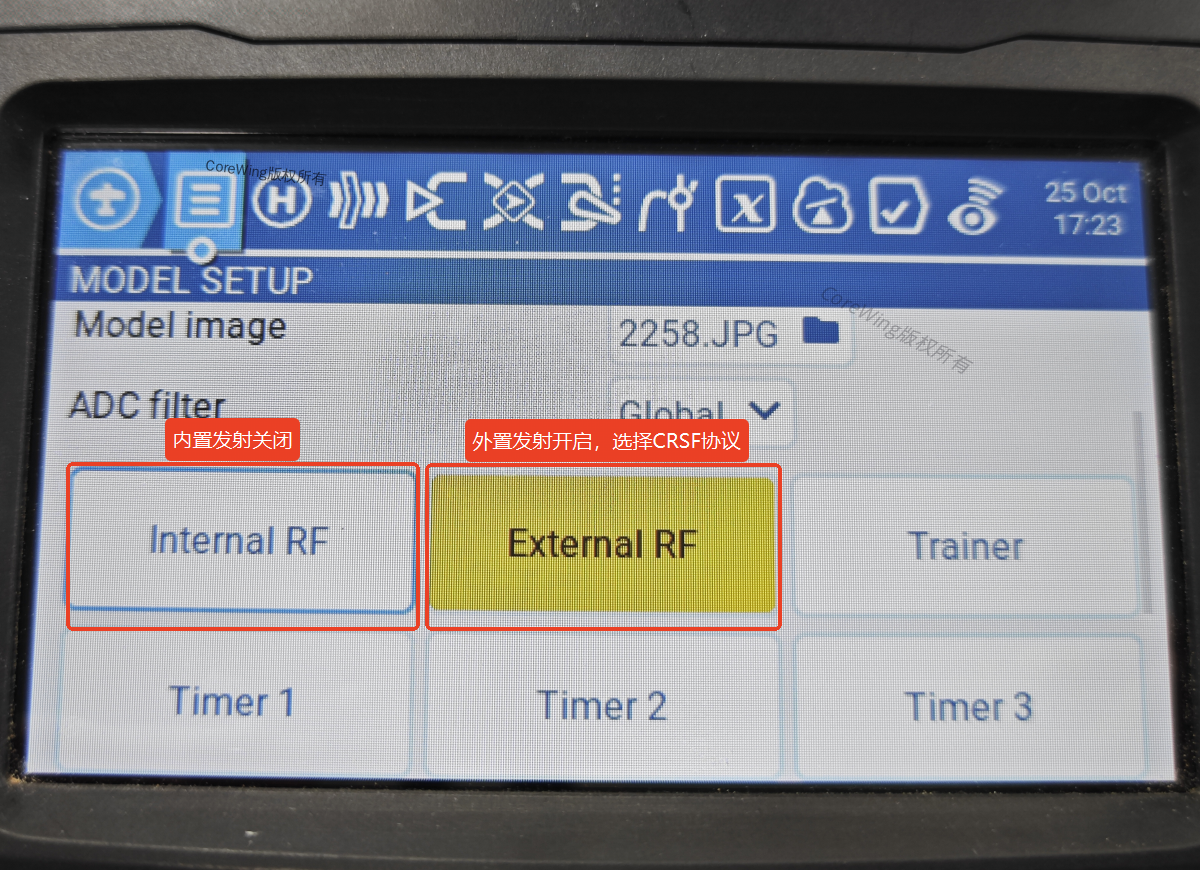
Disable "Internal RF Mode"
Enable "External RF Mode"
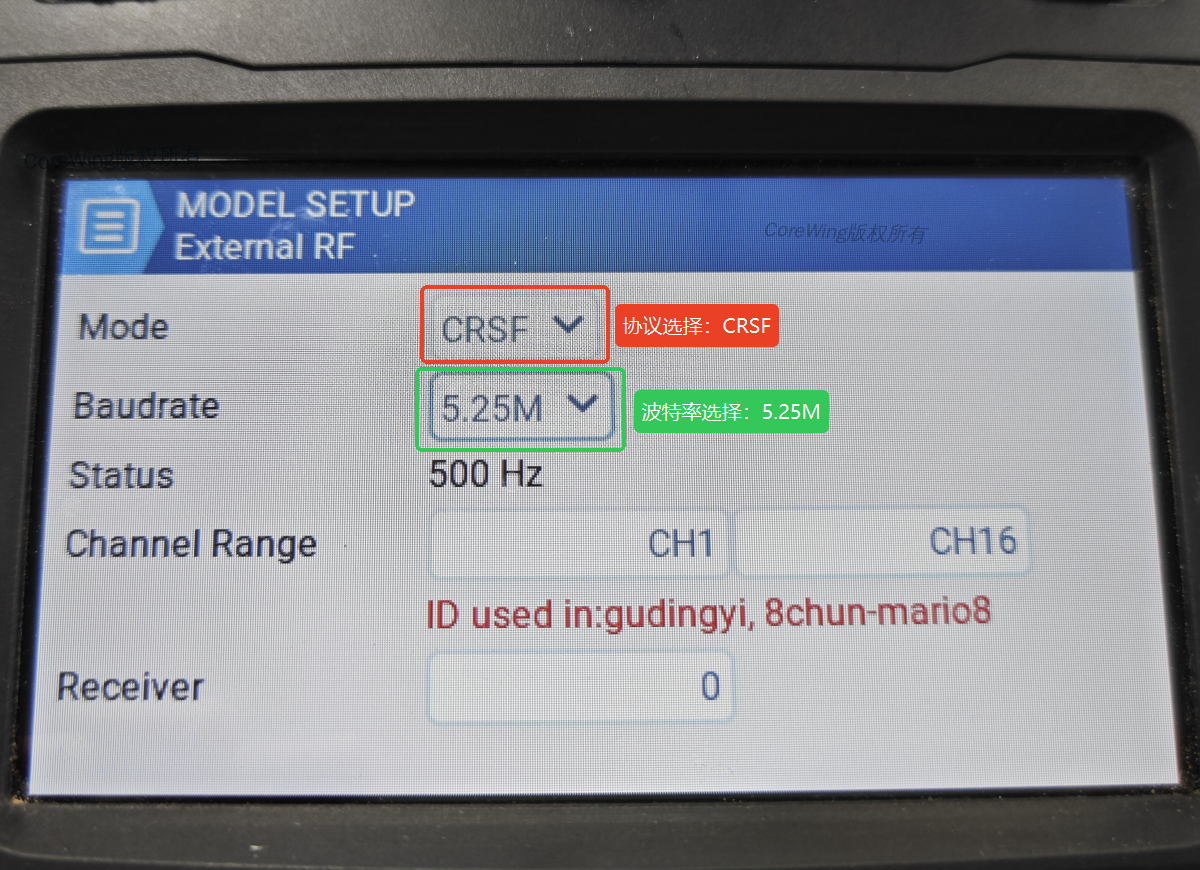
Set "Mode" to
CRSFand "Baudrate" to5.25M
Important
Why set "Baudrate" to 5.25M?
If set to 400k, it may not be possible to enter the ExpressLRS Lua script;
If set to 1.87M, it may not be possible to set Packet Rate to F1000.
3.2 Setting Reference
Black and white screen transmitters:
Color screen transmitters:
3.3 RF Module and Receiver Binding
Important
For RF module and receiver binding tutorial, refer to: How to bind ELRS transmitter/RF module with receiver
4. Firmware Upgrade
Important Note
Before using MAVLink mode, the following firmware must be upgraded to the specified versions:
RF Module Firmware: ≥ 3.5.6 (factory firmware)
Receiver Firmware: ≥ 3.5.6 (factory firmware)
Backpack Firmware: ≥ CW 1.5.4 (CoreWing customized version)
All firmware can be upgraded through the CoreWing APP.
For information on how to update Sirius RF module and SkyGuy receiver ELRS firmware through CoreWing APP, please refer to this article:
5. MAVLink Mode Parameter Configuration
Note
When configuring RF module parameters, ensure the receiver is powered off to avoid configuration issues.
5.1 RF Module Parameter Settings
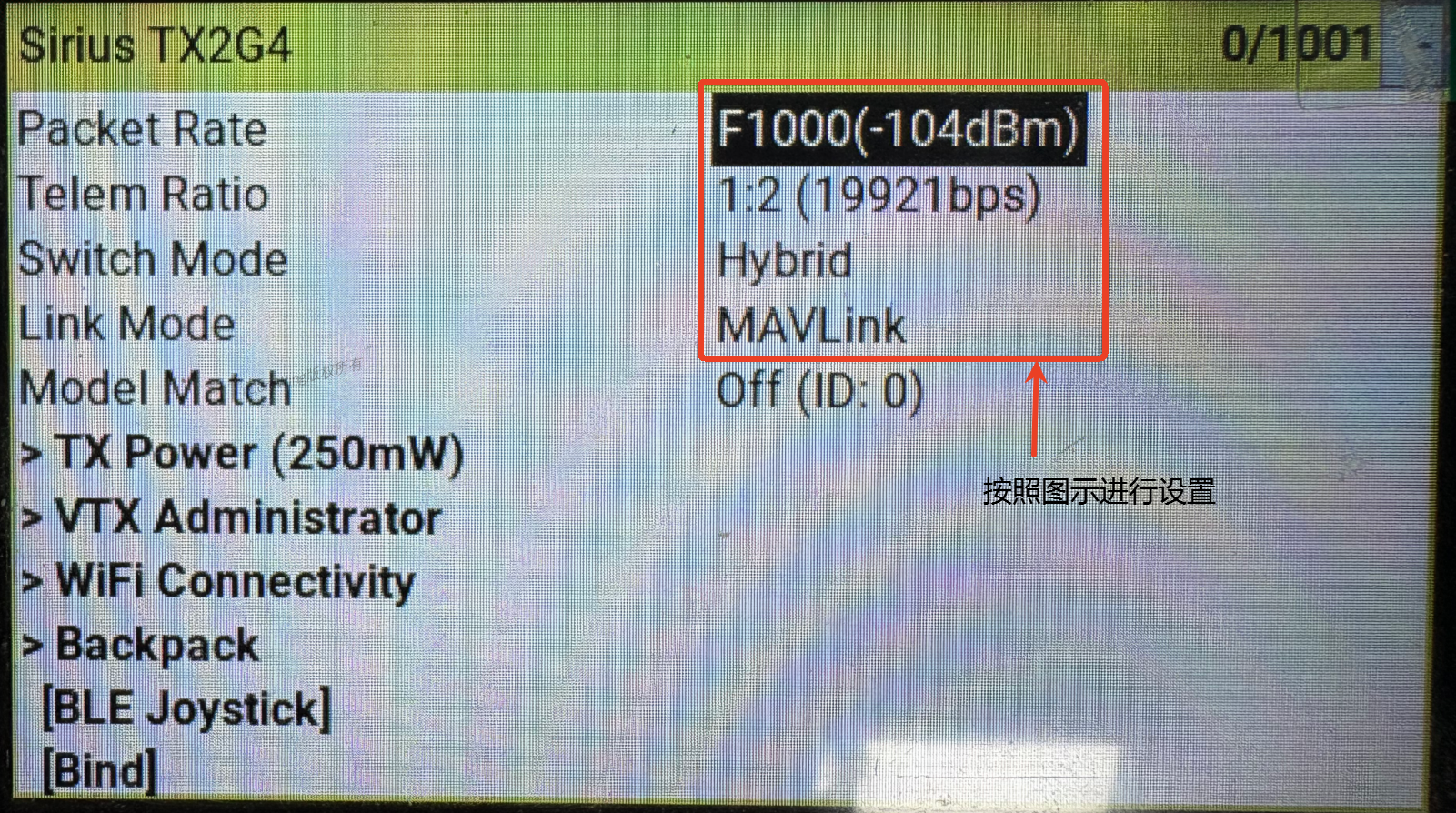
In the RC transmitter ExpressLRS script page, configure according to the following table:
| Configuration Item | Setting Value | Description |
|---|---|---|
| Packet Rate | F1000 | Frequency 1000Hz, sensitivity -104dBm |
| Telemetry Ratio | 1:2 | Ratio mode, rate 19921bps |
| Mode Switch | Hybrid | Hybrid mode |
| Link Mode | MAVLink | Telemetry protocol |
5.2 Receiver Parameter Settings
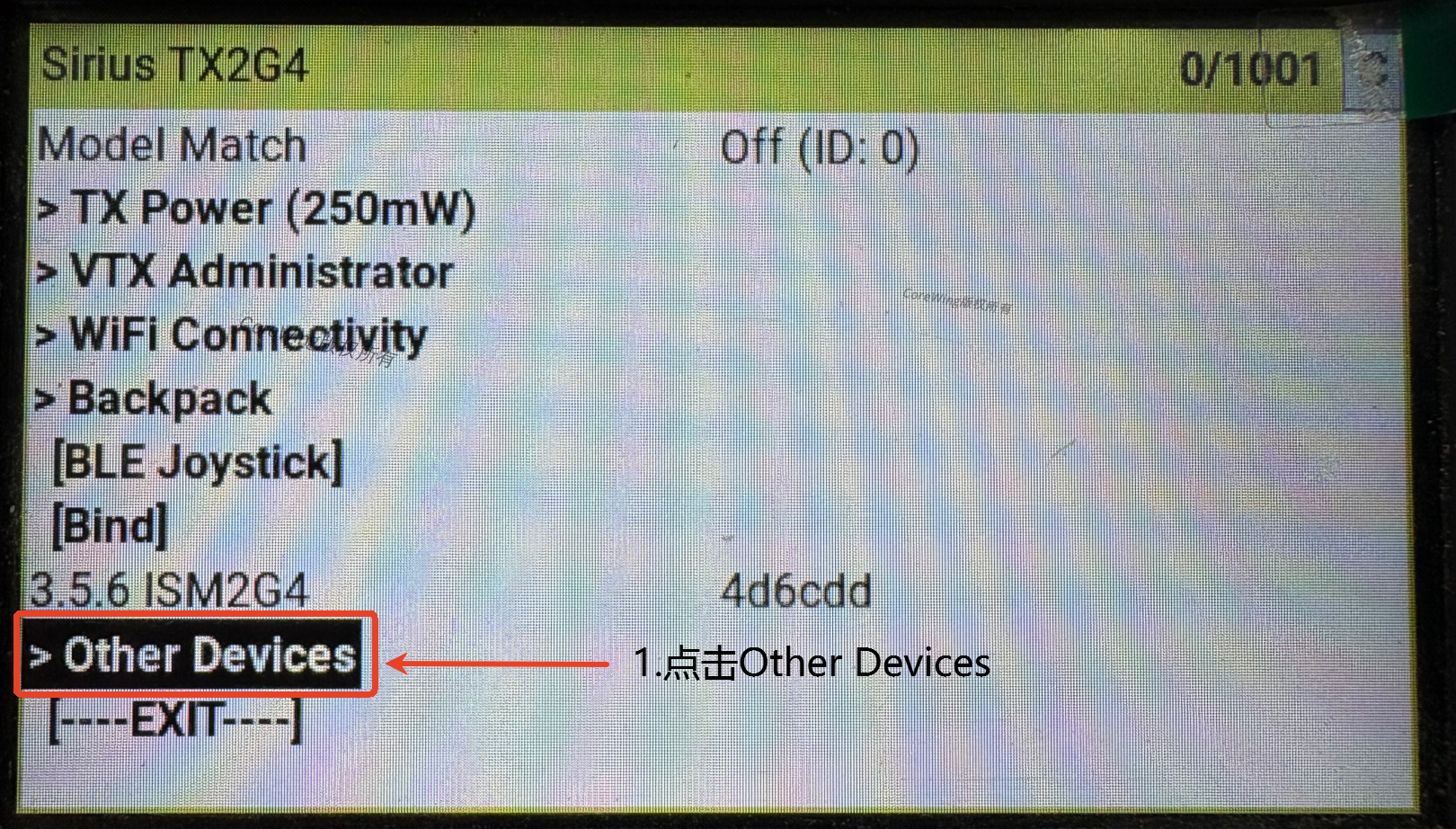
RC transmitter enters ExpressLRS script → Select Other Devices
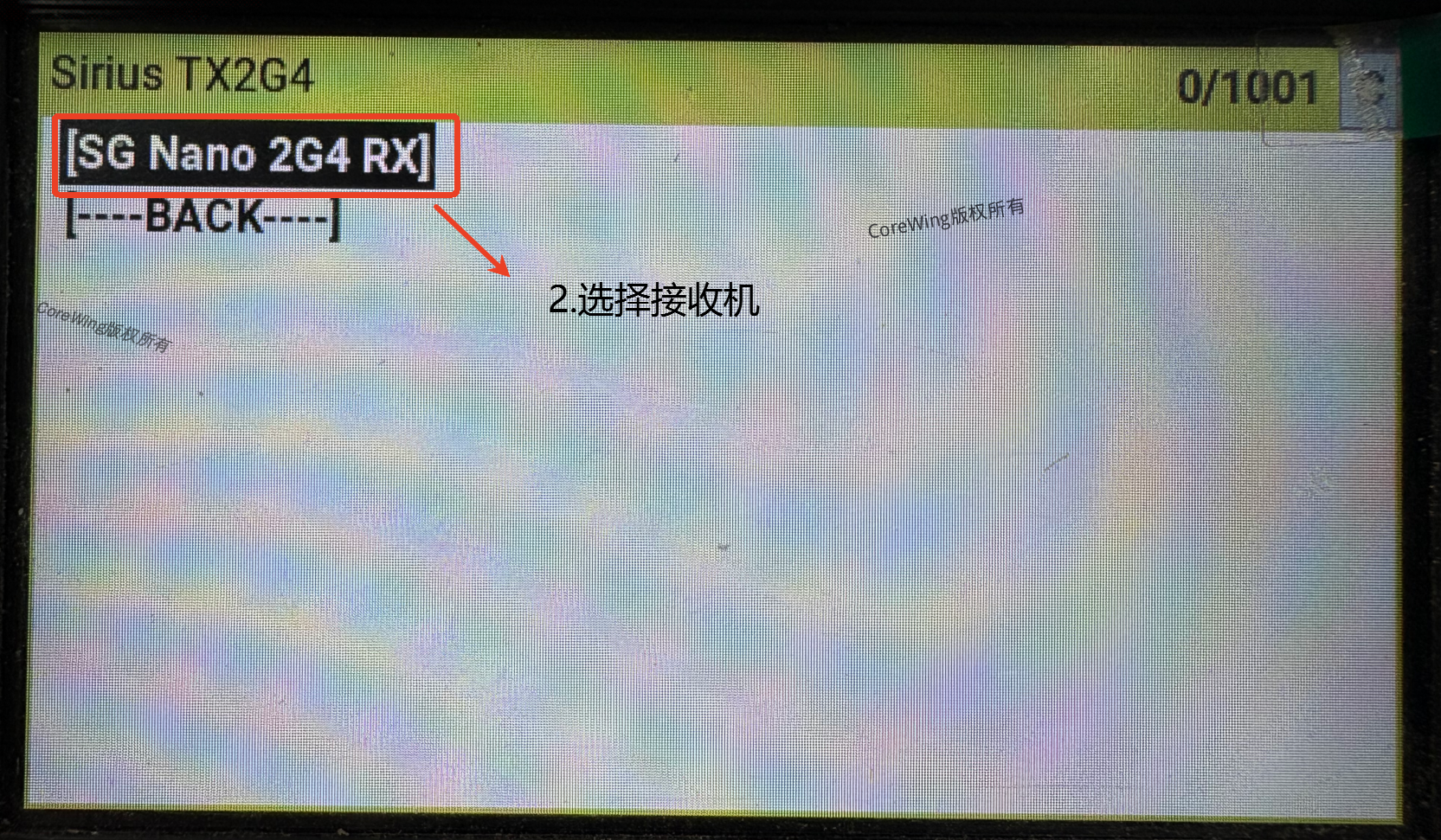
Select SG Nano 2G4 RX receiver
Set receiver protocol to
MAVLINK, keep other parameters default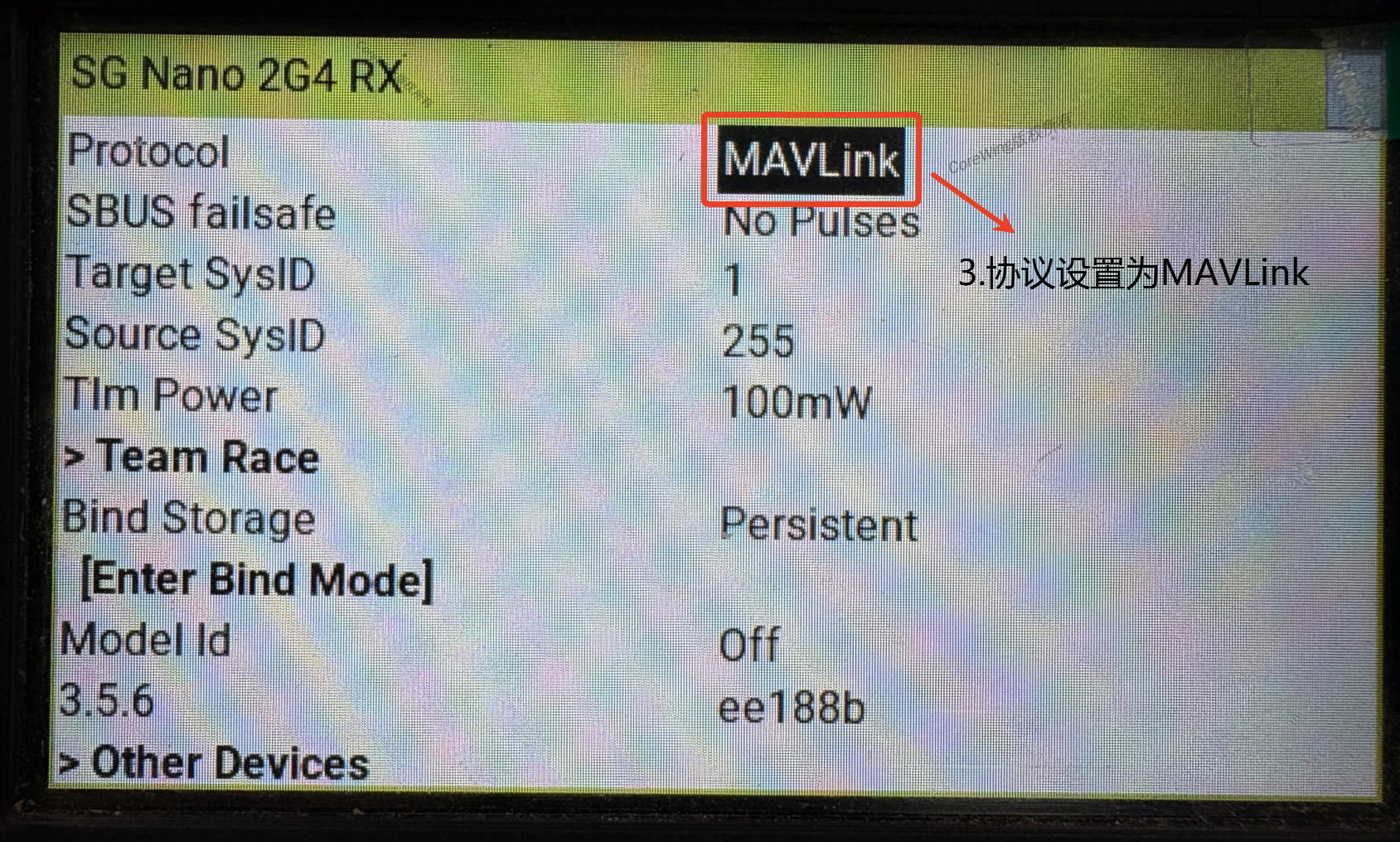
6. Flight Controller Configuration
6.1 Hardware Connection
UART Selection Note
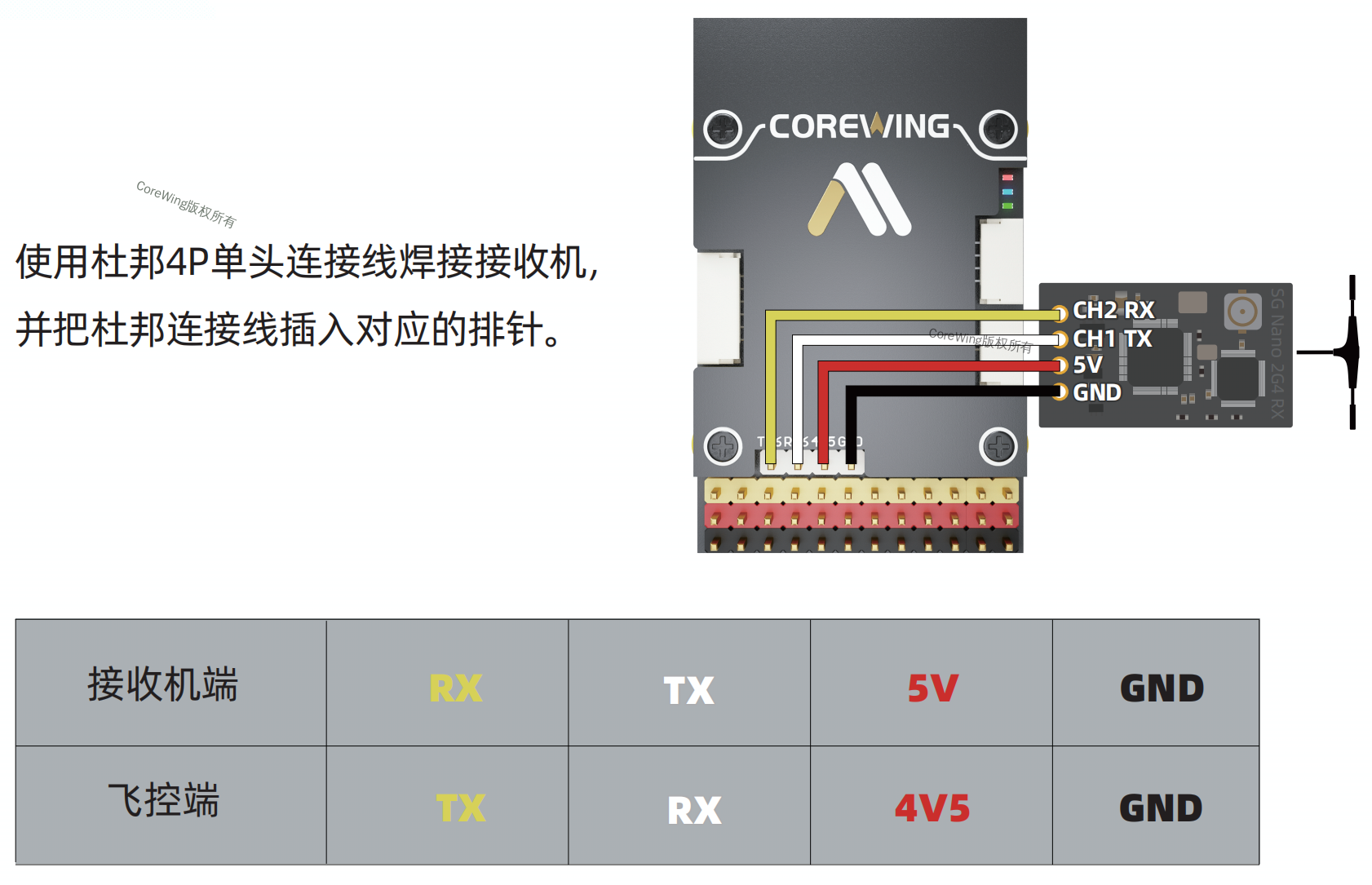
CoreWing flight controller receiver connection:
Must connect to UART6
Reason: UART6 has built-in DMA support, can stably run at high baud rate of 460800bps
⚠️ Note: Other UARTs (like UART4) are hardware compatible but lack DMA support, MAVLink communication will not work properly.
6.2 Flight Controller Parameter Settings
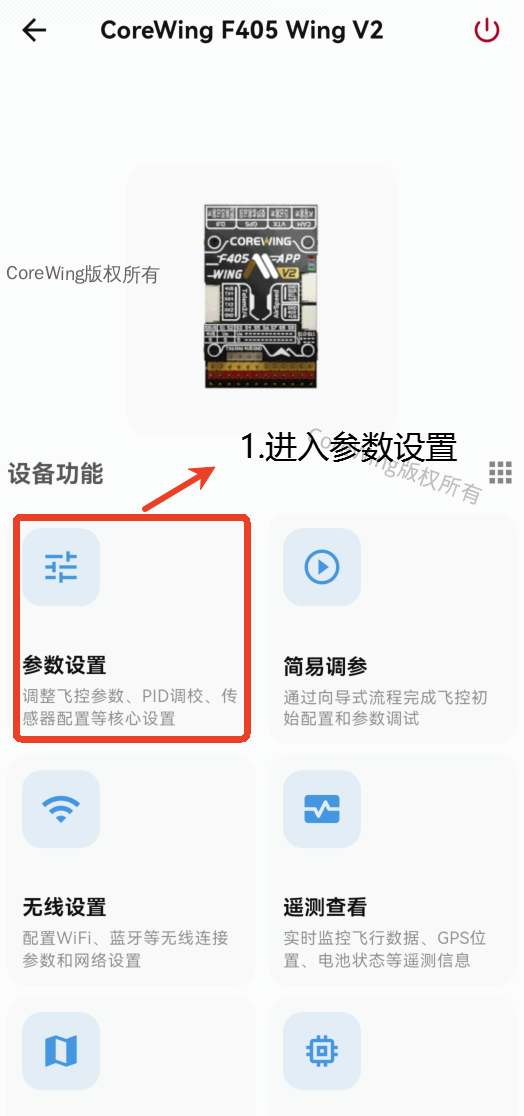
Prerequisite: Open CoreWing APP, connect to the aircraft wireless module, enter the parameter settings page
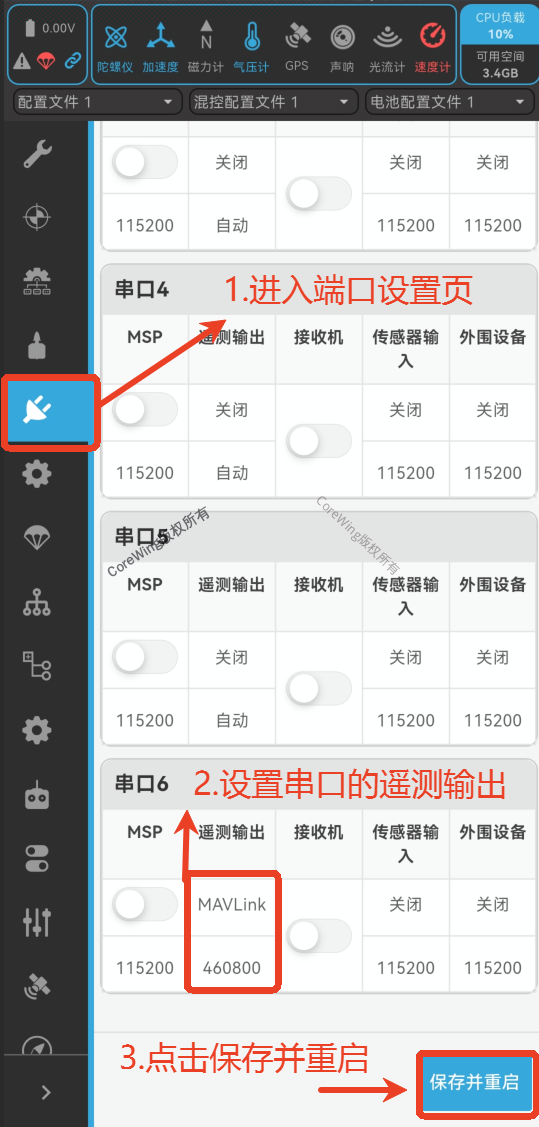
Enter the Port Settings page
Find UART6, configure as follows:
Telemetry Output: MAVLink
Baud Rate: 460800
Click save and restart
Step 2: Configure Receiver
Enter the Receiver Settings page
Configure as follows:
Receiver Type: SERIAL
Serial Receiver Protocol: MAVLINK
Serial Invert: OFF
Serial Receiver Half Duplex Mode: AUTO
Click save and restart
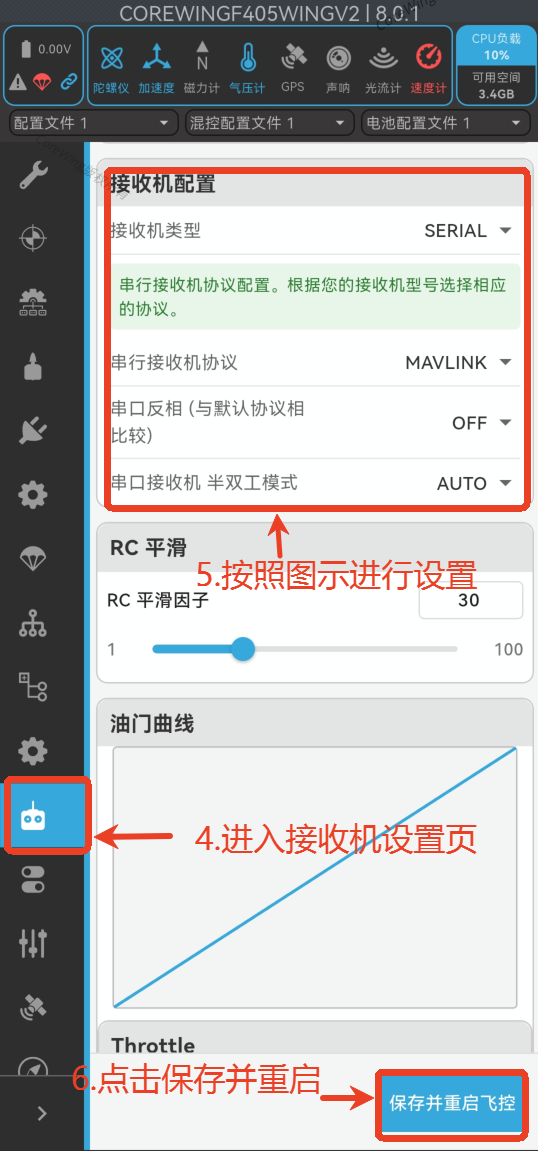
Step 3: Verify Connection
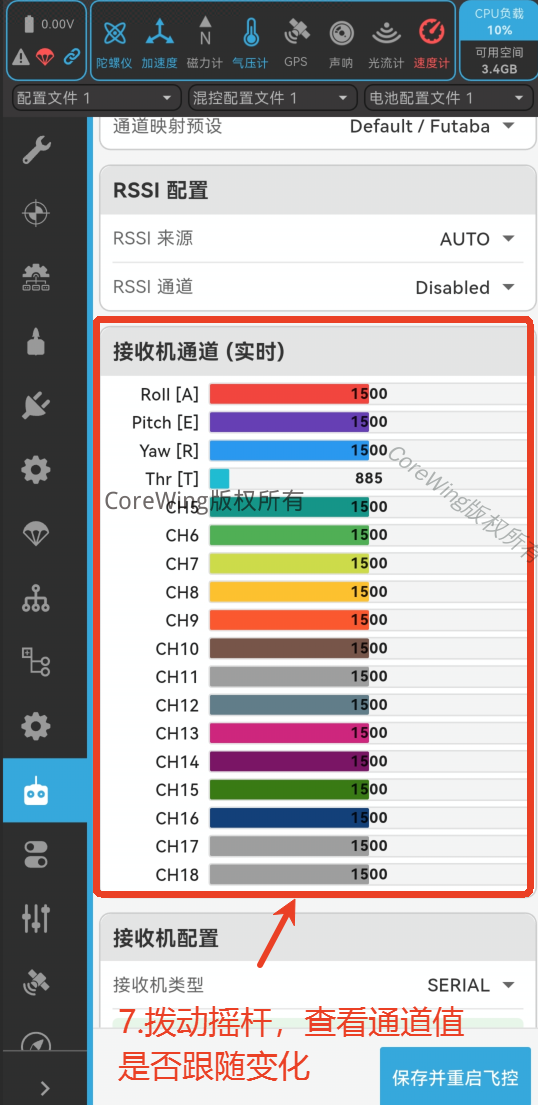
After restarting the flight controller, enter the Receiver Channels (Real-time) page, move the sticks to check if channel values change in real-time.
If there's no change, please check the MAVLink mode parameter settings in Chapter 5.
7. Ground Station Connection
7.1 MissionPlanner Ground Station Connection
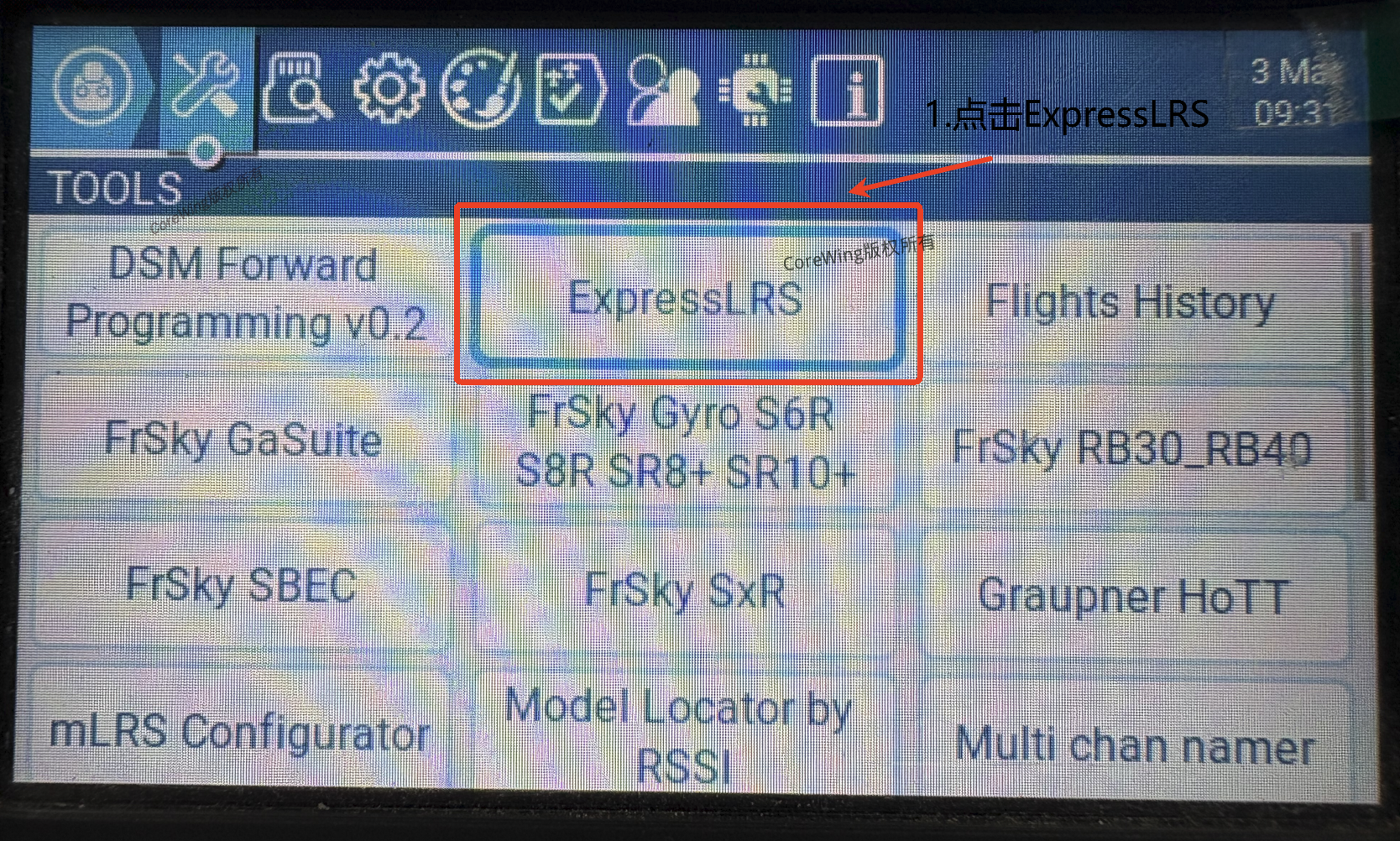
Step 1: Configure Backpack WiFi
- Enter ExpressLRS script on RC transmitter → Click Backpack settings
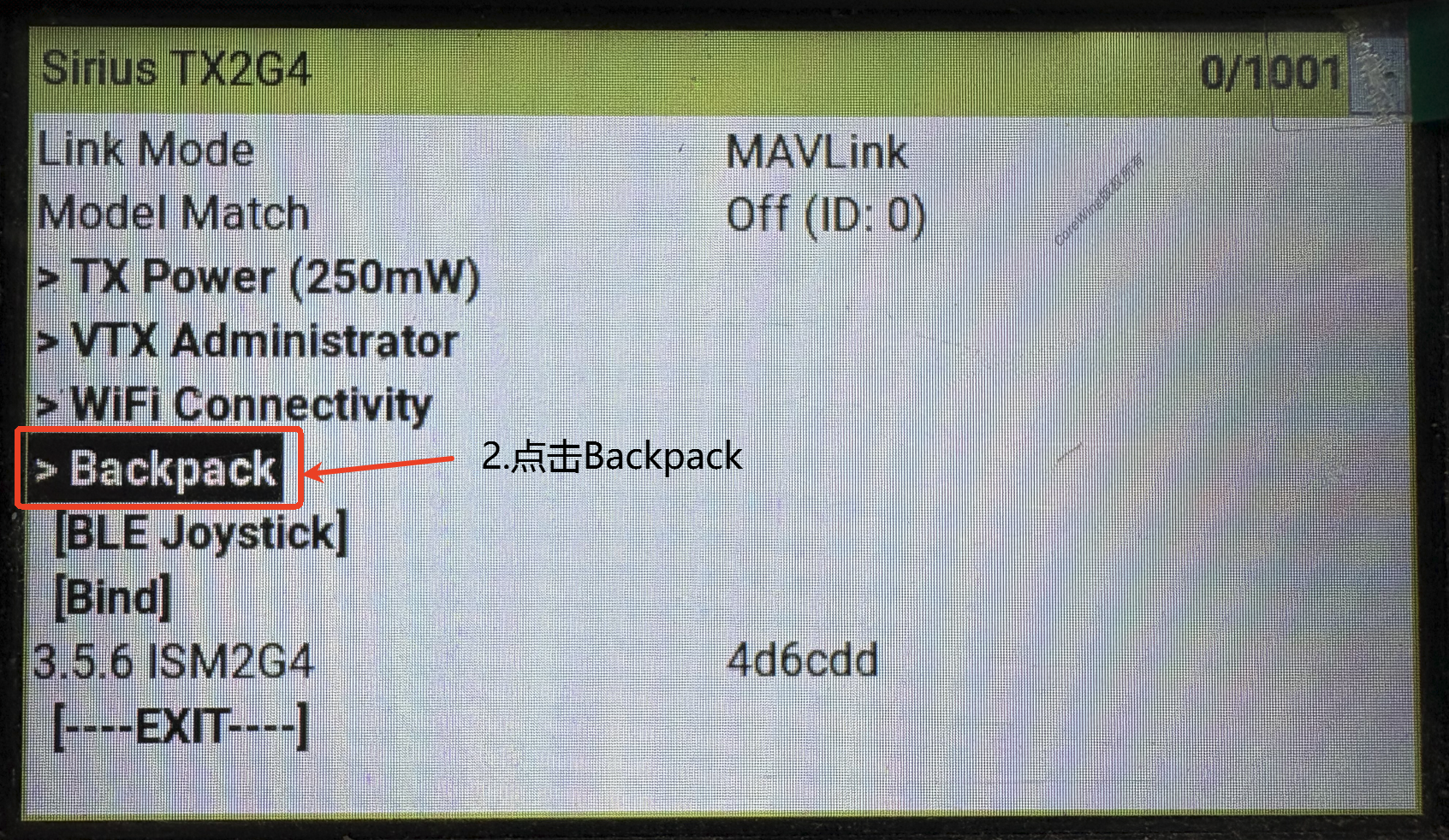
- Set Backpack to On
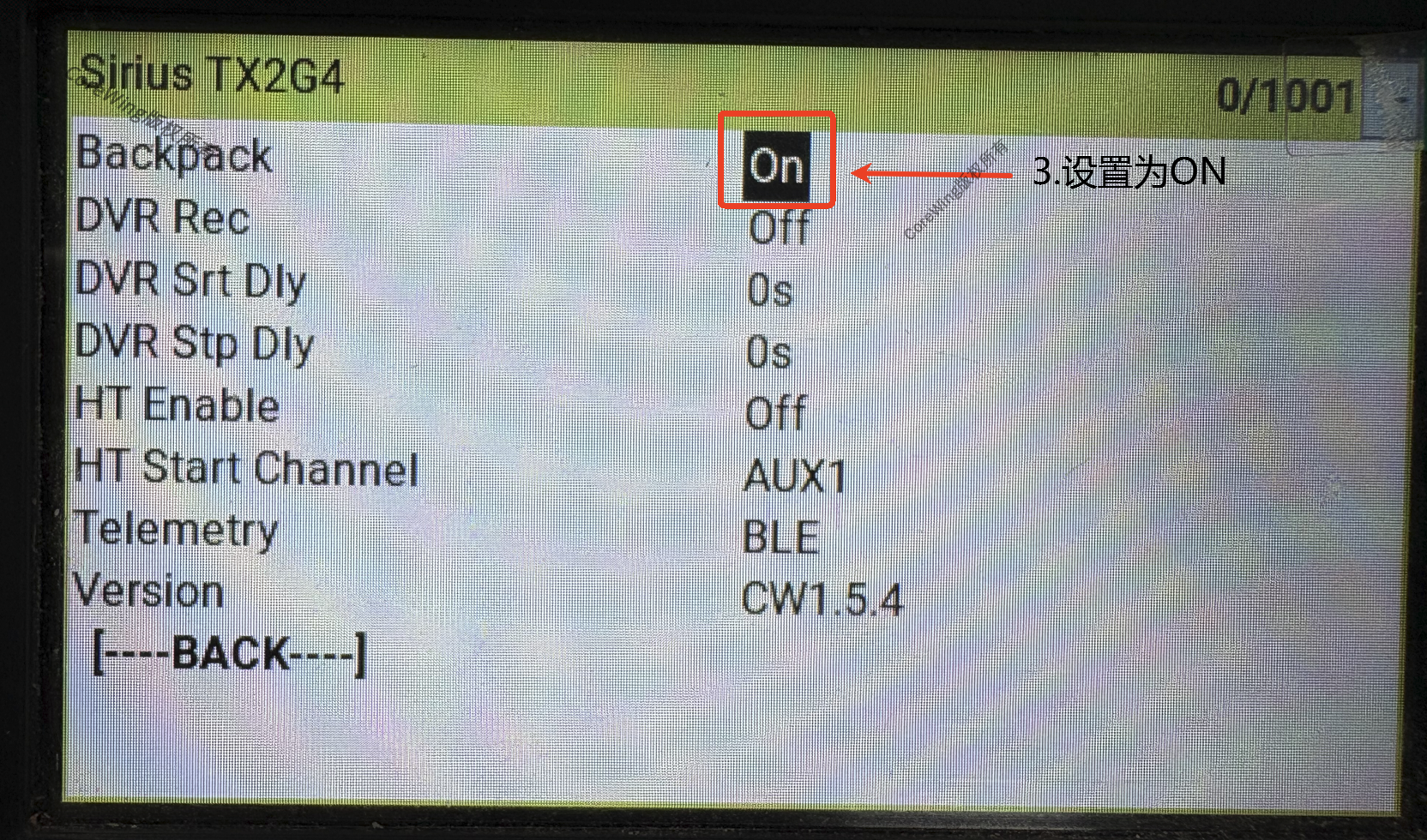
- Set Telemetry to WiFi
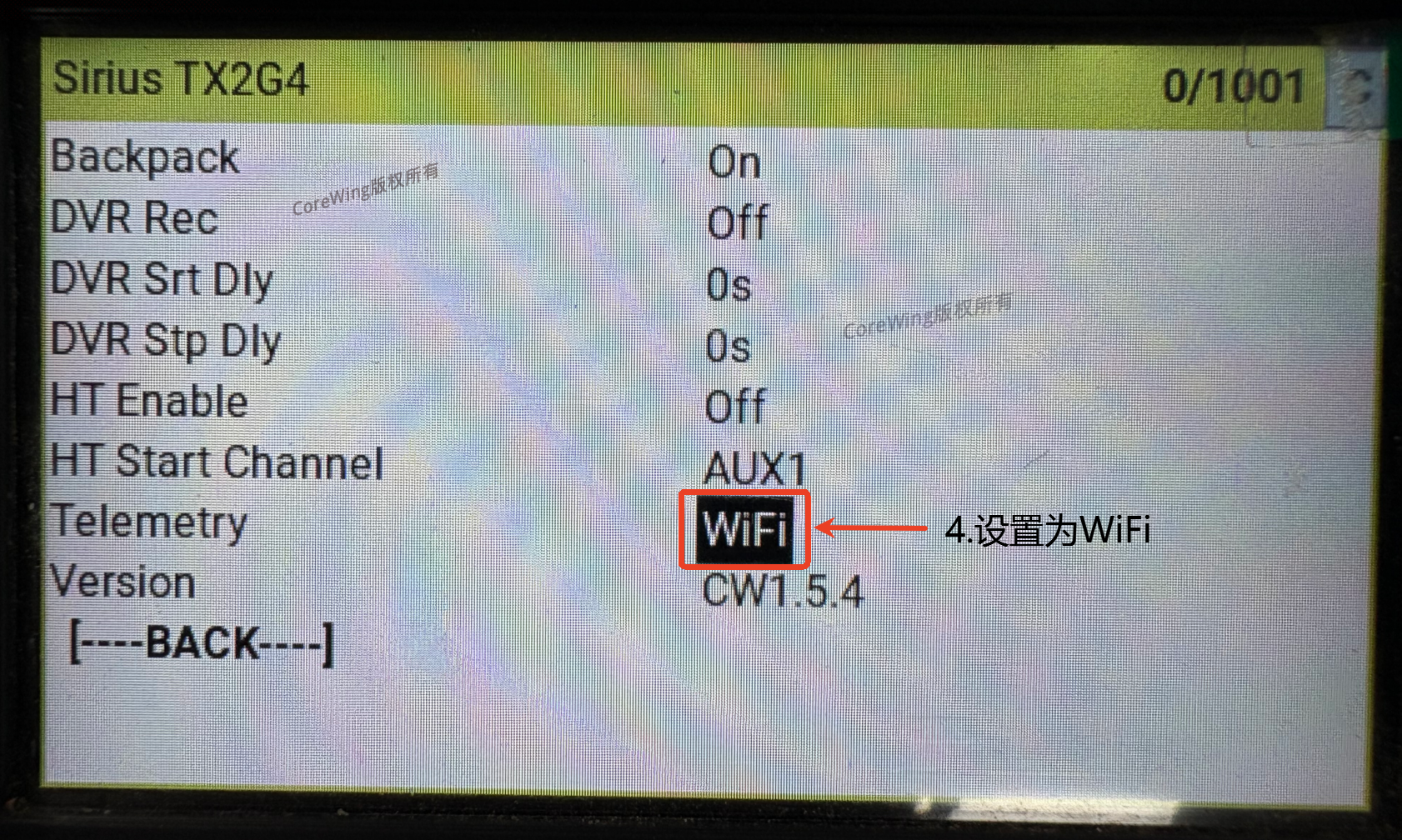
- Restart the RC transmitter to apply settings
Step 2: Computer WiFi Connection
Find and connect to the ExpressLRS TX Backpack 000000 WiFi (password: expresslrs)
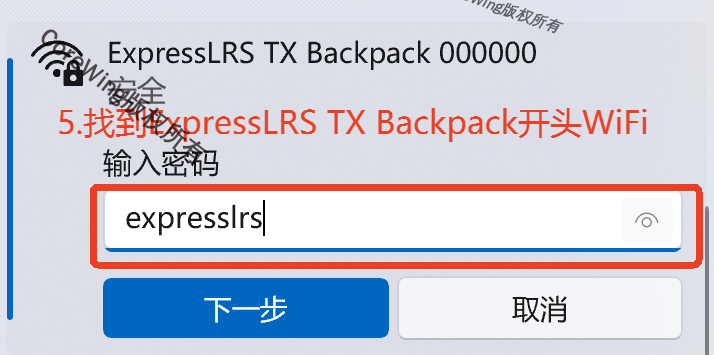
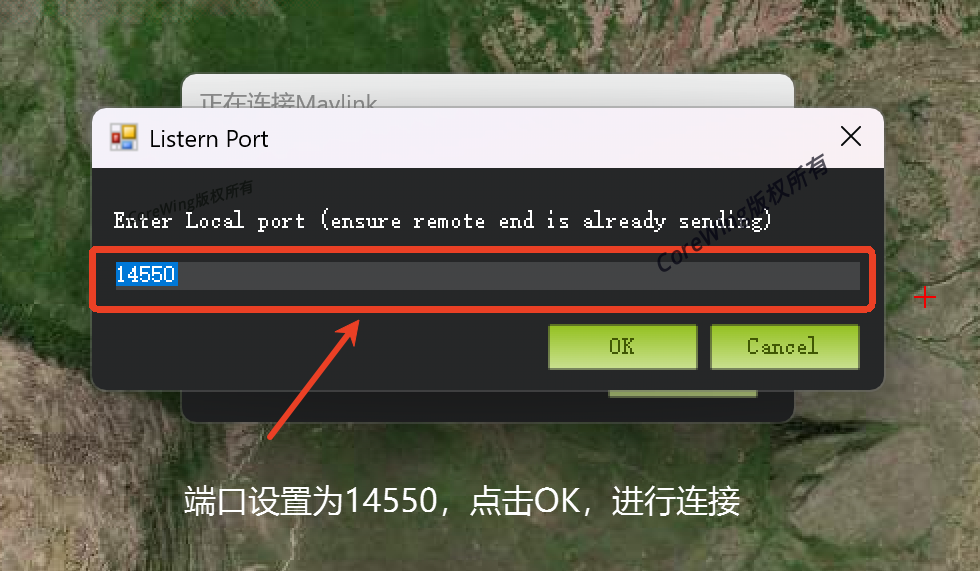
Step 3: MissionPlanner Connection Configuration
Open MissionPlanner
Select UDP connection mode
Set baud rate to
115200Set port to
14550Click Connect
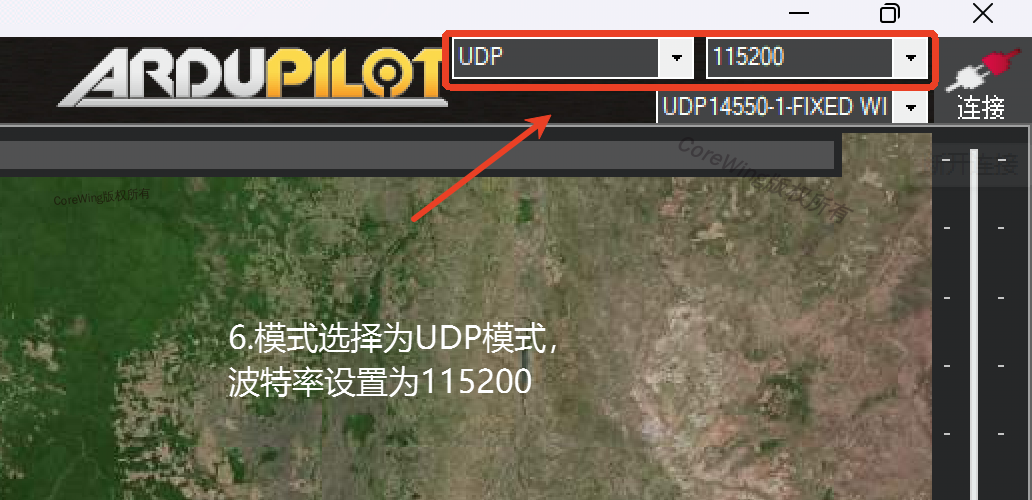
Step 4: Verify Connection
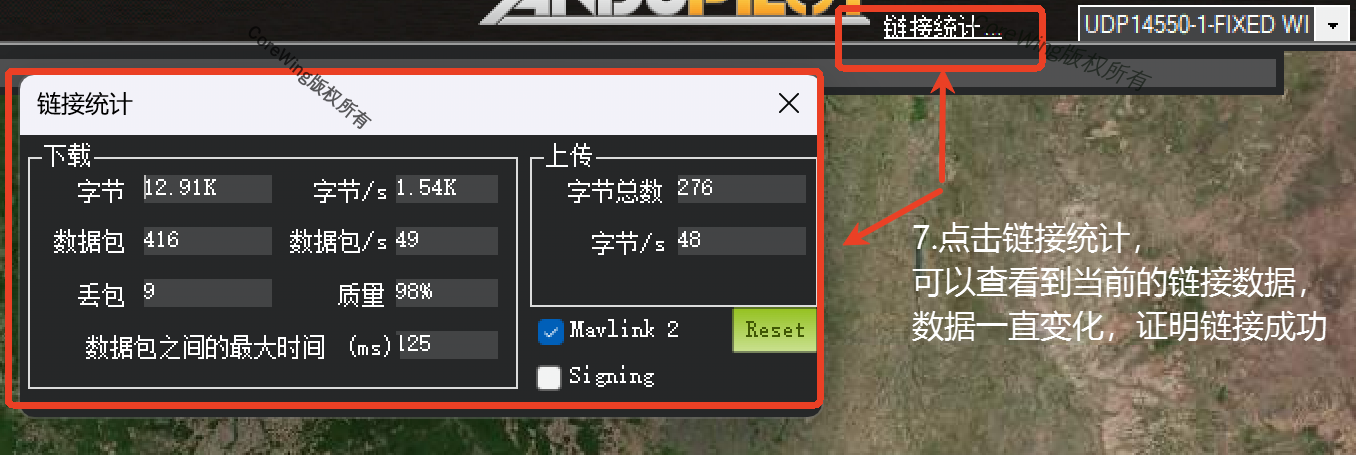
After successful connection, click Connection Statistics to view the MAVLink telemetry link status: