
Resolving Flight Controller Initialization Failure Due to Barometer Errors
I. Symptoms
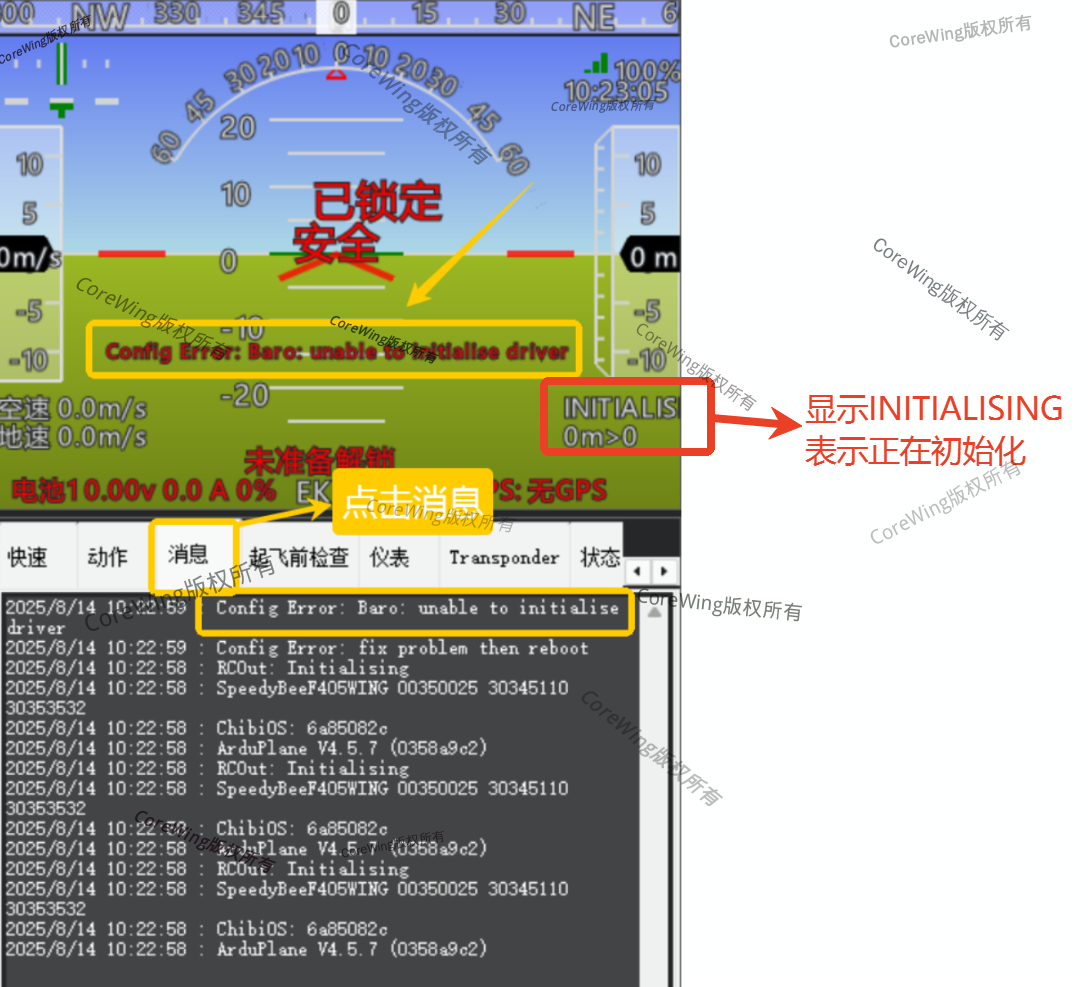
CoreWing F405 WING V2 flight controller connected to Mission Planner ground control station (GCS),
Message bar shows barometer error:
Config Error: Baro: unable to initialise driver,This indicates that the flight controller failed to initialize the barometer driver during startup.
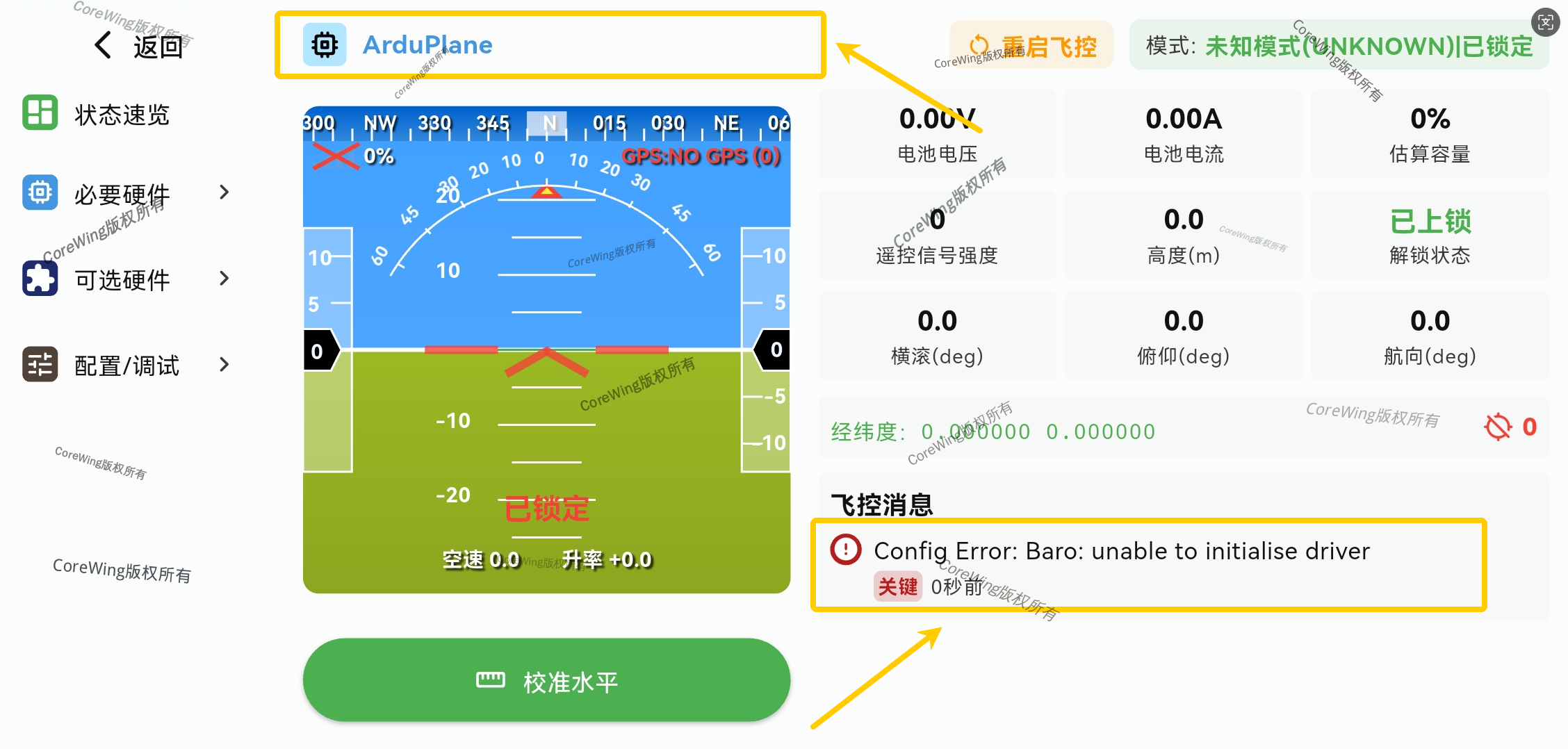
CoreWing F405 WING V2 flight controller connected to CoreWing APP
Status overview cannot obtain flight controller information, flight controller message shows barometer error:
Config Error: Baro: unable to initialise driver
II. Cause Analysis
Symptom 1: Incorrect flight controller firmware flashed
Accidentally flashed CoreWing F405 WING V2 with ArduPilot firmware from other brands (such as SpeedyBee, Matek), causing the barometer on the flight controller to not work properly.
This is because:
CoreWing F405 WING V2 uses a SPA-06 model barometer, which may differ from the barometer models used by other flight controller brands.
If incompatible firmware is flashed, the flight controller will be unable to properly initialize the barometer module during startup.
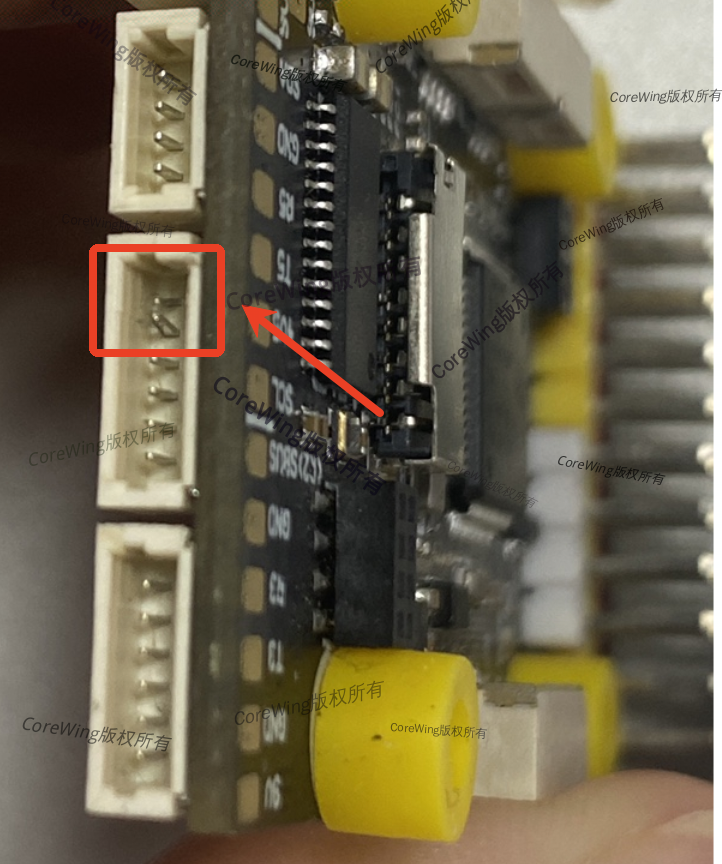
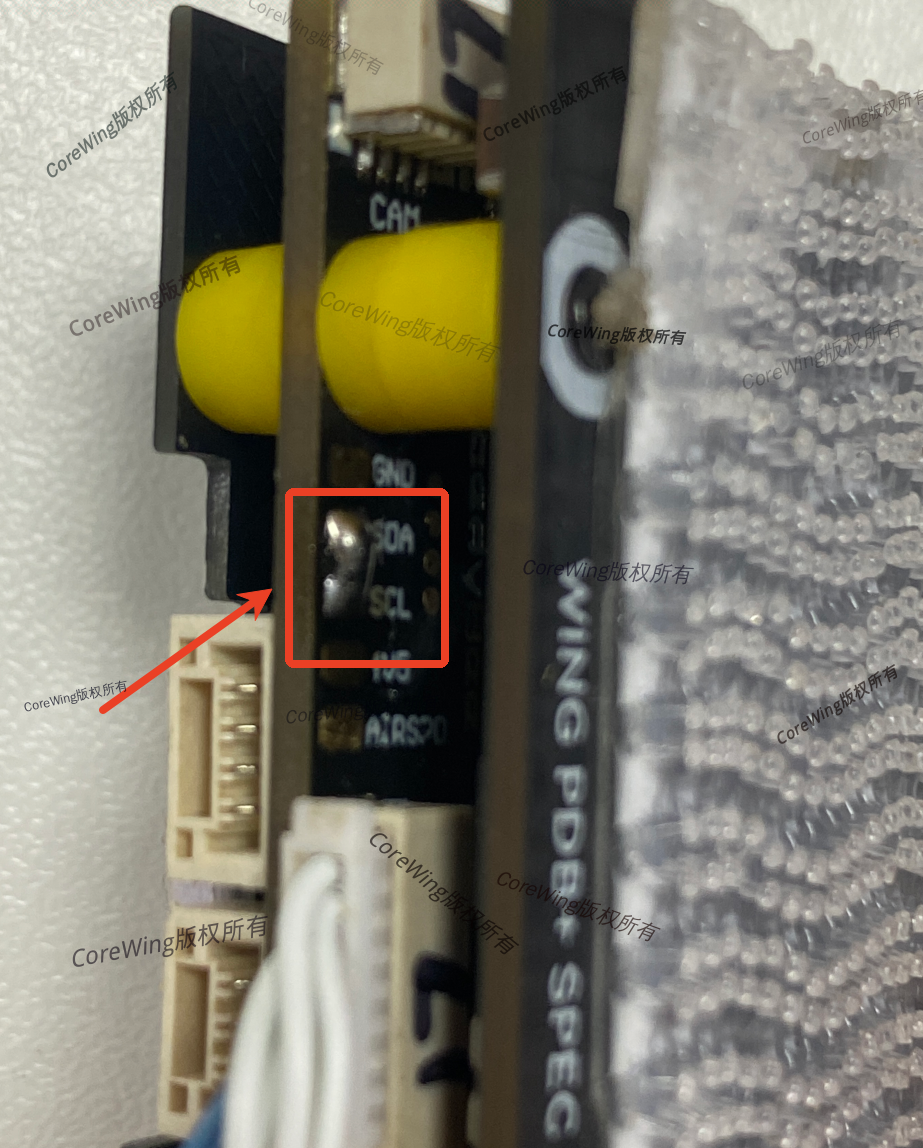
Symptom 2: SDA and SCL pins touching each other
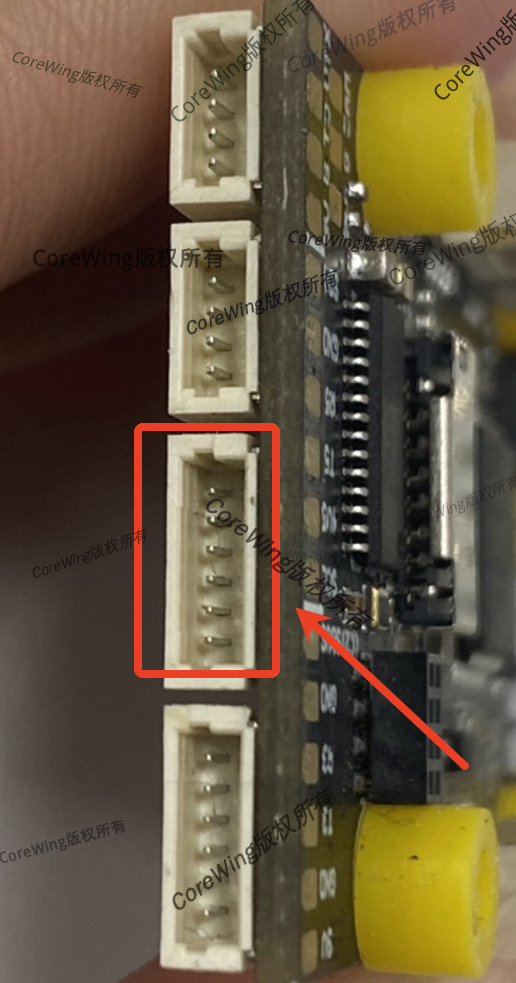
Due to reasons such as bent pins, misaligned ribbon cable insertion, or foreign object residue, the SDA and SCL pins come into contact or short circuit,
causing I²C bus communication issues, preventing the barometer from being properly recognized or initialized
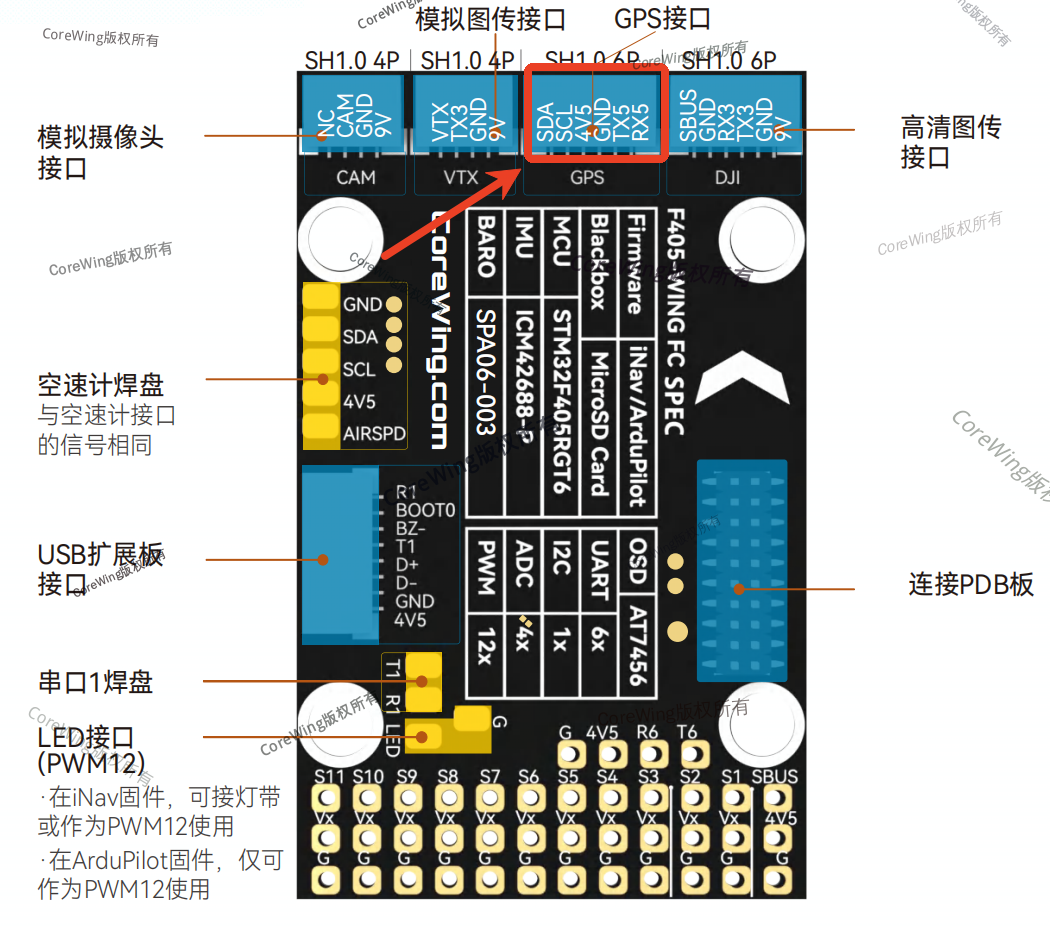
- SDA and SCL pins shorted
Symptom 3: SCL and SDA pads bridged
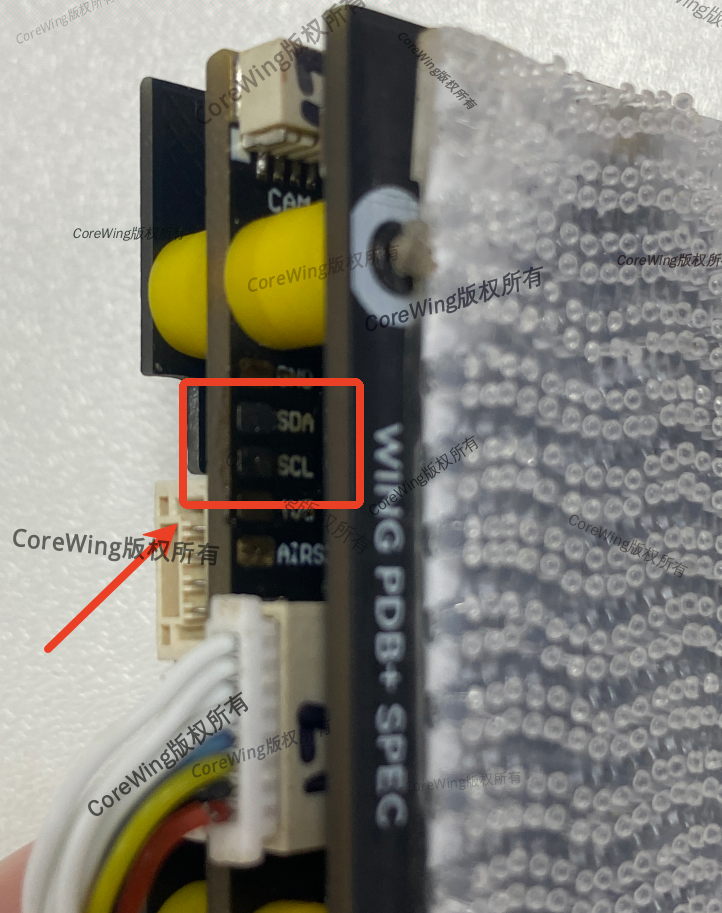
Excessive solder during bridged the SCL and SDA pads, causing I²C bus communication issues, resulting in improper barometer functionality
CoreWing F405 WING V2:
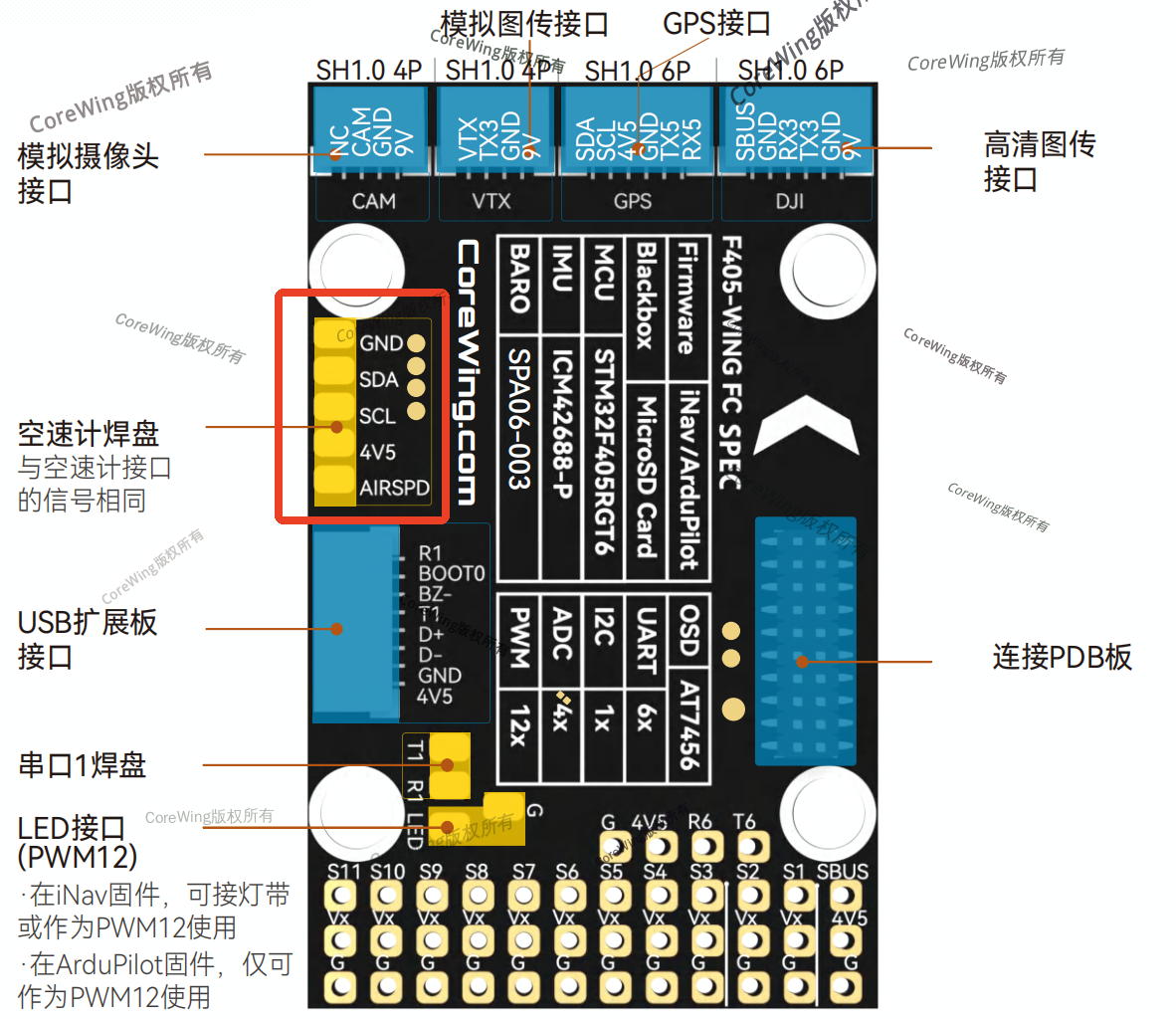
- Solder bridging on SDA and SDA pads:
III. Solutions
Solution for Symptom 1: Reflash CoreWing F405 WING V2 firmware
Important
CoreWing F405 WING V2 Common Firmware Download:https://docs.corewing.com/plane/software/common-software/corewing-software-and-firmware-downloads.html
Important
※ Ensure the flight controller has entered DFU mode.
Important
※ Ensure the AP firmware file to be flashed has a .hex extension (otherwise it cannot be flashed).
The operation steps are the same as the local INAV firmware flashing process:
Enter the firmware flashing page and open
INAV Configurator, then enter theFirmware Flasherpage.Click
Full Chip Eraseto perform a full erase.Click
Load Firmware, browse the local file system, and select the target firmware that has been downloaded.Click
Flash Firmwareto start flashing the firmware.
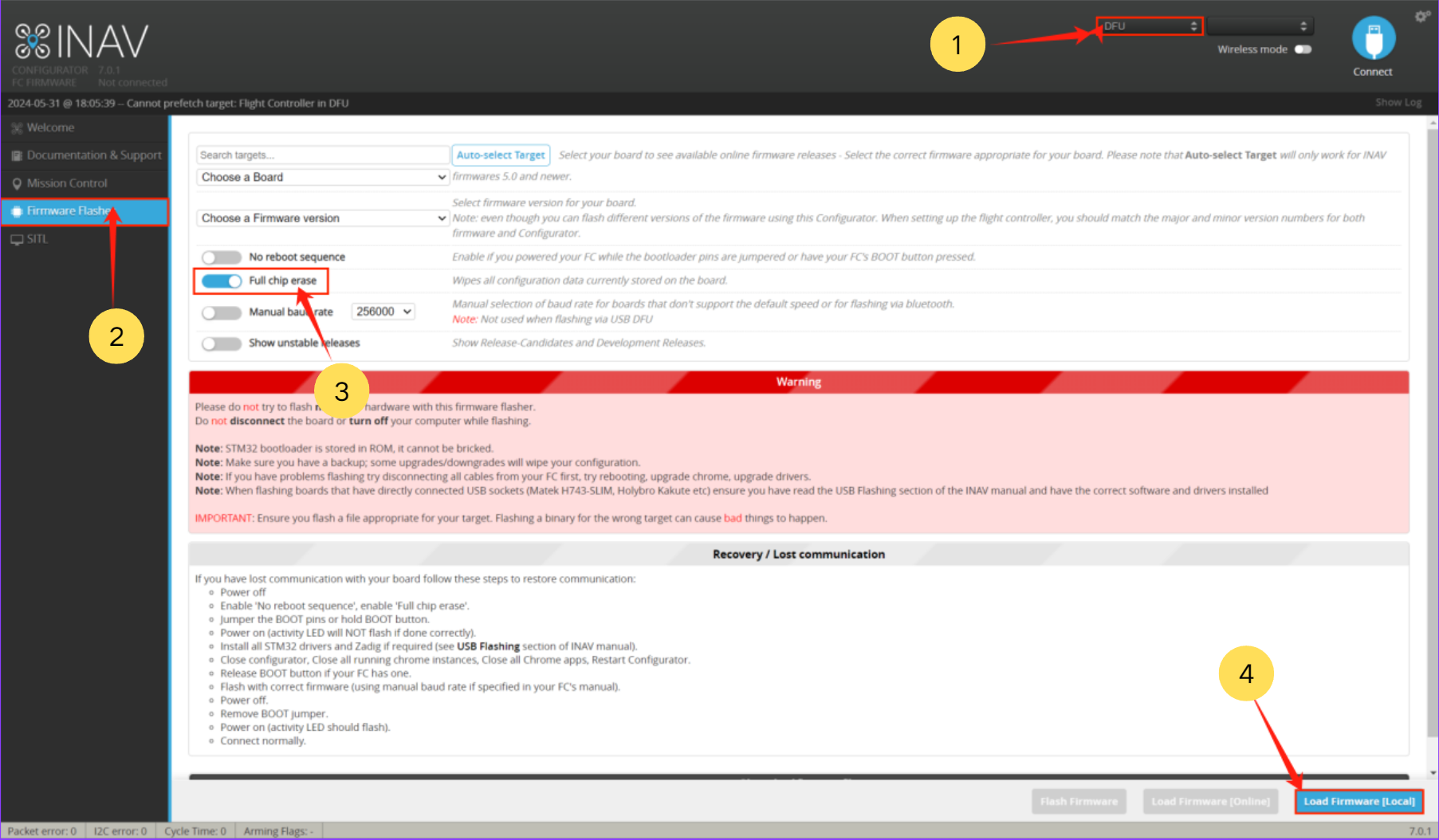
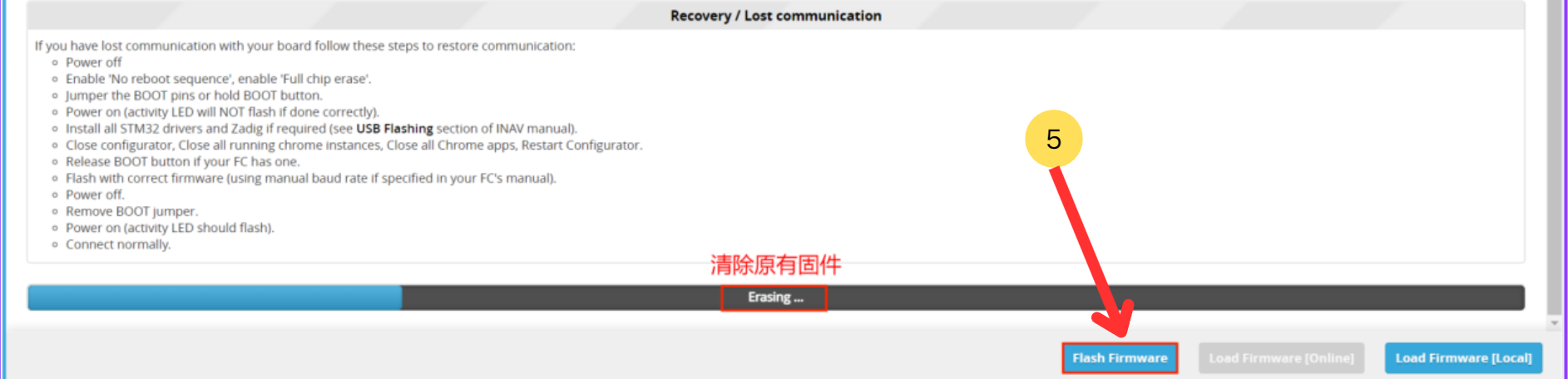
Important
For more information on how to update flight controller firmware, please refer to: https://docs.corewing.com/plane/beforetuning/inav-fw-update.html
https://docs.corewing.com/plane/beforetuning/mp-fw-update.html
Solution for Symptom 2: Restore SDA and SCL pins to correct position
Important
Please power off the flight controller before performing this operation!!!
- Use tweezers to gently straighten the SDA and SCL pins, check for any poor contact or loose pins, and ensure they are restored to the correct position
Solution for Symptom 3: Remove excess solder from SDA and SDA pads
Important
Please power off the flight controller before performing this operation!!!
- Remove the solder from the SDA and SCL pads.
IV. Verification
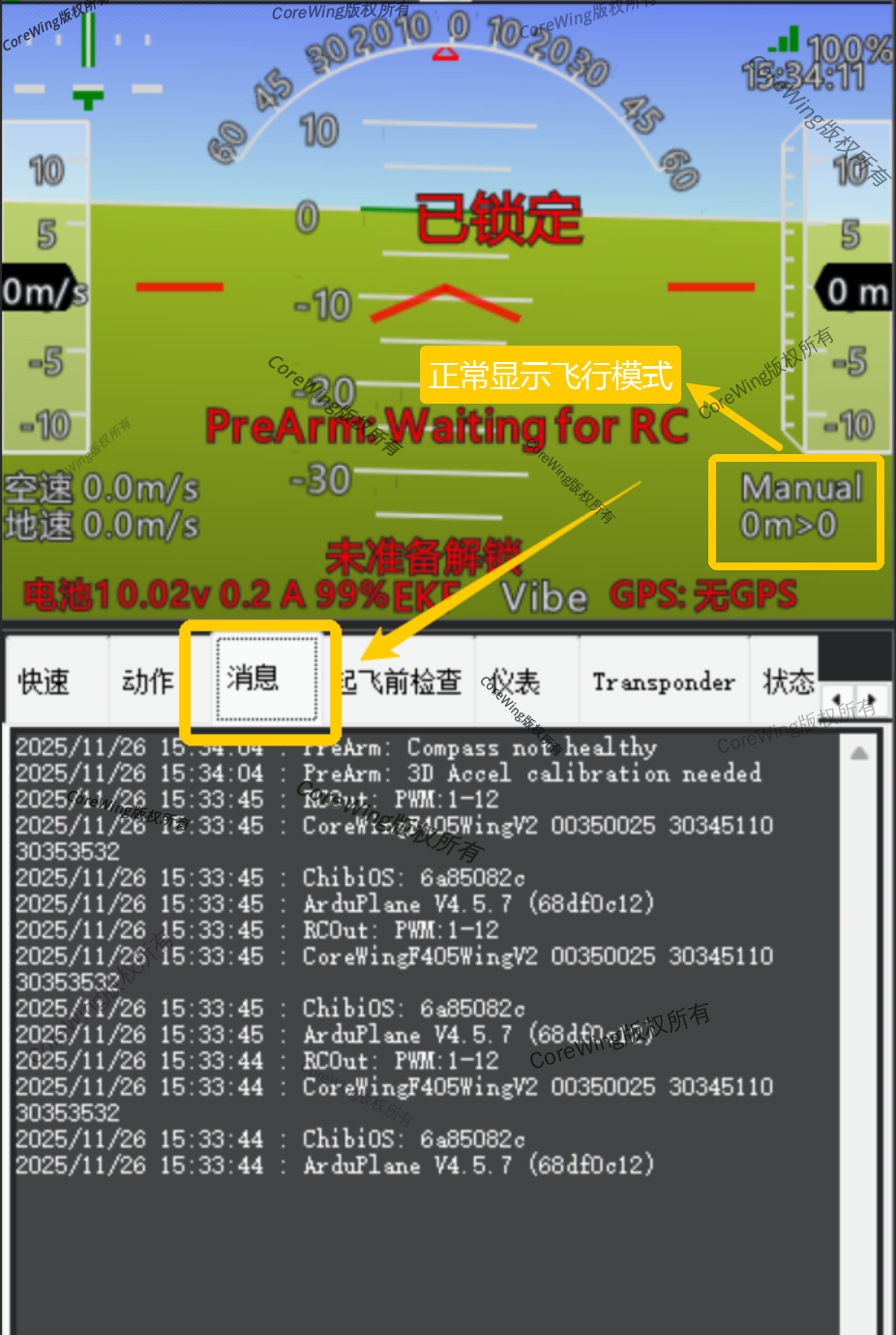
- Connect to the ground control station and check if the barometer error still displays
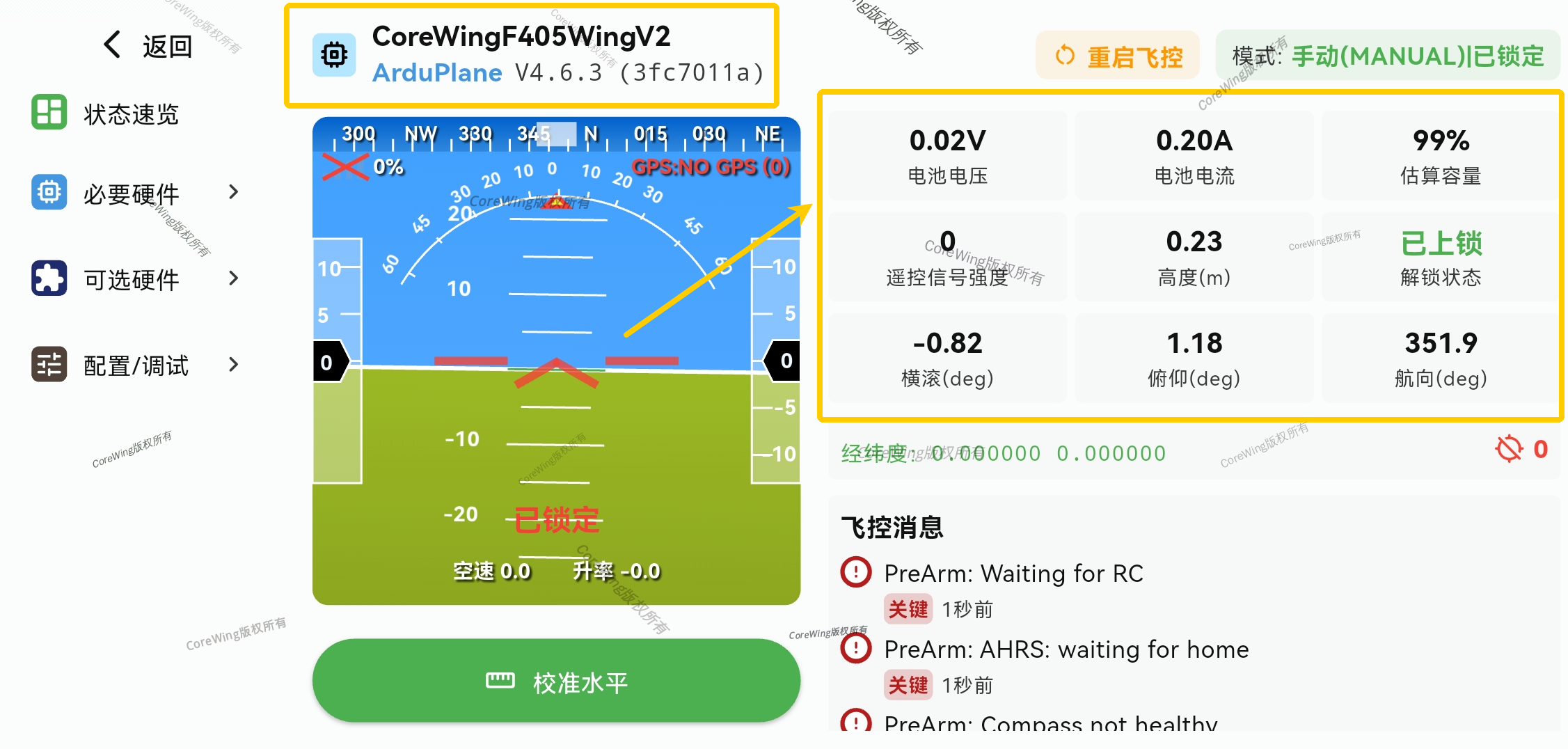
- Connect to CoreWing APP to check if flight controller information is displayed and if there are any error messages
Technical Support QR Code
