
Upgrading ELRS Firmware for Downconverters and SkyGuy Receivers
Warning
Firmware upgrade order: Receiver → Backpack → TX
I. Principle
The CoreWing APP is equipped with firmware upgrade functionality for the Sirius transmitter and receiver. ELRS firmware updates can be completed directly within the CoreWing APP, which is more efficient and convenient compared to traditional ELRS upgrade methods.
Before upgrading the firmware, it is recommended to confirm whether you will be using ELRS CRSF mode or ELRS MAVLink mode for subsequent use. The two modes have different focuses and are suitable for different scenarios:
| Comparison Item | ELRS CRSF Mode | ELRS MAVLink Mode |
|---|---|---|
| Primary Use | Primarily for standard remote control | Primarily for remote control + telemetry + ground control station data link |
| Transmission Content | Channel control signals + basic telemetry | Channel control signals + complete MAVLink telemetry data |
| Transmitter Experience | Simpler setup, suitable for direct flying | Can be combined with Lua, APP, or ground control station to view more flight status |
| Bandwidth Usage | Lower | Medium to high |
| Recommended Use Cases | Daily flying, sport flying, training, standard fixed-wing flying | Long-distance flights, mission aircraft, aerial surveying, line patrol, scenarios requiring real-time data viewing with CoreWing APP or Mission Planner |
Tips
If you only want your aircraft to stably receive remote control commands, using CRSF mode is simpler;
if you also need ground control station telemetry, mission planning, and real-time aircraft status monitoring, then MAVLink mode is more suitable.
II. Device Preparation
Flight Controller (choose any one)
- CoreWing F405 WING V2
Wireless Communication Modules
- Transmitter: Sirius 2.4G ELRS
- Receiver: SkyGuy Nano 2G4 RX
RC Transmitter
- Recommended: RadioMaster TX16S
- Compatible: Other RC transmitters that support the CRSF protocol
III. Basic Setup and Binding
3.1 Enable Transmitter
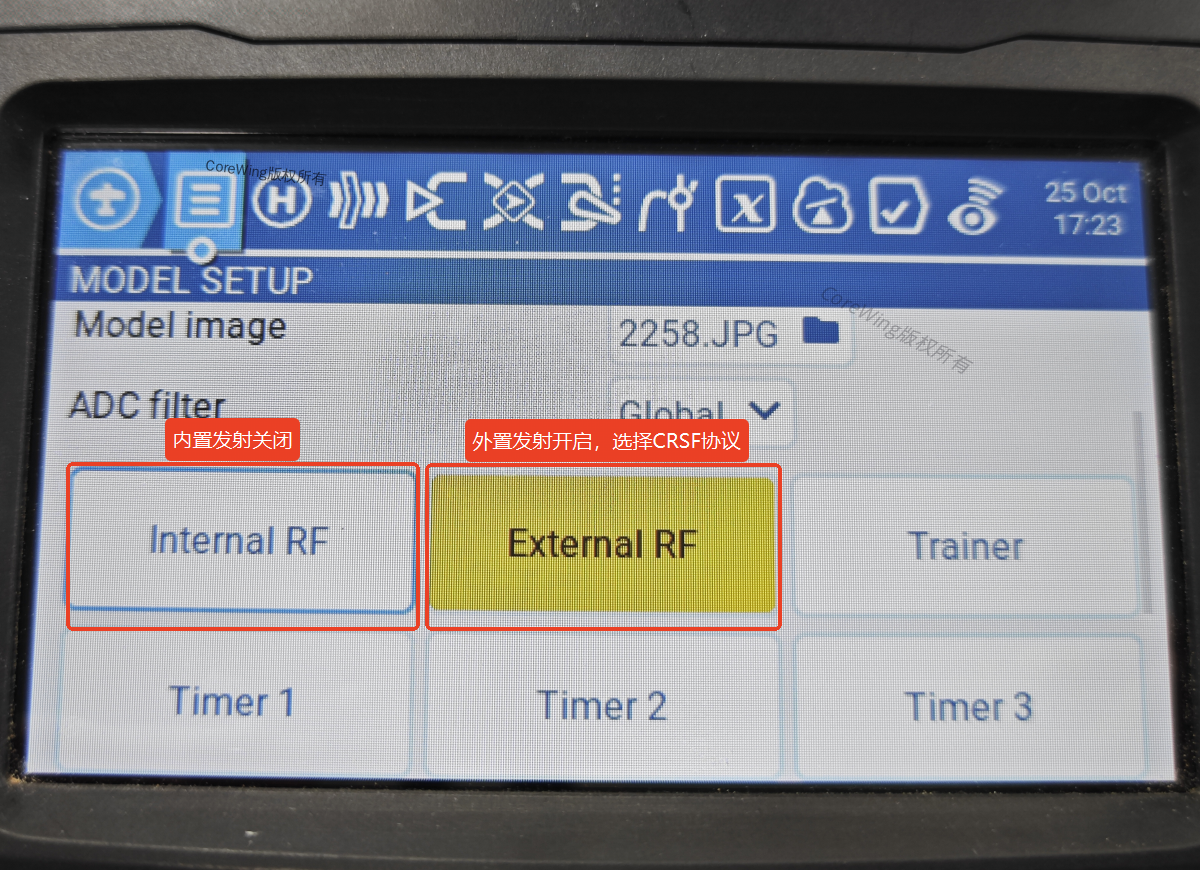
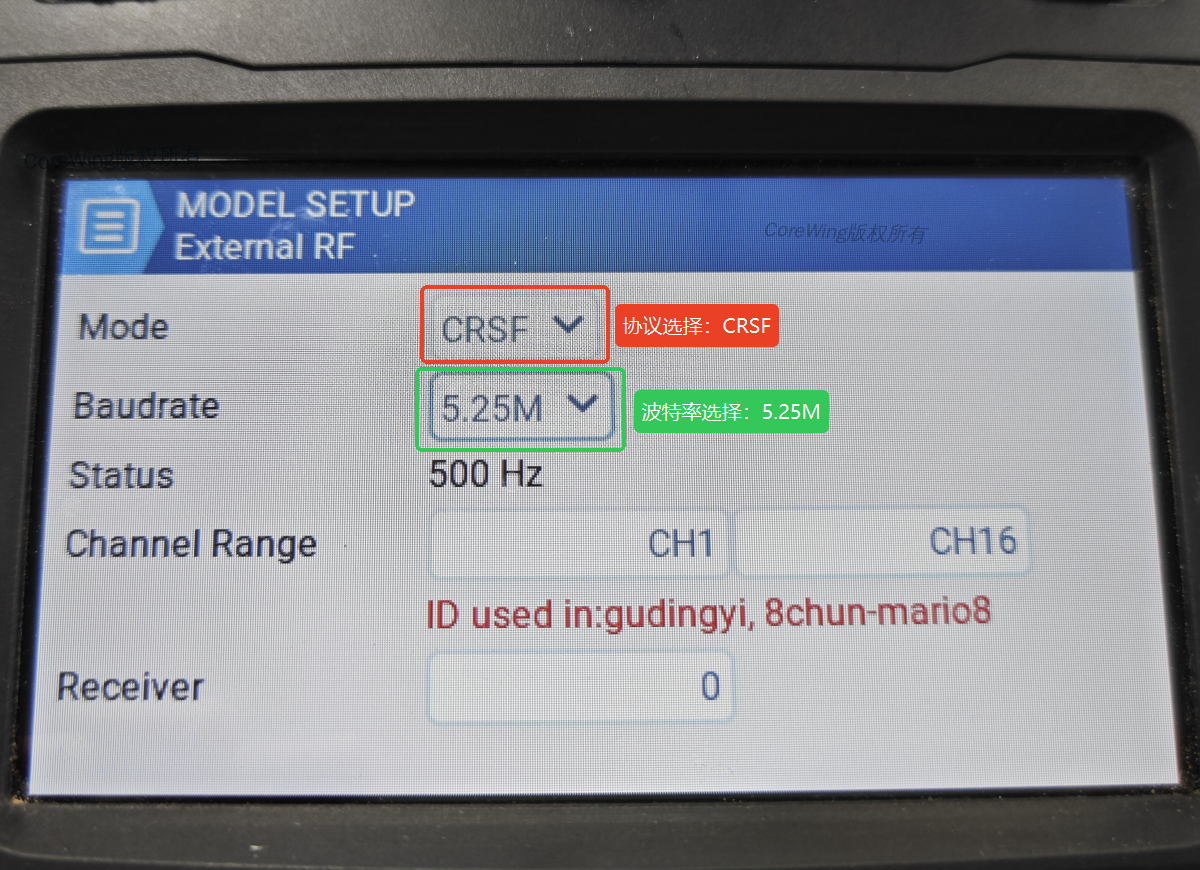
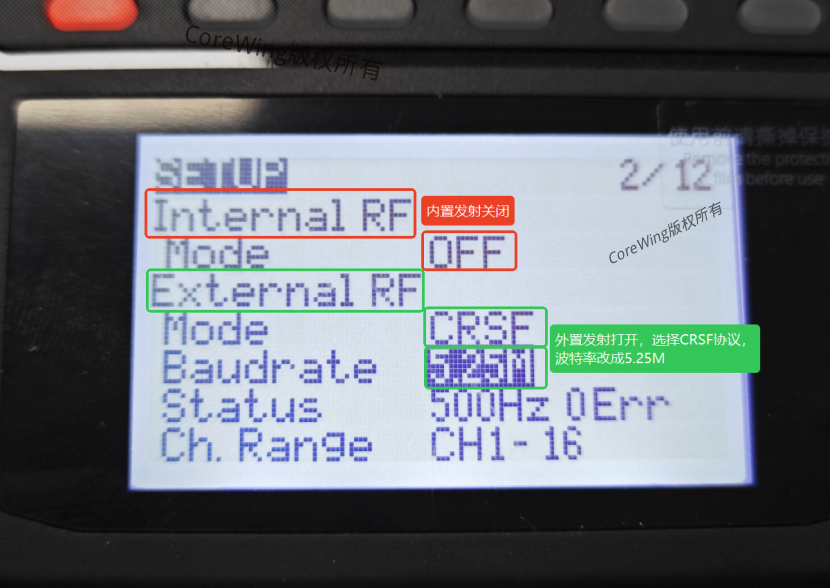
- Enter the model settings menu and find the "SETUP" page
- Turn off "Internal RF Mode" (built-in RF)
- Turn on "External RF Mode" (external RF)
- Set "Mode" to
CRSFand "Baudrate" to1.87M
3.2 Enable Transmitter Detailed Settings
3.3 Receiver Connection Instructions
Important
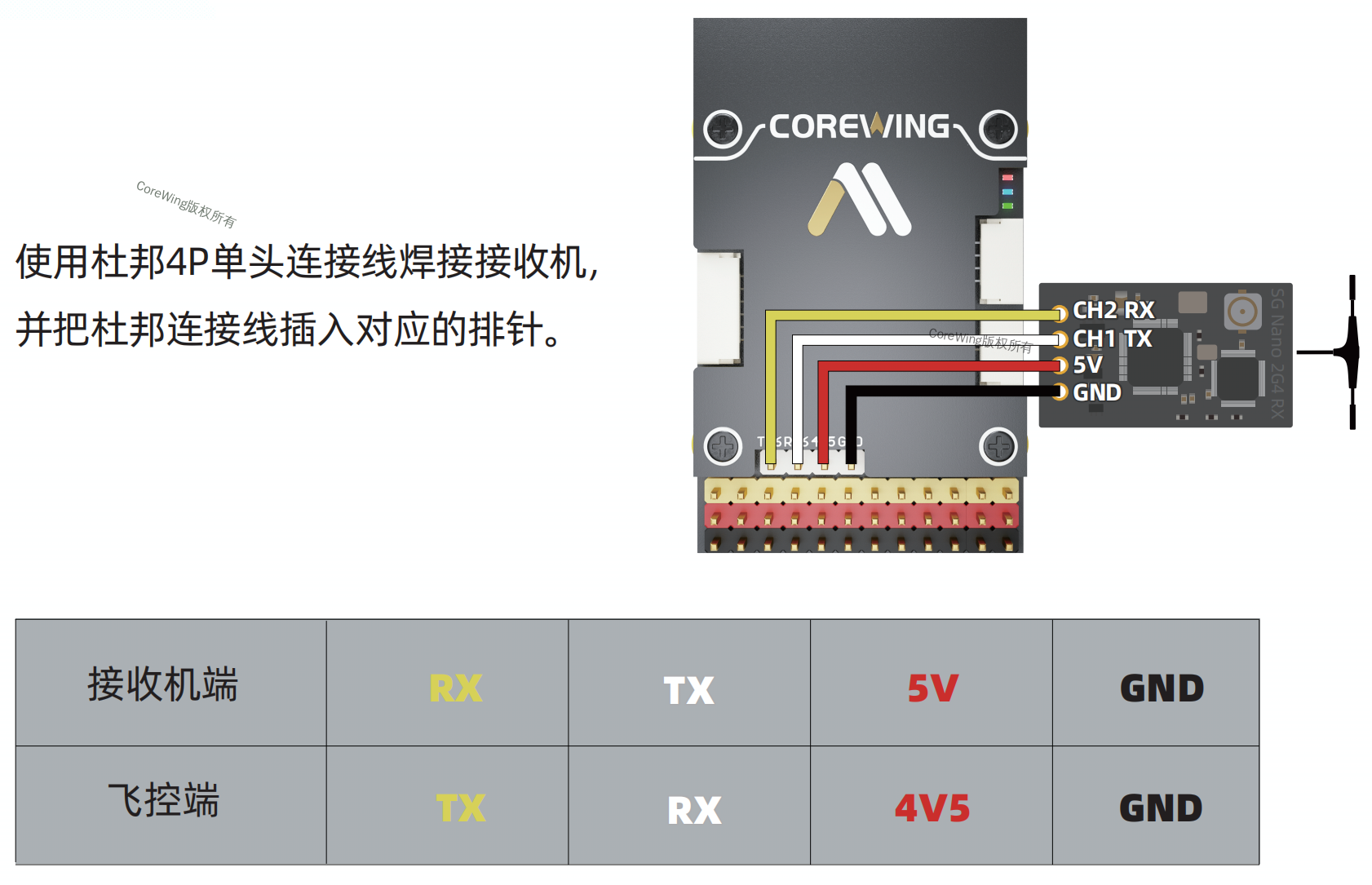
Connection method between CoreWing F405 WING V2 flight controller and receiver
Interface requirement: Must connect to Serial Port 6
Reason:
- Serial Port 6 has built-in DMA support
- Supports high baud rate communication at 460800bps
⚠️ Note: Although other serial ports (like Serial Port 4) are hardware compatible, this port does not support DMA, and will not be able to communicate properly if the receiver uses MAVLink mode.
3.4 Transmitter and Receiver Binding
Important
For a tutorial on binding the transmitter and receiver, refer to: How to bind ELRS transmitter/receiver with receiver
IV. Firmware Upgrade
4.1 Receiver Firmware Upgrade
Step 1: Enter Receiver WiFi Mode
- Method 1: Automatically enters after power-on and waiting for 60 seconds
- Method 2: Force entry by holding the BAT button for 5 seconds
- Method 3: Enter the ExpressLRS Lua script, find WiFi Connectivity, and click Enable Rx WiFi
RGB LED Indications for Receiver WiFi Mode:


Step 2: Upgrade Using CoreWing APP
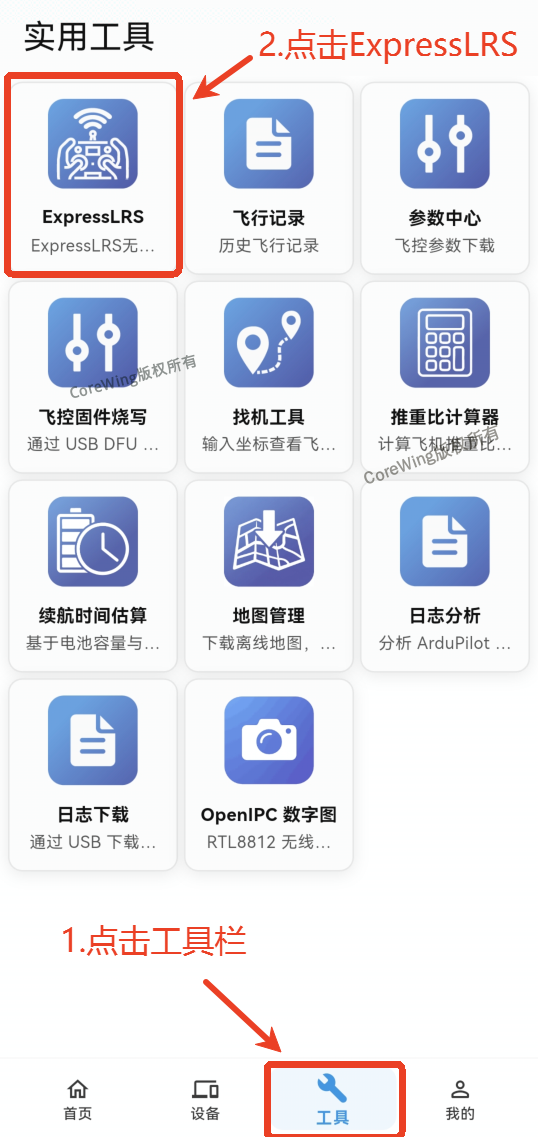
- Open CoreWing APP → Enter the toolbar
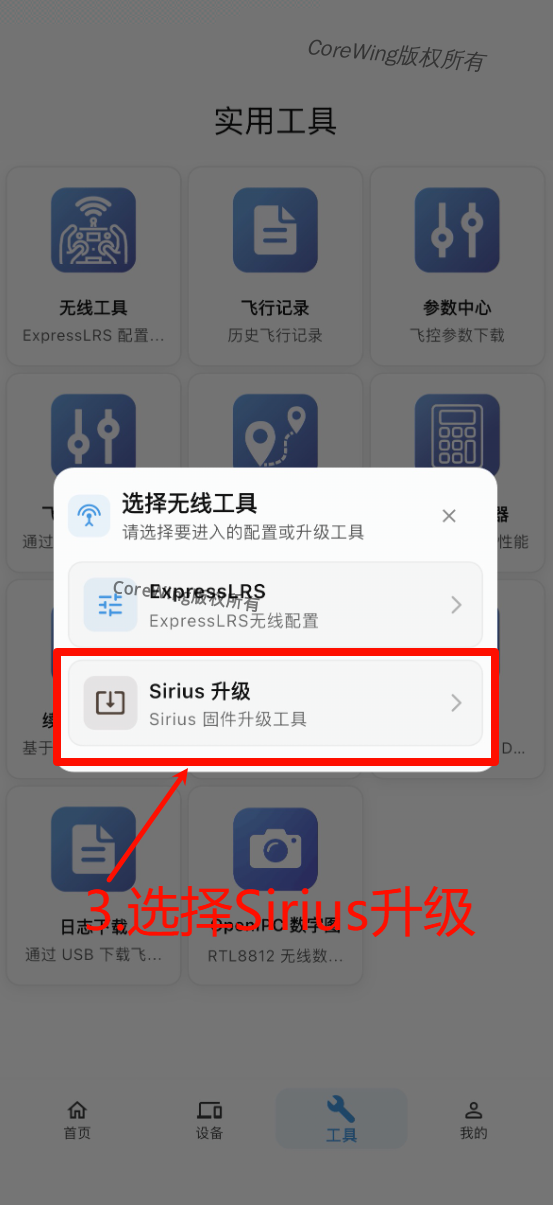
- Click Sirius Upgrade
- Select ELRS, click Receiver
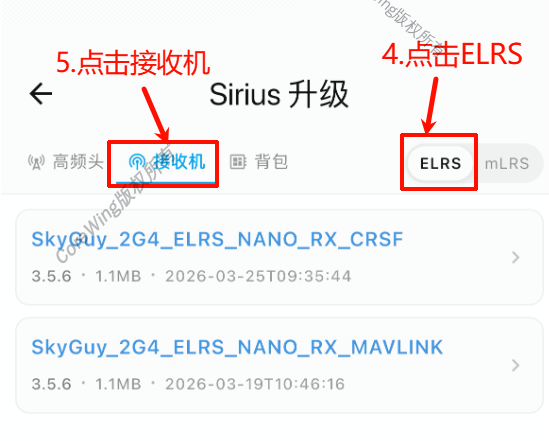
If using ELRS CRSF mode, select the receiver firmware with CRSF suffix

If using ELRS MAVLink mode, select the receiver firmware with MAVLink suffix

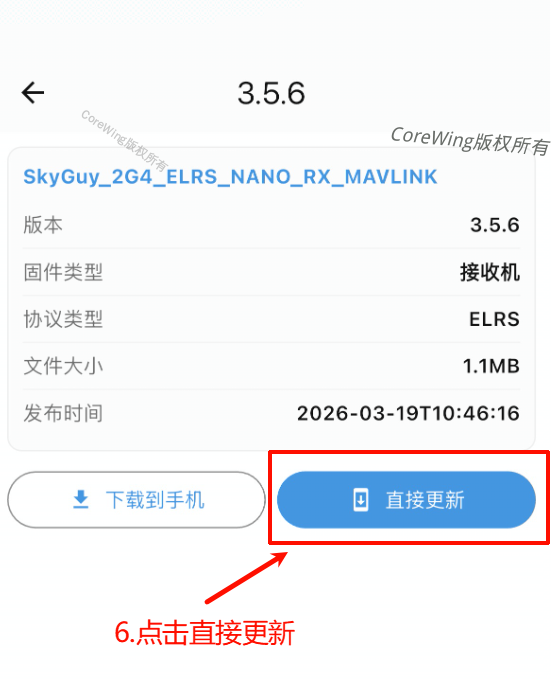
The following content uses MAVLink as an example
- Click Direct Update
- Click Start Upload
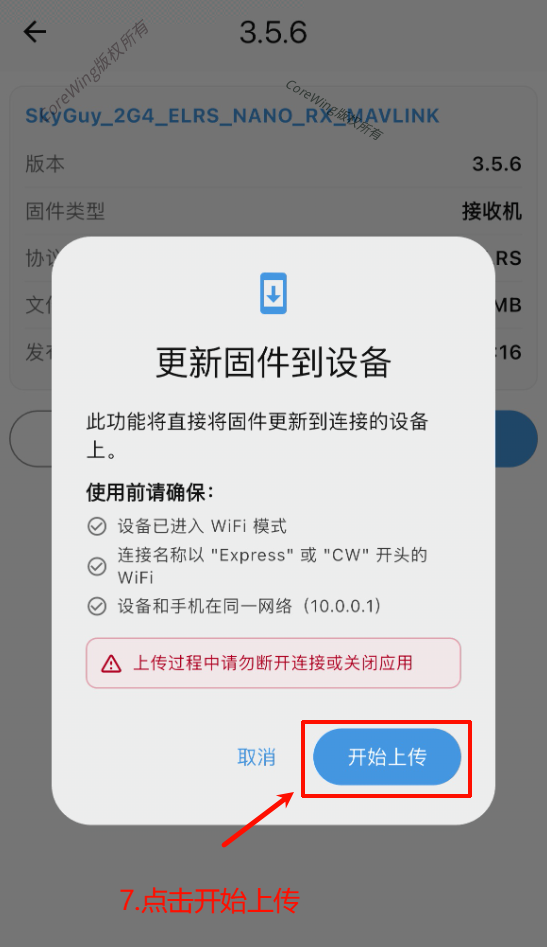
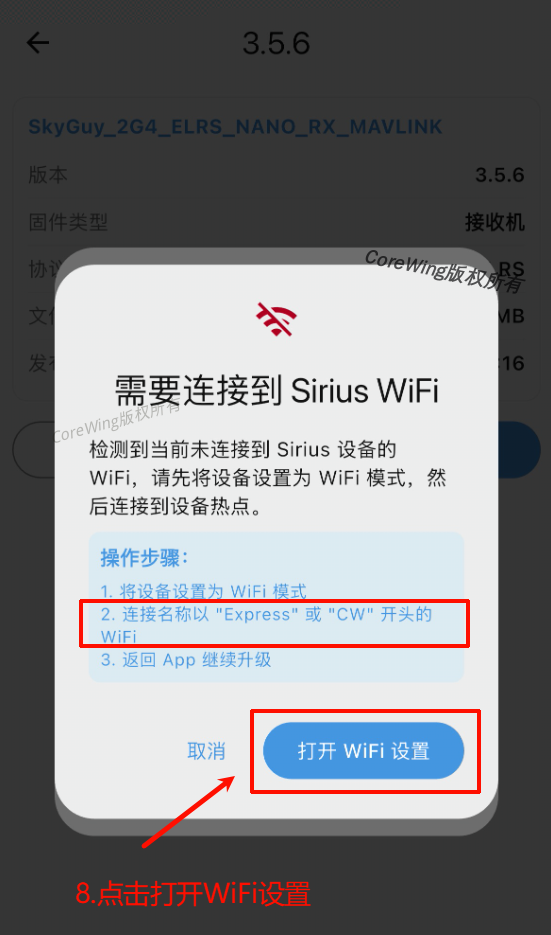
WiFi Connection Instructions
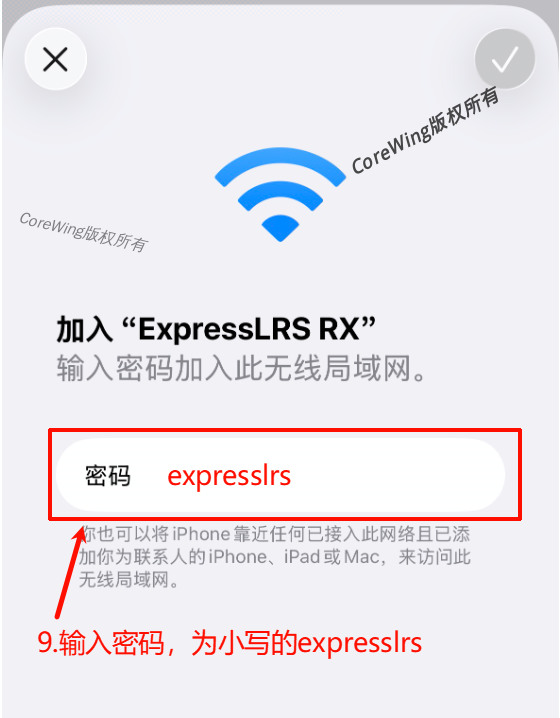
If prompted that you are not connected to a WiFi starting with ExpressLRS, please open your phone's WiFi settings to connect. The default password is: expresslrs (lowercase)
Connect to ExpressLRS RX WiFi (password: expresslrs)
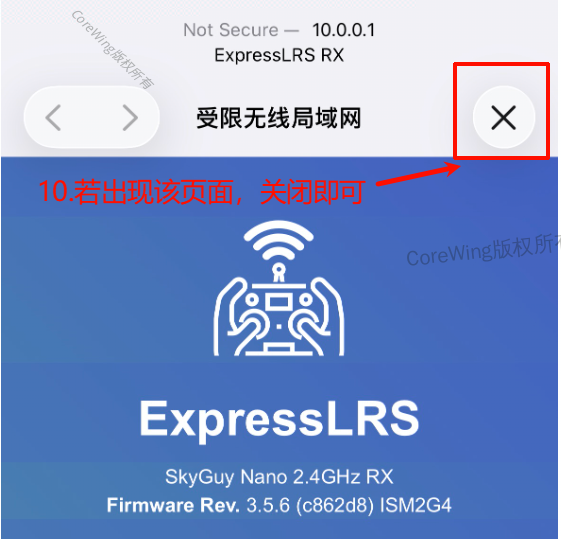
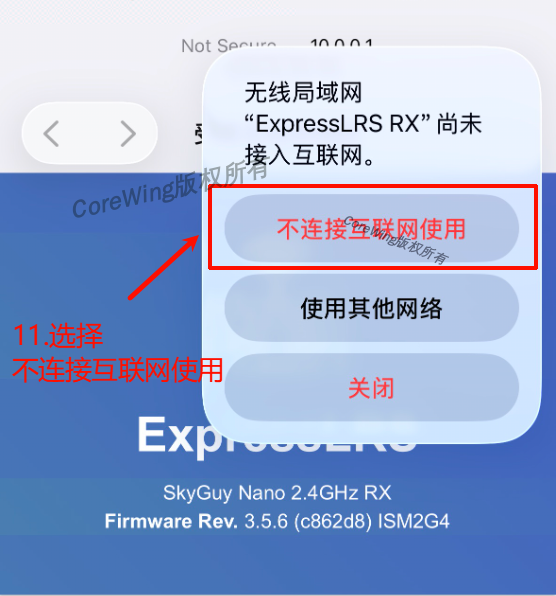
- If this page appears, click close and select Do not use internet connection (or keep current connection)
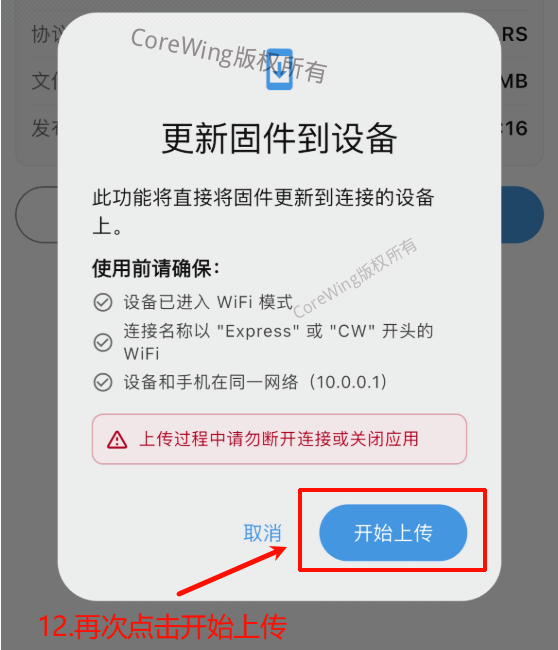
- Click Start Upload again
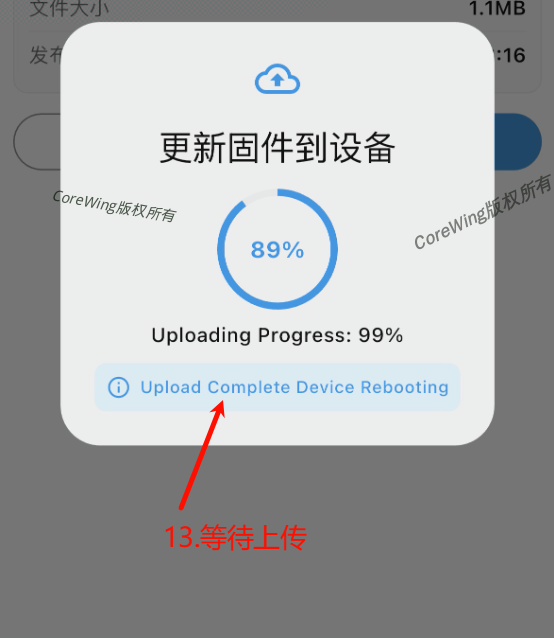
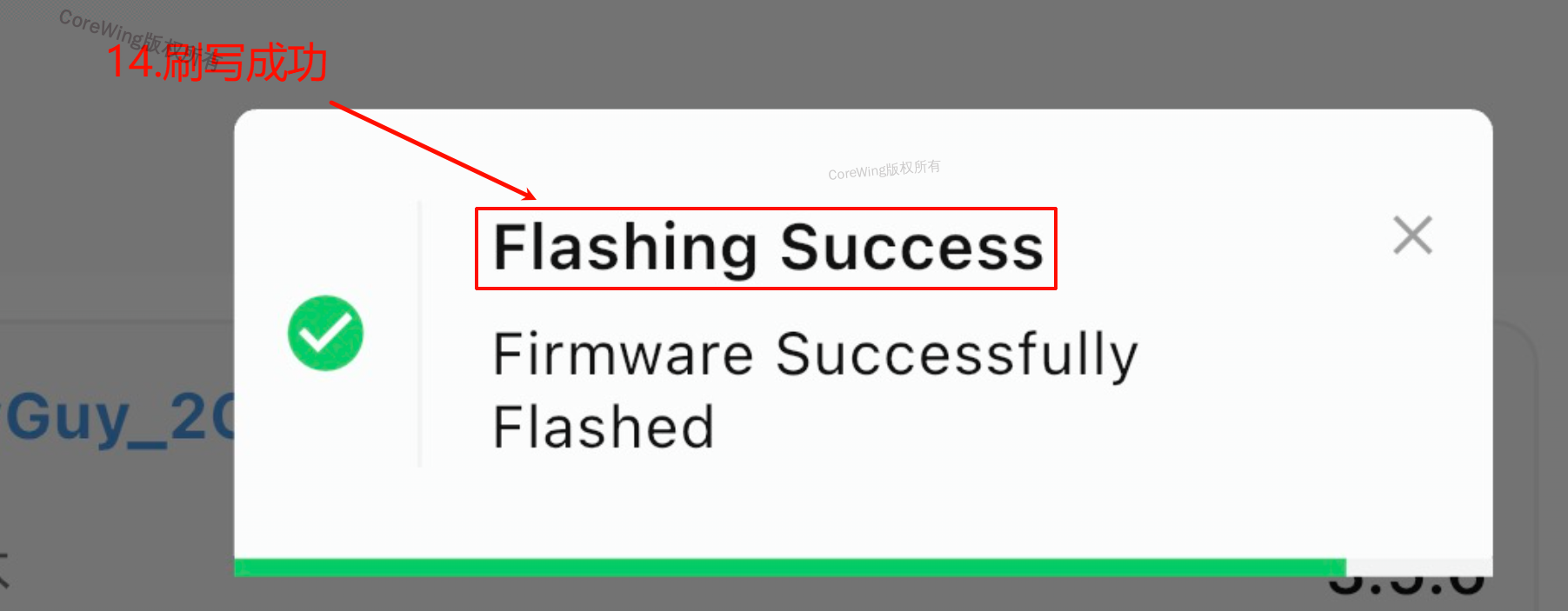
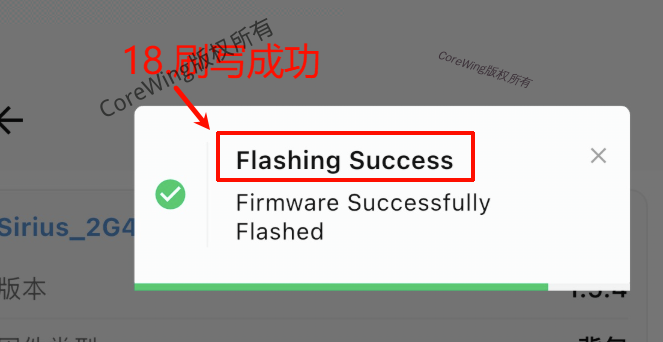
- Wait for the firmware upload to complete, which will display Flashing Success
4.2 Backpack Firmware Upgrade
Step 1: Start Backpack WiFi
- RC transmitter enters ExpressLRS script → Select WiFi Connectivity
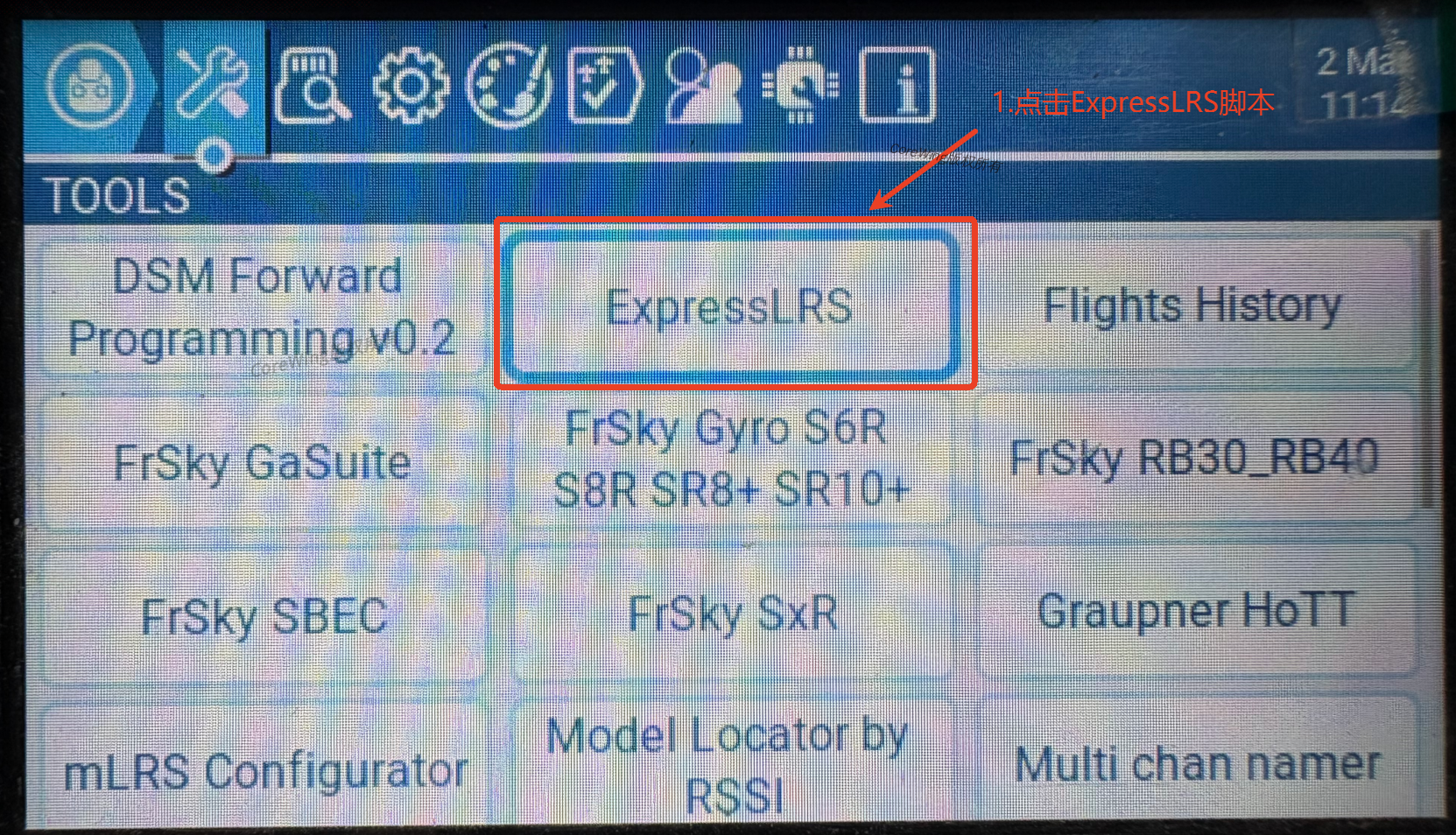
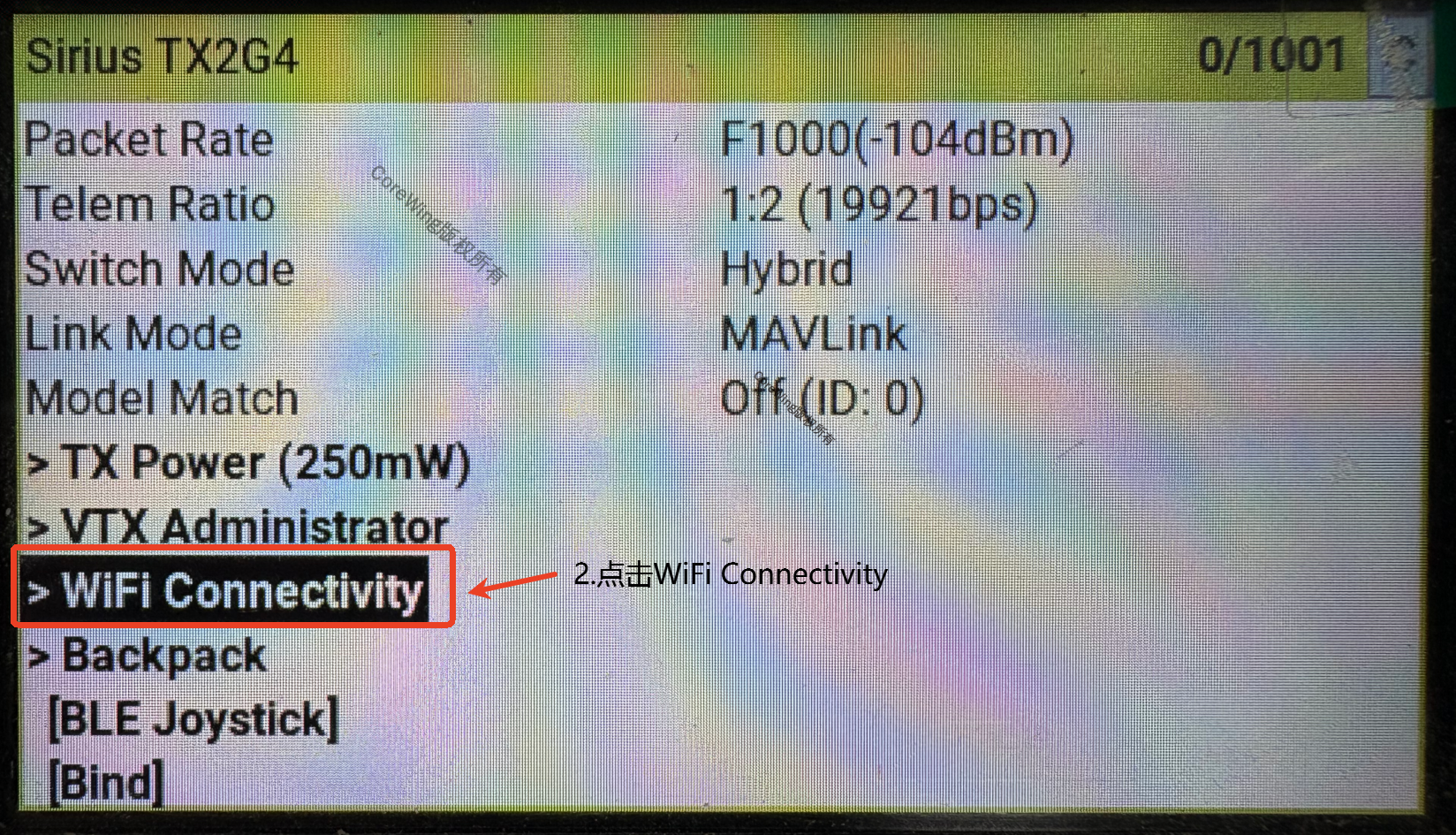
2. Select antenna Backpack WiFi and enable it
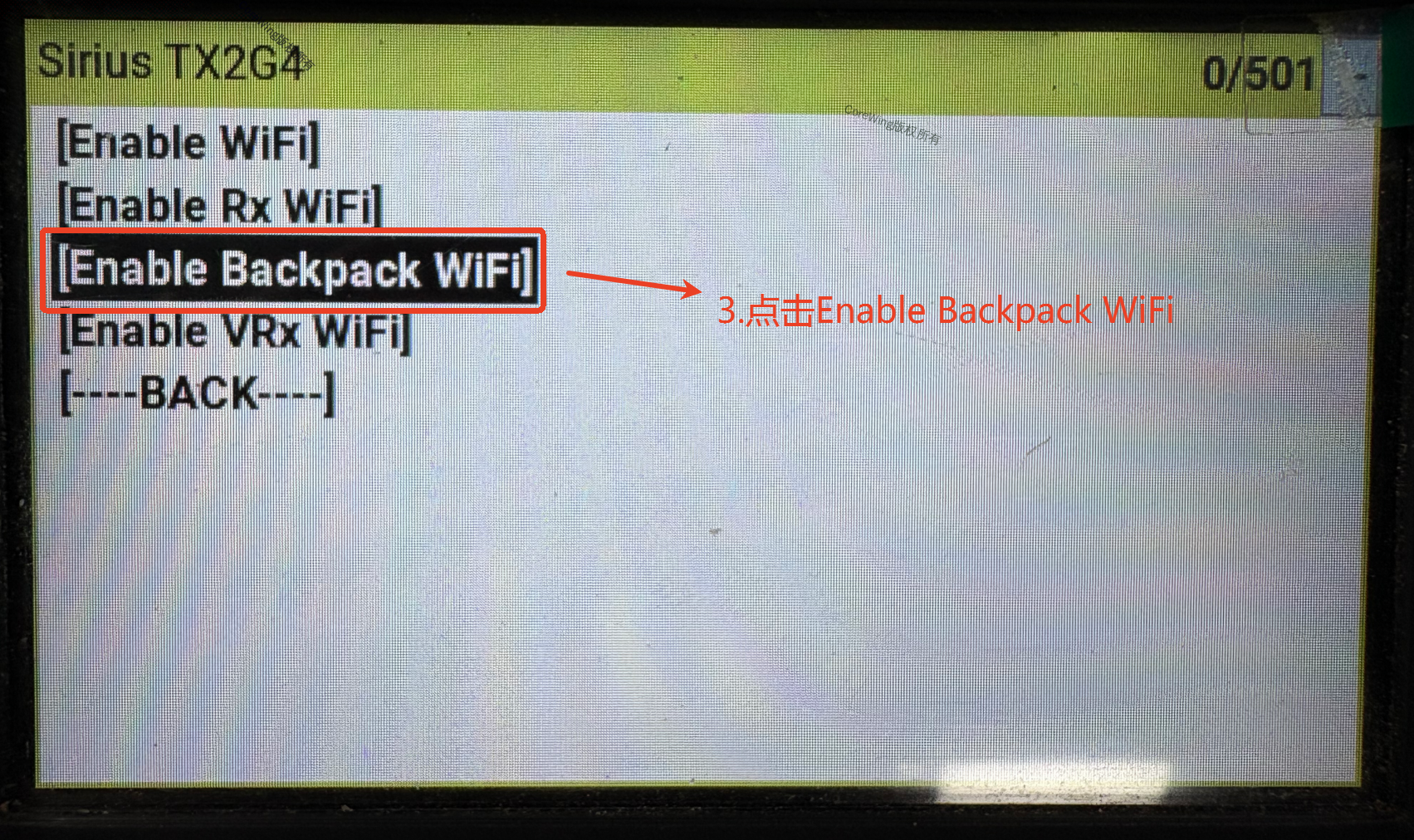
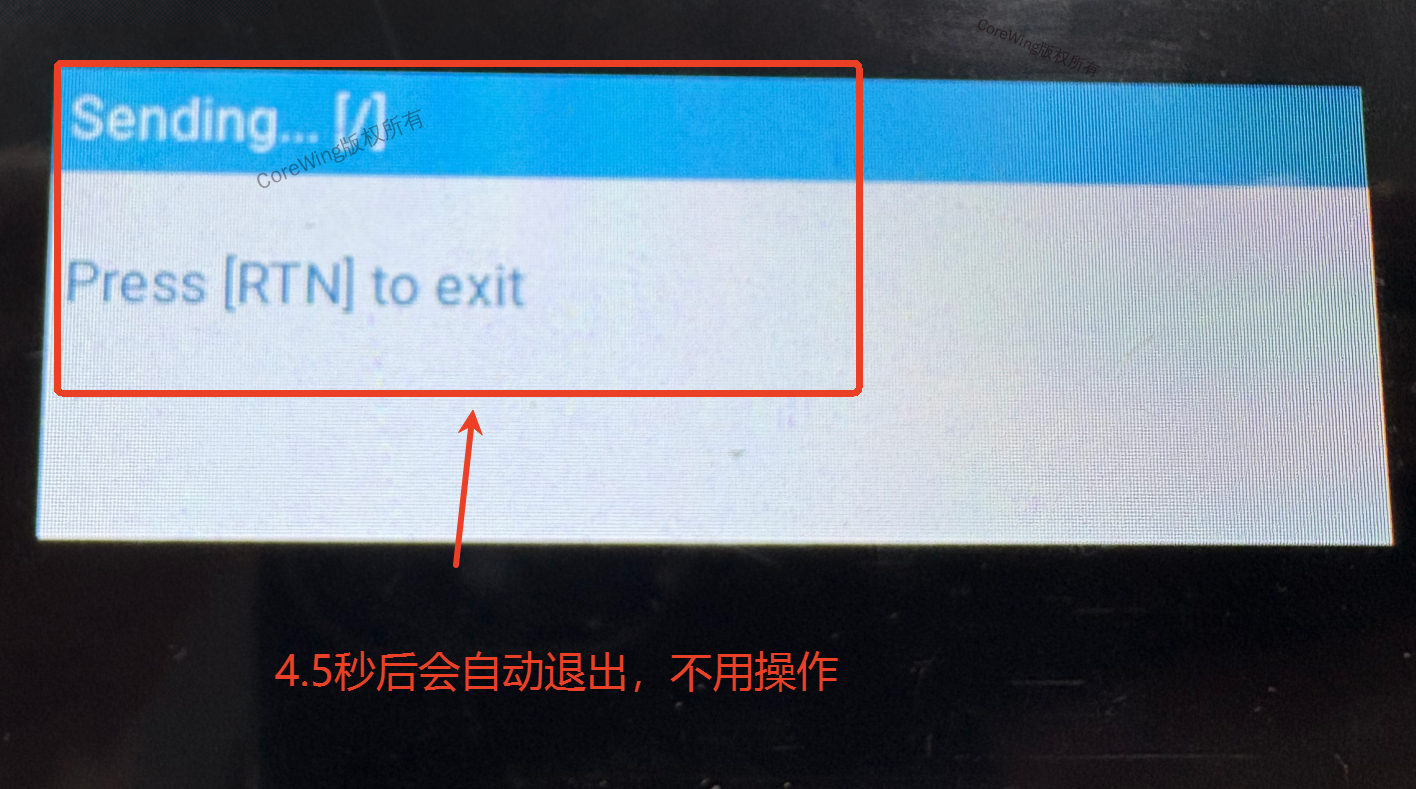
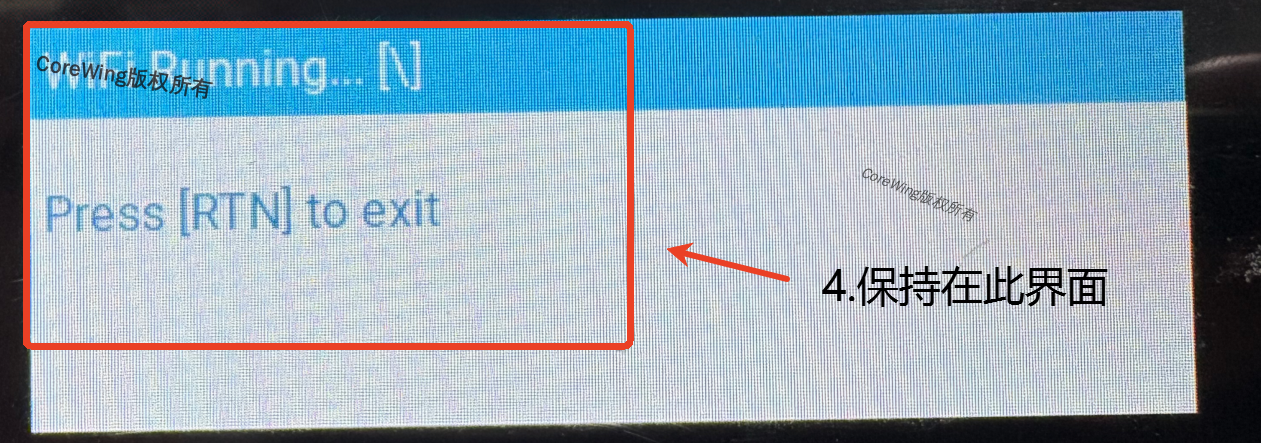
- Enter the WiFi running page (automatically exits after about 5 seconds, WiFi remains active)
Step 2: Upgrade Using CoreWing APP
- Open CoreWing APP → Enter the toolbar
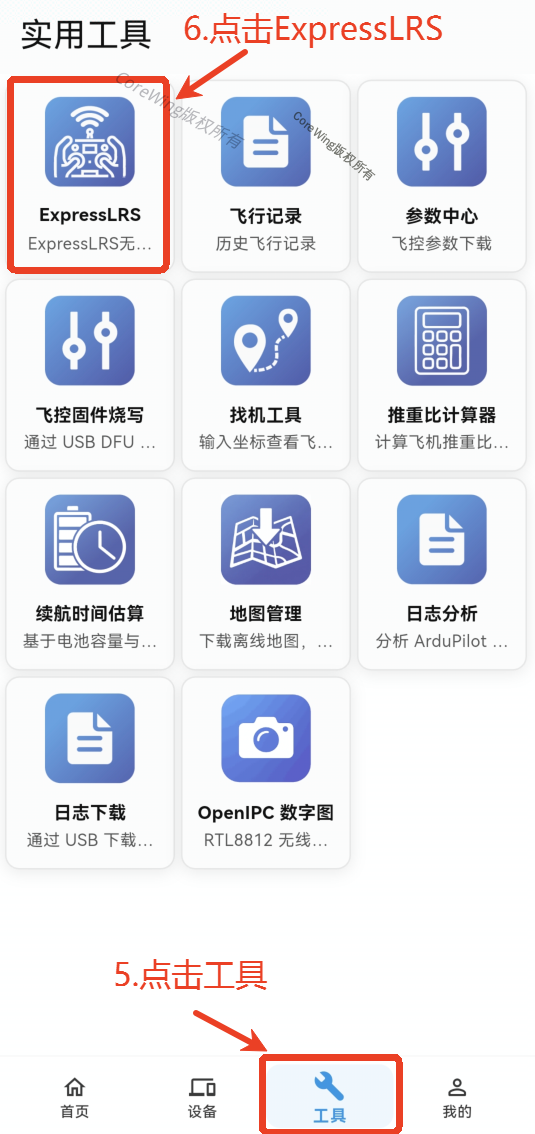
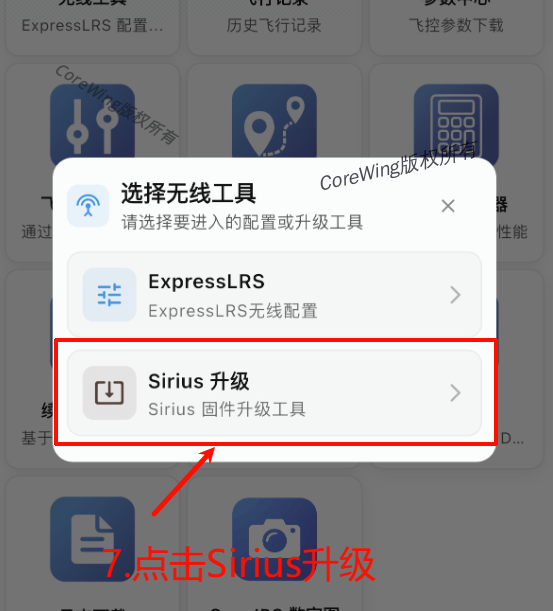
- Click Sirius Upgrade
- Select ELRS, click Backpack
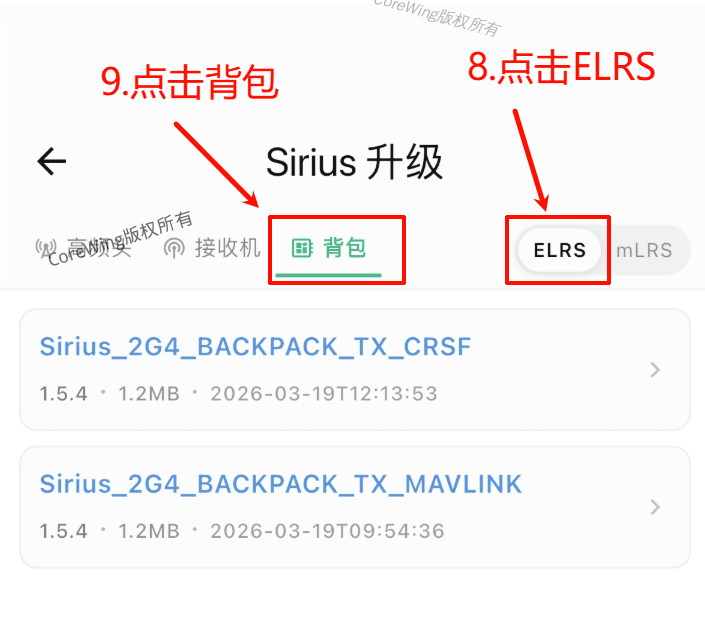
If using ELRS CRSF mode, select the backpack firmware with CRSF suffix

If using ELRS MAVLink mode, select the backpack firmware with MAVLink suffix
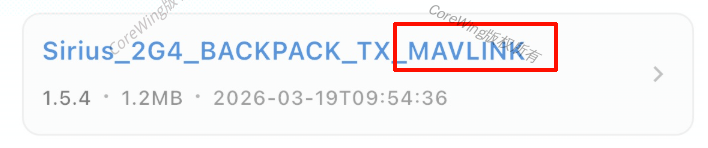
The following content uses MAVLink as an example
- Click Direct Update
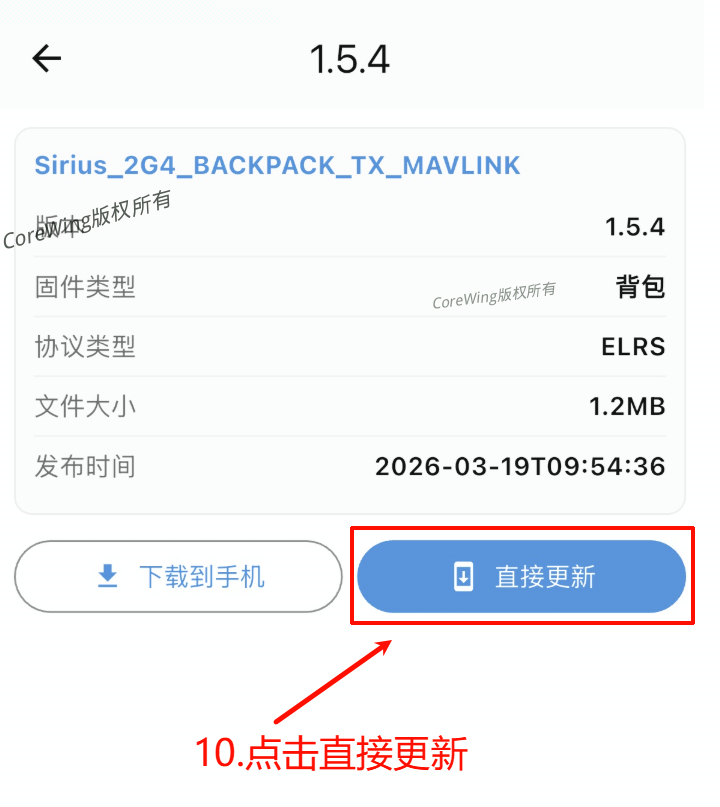
- Click Start Upload
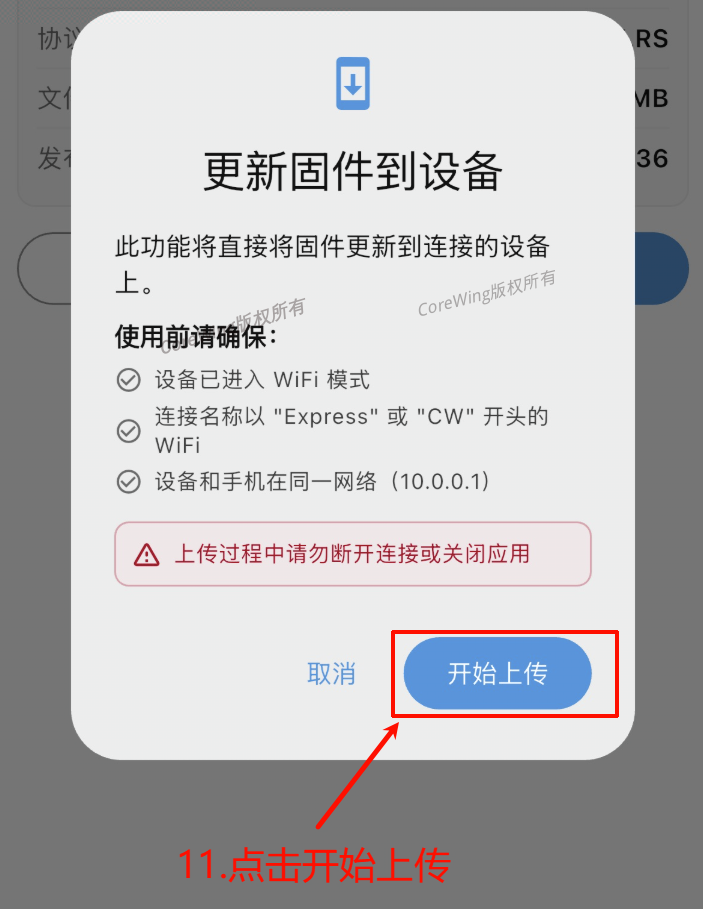
- Click to open WiFi settings
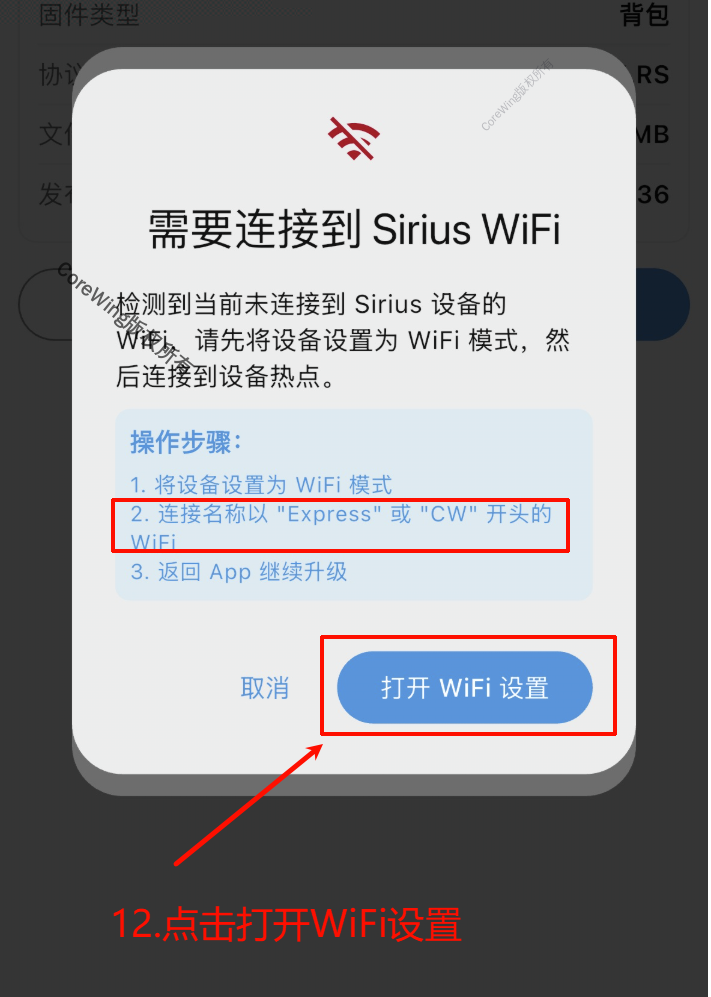
- Connect to ExpressLRS Backpack WiFi (password: expresslrs)
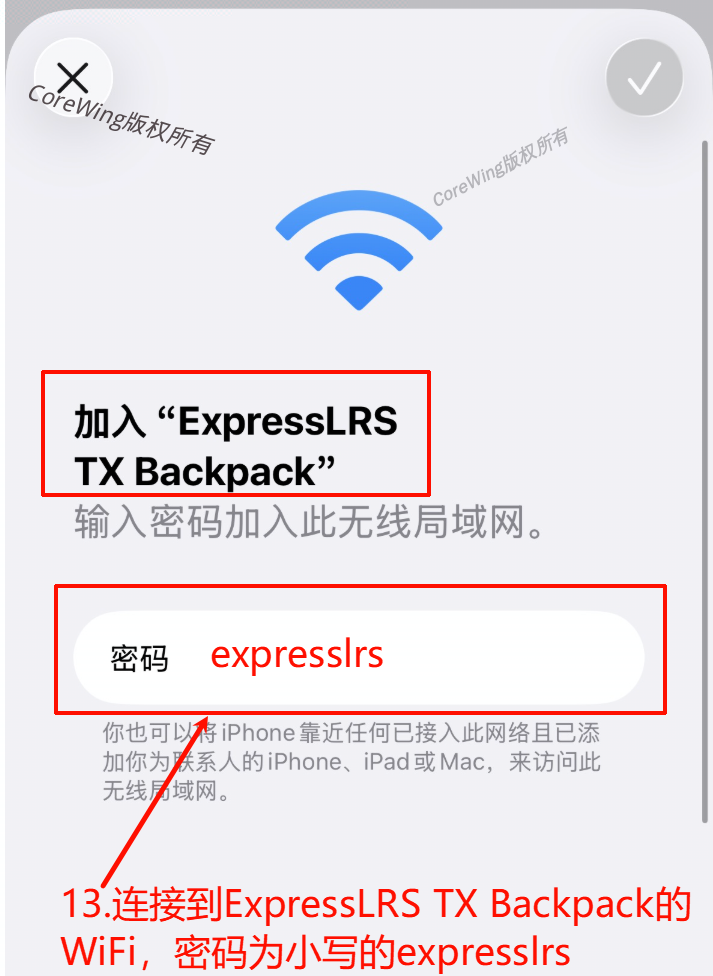
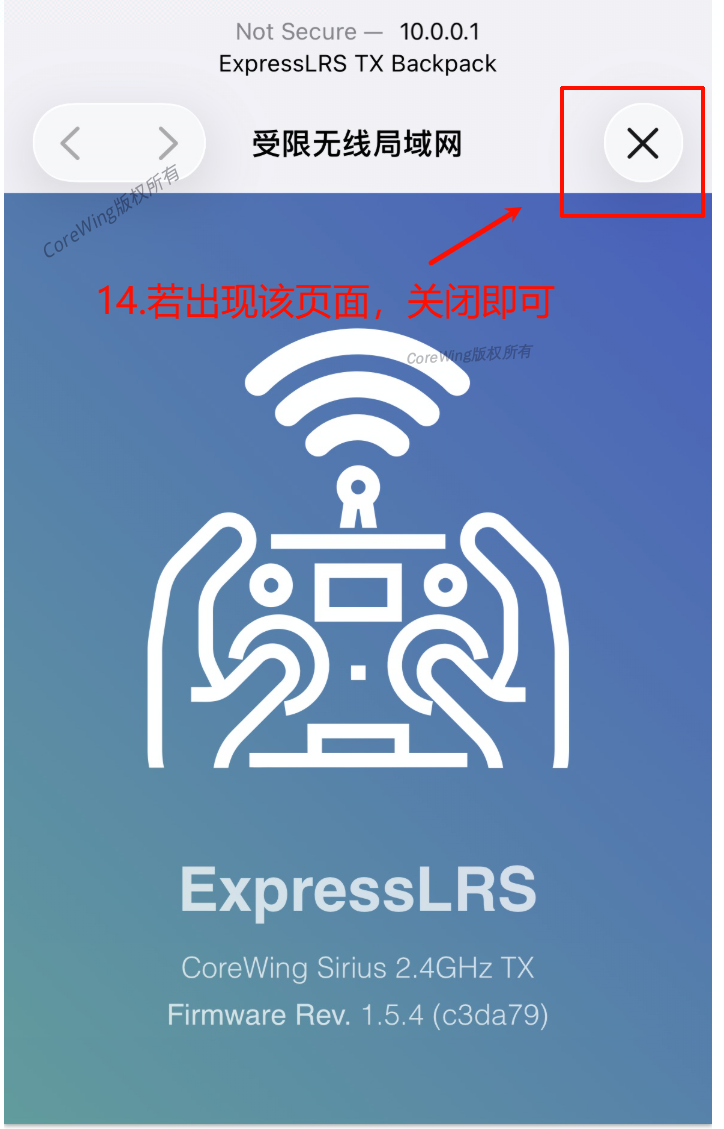
- If this page appears, click close and select Do not use internet connection (or keep current connection)
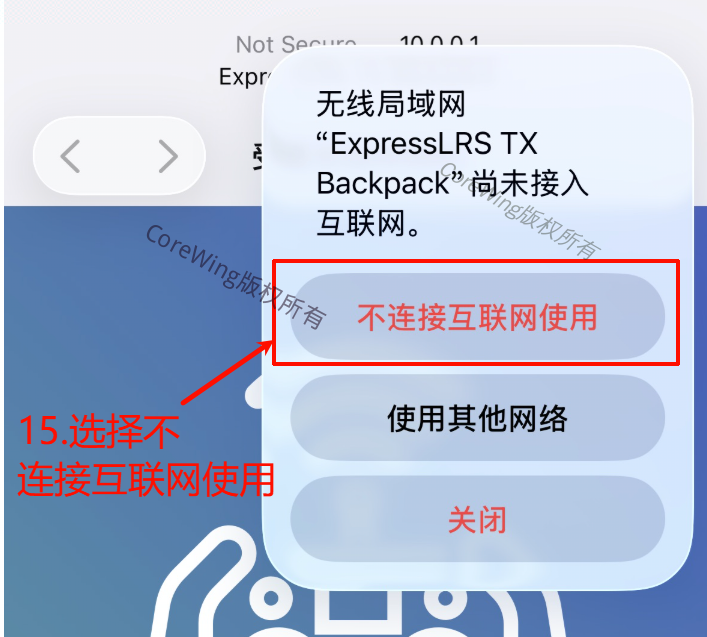
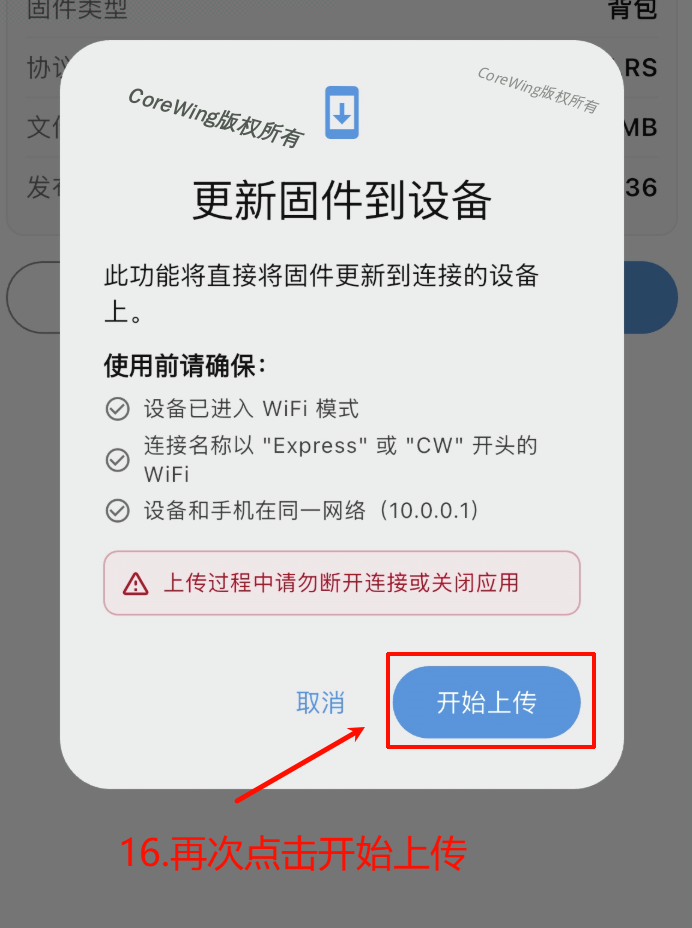
- Click Start Upload again
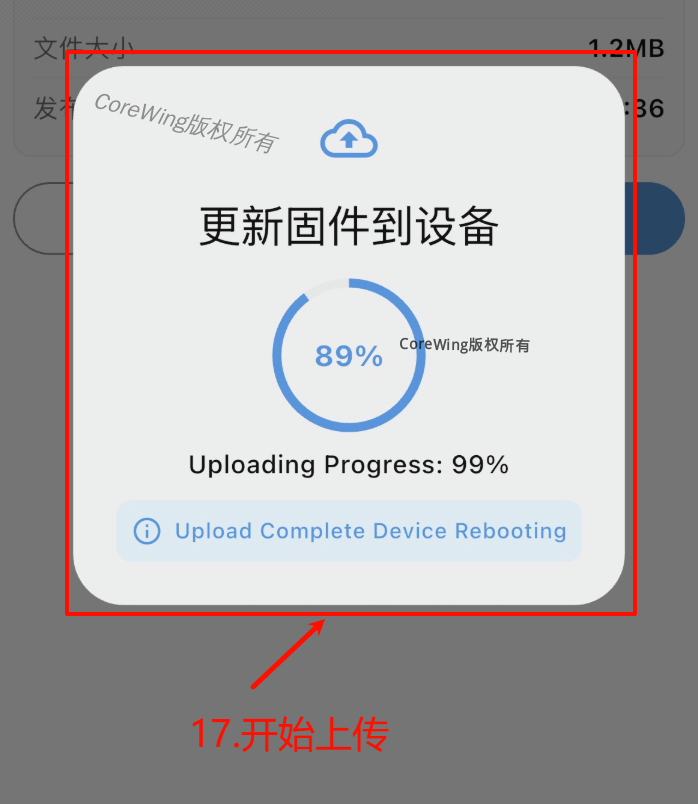
- Wait for the firmware upload to complete, which will display Flashing Success
4.3 Antenna Firmware Upgrade
Step 1: Start Antenna WiFi
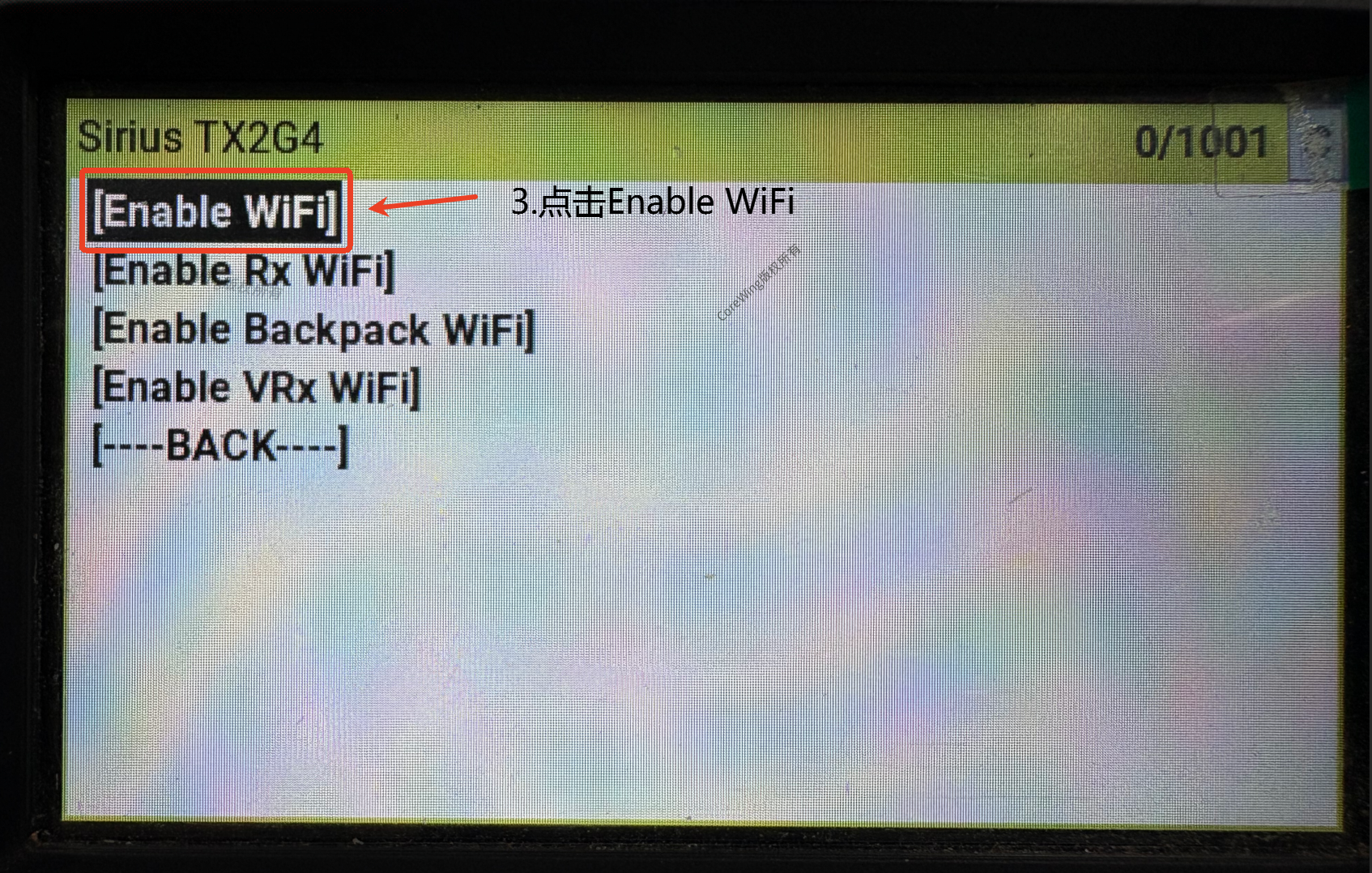
- RC transmitter enters system menu, open ExpressLRS script
- Select WiFi Connectivity → WiFi Connectivity in sequence
3. Enable antenna WiFi
4. Stay on the WiFi running page
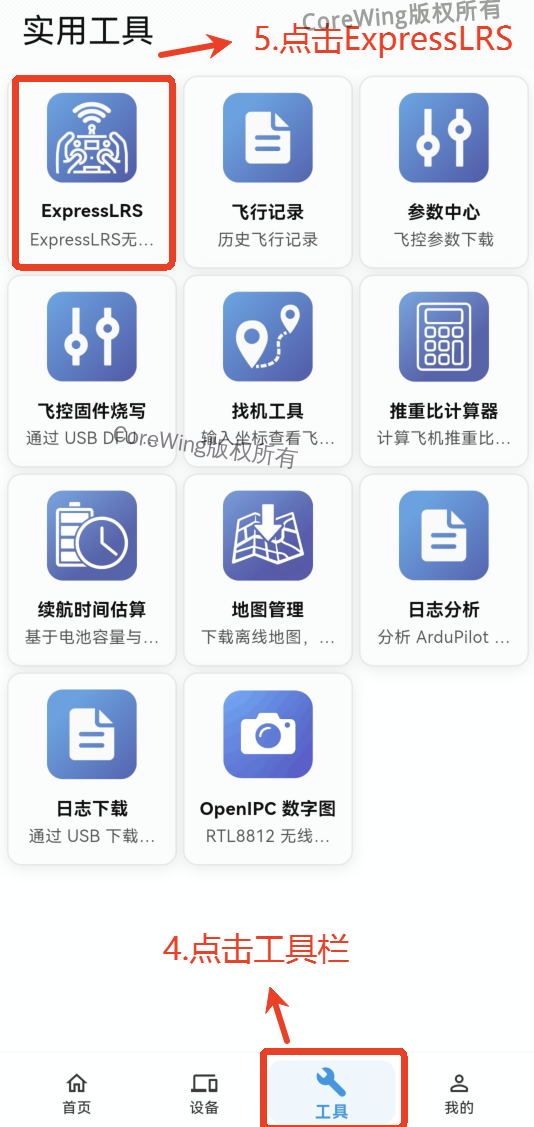
Step 2: Upgrade Using CoreWing APP
Open CoreWing APP → Enter the toolbar → Click ExpressLRS
- Click Sirius Upgrade
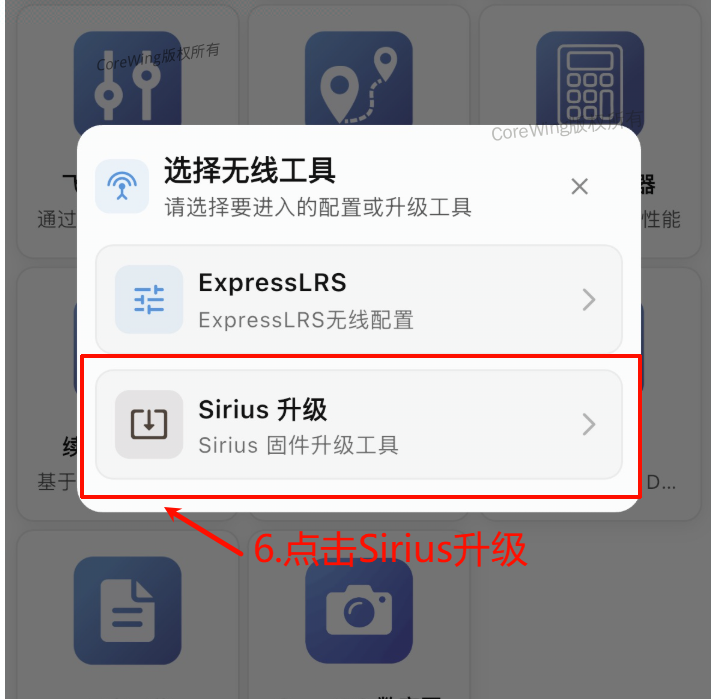
- Select ELRS, click Antenna
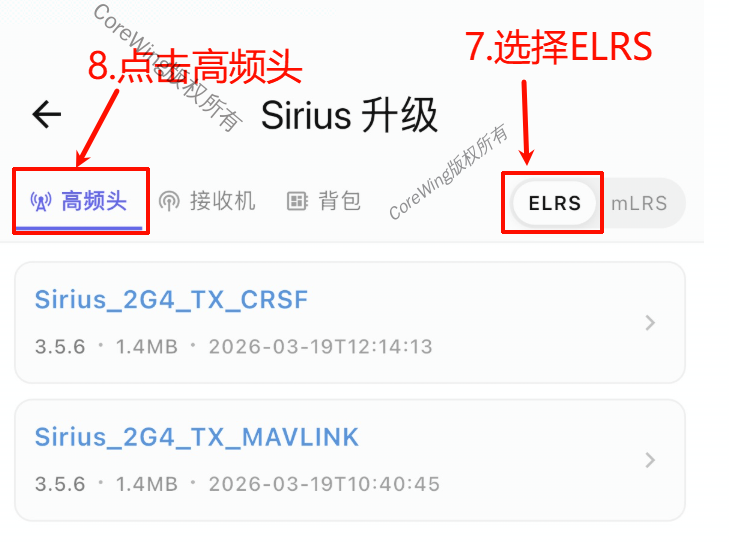
If using ELRS CRSF mode, select the antenna firmware with CRSF suffix

If using ELRS MAVLink mode, select the antenna firmware with MAVLink suffix

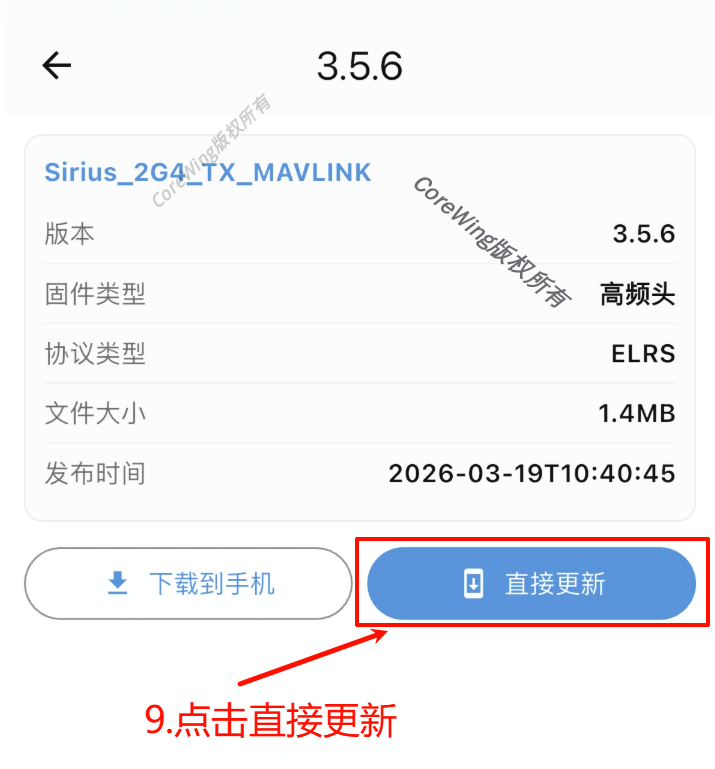
The following content uses MAVLink as an example
- Click Direct Update
- Click Start Upload
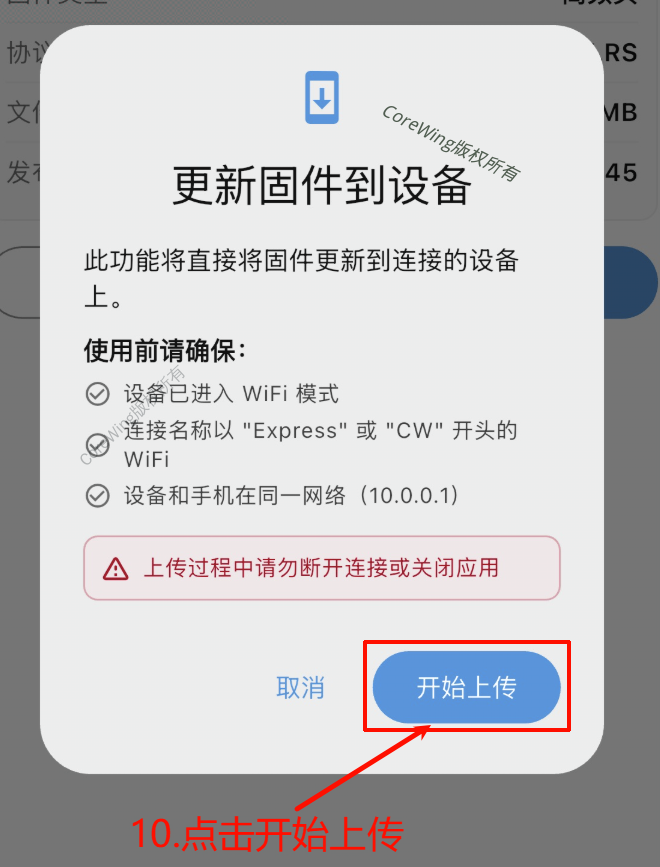
- Click to open WiFi settings
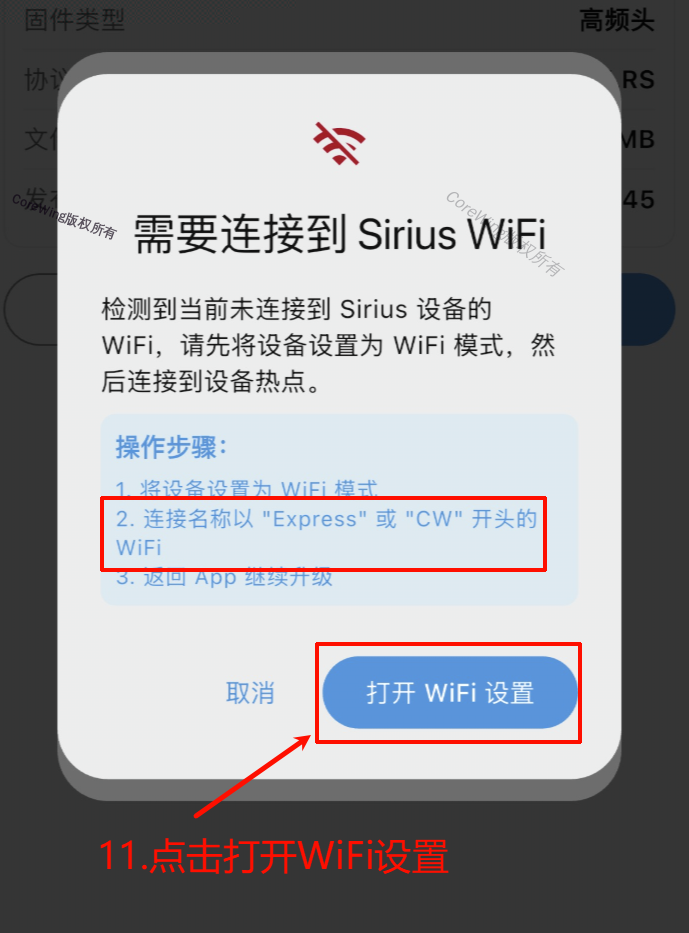
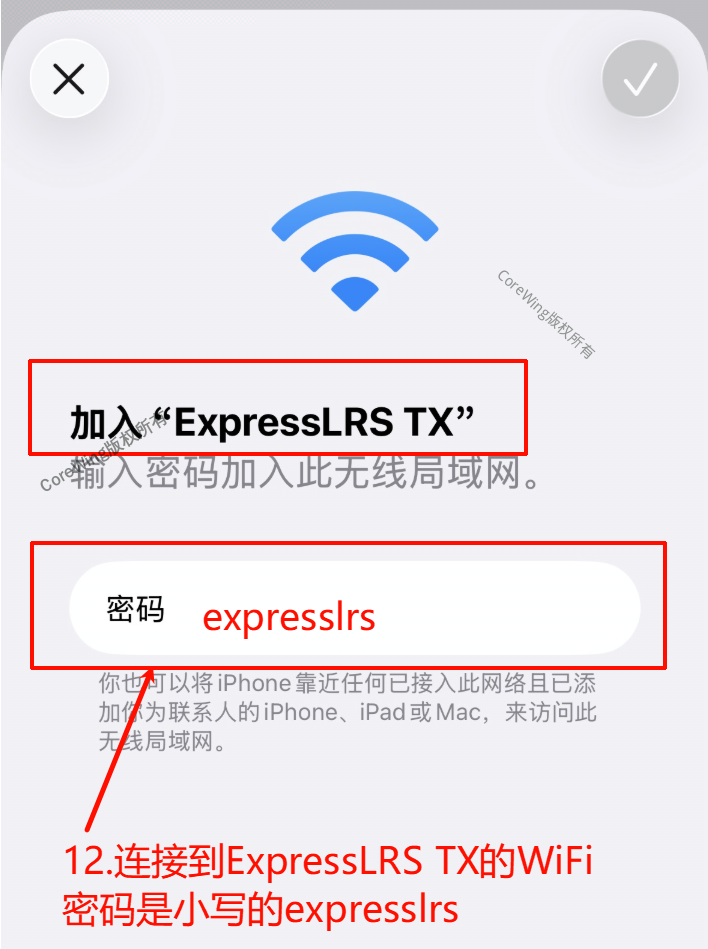
- Connect to ExpressLRS TX WiFi (password: expresslrs)
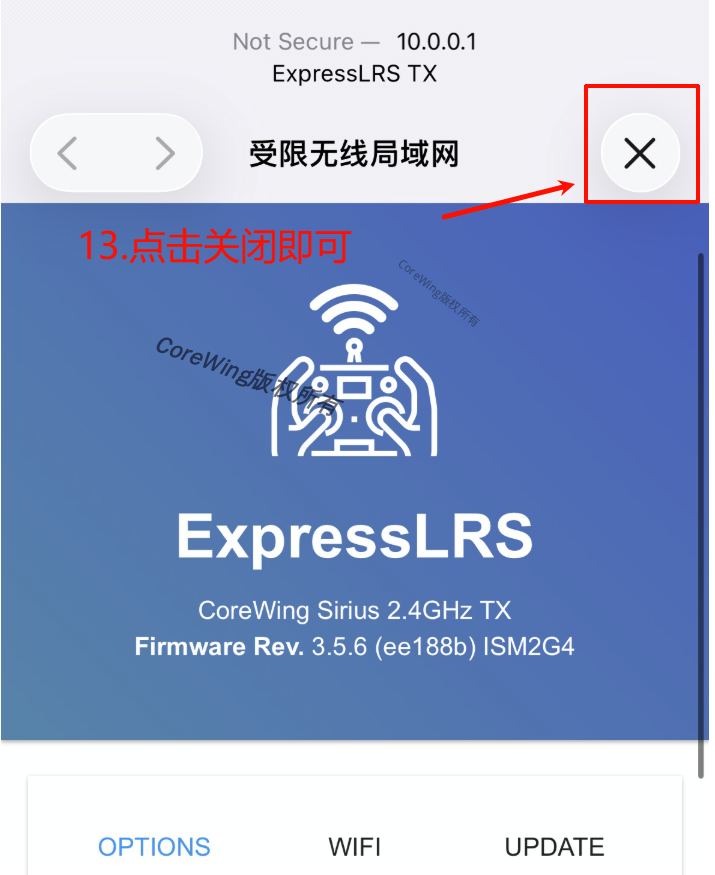
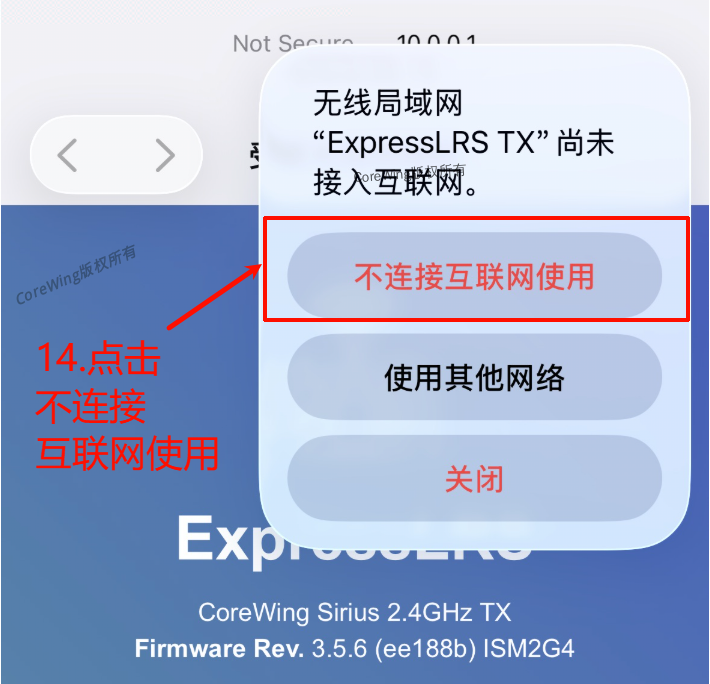
- If this page appears, click close and select Do not use internet connection (or keep current connection)
- Click Start Upload again
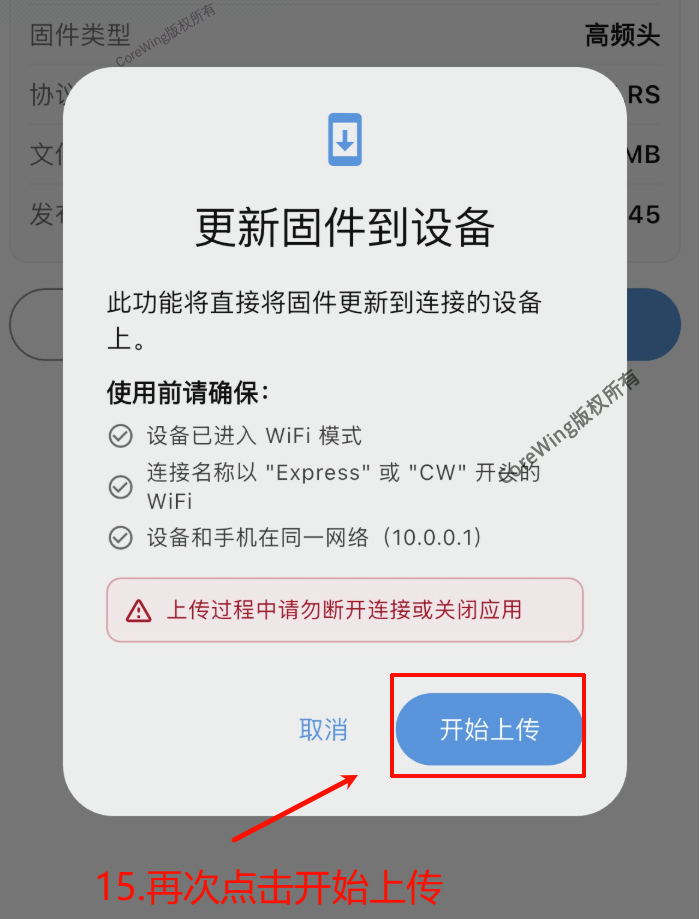
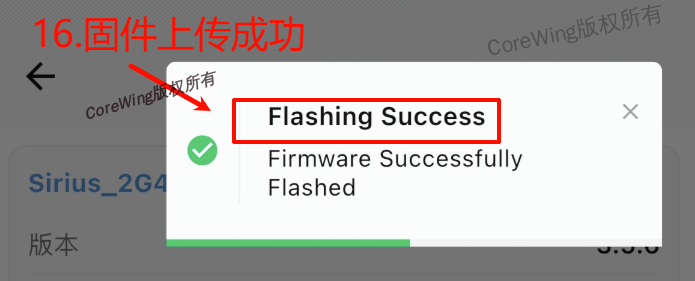
- Wait for the firmware upload to complete, which will display Flashing Success
Technical Support QR Code
If you have any questions, please scan the code to contact technical support:
