
LNB/Receiver Brick Rescue Guide
I. Tool Introduction
Sirius Firmware Upgrade Tool (https://sirius.corewing.com/) is an online flashing platform provided by CoreWing that allows firmware flashing through direct USB connection to the device, without requiring WiFi. It is suitable for emergency recovery scenarios such as bricked devices or when unable to enter via WiFi.
II. Receiver RX Flashing Tutorial
The receiver supports three flashing methods; any one can be used to complete the firmware flashing.
2.1 Comparison of Three Flashing Methods
| Flashing Method | Required Equipment | Applicable Scenarios |
|---|---|---|
| USB Direct Flashing | USB cable (Type-C) | Requires USB-TTL tool |
| iNav Passthrough | Flight controller (iNav firmware) + USB cable | Highest success rate and relatively convenient wired flashing method |
| ArduPilot Passthrough | Flight controller (ArduPilot firmware) + USB cable | May fail, recommend using the first two methods |
2.2 Method One: USB Direct Flashing
1. Preparation
- 2G4 RX receiver
- USB-TTL tool
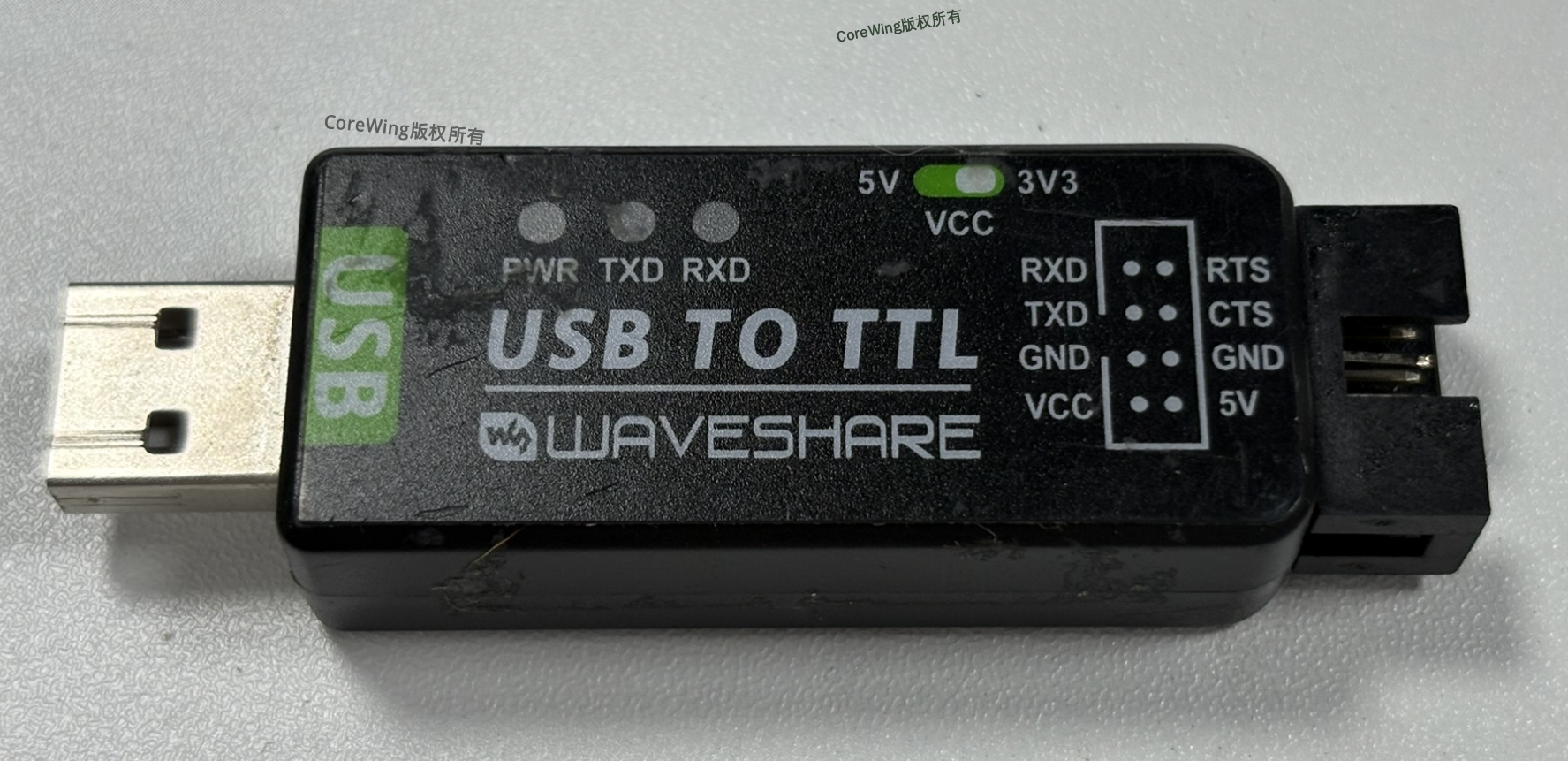
- Computer
2. Enter Flashing Mode
- Power off the receiver
- Connect the receiver to the
USB-TTLmodule
接收机 → USB-TTL模块
5V → VCC
TX → RX
RX → TX
GND → GND- Press
BOOT buttonon the receiver and connect the USB-TTL device to the computer - Release
BOOT buttonand check if the computer recognizes the device - Press Win+X to enter the Device Manager interface and check the receiver's port

3. Start Flashing
Open a browser and visit the Sirius Firmware Upgrade Tool: https://sirius.corewing.com/
For device type, select
ReceiverFor protocol type, select
Required Firmware ProtocolFor flashing method, select
Direct Connection (USB)For firmware version, select firmware starting with
Sirius_2G4_ELRSor namedrx-skyguy-nano-2400
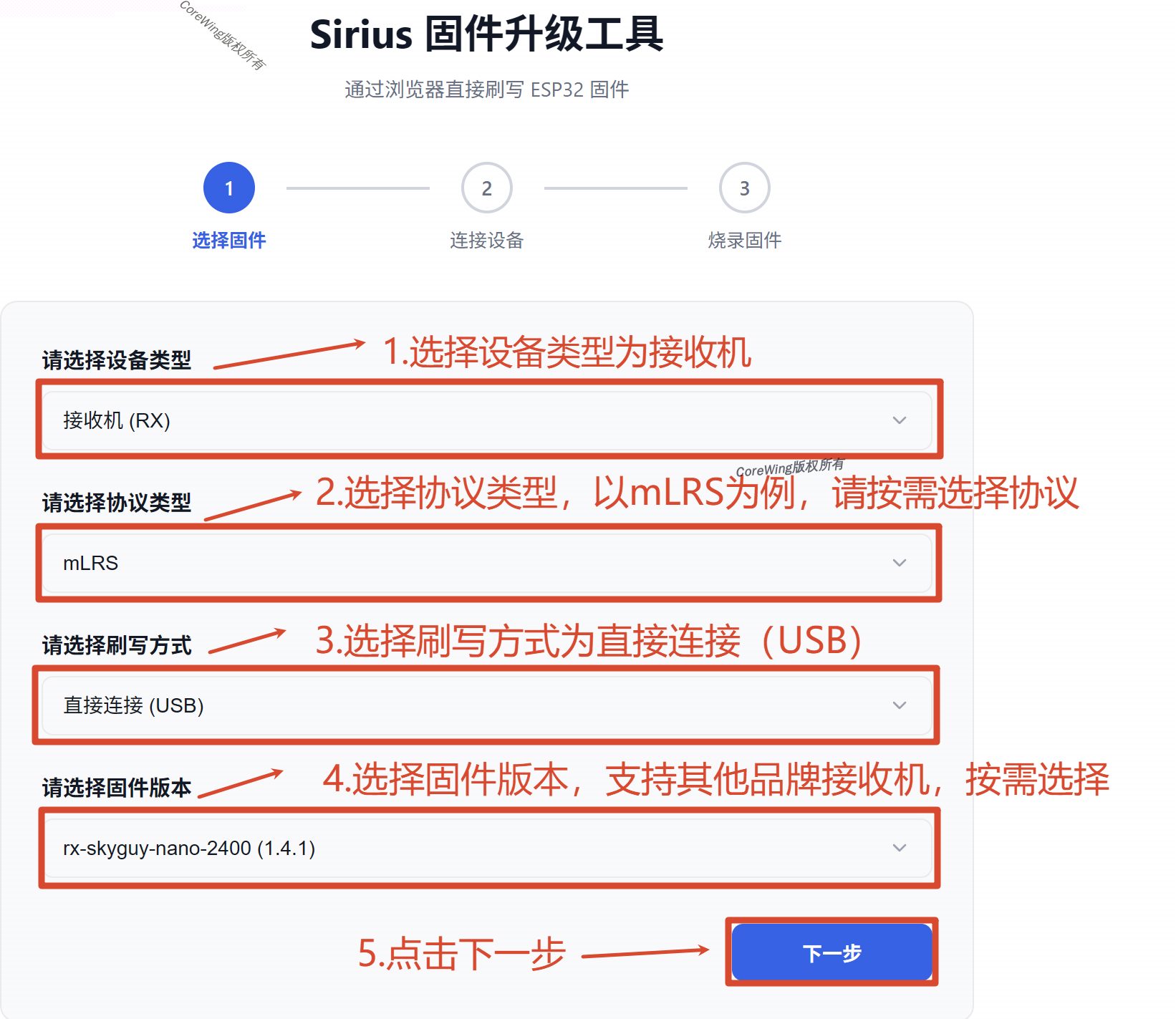
Click "Connect Device", select
CoreWingF405WingV2(COM X), and clickConnectCheck if the flashing information is correct, check
Erase All Flash Before Writing, and clickStart Flashing

- Wait for the flashing progress bar to complete, which will display
Flashing Complete

- After flashing is complete, disconnect the USB connection, power on the high-frequency module again, and check if the
OLED screenshows that the system has been entered
2.3 Method Two: iNav Passthrough Flashing (Recommended)
Important
When there is no USB-TTL module and the firmware is iNav, you can perform Passthrough flashing through the iNav flight controller
1. Preparation
- 2G4 RX receiver
- Flight controller (with iNav firmware already flashed, and wiring with the flight controller completed)
- USB cable (connecting flight controller to computer)
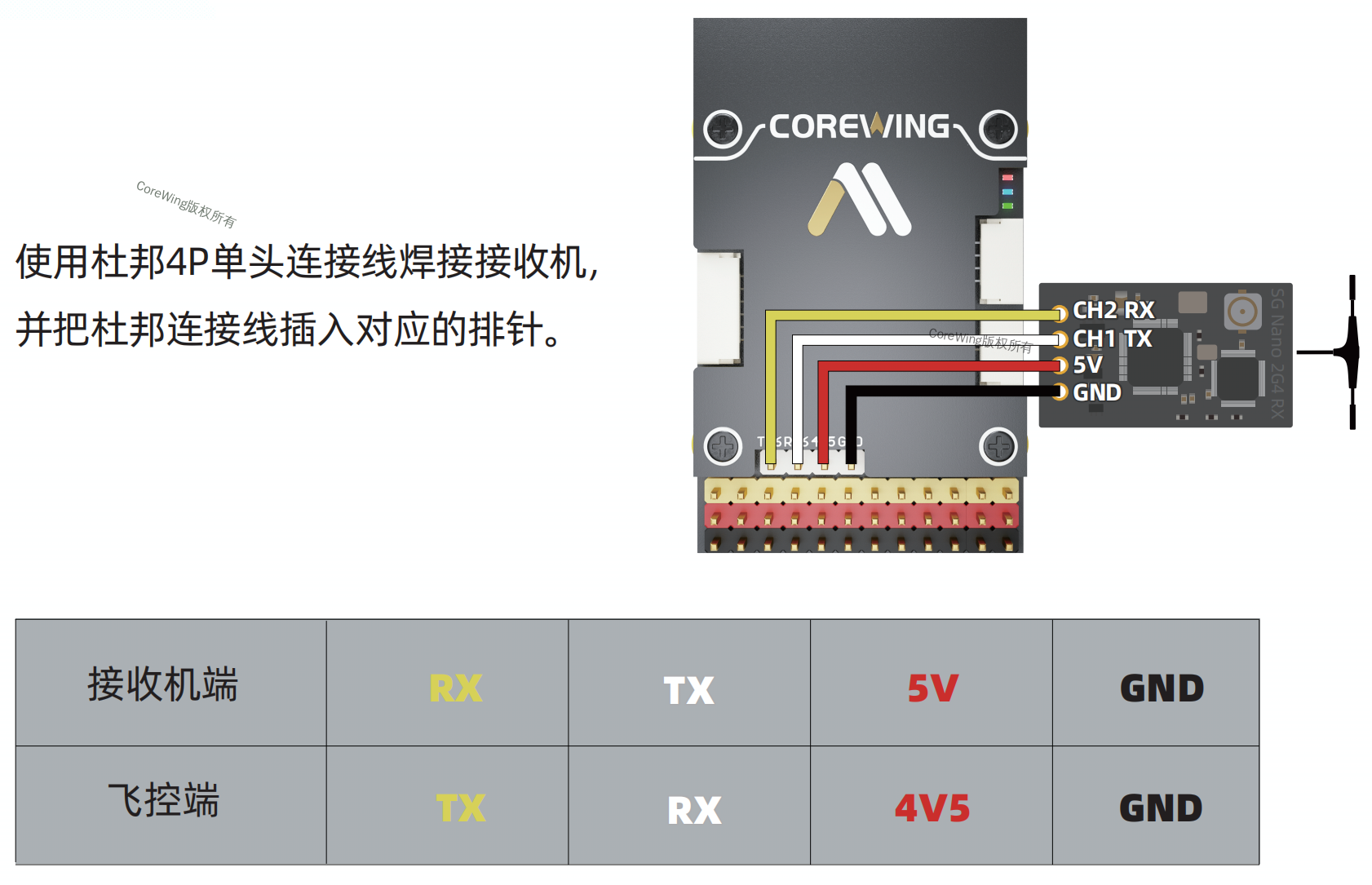
2. Wiring Requirements
Connect the receiver to the flight controller's UART 6:
3. Start Flashing
Open a browser and visit the Sirius Firmware Upgrade Tool: https://sirius.corewing.com/
For device type, select
ReceiverFor protocol type, select
Required Firmware ProtocolFor flashing method, select
ArduPilot PassthroughSelect the connected UART port as
UART 6For firmware version, select firmware starting with
Sirius_2G4_ELRSor namedrx-skyguy-nano-2400

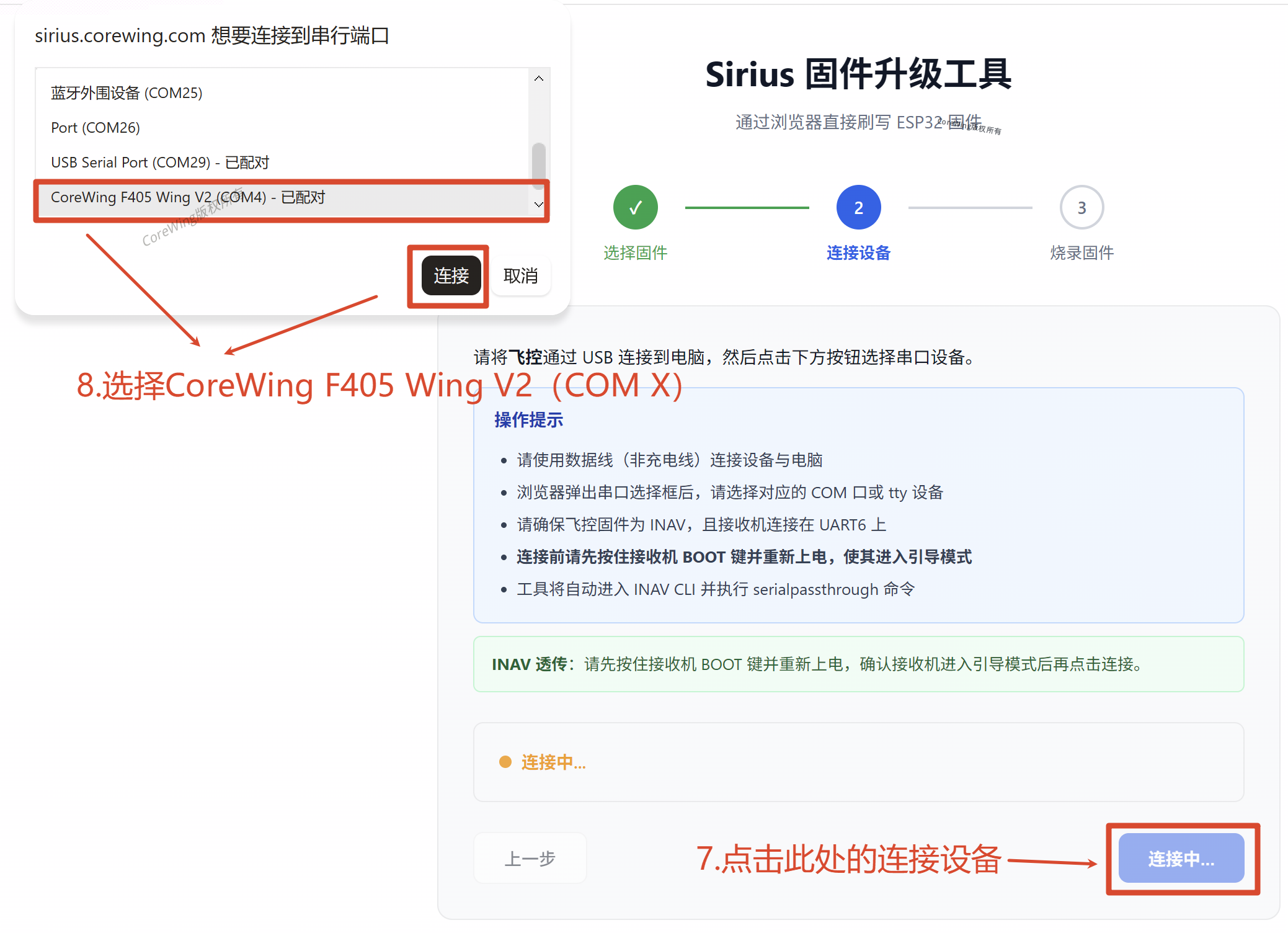
- Click "Connect Device", select
CoreWingF405WingV2(COM X), and clickConnect
- Check if the flashing information is correct, check
Erase All Flash Before Writing, and clickStart Flashing

- Wait for the flashing progress bar to complete, which will display
Flashing Complete

- After flashing is complete, disconnect the USB connection, power on the high-frequency module again, and check if the
OLED screenshows that the system has been entered
2.4 Method Three: ArduPilot Passthrough Flashing
Important
When the receiver cannot enter flashing mode via USB and an ArduPilot flight controller is used, Passthrough flashing can be performed through ArduPilot.
1. Preparation
- 2G4 RX receiver
- Flight controller (with ArduPilot firmware already flashed, and serial port wiring completed)
- USB cable (connecting flight controller to computer)
2. Wiring Requirements
Connect the receiver to the flight controller's UART 6:
3. Start Flashing
Open a browser and visit the Sirius Firmware Upgrade Tool: https://sirius.corewing.com/
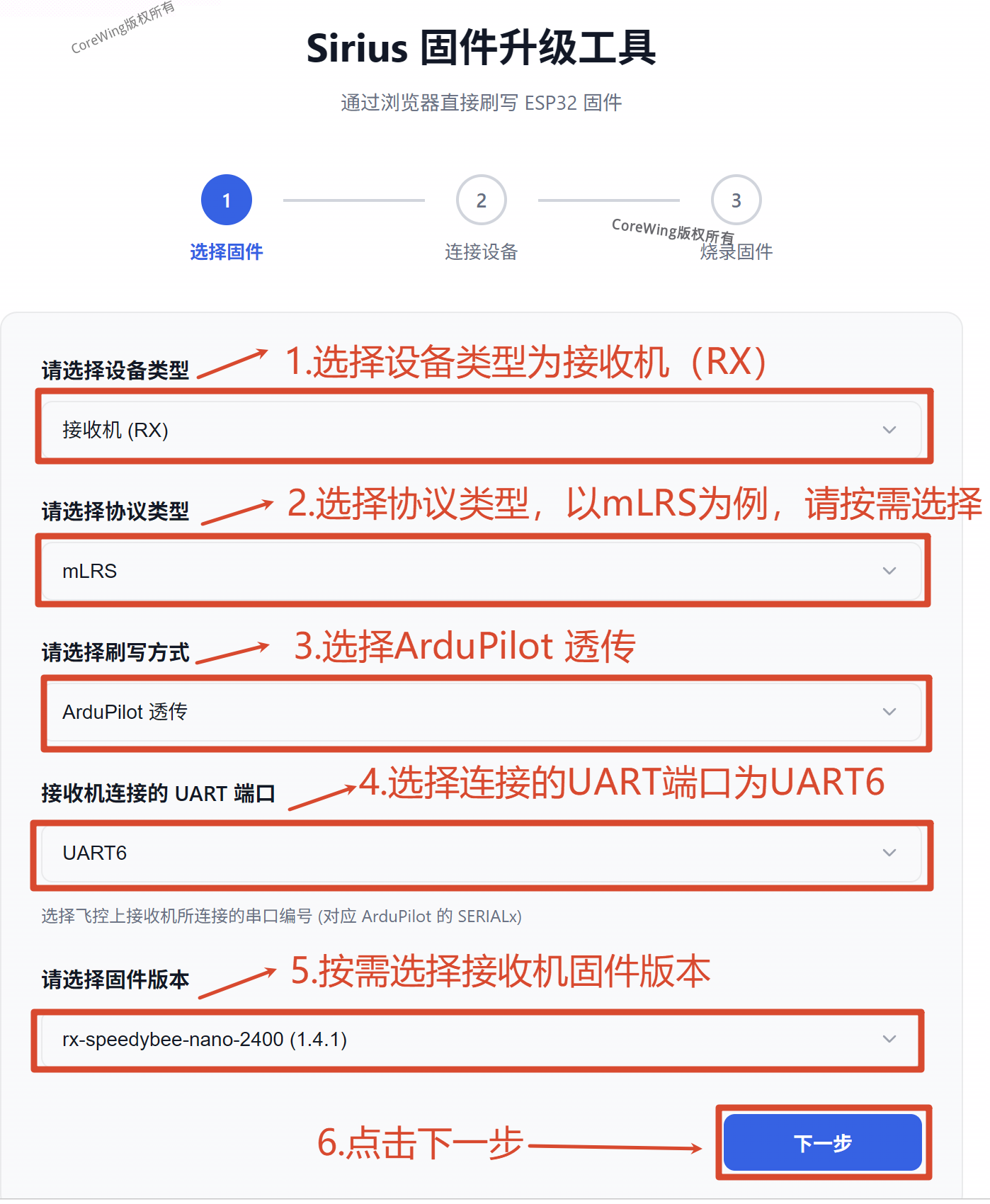
For device type, select
ReceiverFor protocol type, select
Required Firmware ProtocolFor flashing method, select
ArduPilot PassthroughSelect the connected UART port as
UART 6For firmware version, select firmware starting with
Sirius_2G4_ELRSor namedrx-skyguy-nano-2400
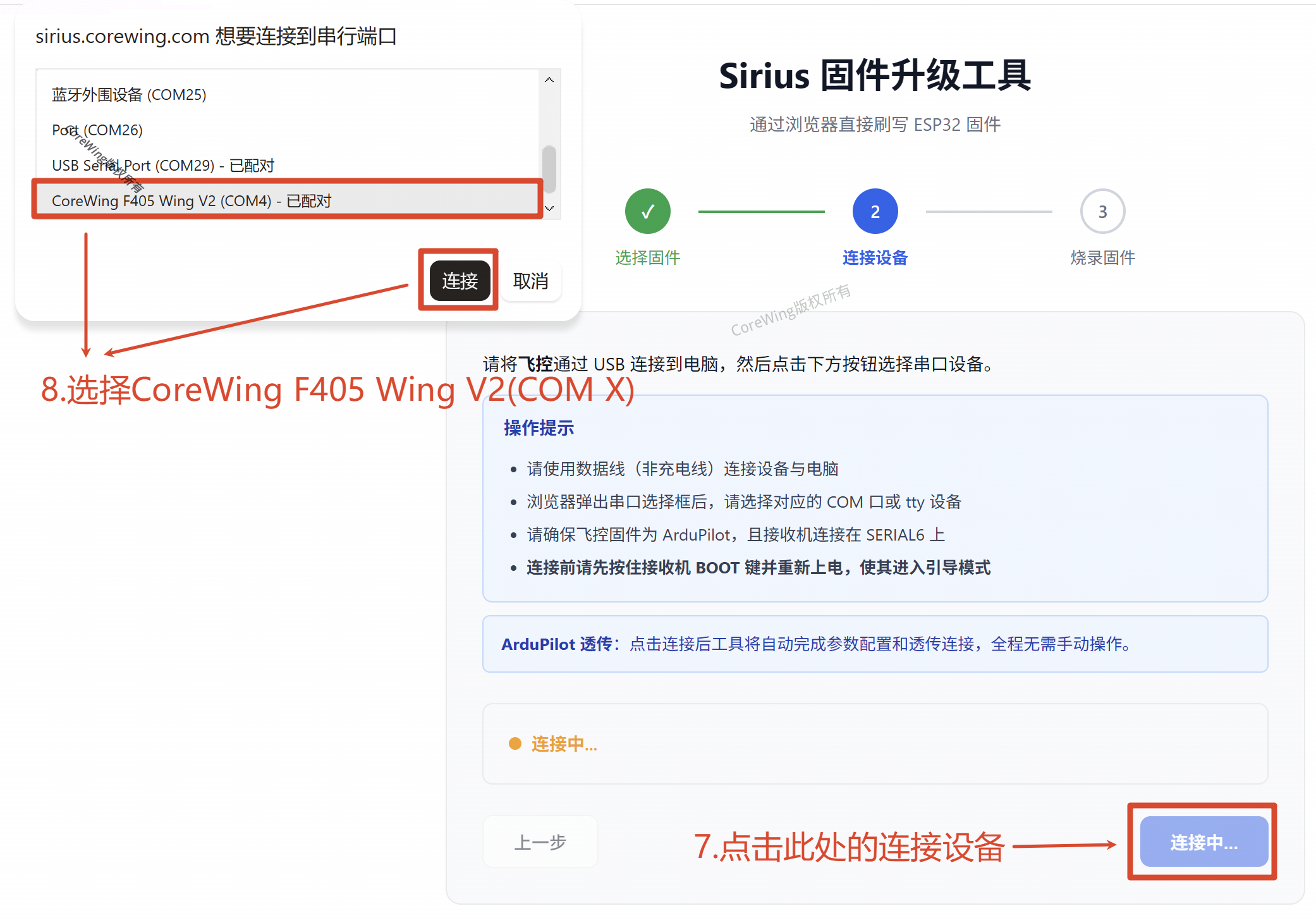
- Click "Connect Device", select
CoreWingF405WingV2(COM X), and clickConnect
- Check if the flashing information is correct, check
Erase All Flash Before Writing, and clickStart Flashing
- Wait for the flashing progress bar to complete, which will display
Flashing Complete
- After flashing is complete, disconnect the USB connection, power on the high-frequency module again, and check if the
OLED screenshows that the system has been entered
III. Backpack Flashing Tutorial
The Backpack is a communication module inside the transmitter module, responsible for telemetry feedback functions.
Preparation
Hardware Preparation:
- Sirius transmitter module (TX)
- USB data cable (dual Type-C interface/ USB-A to Type-C)
- Computer
Entering Flash Mode
- Power off the transmitter module
- Insert the USB data cable
- Press Win+X to enter Device Manager, check the receiver's port

Starting Flashing
Tips
The backpack firmware must be used in conjunction with the transmitter module TX firmware:
- ELRS CRSF mode → Corresponds to CRSF-suffixed backpack firmware
- ELRS MAVLink mode → Corresponds to MAVLink-suffixed backpack firmware
- mLRS mode → Corresponds to mLRS backpack firmware
Open browser, visit Sirius Firmware Upgrade Tool: https://sirius.corewing.com/
Device type, select
Transmitter ModuleProtocol type, select
Required Firmware ProtocolFirmware version, select
Sirius_2G4_BACKPACK_XXX_XXX(XXX)

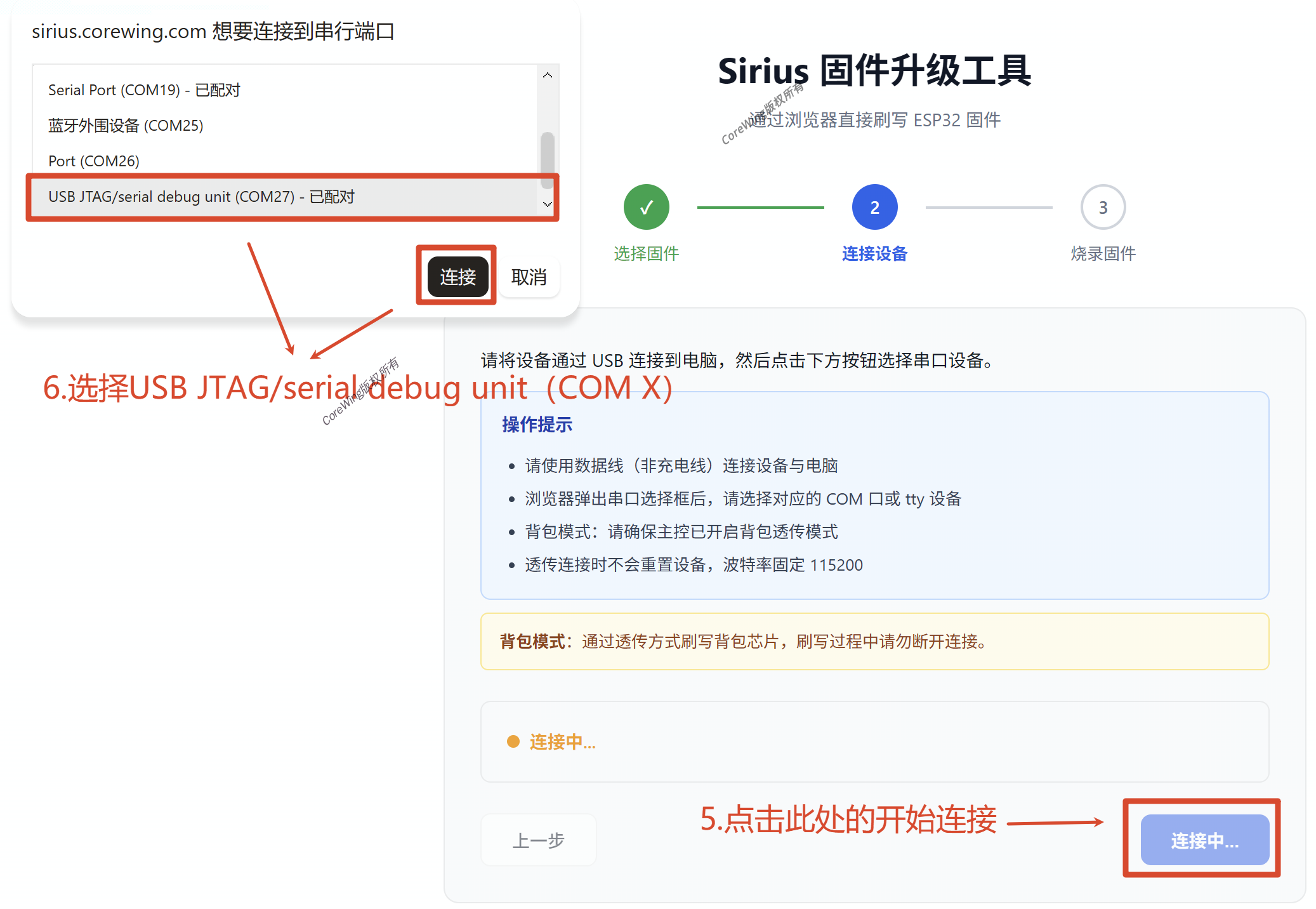
Click Connect Device, select
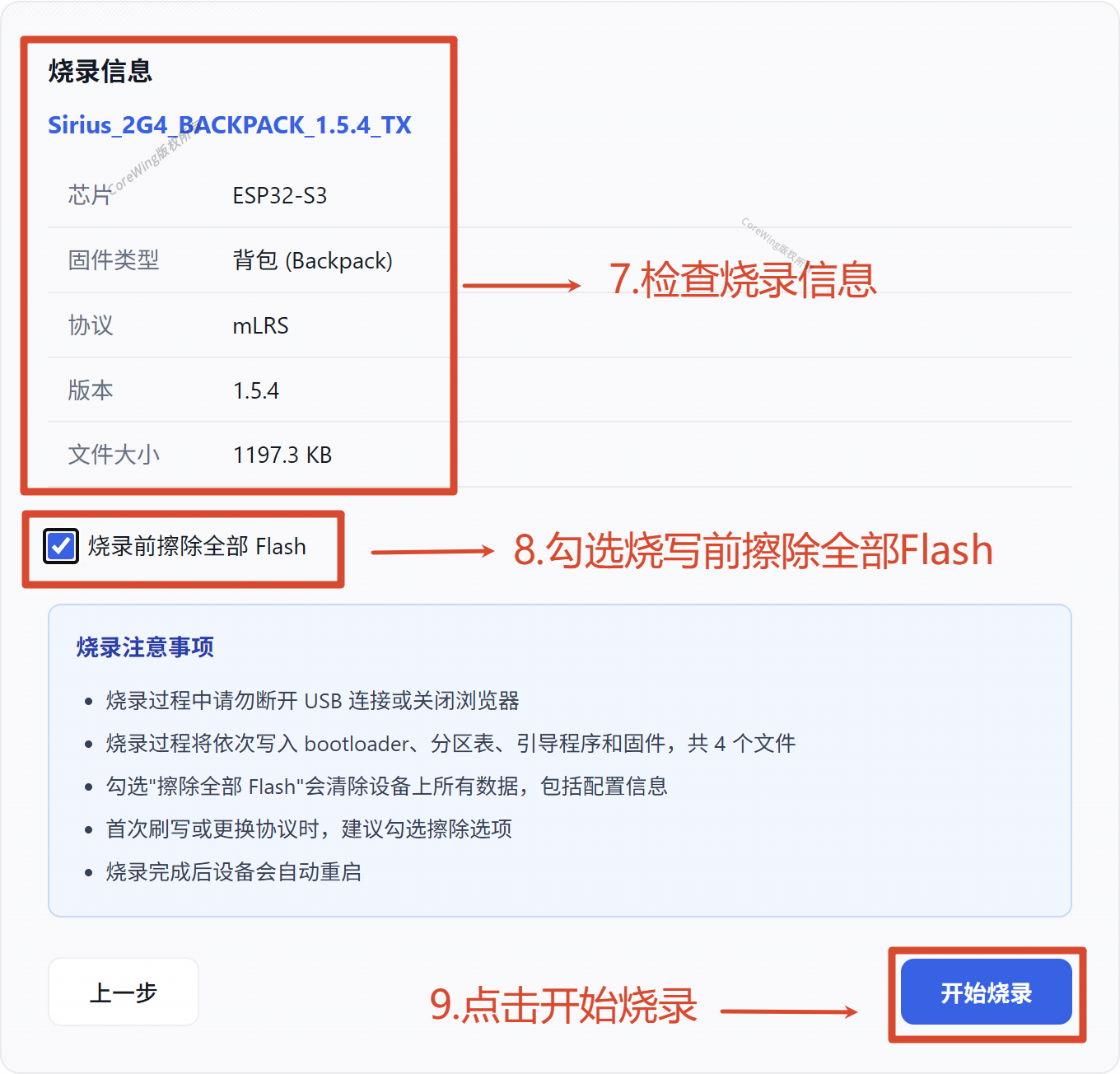
USB JTAG/serial debug unit(COM X), clickConnectCheck if flashing information is correct, check
Erase All Flash Before Writing, clickStart Flashing
- Wait for the flashing progress bar to complete, display
Flashing Complete
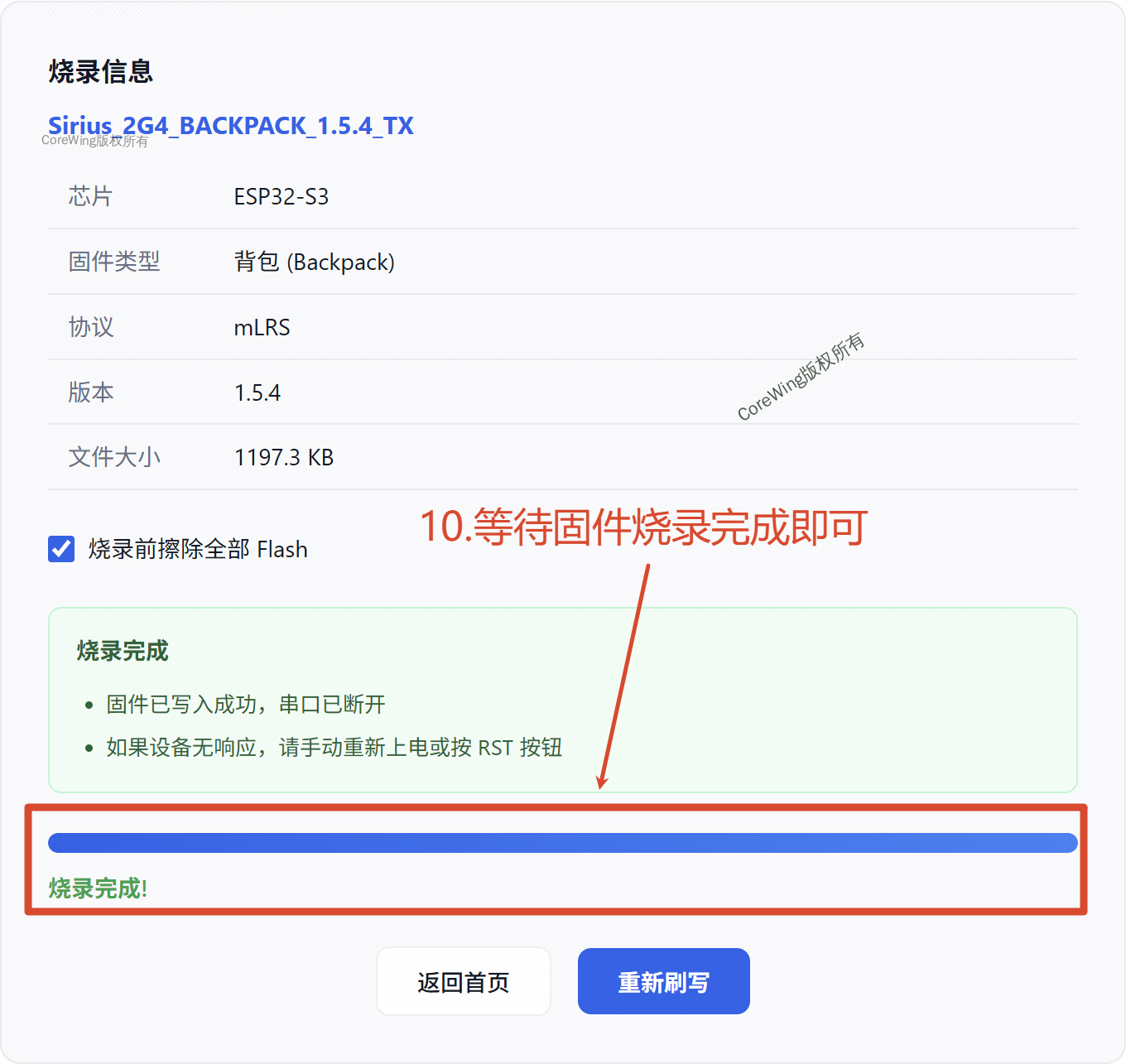
- After flashing is complete, disconnect USB, power on the transmitter module again, check if the
OLED screendisplay enters the system
IV. Transmitter Module TX Flashing Tutorial
The transmitter module is flashed directly to a computer using a USB data cable.
Preparation
Hardware Preparation:
- Sirius transmitter module (TX)
- USB data cable (dual Type-C interface/ USB-A to Type-C)
- Computer
Entering Flash Mode
- Power off the transmitter module
- Insert the USB data cable
- Enter Device Manager, check the transmitter module's port
Starting Flashing
Open browser, visit Sirius Firmware Upgrade Tool: https://sirius.corewing.com/
Device type, select
Transmitter ModuleProtocol type, select
Required Firmware ProtocolFirmware version, select
Sirius_2G4_TX_XXX_XXX(XXX)
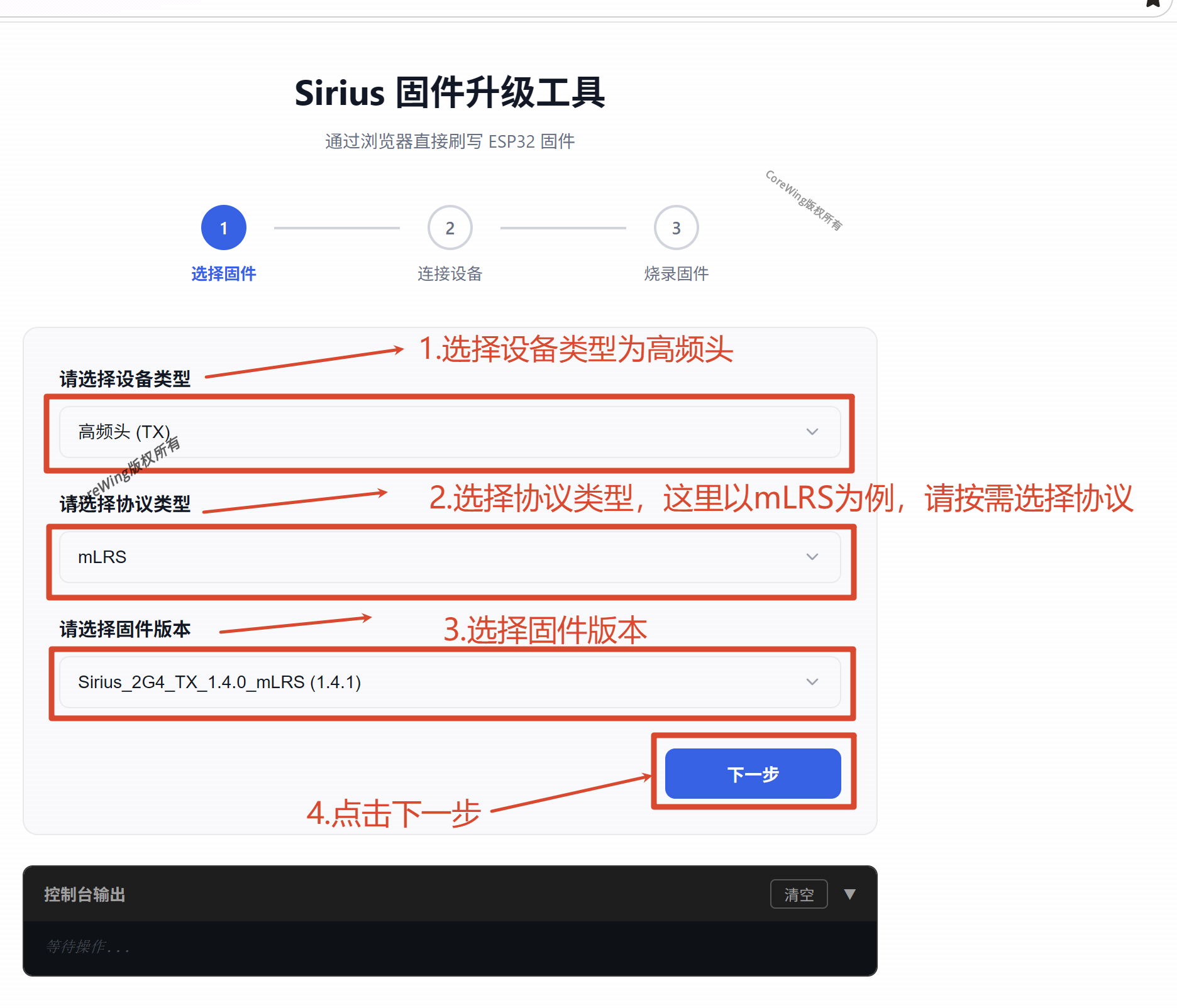
Click Connect Device, select
USB JTAG/serial debug unit(COM X), clickConnectCheck if flashing information is correct, check
Erase All Flash Before Writing, clickStart Flashing


- Wait for the flashing progress bar to complete, display
Flashing Complete

- After flashing is complete, disconnect USB, power on the transmitter module again, check if the
OLED screendisplay is normal
Technical Support QR Code
If you have any questions, scan the code to contact technical support:
