
Troubleshooting WiFi Mode Connection to Android MP Ground Station
5/29/26About 1 minSoftware toolsMission Planner安卓地面站WiFi 连接故障排除无线板ArduPilot
I. Symptom
When using WiFi mode to connect to an Android Mission Planner (MP) ground control station (GCS), the flight controller may fail to connect, preventing the GCS from properly reading flight controller data.
II. Cause Analysis
1. Serial port parameter setting error: Some ArduPilot 4.4.3 and later versions default to a SERIAL1/ SERIAL6 baud rate of 57600, which may cause WiFi connection failure.
2. WiFi mode not properly enabled: The wireless board's WiFi is not in the correct mode.
III. Solution
Step 1: Confirm Wireless Mode
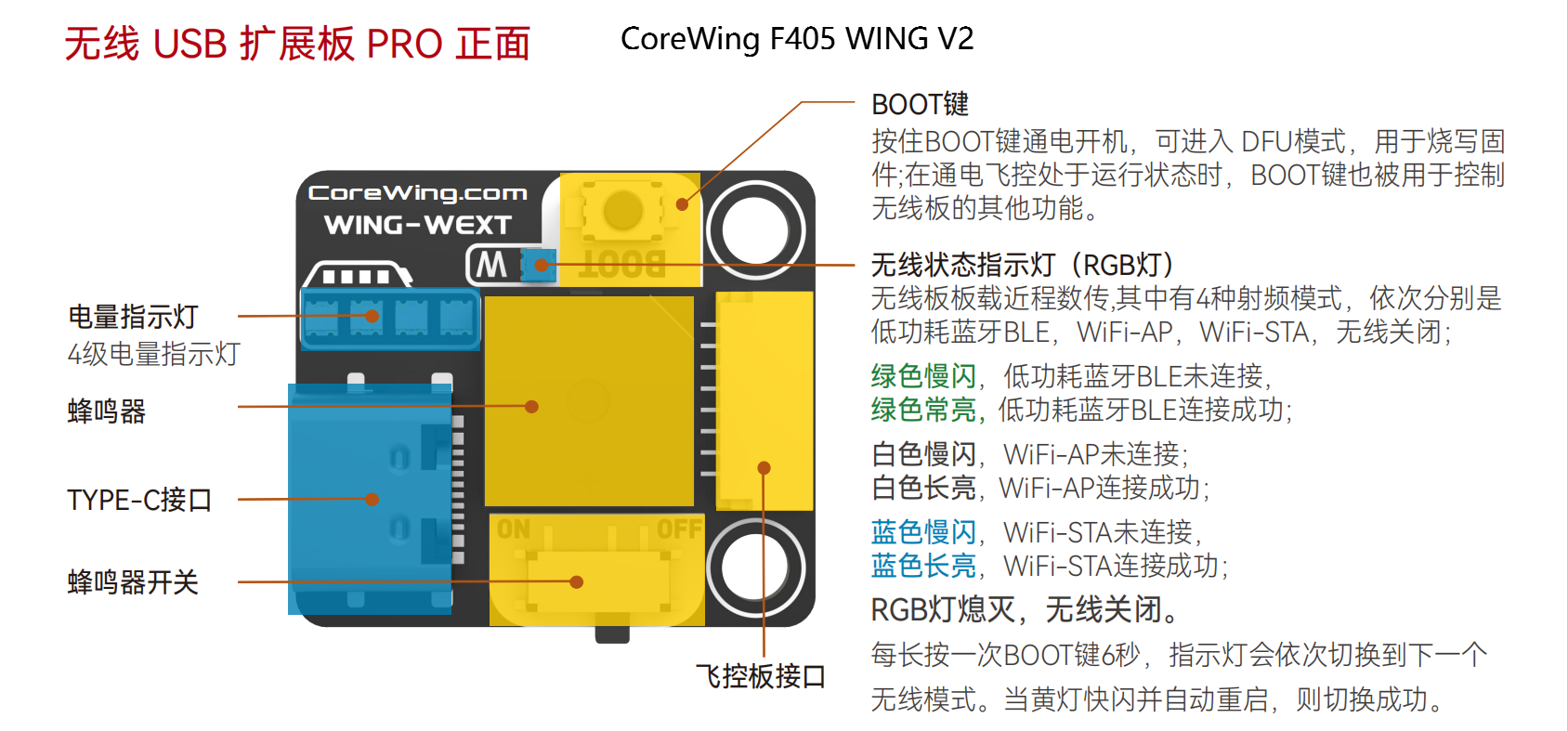
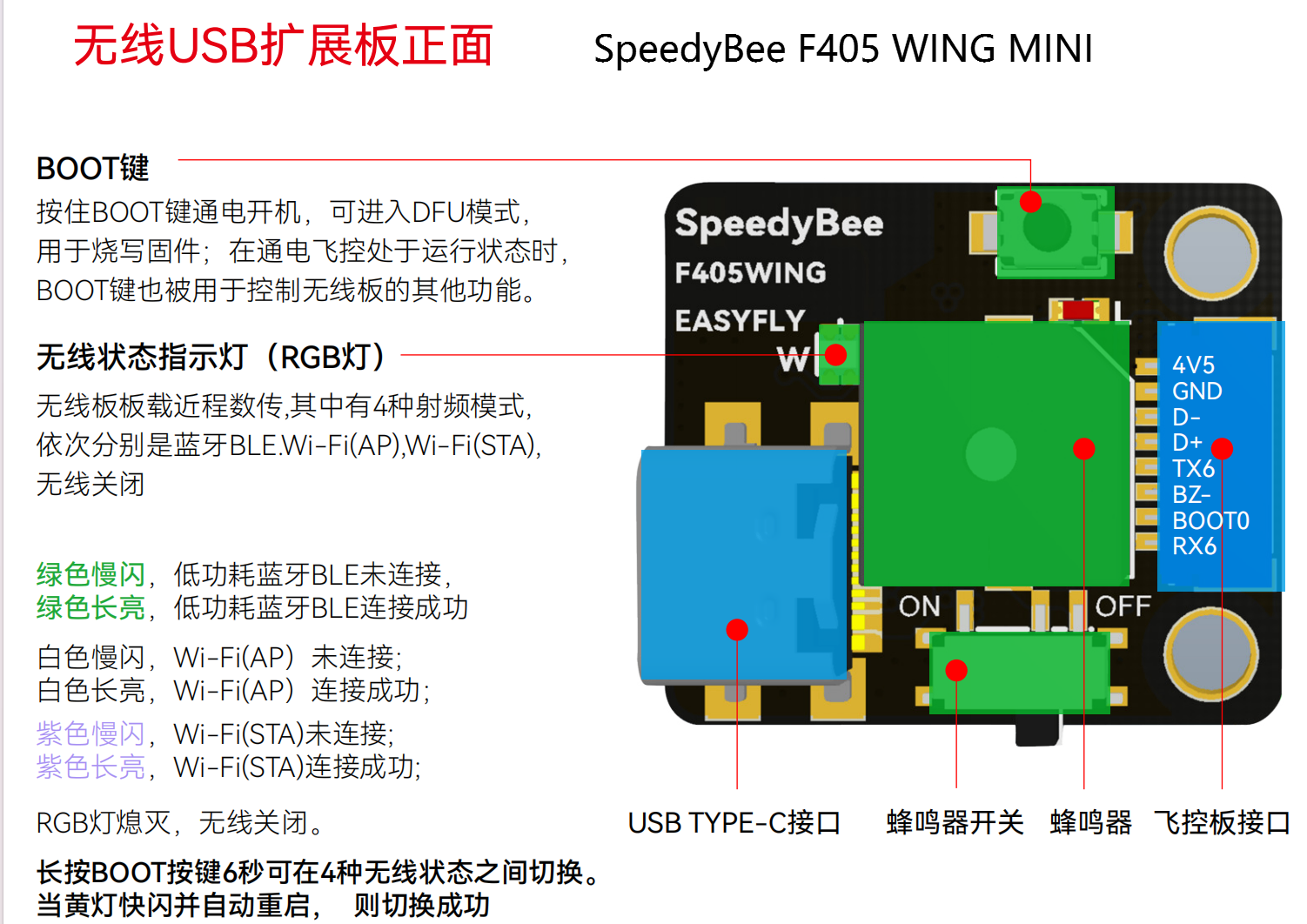
- Power on the flight controller and observe the wireless module indicator lights:
- White flashing: Indicates WiFi is on and working normally.
- If not flashing white, switch to WiFi mode:
- Press and hold the BOOT button on the wireless module for 6 seconds until the LED flashes yellow quickly, indicating mode switching in progress.
- Wait for the indicator light to change to white flashing, indicating WiFi mode is correctly set.

Step 2: Modify Flight Controller Parameters
CoreWing F405 WING V2 :
- Enter Configuration/Debugging.
- Enter Full Parameter List.
- Search for SERIAL1_BAUD.
- Set the value of SERIAL1_BAUD to
115. - Click Write Parameters.

SpeedyBee F405 WING APP / SpeedyBee F405 WING MINI : - Enter Configuration/Debugging.
- Enter Full Parameter List.
- Search for SERIAL6_BAUD.
- Set the value of SERIAL6_BAUD to
115. - Click Write Parameters.

IV. Verify WiFi Connection Status
- Search for WiFi: CoreWing WING-WIFI / SpeedyBee F405Wing, automatically connects to UDP mode.
- After successful connection, link statistics can be viewed in the ground control station.
CoreWing F405 WING V2: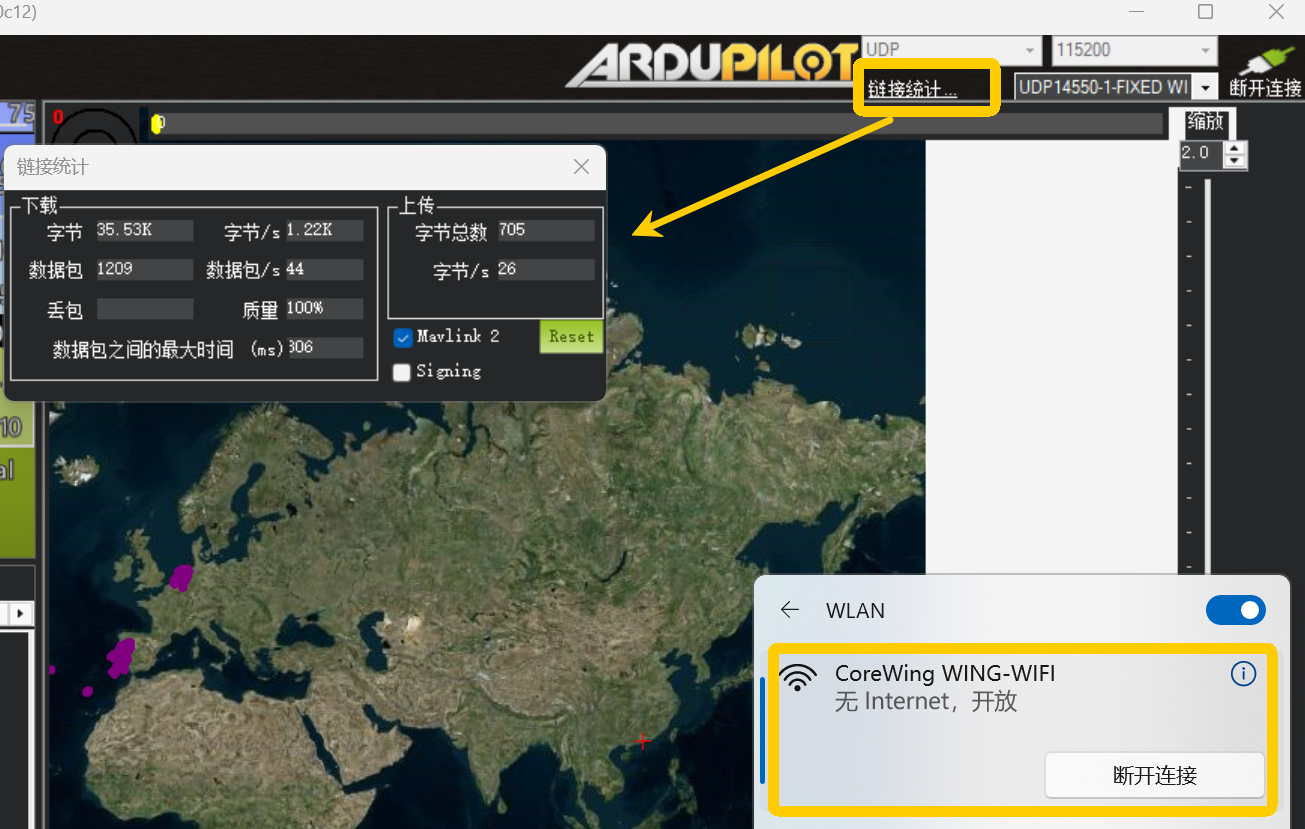
SpeedyBee F405 WING APP / SpeedyBee F405 WING MINI:
Technical Support QR Code
