
How to Use the RID Module
I. Introduction
RID Module (Remote ID Module), in plain terms, is the "electronic license plate" of a drone.
It was created in response to the requirements of aviation regulatory authorities (such as the US FAA, European EASA, China Civil Aviation Administration, etc.) for drone compliance management. While the drone is airborne, the RID module broadcasts, like a radio beacon, the drone's identity and position coordinates in real time so that regulators and ground personnel can identify it.
II. Equipment Preparation
(1) Flight Controller: CoreWing F405 WING MINI V2 with the companion Wireless USB Expansion Board SE
(2) Ground Control Station: CoreWing APP
Important
CoreWing APP download link: App Download · CoreWing
III. RID Module Status Description
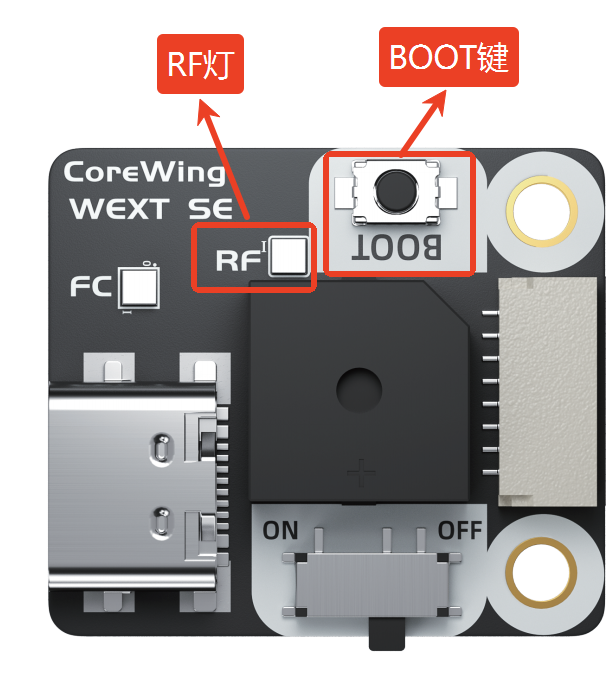
3.1 RF Indicator Status
Long-press the BOOT button for 6 seconds to switch the RID module mode. There are two modes in total:
- RF LED solid green — RID parameter configuration + RID broadcasting: the phone can be used to configure the RID module while the module keeps broadcasting.
- RF LED blinking green — RID broadcasting only: the RID module can only broadcast.
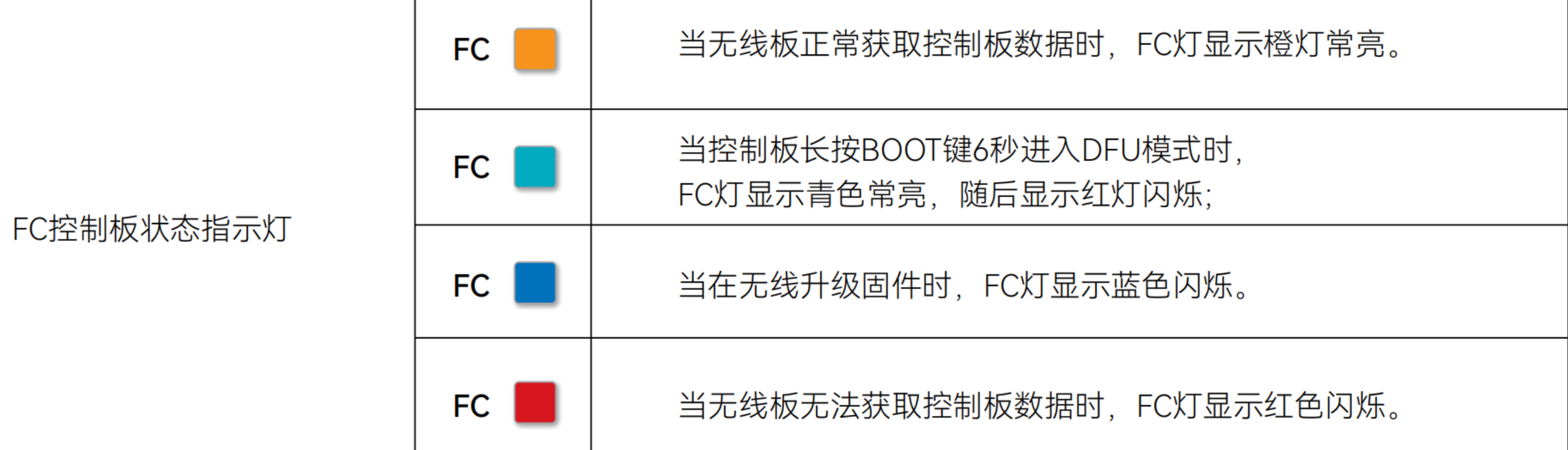
3.2 FC Indicator Status
IV. Flashing RID Module Firmware
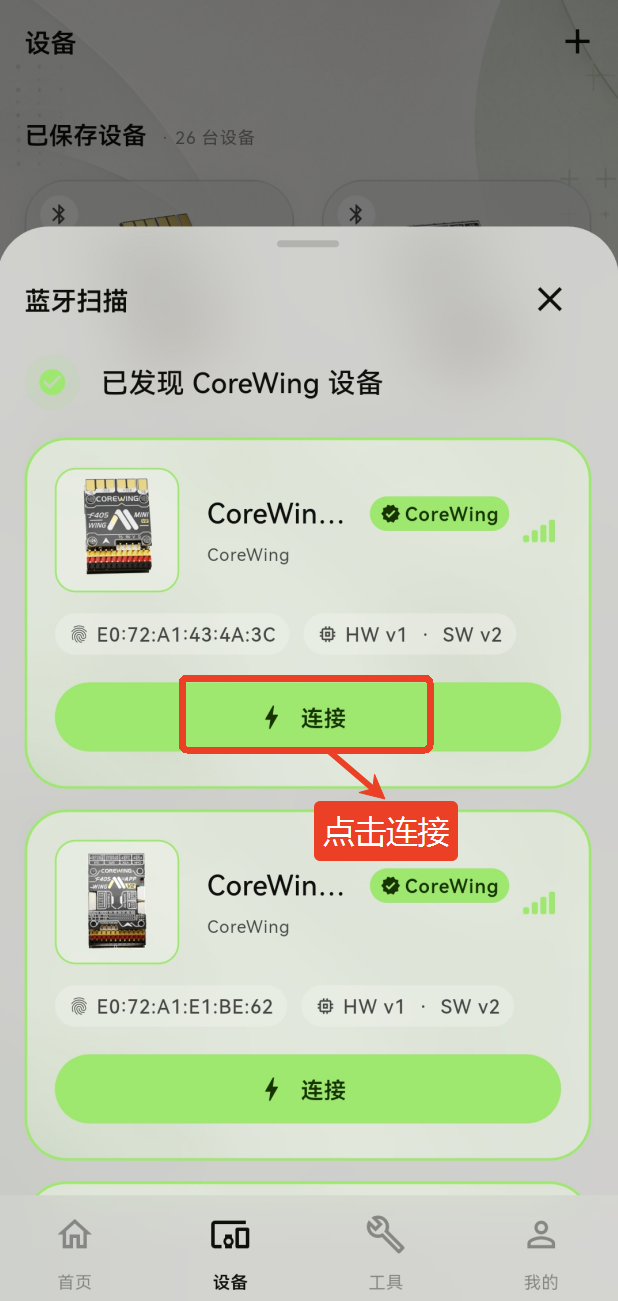
Open the CoreWing APP, select the Bluetooth BLE connection method, and click Connect Device
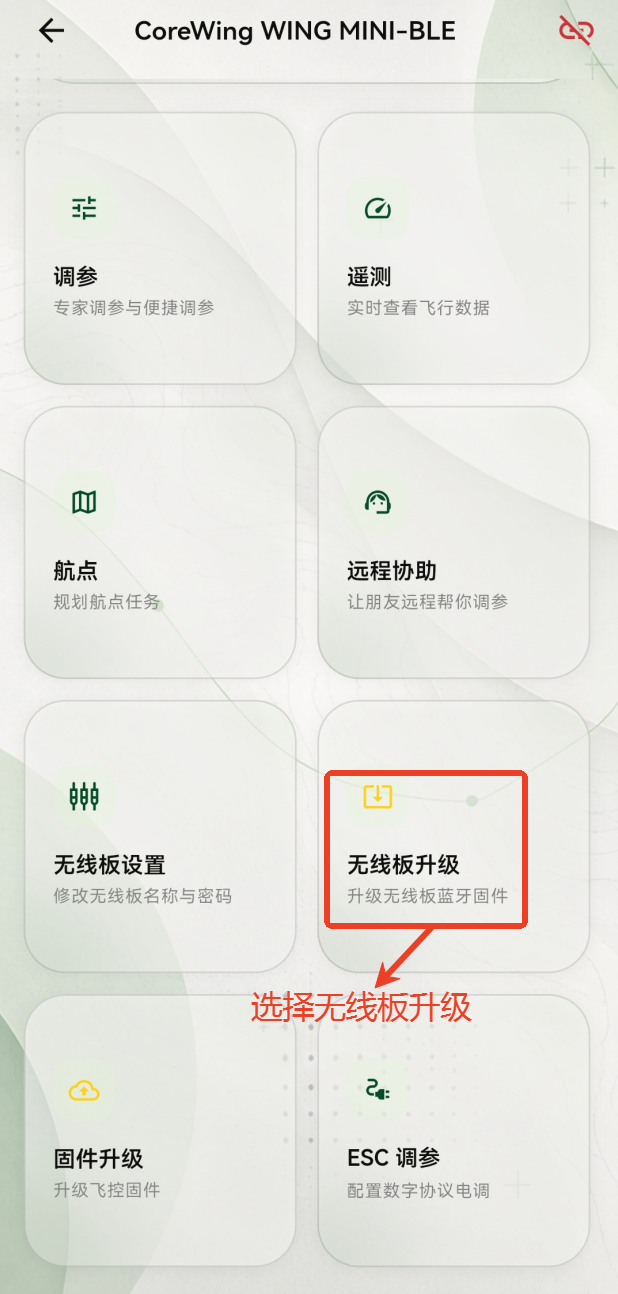
Select Wireless Board Upgrade
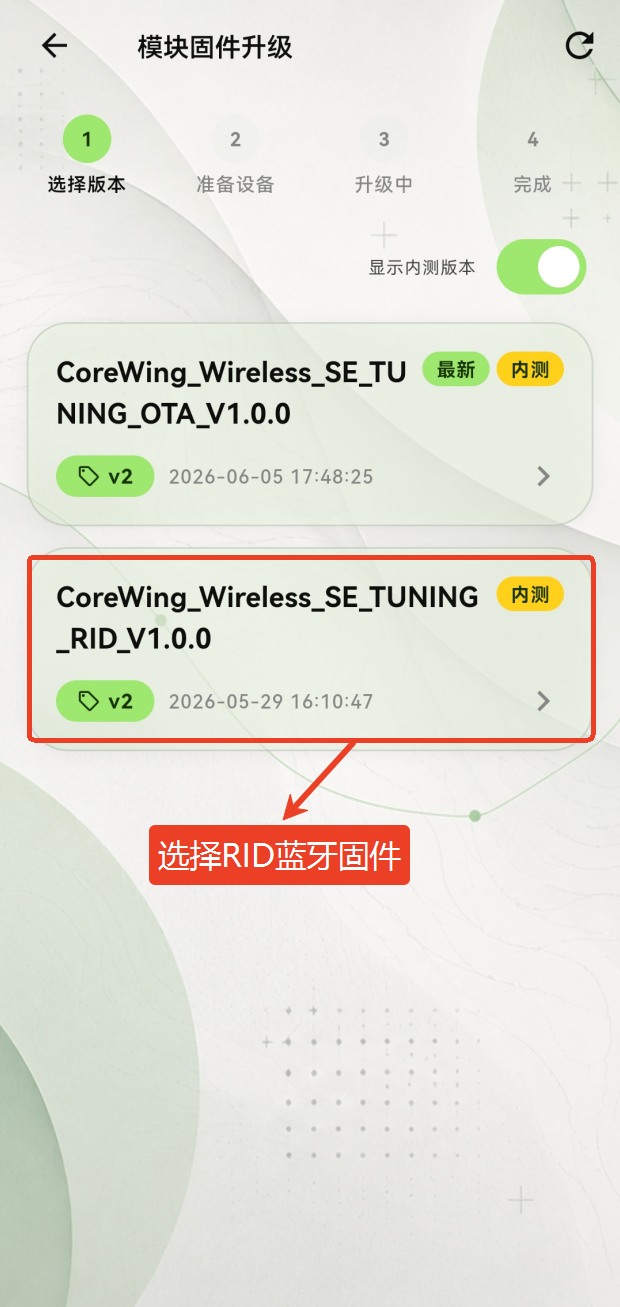
Select the RID Bluetooth firmware type
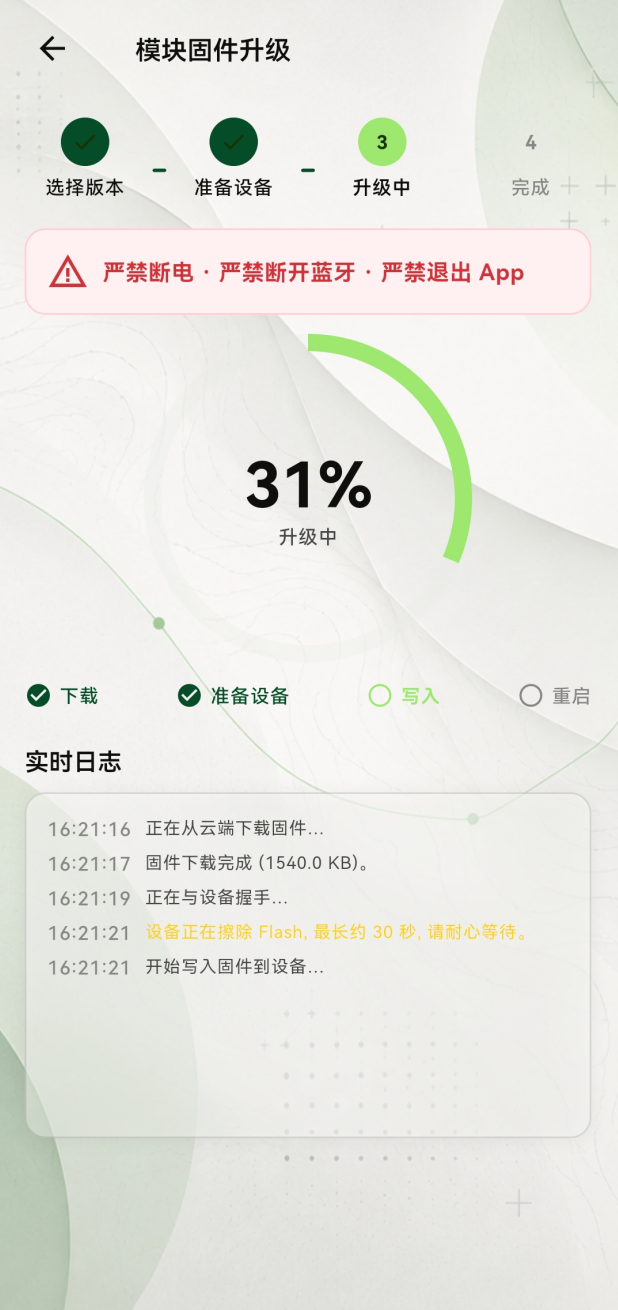
- Wait for the Bluetooth upgrade to complete; the flight controller will reboot automatically
V. RID Module Usage Instructions
5.1 Ground Control Station Setup
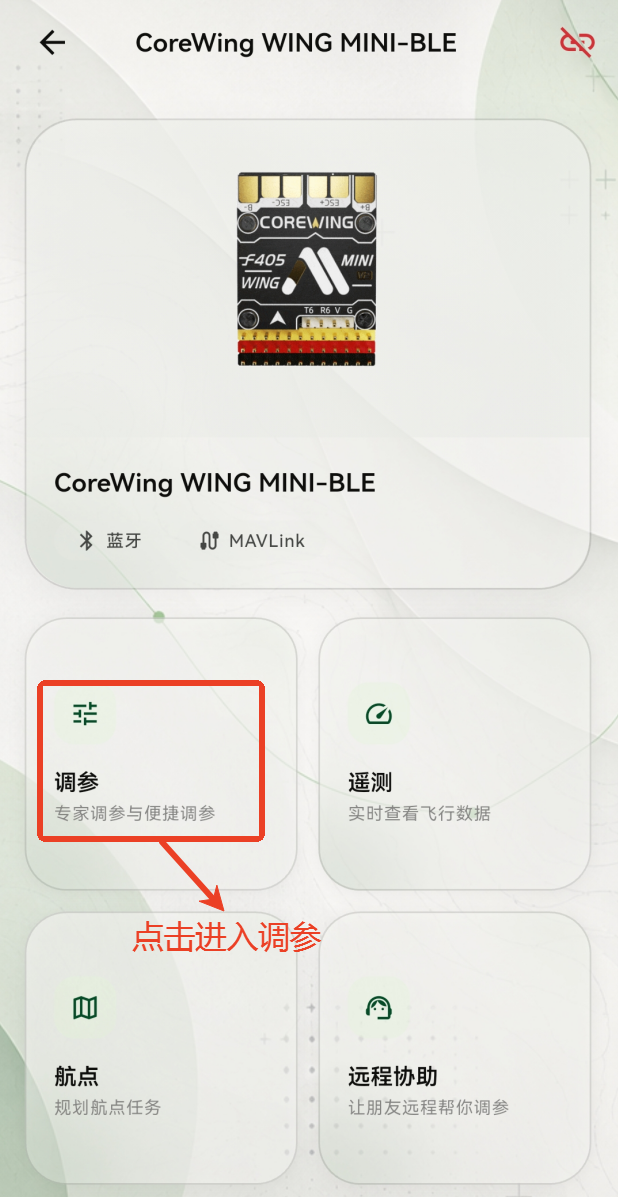
- Connect the CoreWing APP to the flight controller and click Enter Tuning
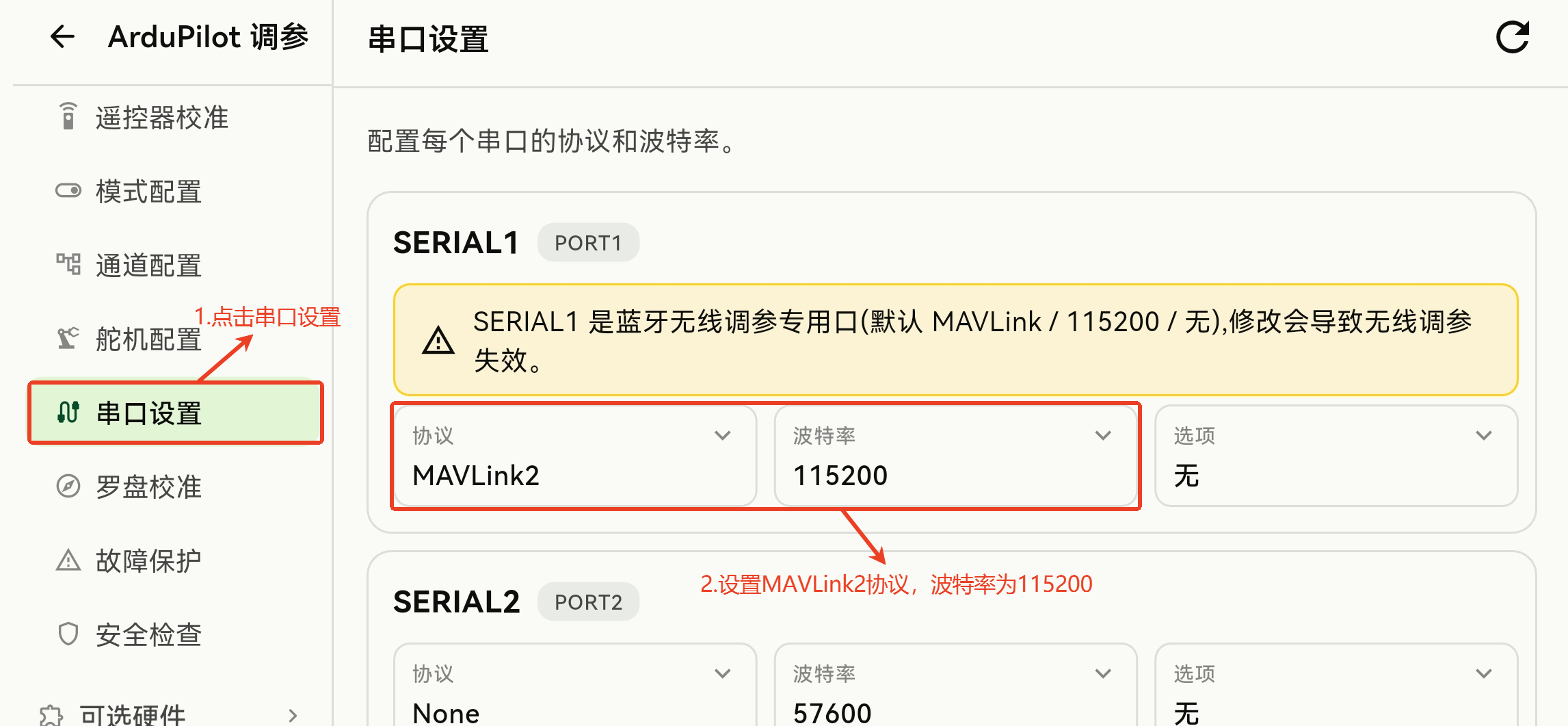
- Enter Port Settings and set Serial 1 to the MAVLink protocol with baud rate 115200
Important
The firmware settings below only apply to CoreWing flight controllers and are not applicable to other flight controllers!
ArduPilot firmware:
INAV firmware:
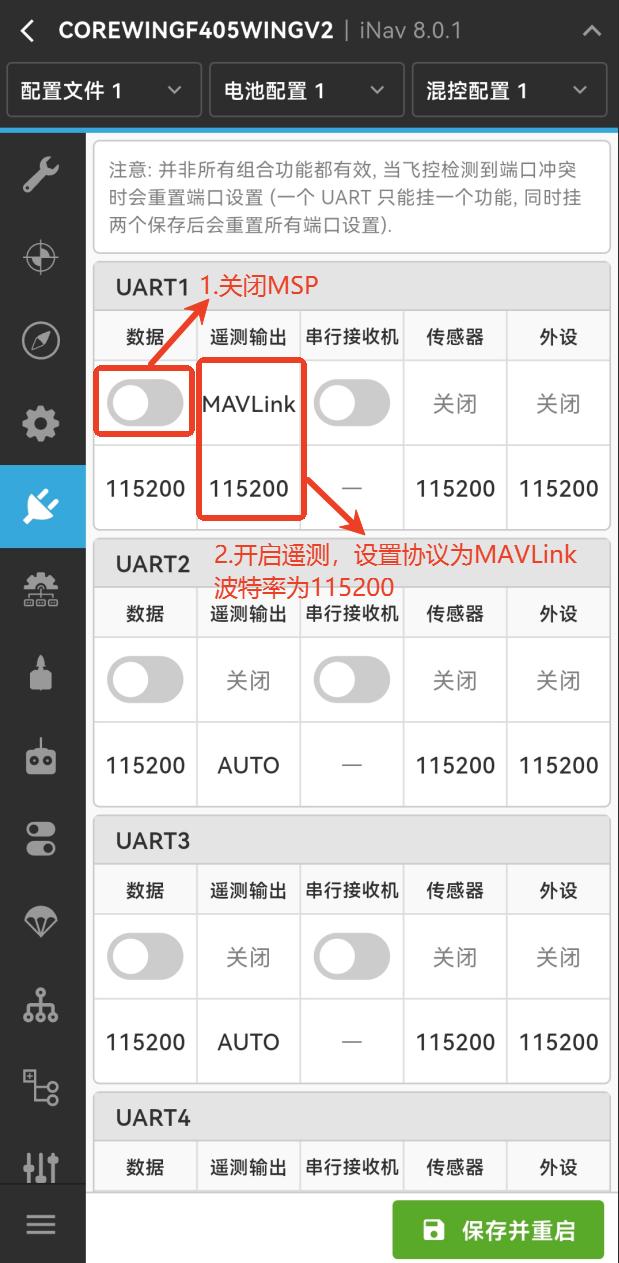
5.2 RID Module Configuration
Confirm that the RID module's RF LED is currently solid green, then use Bluetooth BLE to search for the RID module
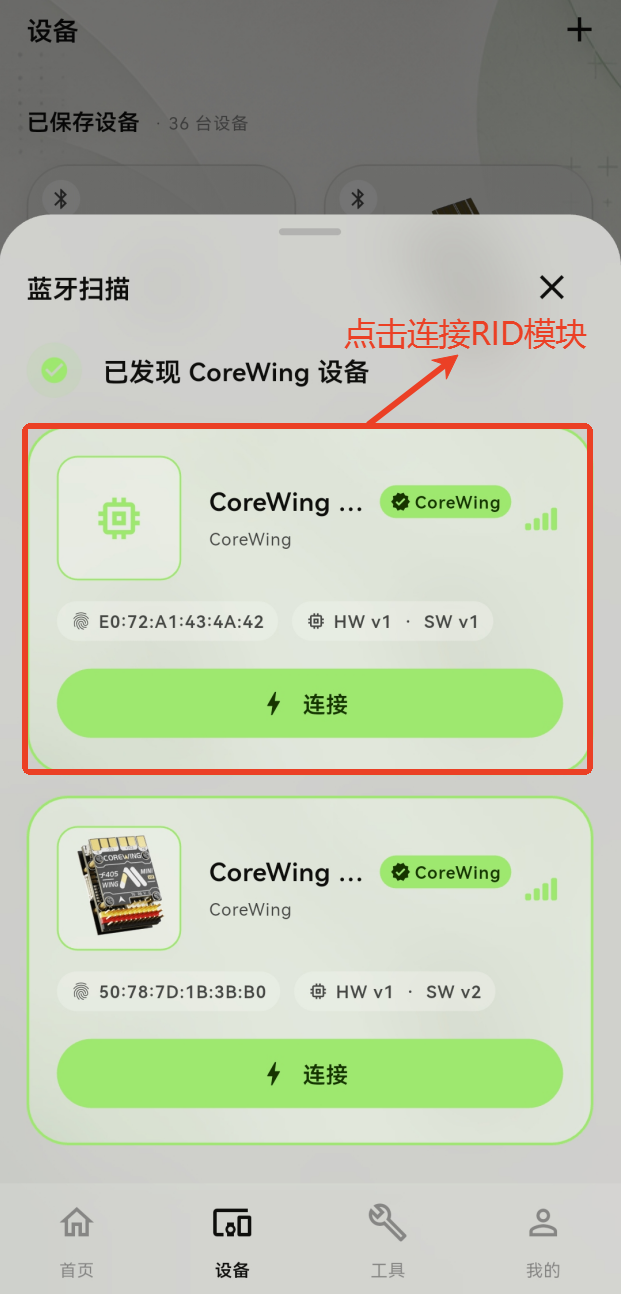
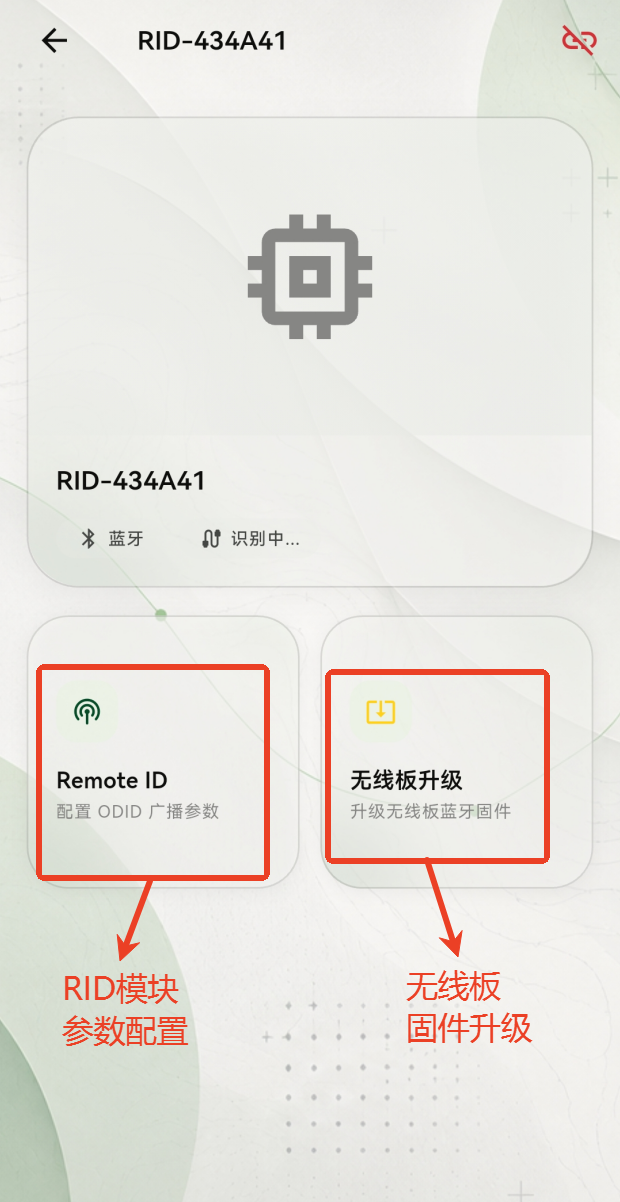
Once connected, you can find the parameter configuration option and the module upgrade option. Click the Remote ID parameter configuration option
- The broadcasting status can be used to check whether the RID module is currently broadcasting
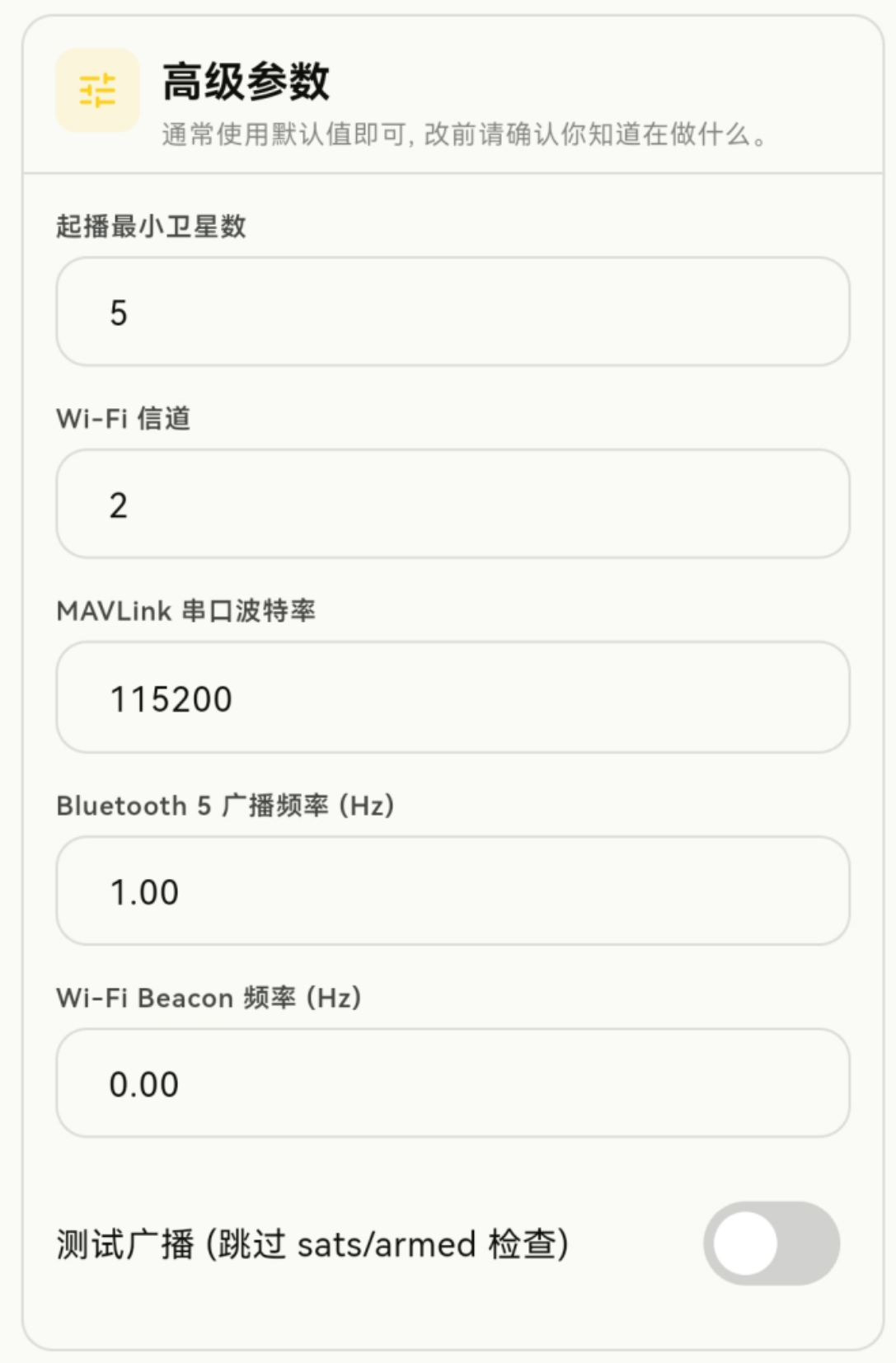
Prerequisite: For the RID module to enable broadcasting, the GPS module must have acquired at least 5 satellites.
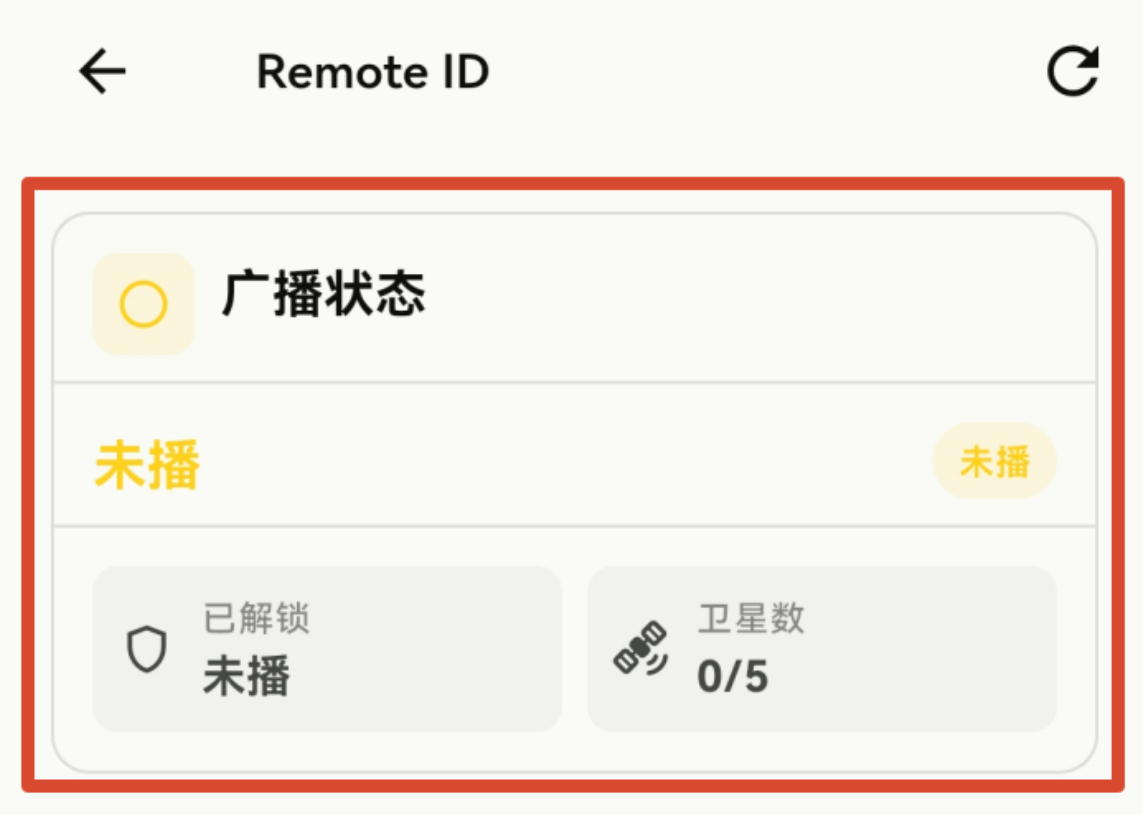
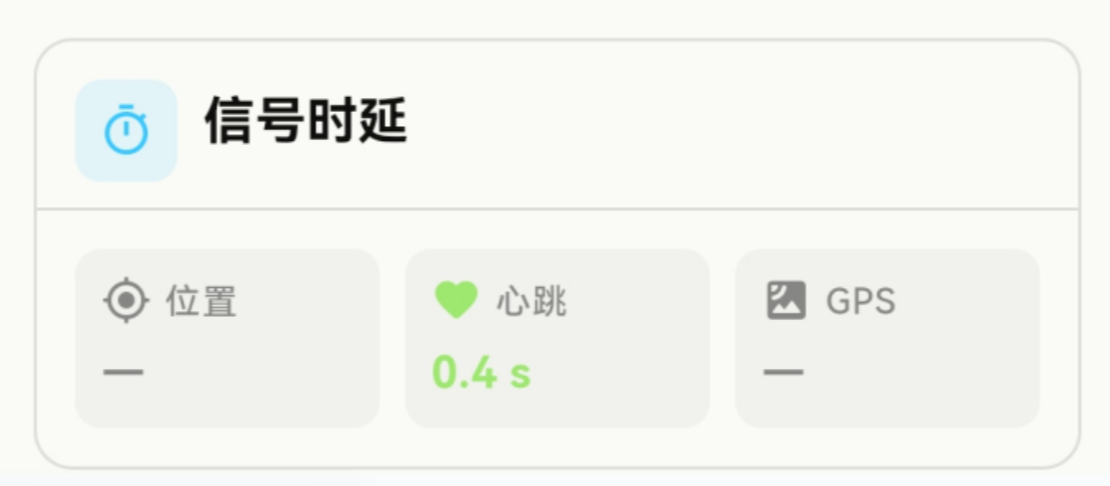
- RID module runtime information
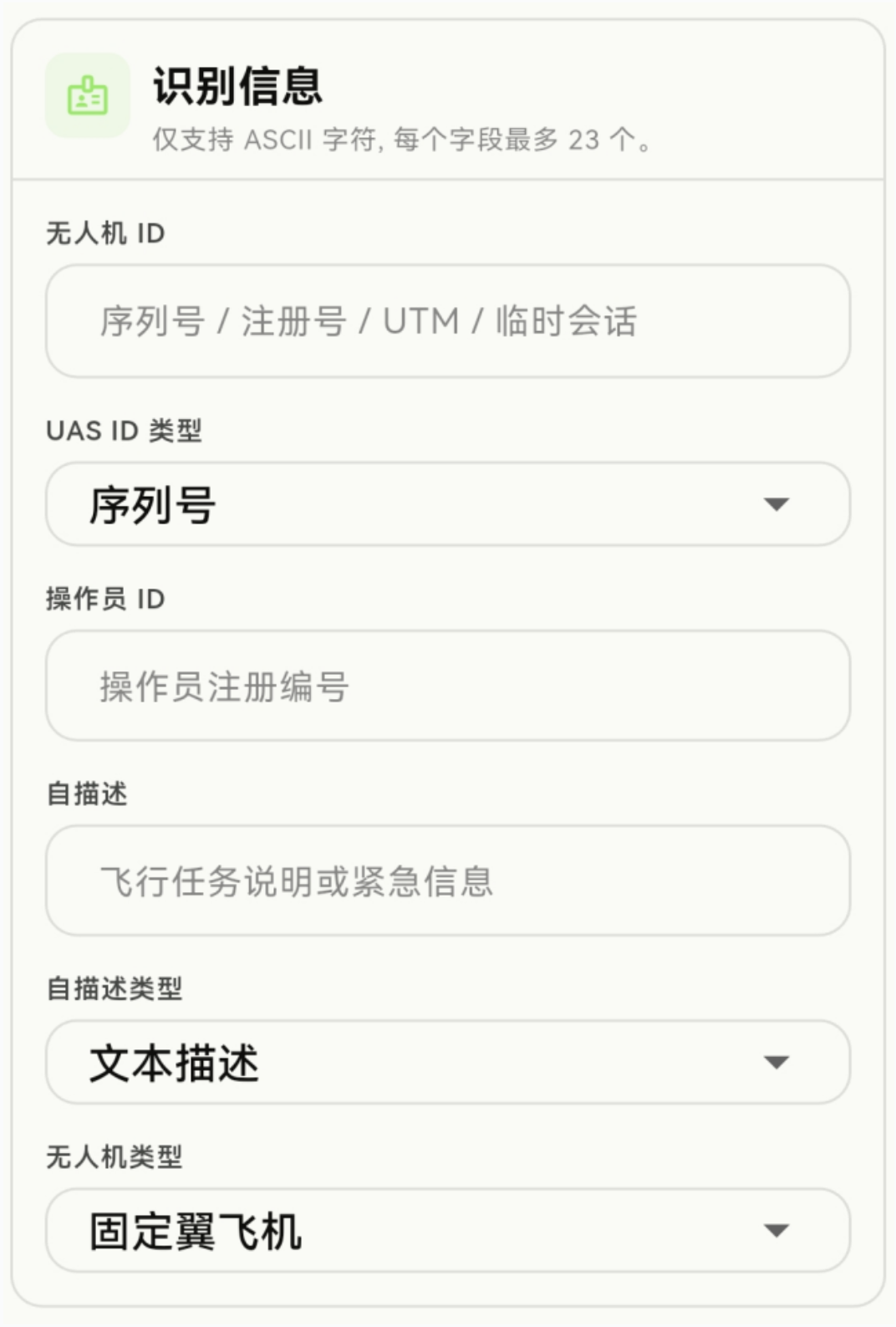
- Fill in the information based on your UOM registration
- Keep the advanced parameters at their defaults; no changes needed
5.3 Viewing RID Broadcasts in CoreWing APP
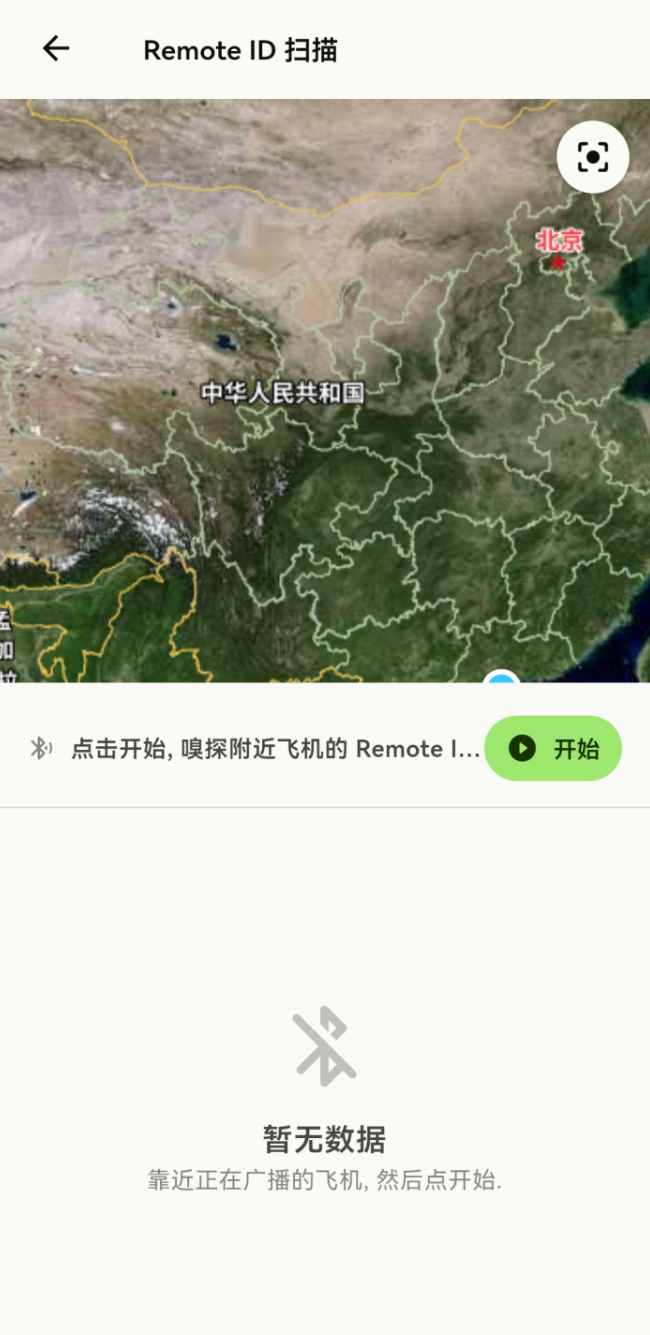
- Go to Tools and find RID Scan
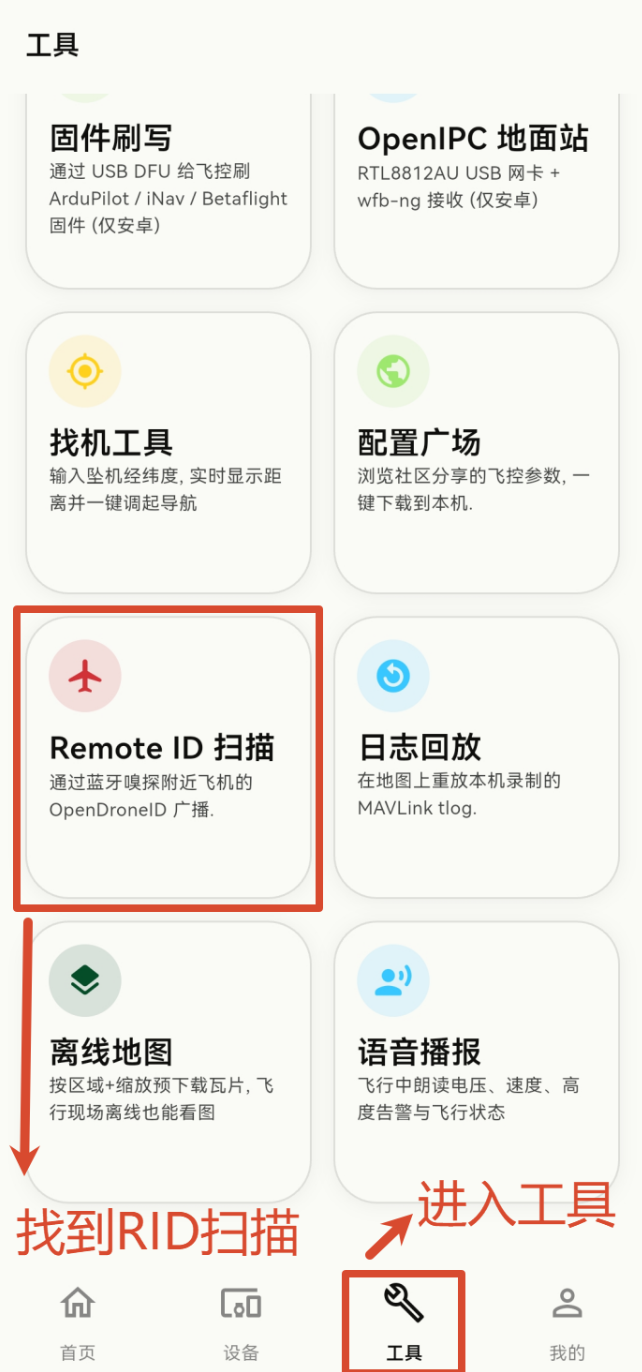
- Click Start to scan and find nearby aircraft using the RID module along with their information
Note: iOS and HarmonyOS have system limitations and cannot search or view RID broadcasts. Please use Android phones such as Xiaomi, OPPO, VIVO, or Honor.
5.4 Viewing RID Broadcasts in OpenDroneID
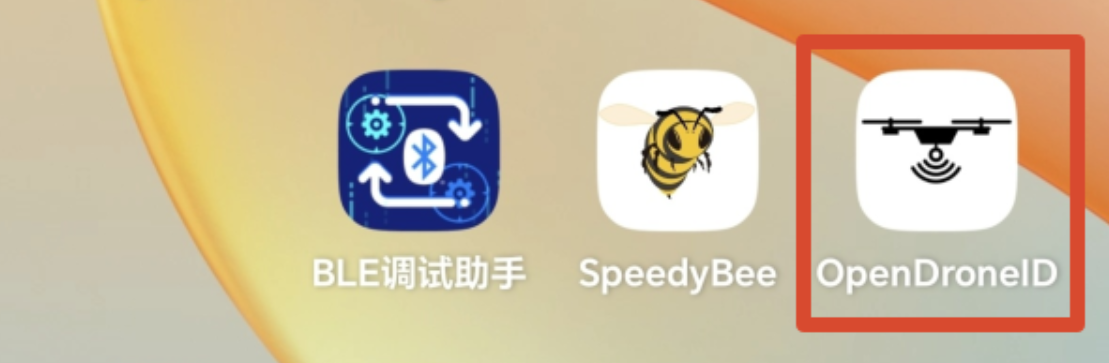
- Open OpenDroneID
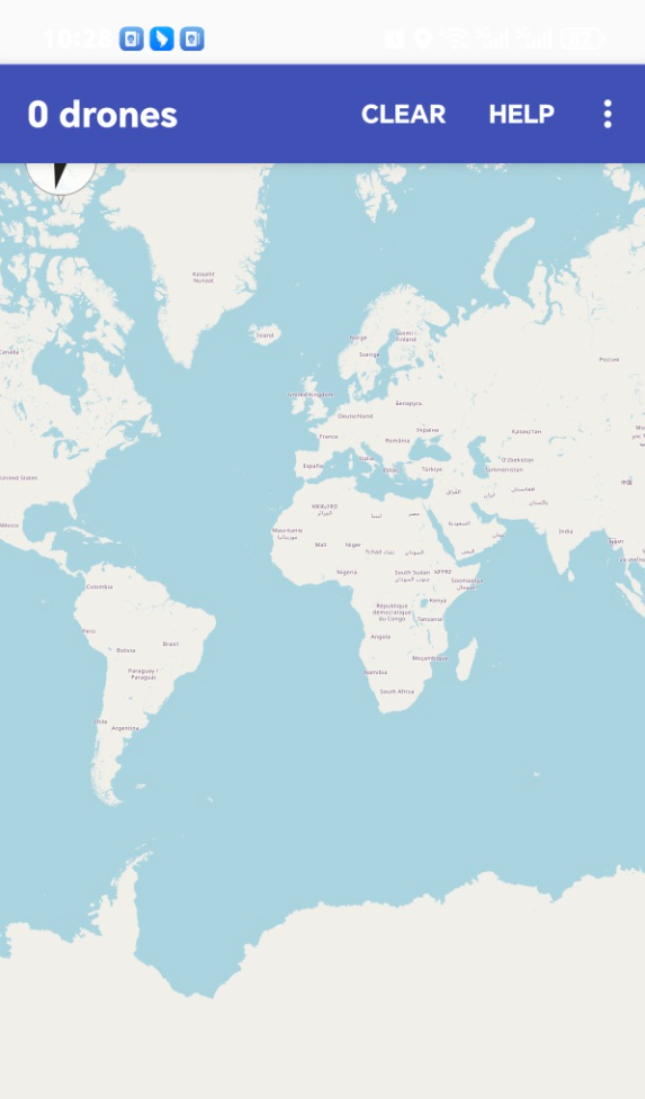
- The app automatically scans for nearby aircraft broadcasting RID and displays them
Technical Support QR Code
