
How to Connect CoreWing APP to Flight Controller
I. Introduction
CoreWing APP can establish a stable communication channel with the flight controller (FC) via Bluetooth or OTG mode for quick connection; it also supports connecting to the FC through Wi-Fi mode for wireless communication based on UDP or TCP protocols, enabling wireless parameter configuration and data transfer. Users can configure parameters, monitor status, and perform functional debugging of the FC on the CoreWing APP, significantly improving debugging efficiency and convenience.
II. Device Preparation
- CoreWing FC: Supports all connection methods
Other brand FCs: OTG connection and ELRS BackPack connection support all other brand FCs; Wi-Fi mode is suitable for other brand FCs that support UDP or TCP protocolsImportant
For information on how to connect via ELRS BackPack, please refer to:
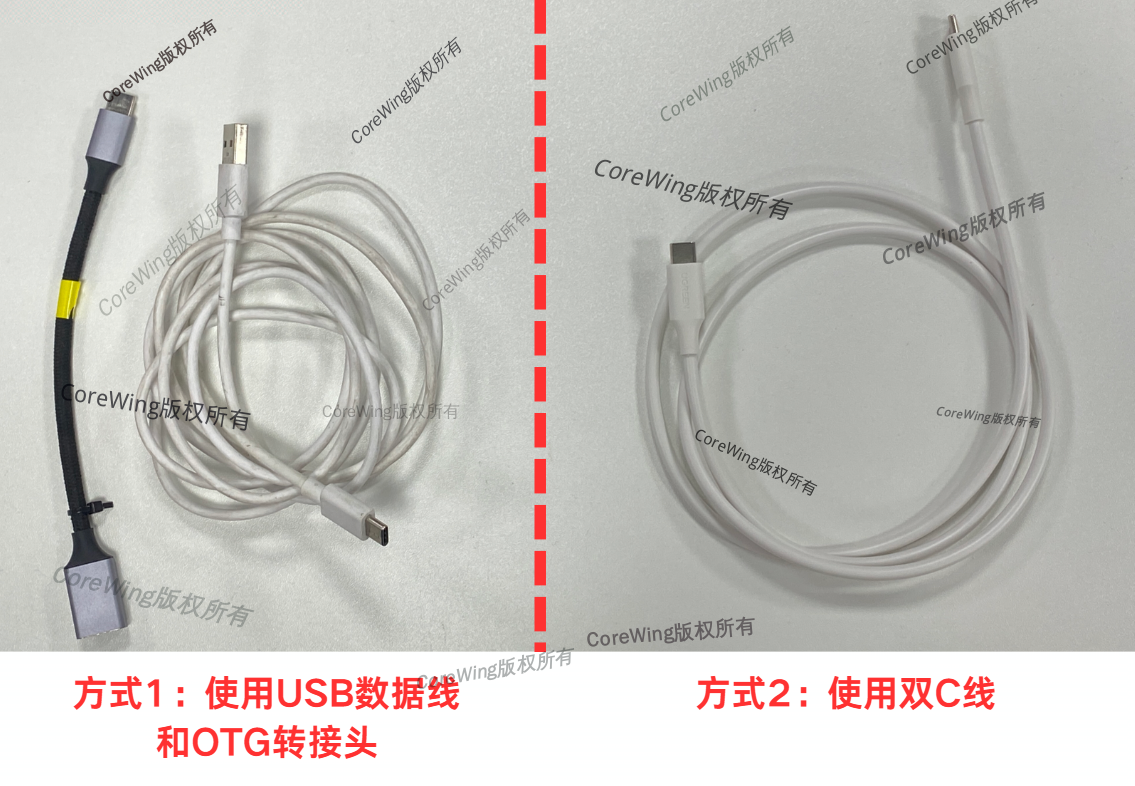
- Data cable: USB data cable with communication function and OTG adapter OR dual C cable with communication function
- Smartphone with the latest version of CoreWing APP installed
Important
CoreWing APP download link: https://www.corewing.com/website/download
III. Specific Operations
3.1 Connecting to Flight Controller via Bluetooth
Important
This method only supports CoreWing flight controllers, not flight controllers from other brands
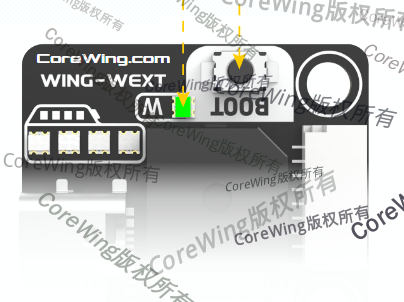
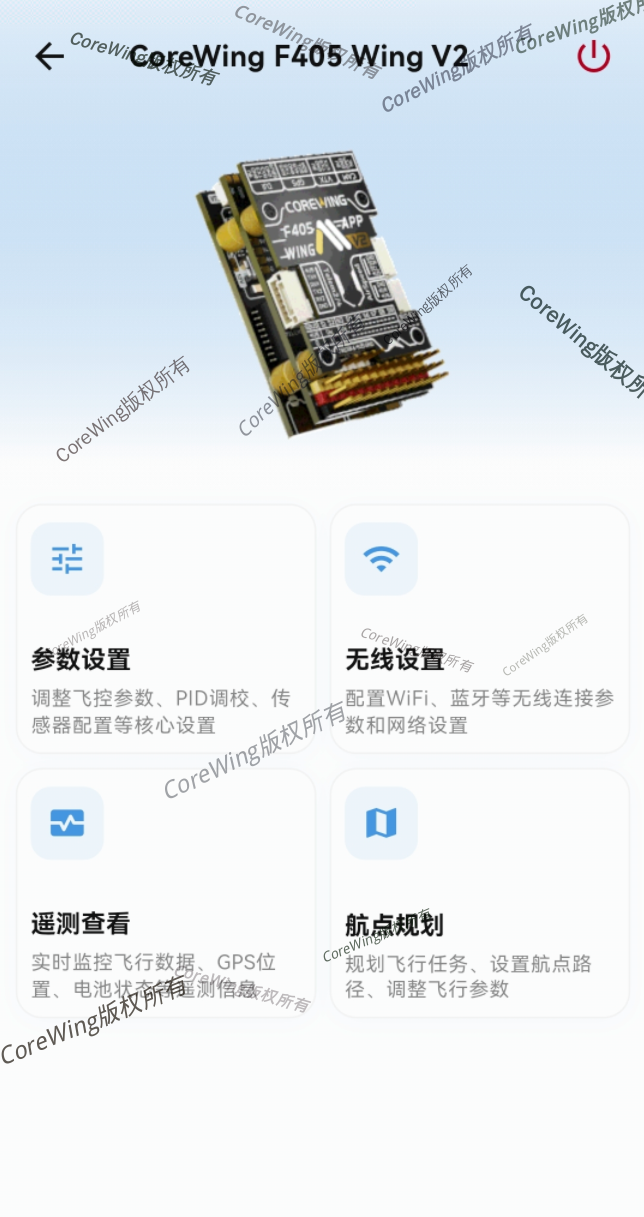
- Long press the BOOT key for 6 seconds to switch to wireless board mode, with green flashing indicating Bluetooth BLE mode:
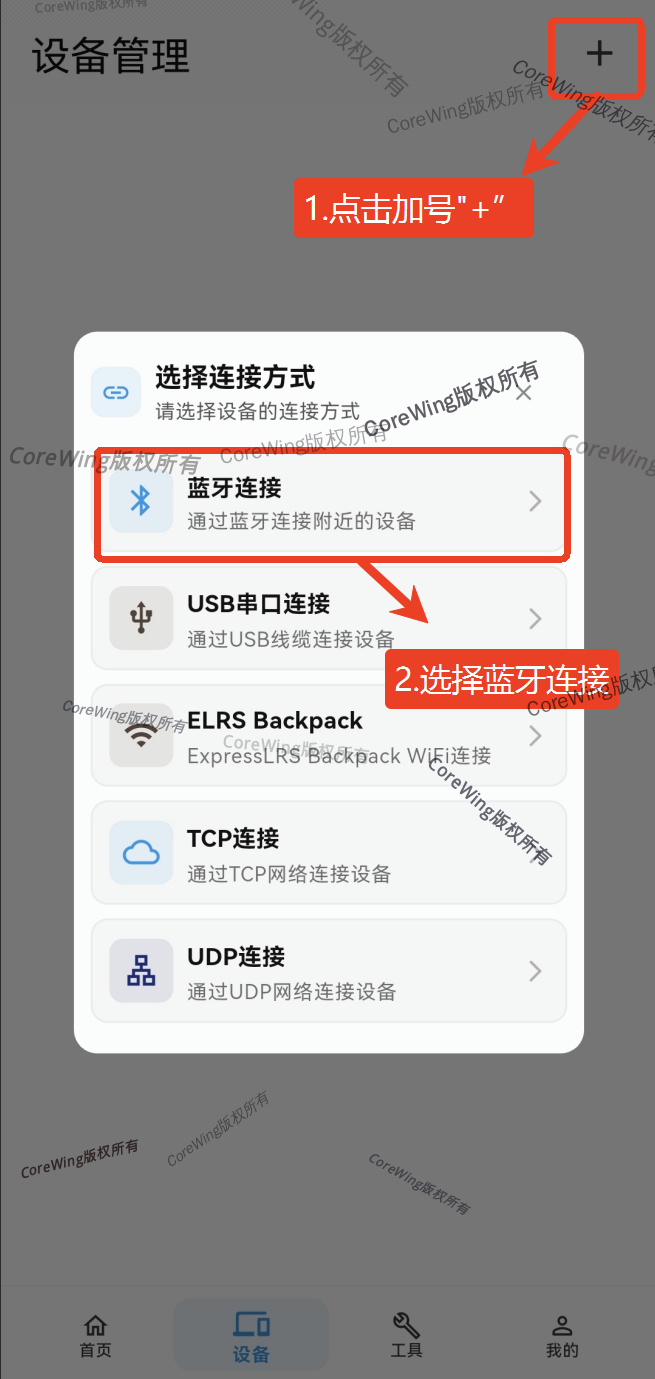
- Go to the device page, click the "+" in the top right corner, select Bluetooth connection
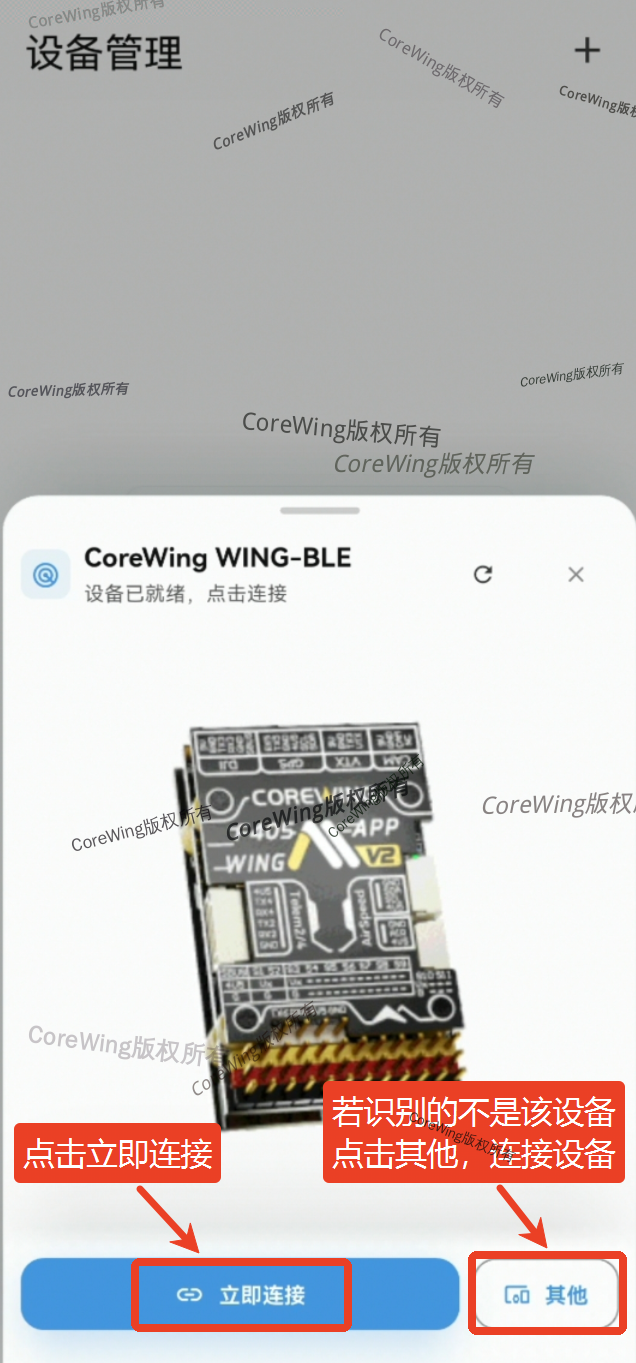
- Search for CoreWing WING-BLE and click "Connect immediately".
- Enter the interface to start aircraft tuning
Important
If connected to CoreWing APP but unable to use its tuning functions, please refer to this article: https://docs.corewing.com/plane/software/corewing-app/disconnect-corewingapp.html
3.2 Connecting to Flight Controller via OTG Mode
Important
Supports CoreWing flight controllers as well as flight controllers from other brands
Important
Currently only supports Android phones using USB serial connection; iOS is not supported due to system limitations
- Use a USB data cable with communication function and an OTG adapter, or a dual-C cable with communication function
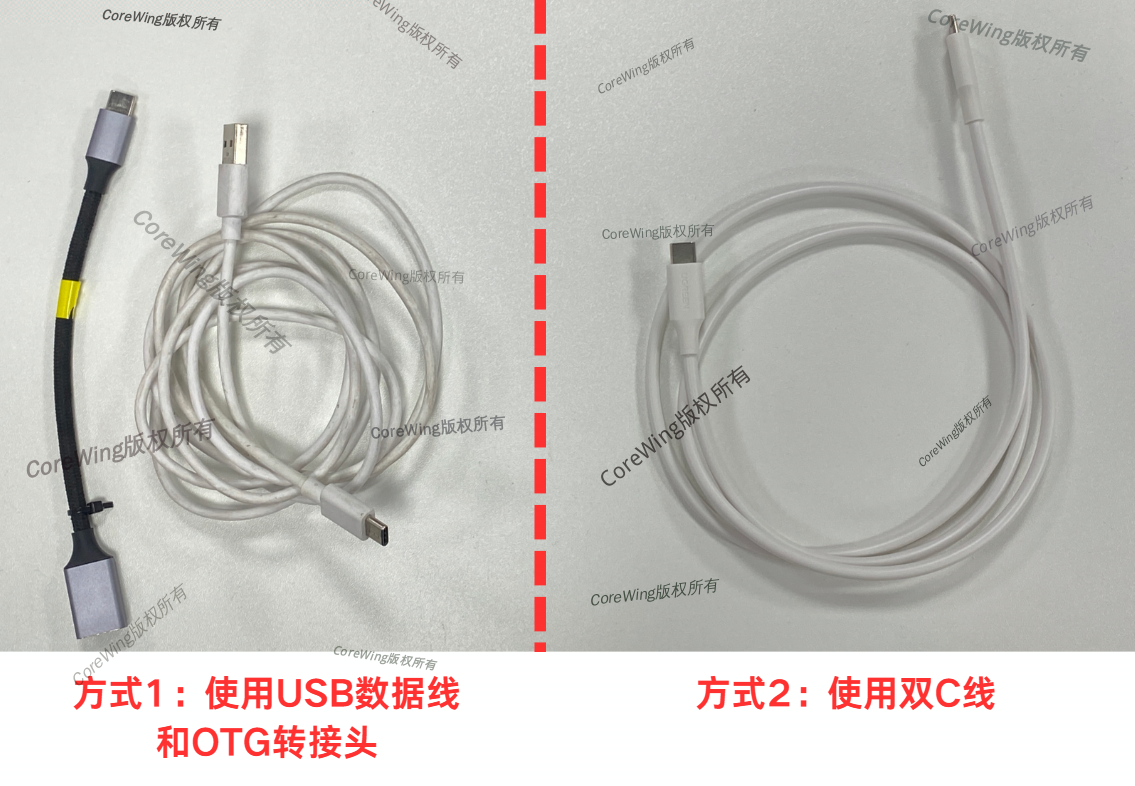
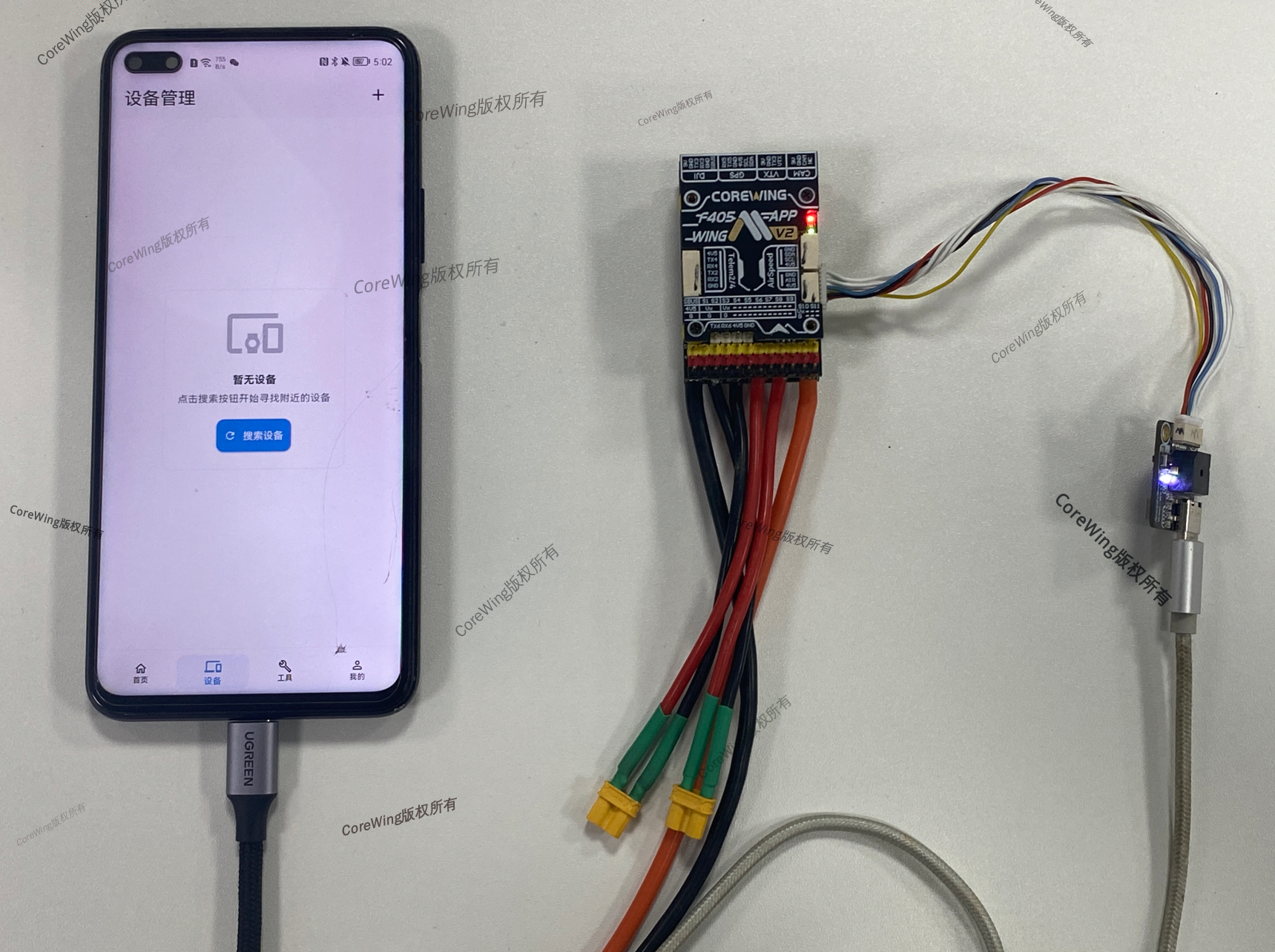
- Connect the flight controller to the phone with the data cable
Important
Note: When using an OTG adapter + data cable, the OTG adapter end must be connected to the phone, otherwise the flight controller will not be recognized. Connect as shown in the figure below!
- Go to the device page, click the "+" in the top right corner, select USB serial connection
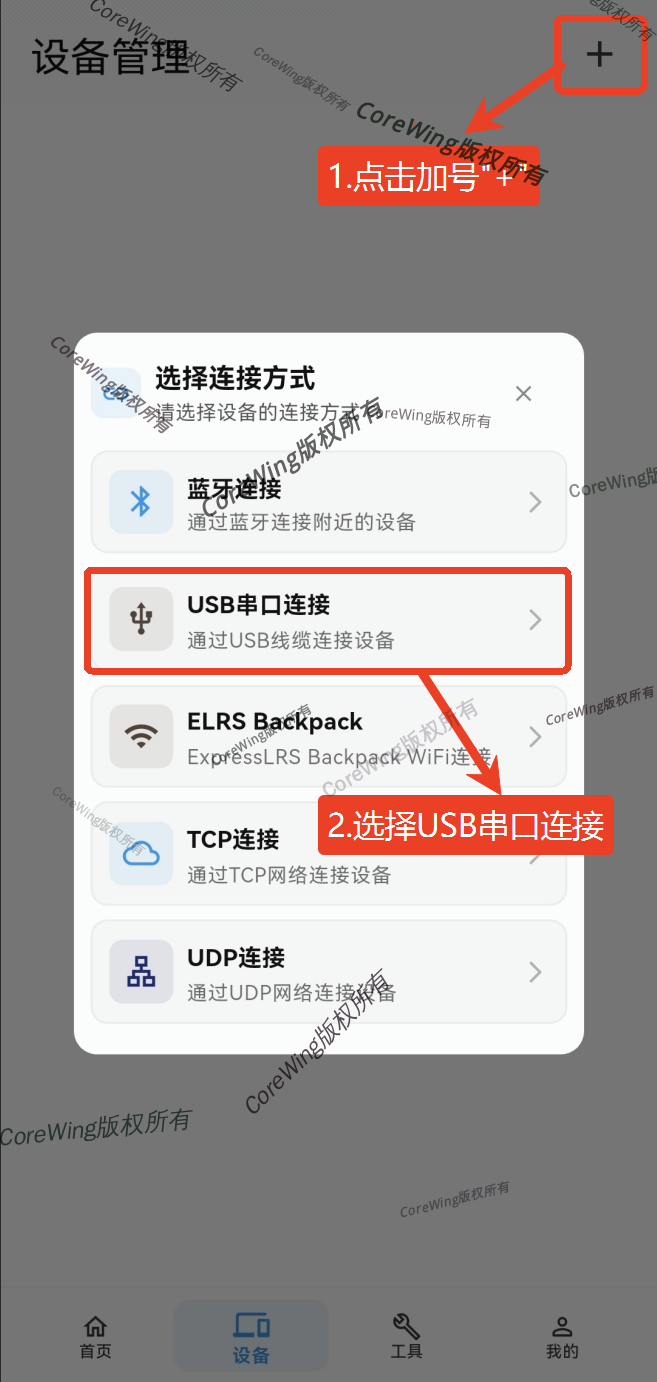
- Click to connect the recognized device
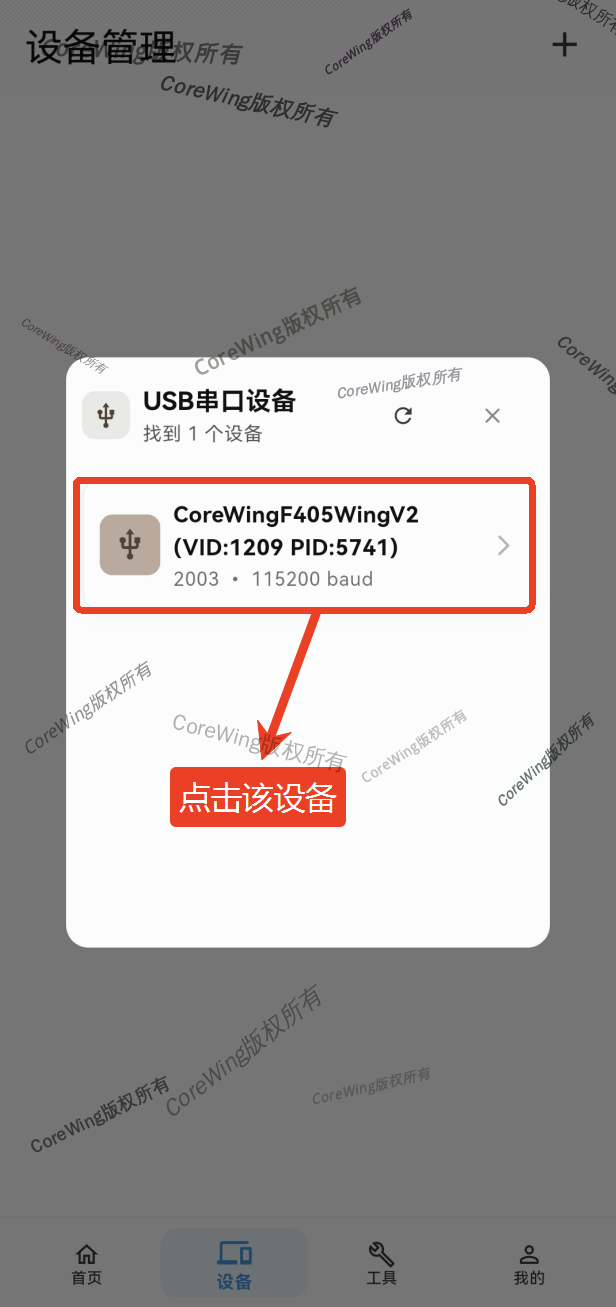
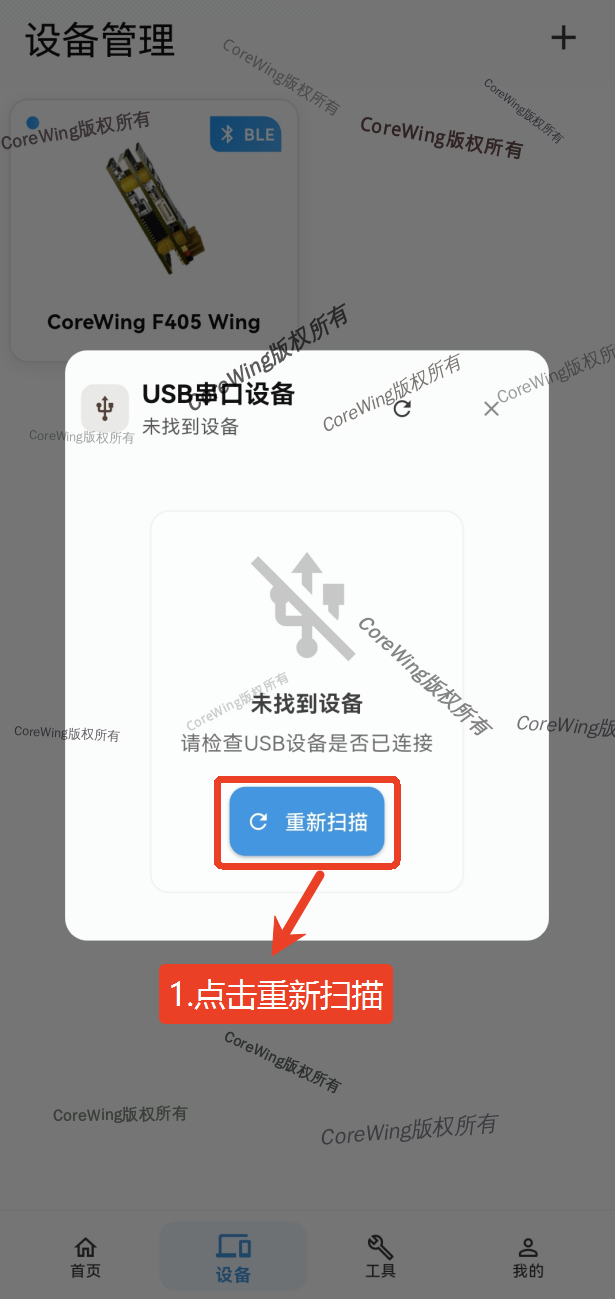
- If the device is not recognized, click "Rescan"
Important
If the device cannot be recognized after multiple attempts, it is recommended to replace with a different data cable that has communication function
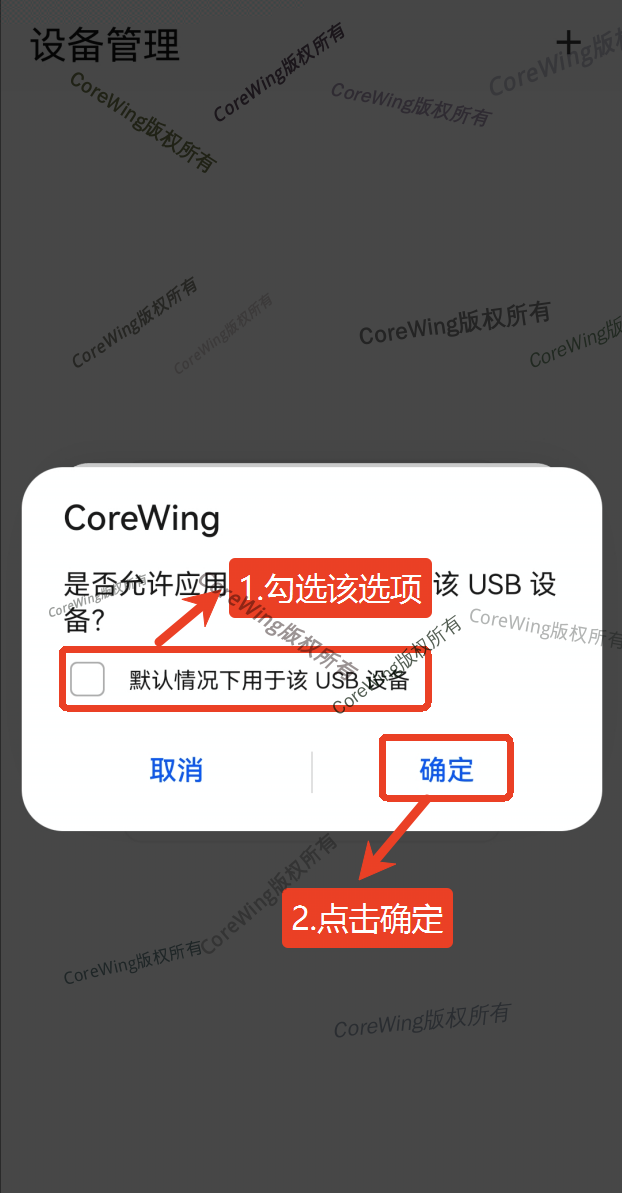
- If a popup prompts "Allow CoreWing to access this USB device", check "Use by default for this USB device", then click OK
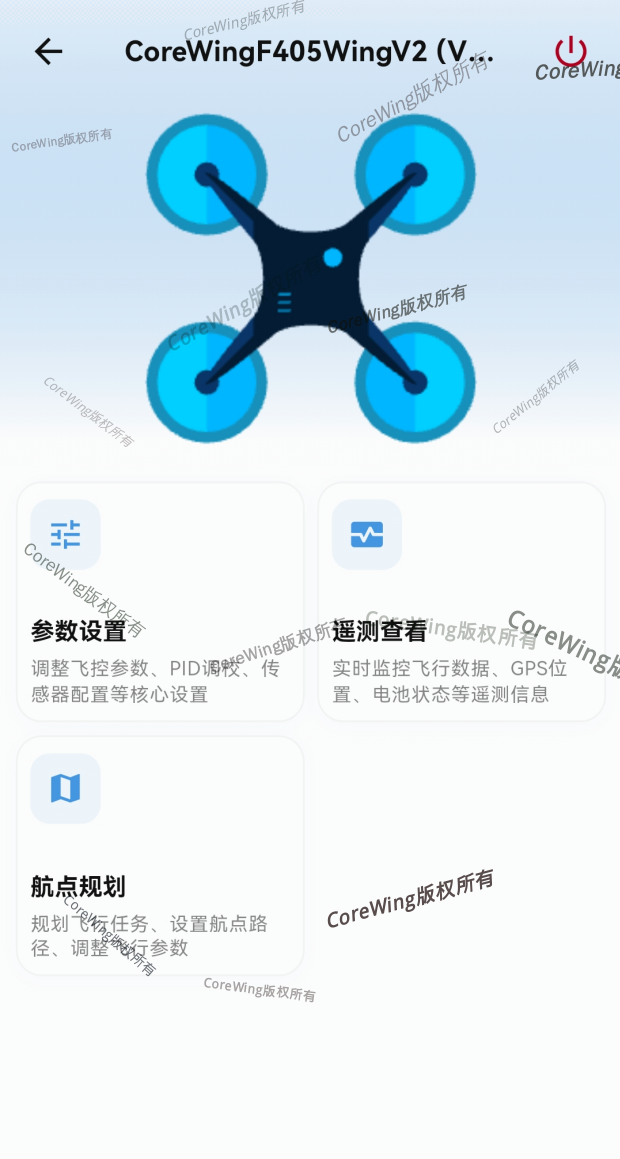
- Enter the interface to start aircraft tuning
3.3 Connecting to Flight Controller via TCP
Important
The flight controller must have ArduPilot firmware installed to support TCP connection via WiFi mode with CoreWing APP
Important
Not all flight controllers from other brands support TCP connection with CoreWing APP. Please refer to the official documentation of the corresponding brand for compatibility
- Long press the BOOT key for 6 seconds to switch to wireless board mode, with white flashing indicating
WIFImode: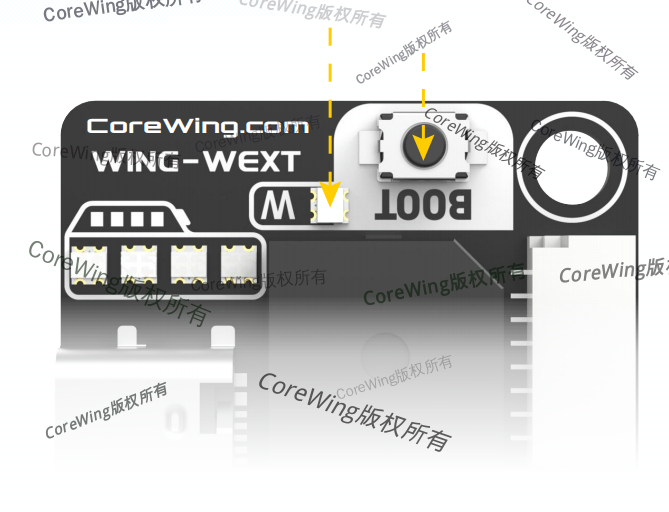
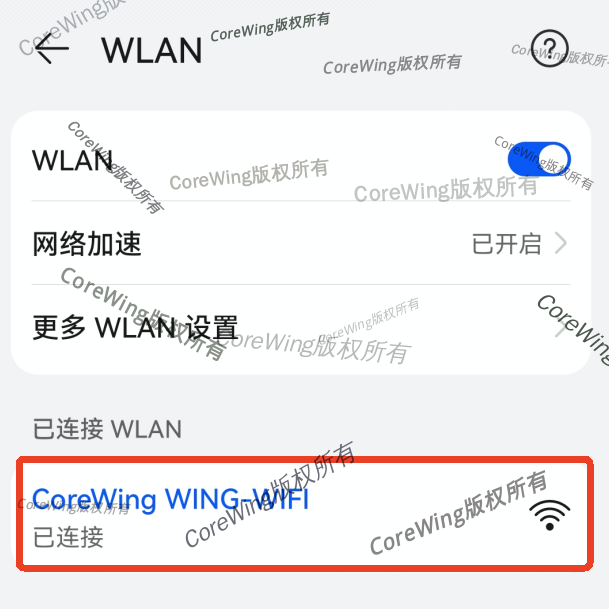
- Go to the phone settings, connect to CoreWing WING-WIFI
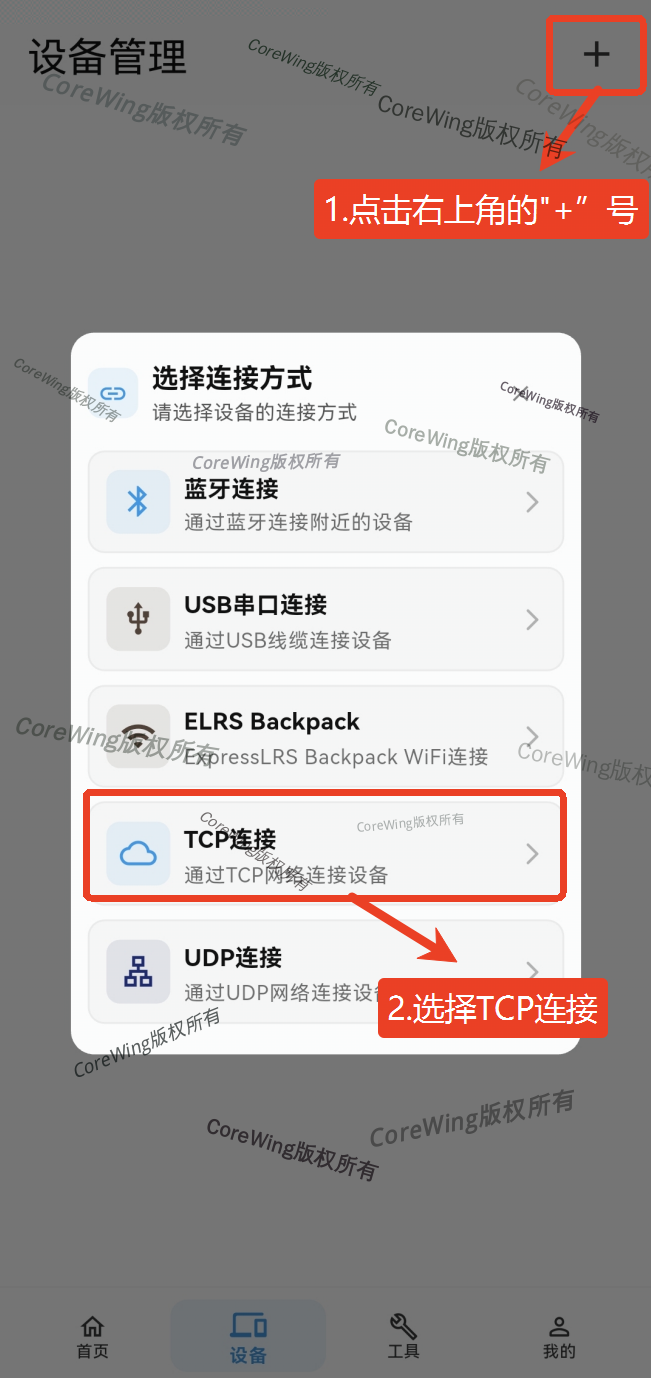
- Go to the CoreWing APP device page, click the "+" in the top right corner, select TCP connection
- Enter Host address: 192.168.1.1
- Enter Port number: 4278
Important
Different brands of flight controllers have different host addresses and port numbers. Please consult the official customer service of the corresponding brand for specific parameters.
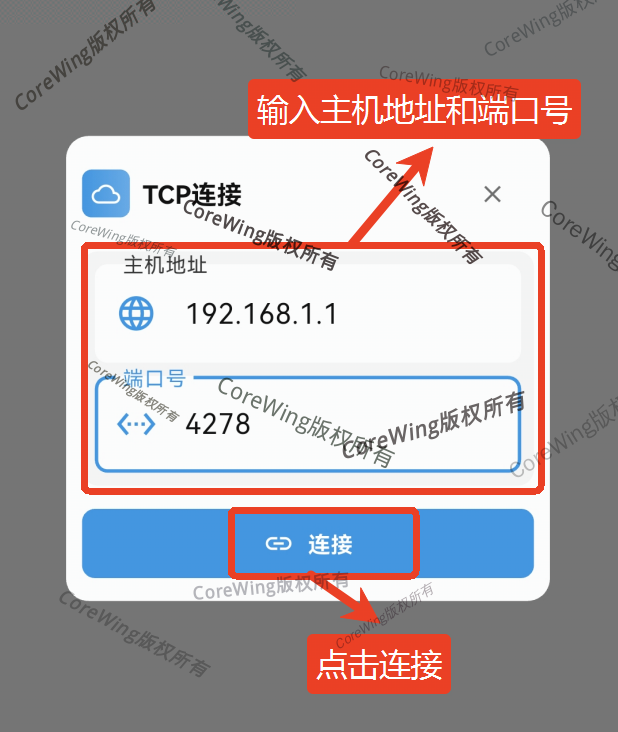
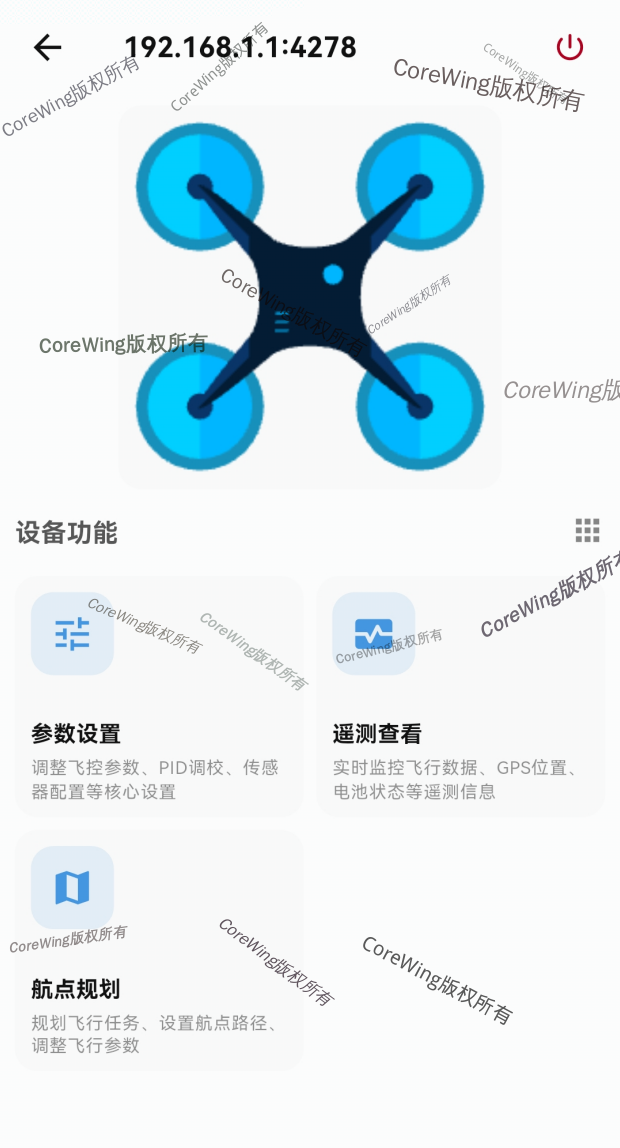
- Enter the interface to start aircraft tuning
3.4 Connecting to Flight Controller via UDP
Important
The flight controller must have ArduPilot firmware installed to support UDP connection via WiFi mode with CoreWing APP
Important
Not all flight controllers from other brands support UDP connection with CoreWing APP. Please refer to the official documentation of the corresponding brand for compatibility
- Long press the BOOT key for 6 seconds to switch to wireless board mode, with white flashing indicating
WIFImode: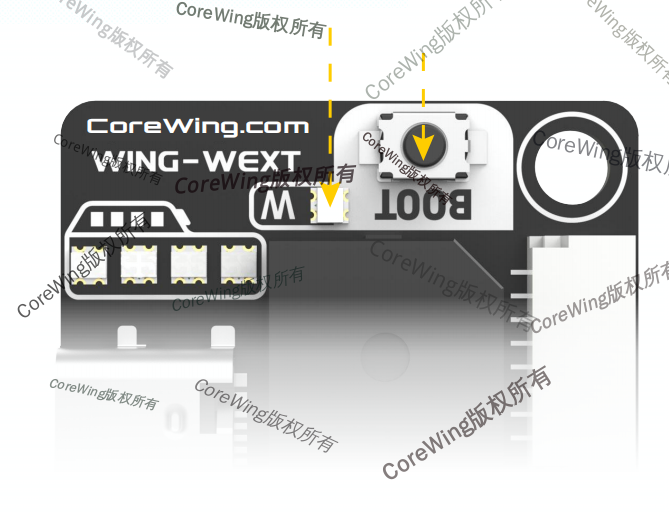
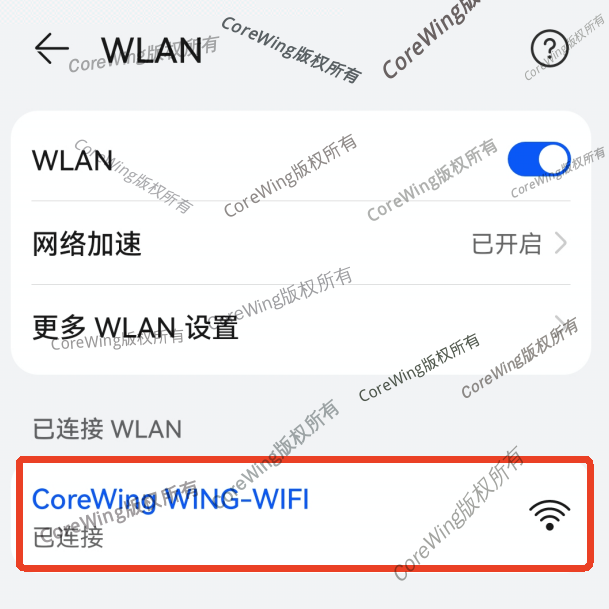
- Go to the phone settings, connect to CoreWing WING-WIFI
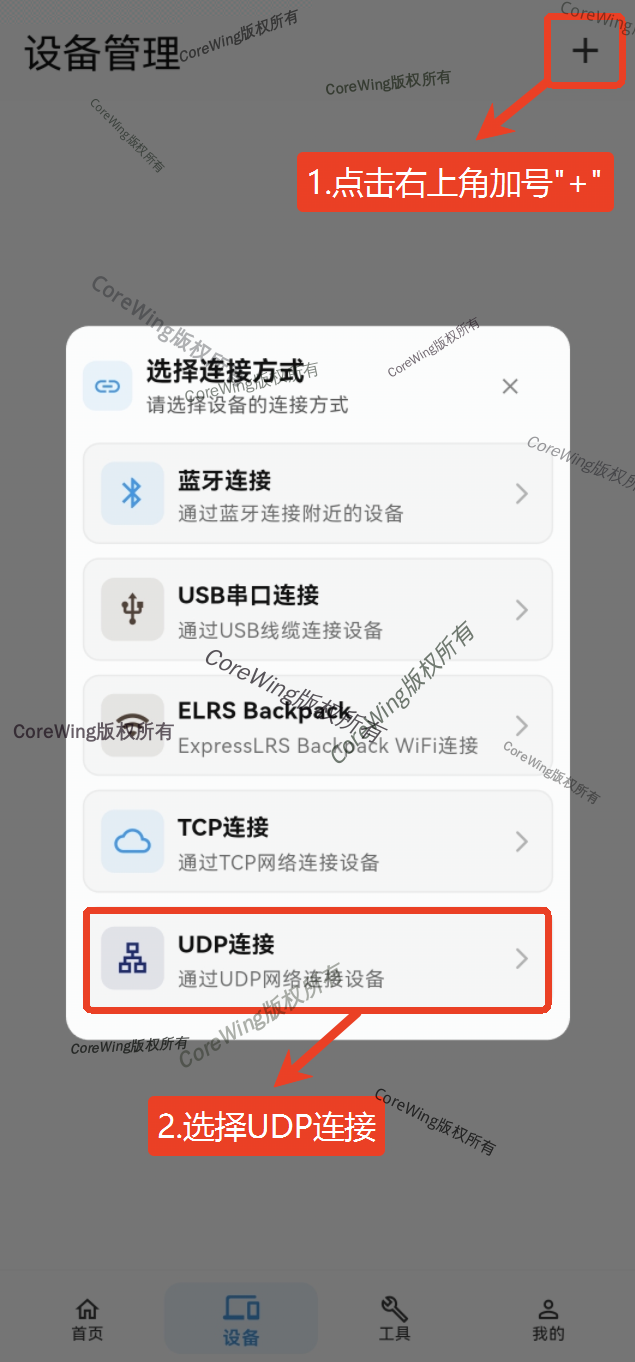
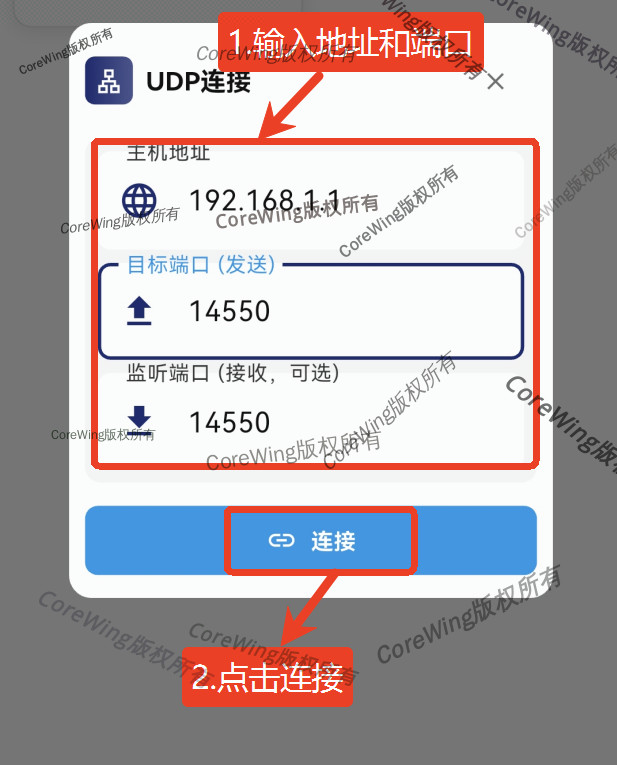
- Go to the CoreWing APP device page, click the "+" in the top right corner, select UDP connection
- Enter Host address: 192.168.1.1
- Enter Target port: 14550
- Enter Listen port: 14550
Important
Different brands of flight controllers have different host addresses and port numbers. Please consult the official customer service of the corresponding brand for specific parameters.
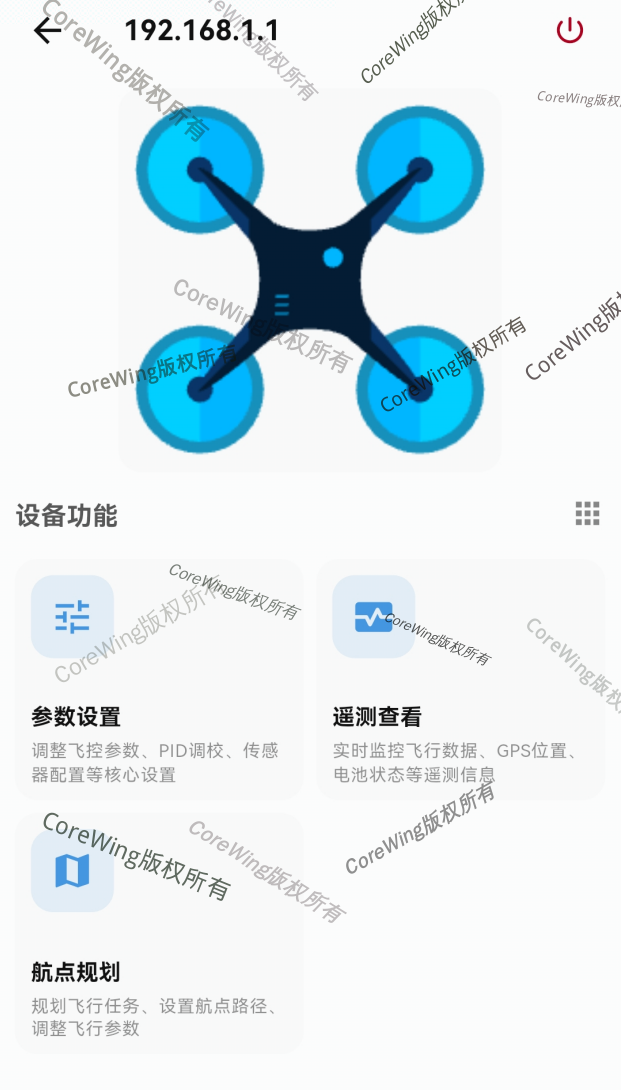
- Enter the interface to start aircraft tuning
Important
If you encounter connection issues, please contact technical support!!!
IV. Q&A
Technical Support QR Code
