
Updating Flight Controller Firmware with SpeedyBee APP
I. Principle
Through the SpeedyBee APP flight controller firmware update feature, you can conveniently upgrade the flight controller firmware, download and install the latest firmware version, optimize flight controller performance, and fix potential issues.
II. Device Preparation
1) Flight controller: CoreWing F405 WING V2 (Currently only CoreWing F405 WING V2 can be flashed via APP)
2) Smartphone with the latest version of SpeedyBee APP installed
Important
SpeedyBee APP download link: https://www.speedybee.com/download/
III. Specific Operations
3.1 Normal Use Case
Step 1: Power on the flight controller
- Use a USB cable to power the flight controller
- Ensure the wireless board LED status is flashing green (Bluetooth mode)
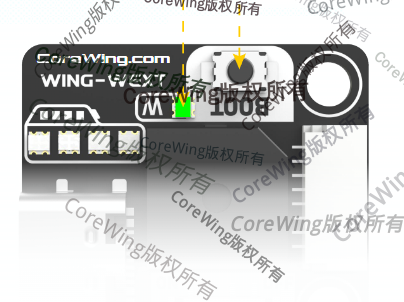
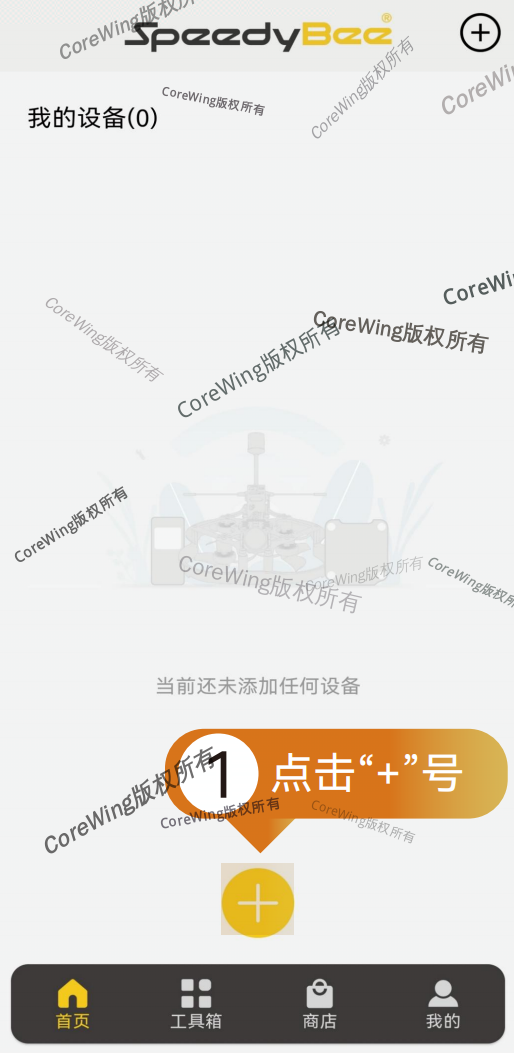
Step 2: Connect APP to flight controller - Open the APP and click "+" at the bottom
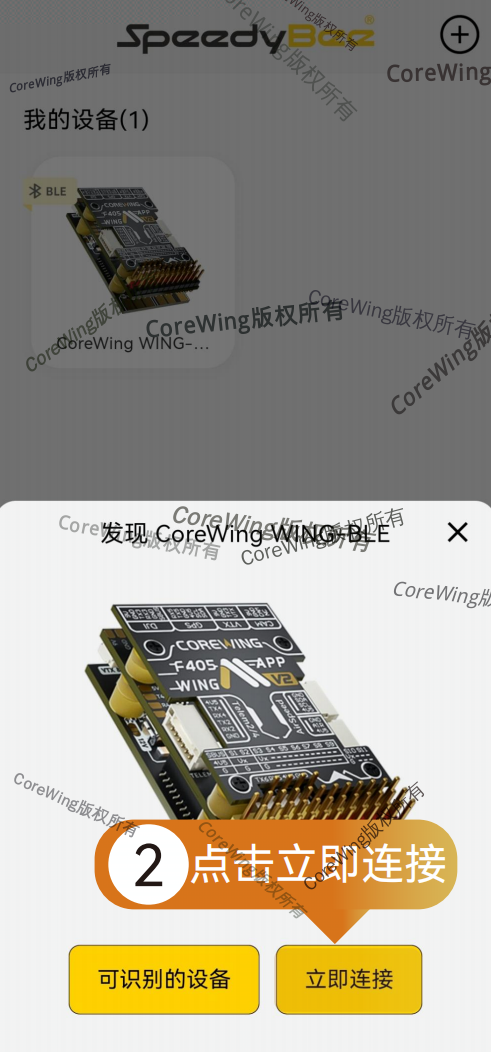
- Select "Connect Now" to automatically search for nearby devices. Ensure the device is the flight controller you are using
Important
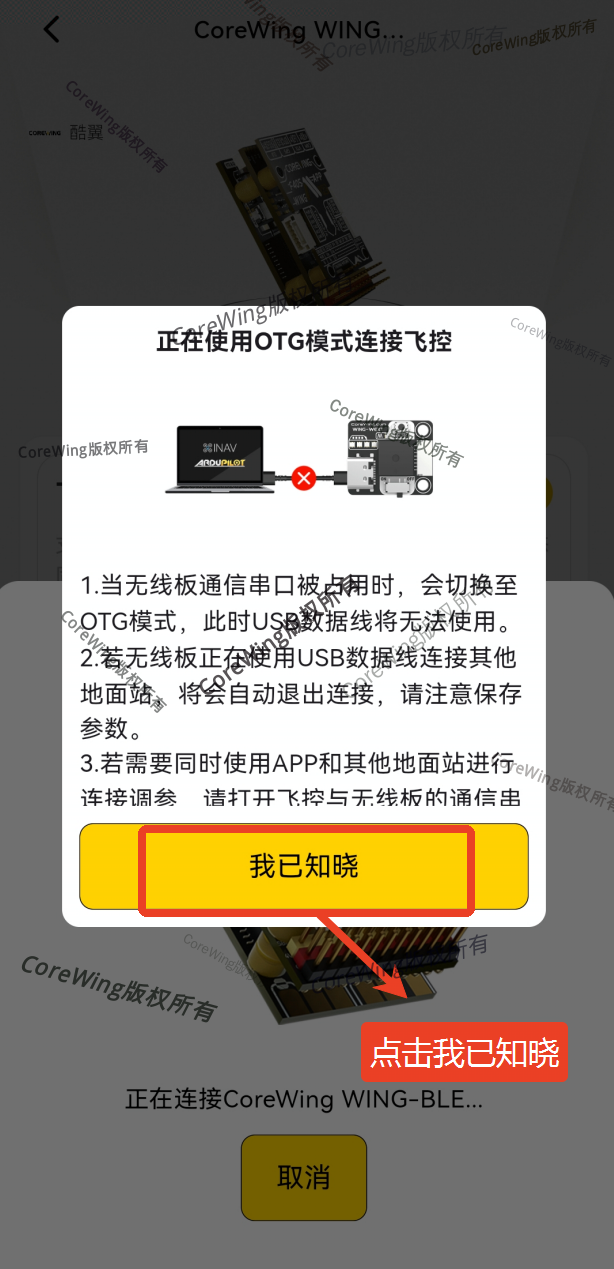
When the communication serial port between the flight controller and wireless board is occupied by other peripherals, the wireless board will automatically switch to OTG mode after connecting through the SpeedyBee APP to ensure normal communication between the APP and wireless board, thus continuing to use wireless functions. (This mode can only be triggered via the SpeedyBee APP)
- Click "I understand" to enter OTG mode
- After successful connection, enter the card interface and click "Flash Flight Controller Firmware"
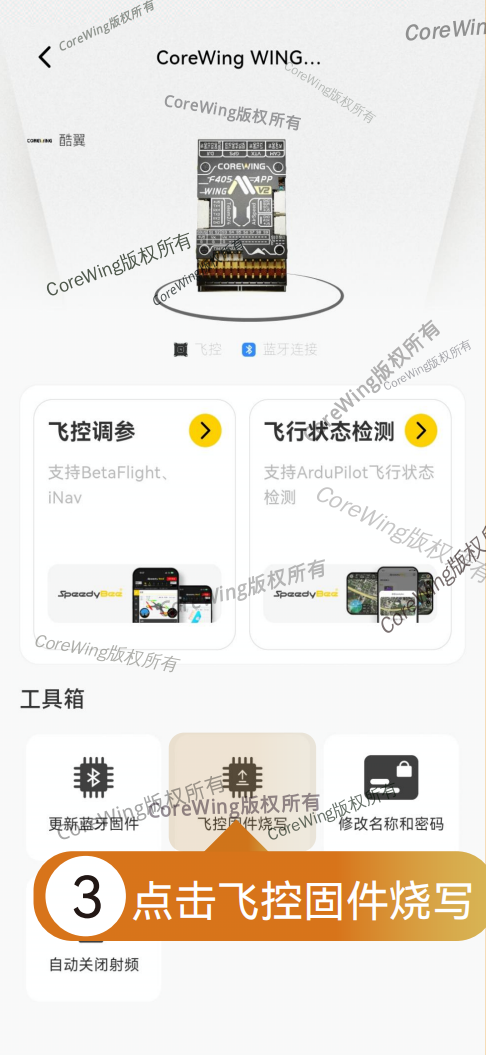
- Select the flight controller firmware type to be flashed
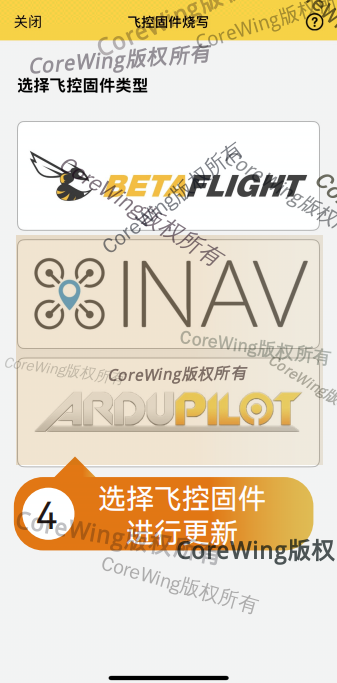
Step 3: Flash Firmware
Important
The following example uses flashing AP firmware as an example; flashing INAV firmware uses the same method
- Click the ArduPilot icon to enter the flashing page
- Select the corresponding flight controller and firmware type, enable "Full Erase", and click "Download Now"
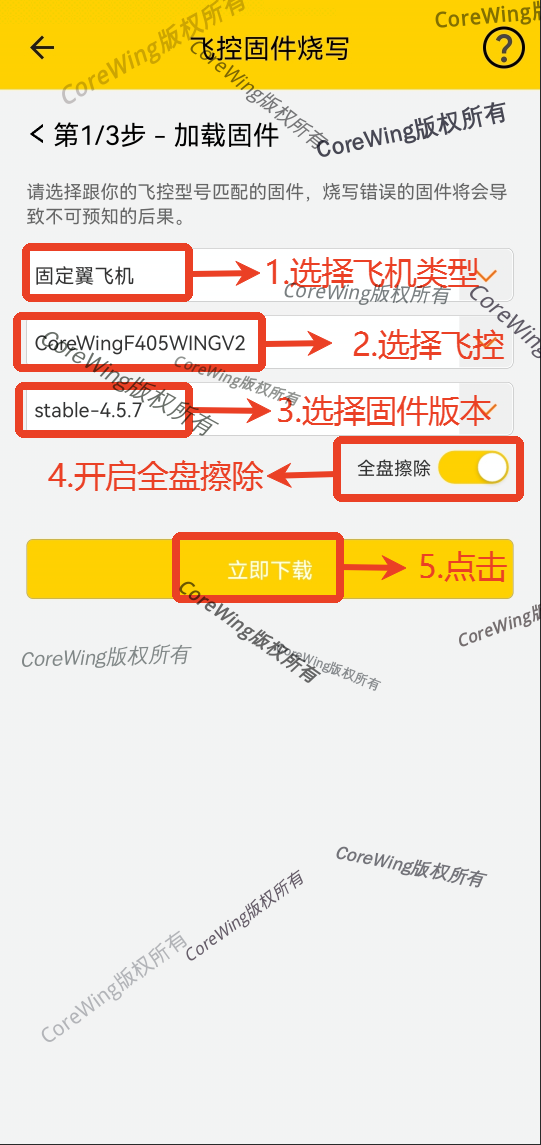
- Check "I have disconnected peripherals" and click "Start Connection"
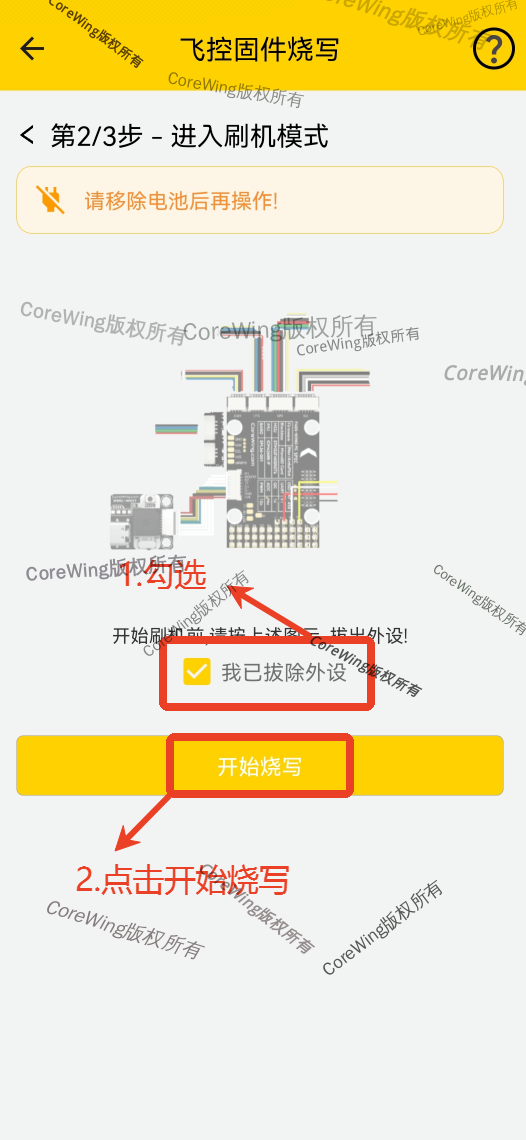
- Click "Confirm Connection to CoreWing WING-WIFI"
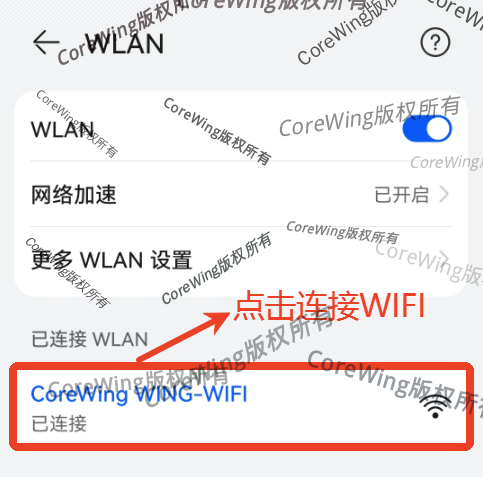
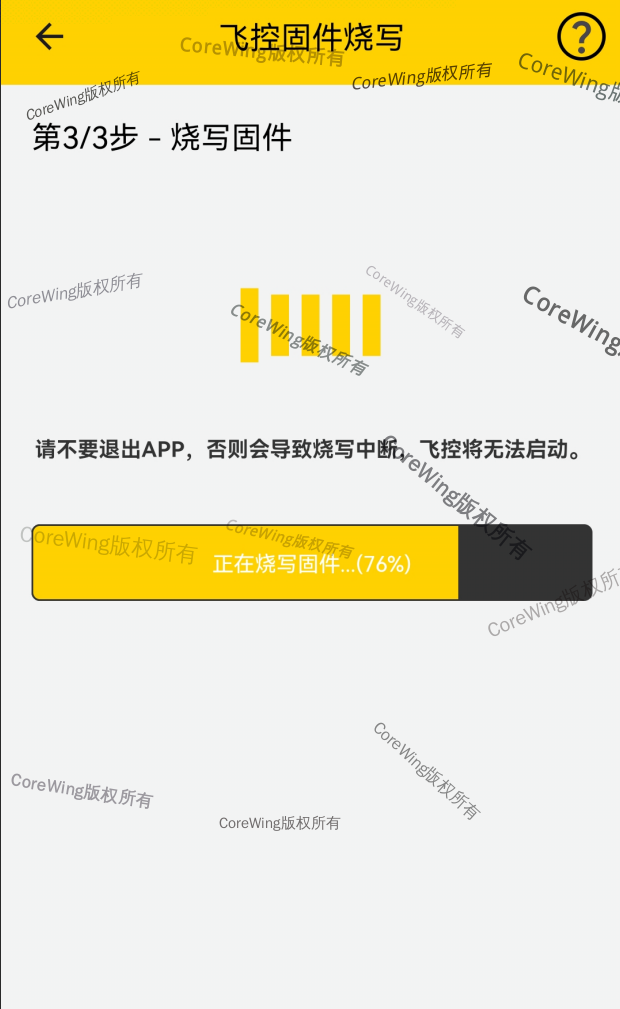
- Jump to the flashing page and wait for flashing to complete
Important
Do not exit the APP midway. Otherwise, it will cause a flashing failure when reconnecting to the flight controller to flash firmware.
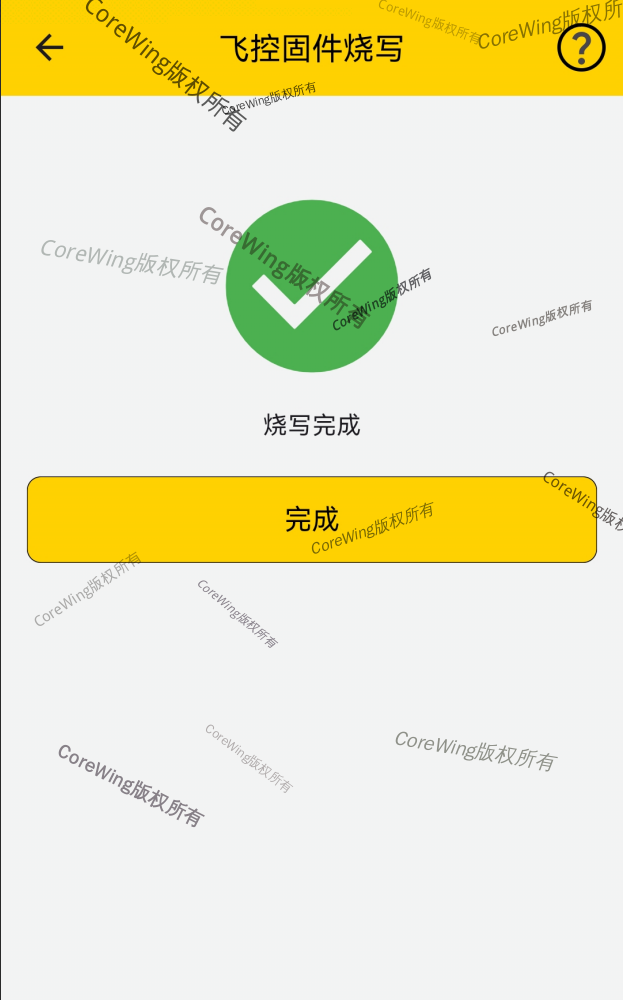
- Display "Flight controller firmware flashed successfully"
3.2 Abnormal Use Case
Important
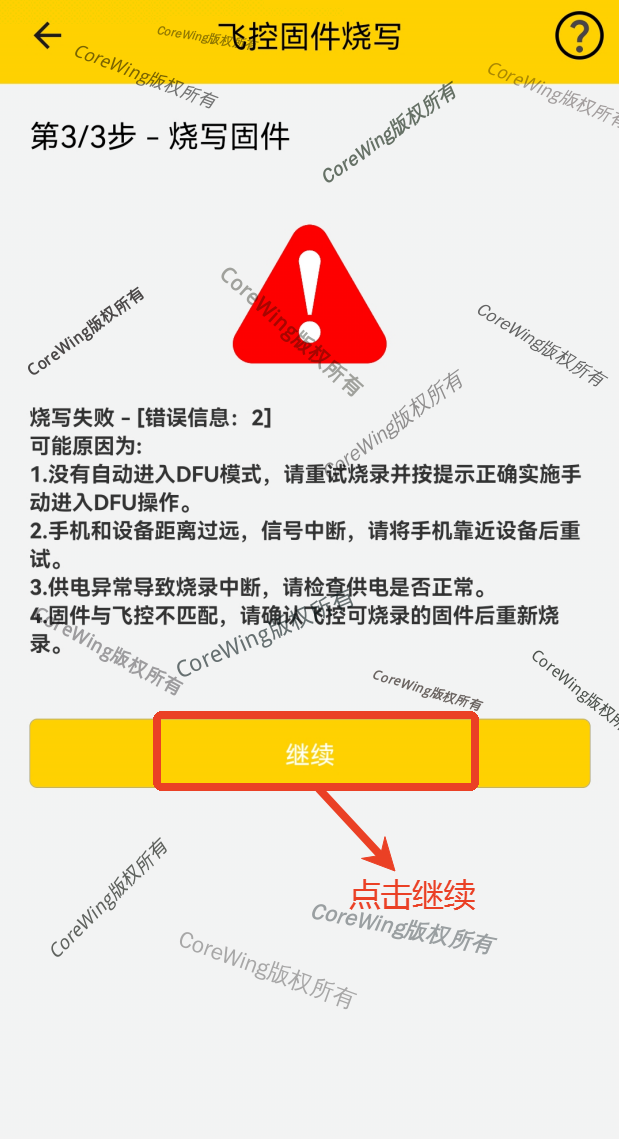
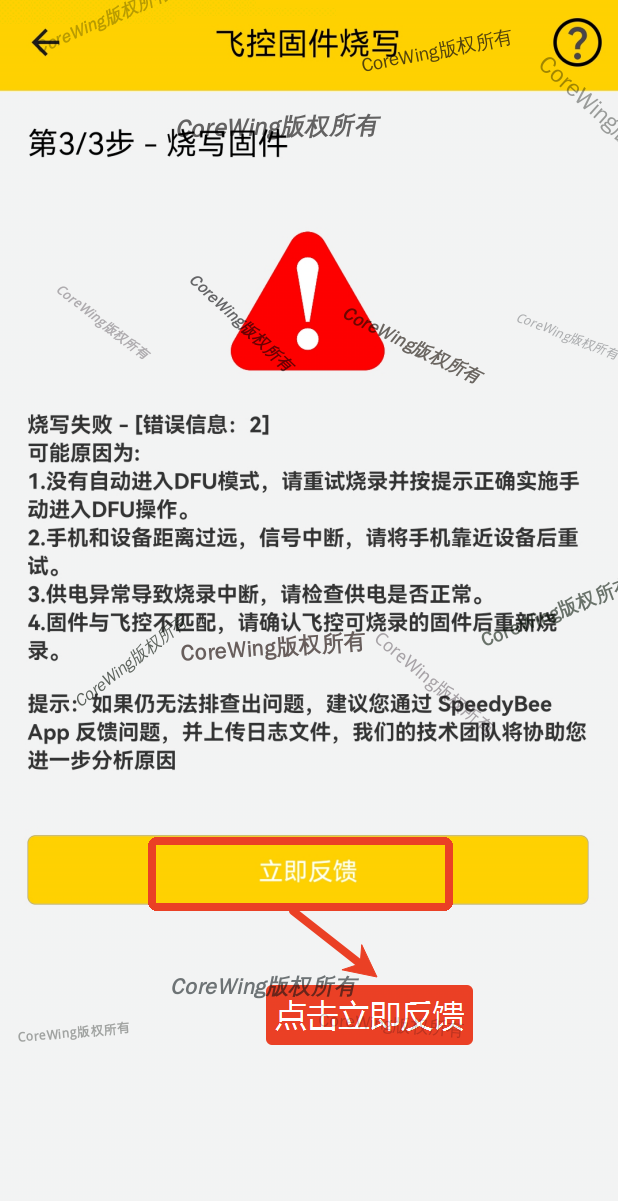
If a signal interruption occurs during the flight controller firmware flashing process, or due to reasons such as flight controller firmware damage, it will cause flashing failure and display an error.
- If a flashing failure error appears during the firmware flashing process, click "Continue" below
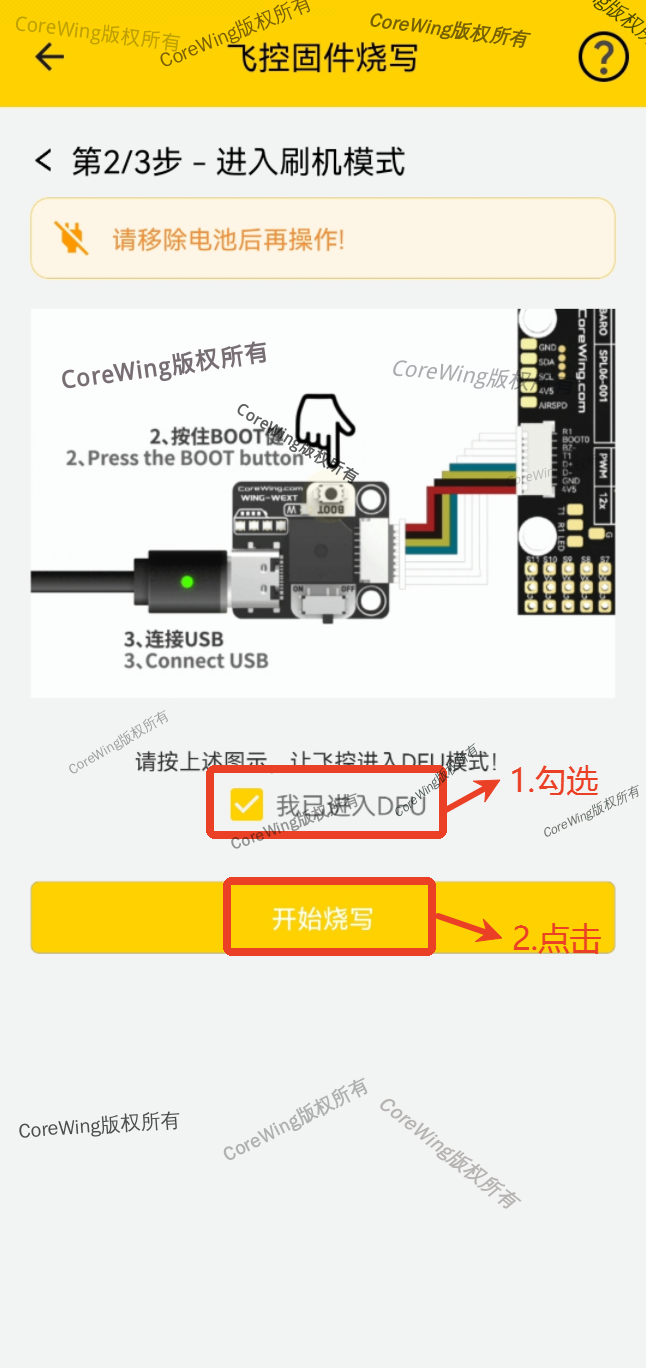
- As shown in the diagram, disconnect the flight controller from the battery power supply, press and hold the Boot button, power the flight controller using USB data, then release the Boot button. At this point, the flight controller enters DFU mode
- Check "I have entered DFU" and then click "Start Flashing".
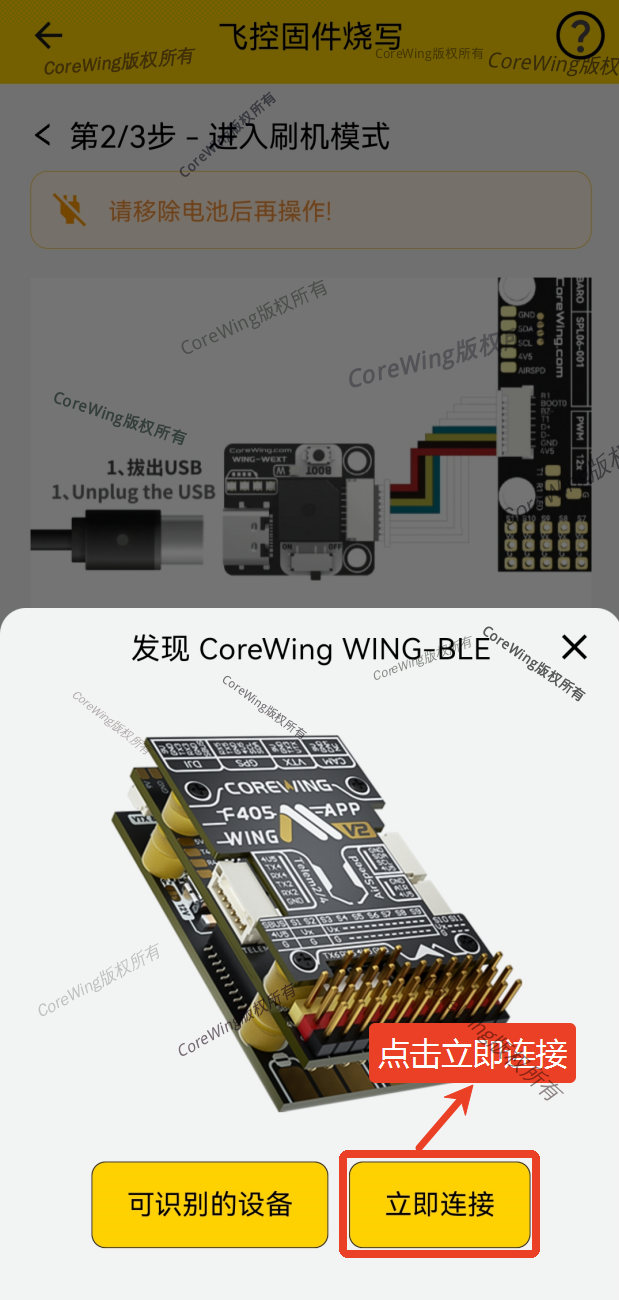
- Wait for the flight controller wireless board status light to return to flashing green. After the SpeedyBee APP recognizes the device, click "Connect Now".
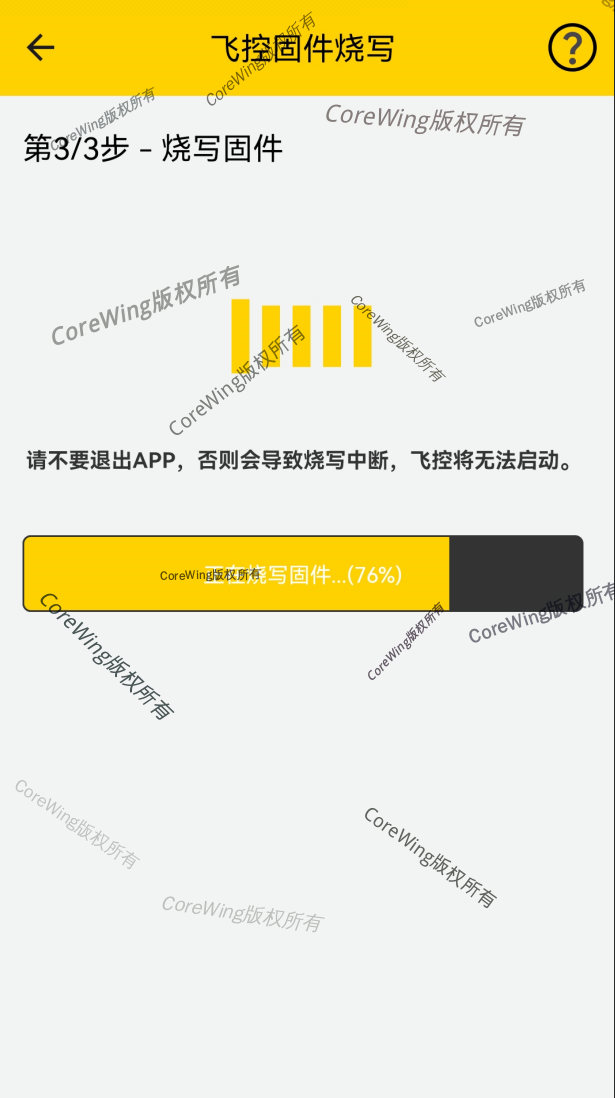
- Wait for the flight controller firmware flashing to complete. Do not exit the APP midway.
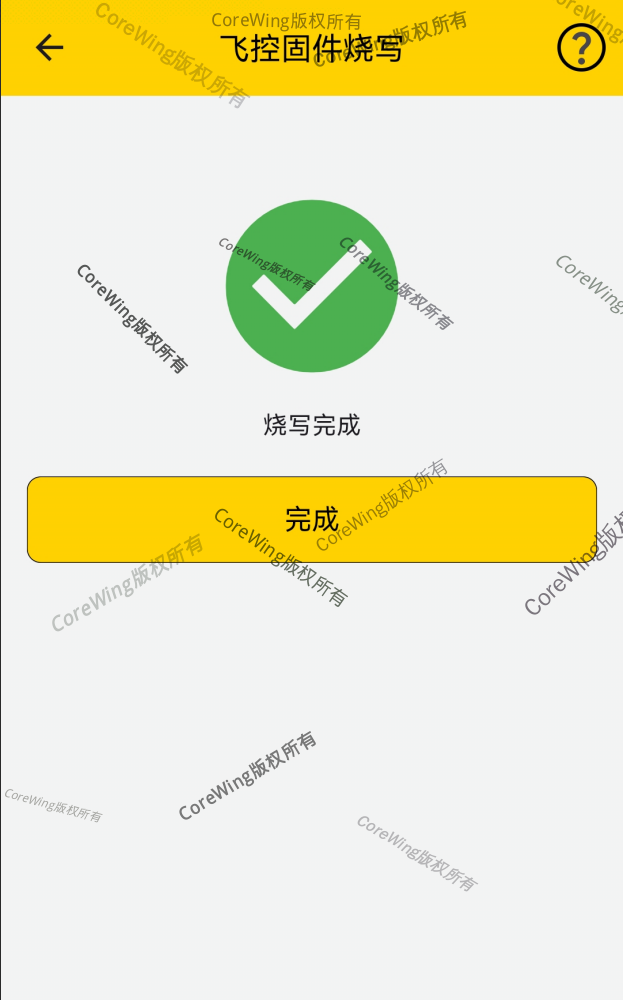
- Display "Flight controller firmware flashed successfully"
Important
If the flashing failure error message still appears, click "Report Now" and contact CoreWing technical support!!!
IV. Q&A
Q1: What should I do if the APP cannot connect to the flight controller?
- Refer to the troubleshooting steps before tuning: https://docs.corewing.com/plane/beforetuning/troubleshooting-steps-before-tuning.html
- Ensure the flight controller is powered on, Bluetooth is enabled (wireless board LED flashing green), and after successful connection, the LED shows a constant green light
- You can go to the device page, long-press the device, delete it, then search again and reconnect to the APP
Technical Support QR Code
