
TEST — Communication Module Usage Guide
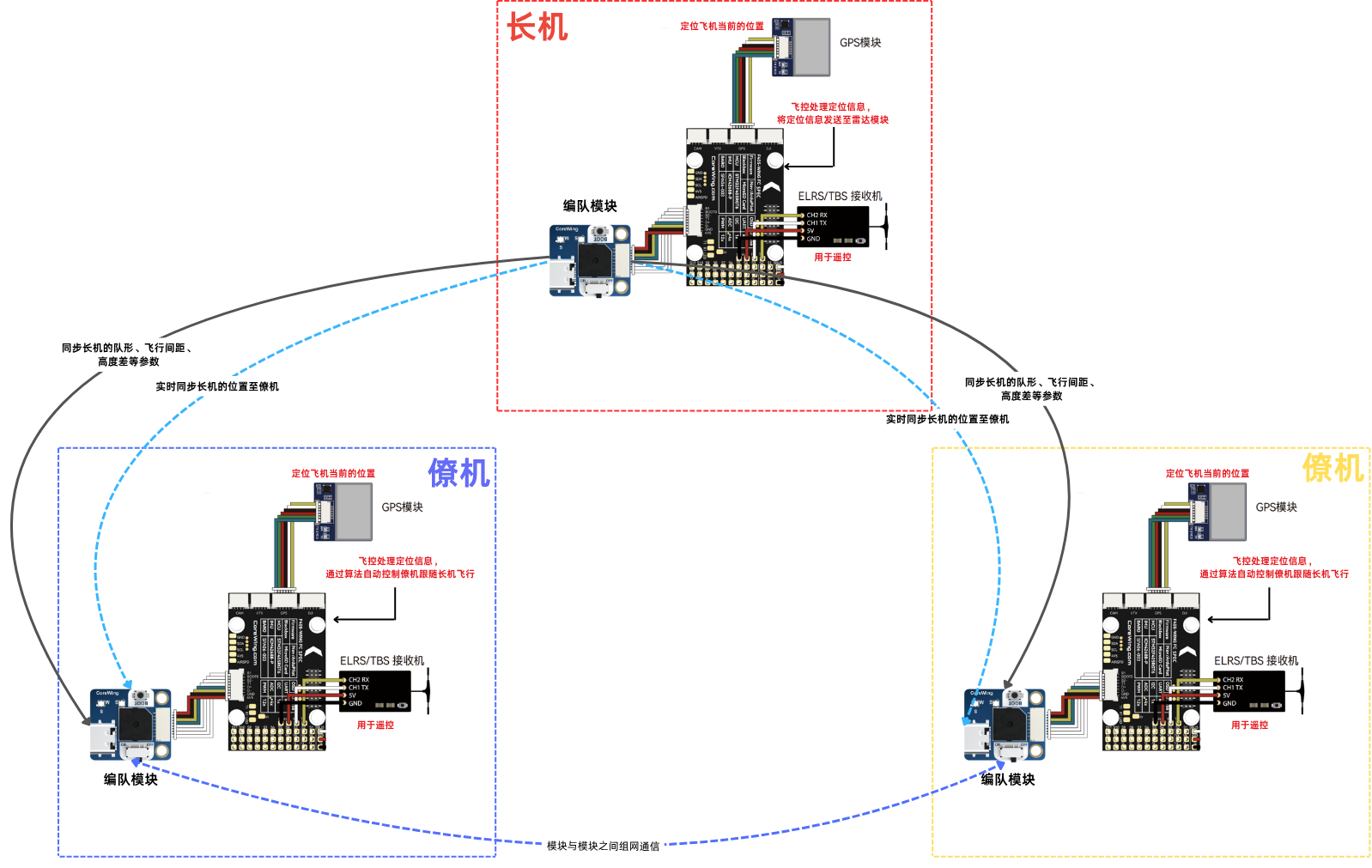
I. Formation Demo and Basic Principle
Important
Formation flight performance is significantly affected by wind — please do not perform formation flights in strong wind conditions!
1.1 Formation Demo
1.2 Basic Principle
- Each aircraft wirelessly broadcasts its own GPS data via the formation module, while receiving GPS data from the other aircraft.
- The flight controller processes the received data with algorithms, and the OSD displays the direction, distance and altitude difference to the other aircraft.
- You can adjust formation parameters through the CoreWing APP to change formation shape, spacing, altitude difference and following behavior.
II. Equipment Preparation
2.1 Binding the Formation Module
Important
- When binding the formation module, do not connect it to the flight controller. Power it via a USB cable instead, otherwise the module's BLE signal cannot be discovered.
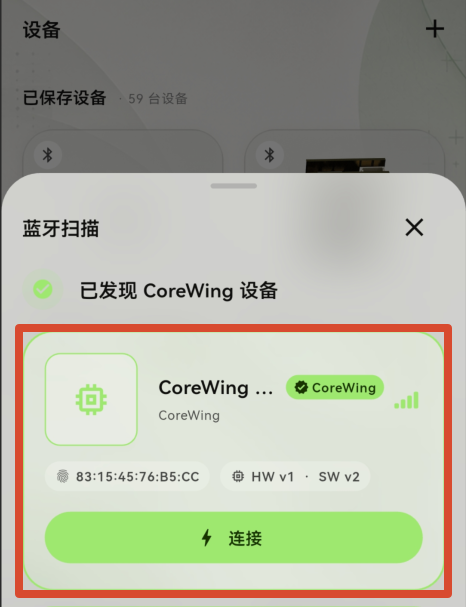
- Open the CoreWing APP and use Bluetooth BLE to search for the formation module.
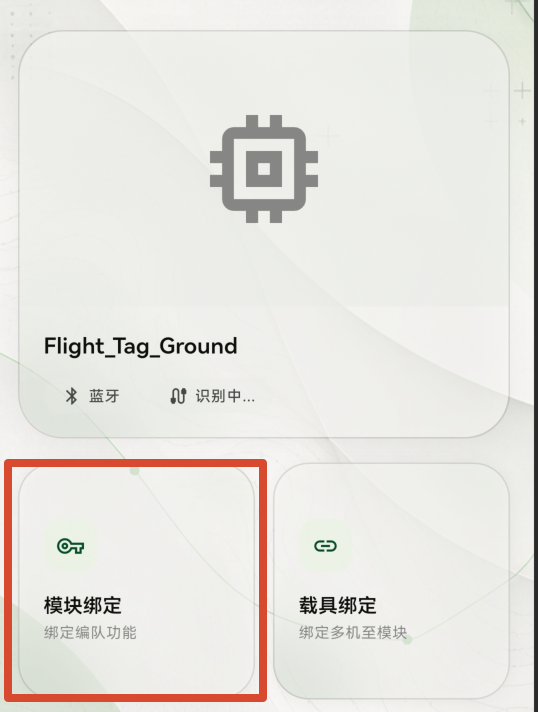
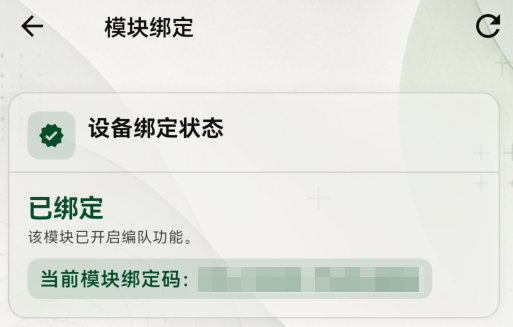
- Enter the module binding page.
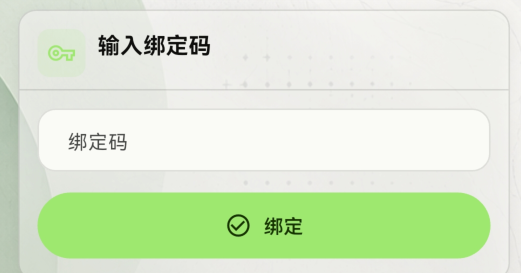
- Enter the binding code and select Bind.
- Click Refresh in the upper-right corner to confirm the binding status.
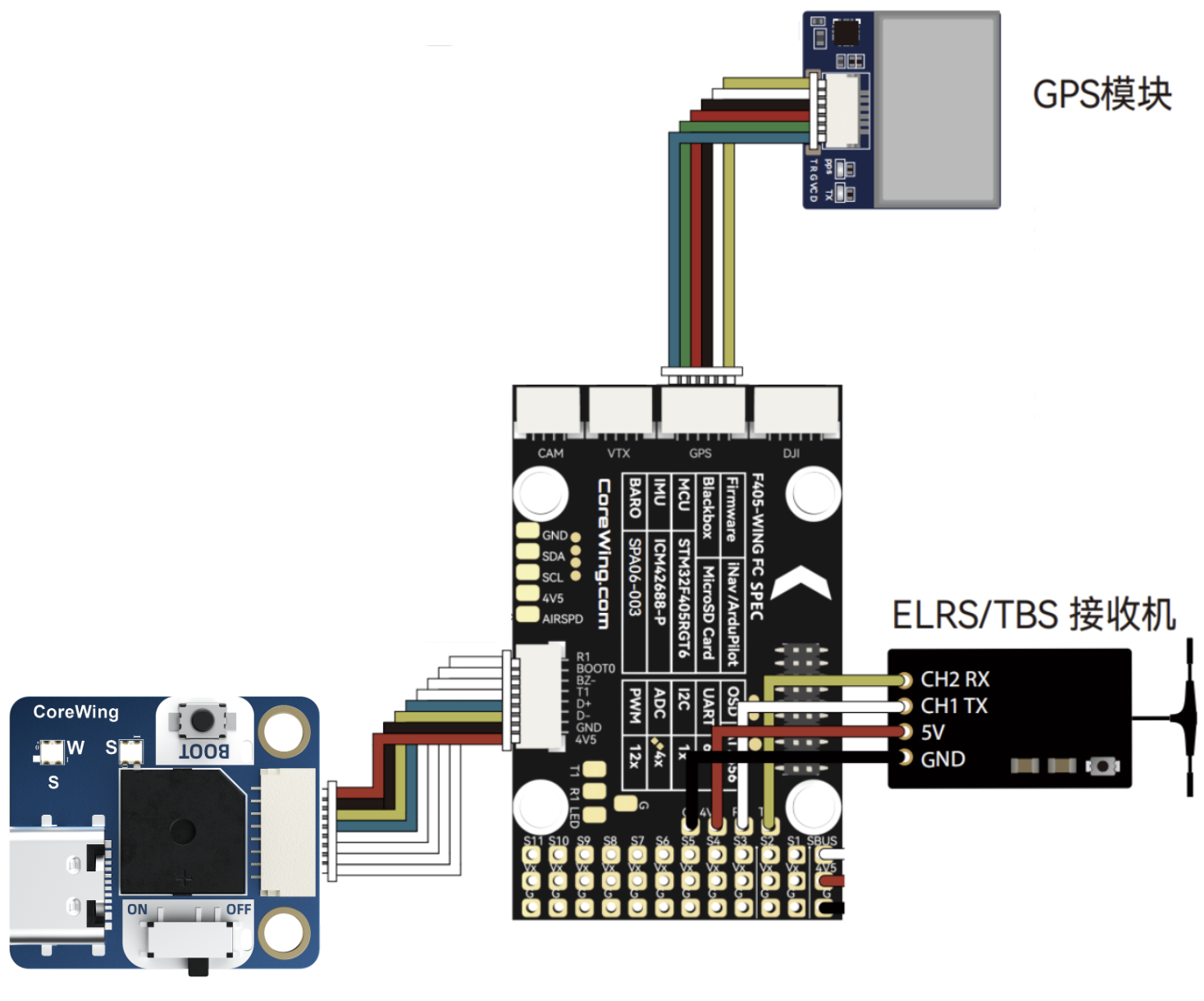
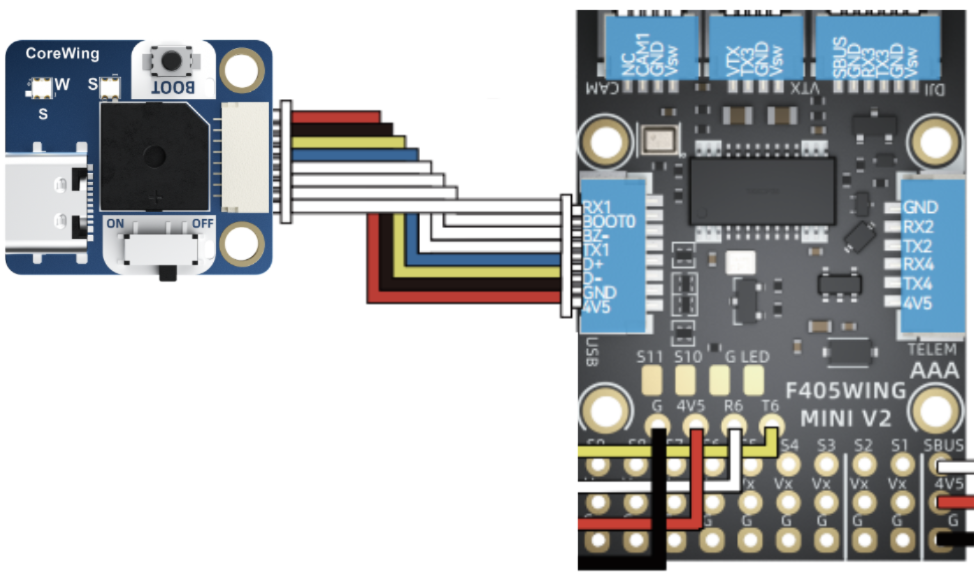
2.2 Connecting the Formation Module
- CoreWing F405 WING V2:
- CoreWing F405 WING MINI V2:
Tips
- Always install the antenna before powering on the formation module!
- You must be logged in to the CoreWing APP to bind the formation module!
2.3 Aircraft Preparation
Important
Note: Airspeed sensor optimization of formation control is currently not supported.
- Prepare two or more aircraft that have been assembled and passed basic tuning.
- Formation flight requires two or more aircraft running
ArduPilotfirmware that have beenassembledandfully tuned for independent flight.
Tips
- Formation performance depends on each aircraft's individual tuning. Before attempting formation flight, ensure every aircraft has been tuned and can fly stably on its own.
- If
assemblyandcomplete flight tuningare not done yet, refer to: ArduPilot Fixed-Wing Tuning Guide
- Before flashing firmware, make sure the flight controller parameters have been backed up.
Tips
How to back up parameters via the CoreWing APP: How to Back Up / Import ArduPilot Flight Controller Parameters via CoreWing APP
- Flash firmware locally via the CoreWing APP
Tips
How to flash firmware locally via the CoreWing APP: How to Update Flight Controller Firmware via CoreWing APP
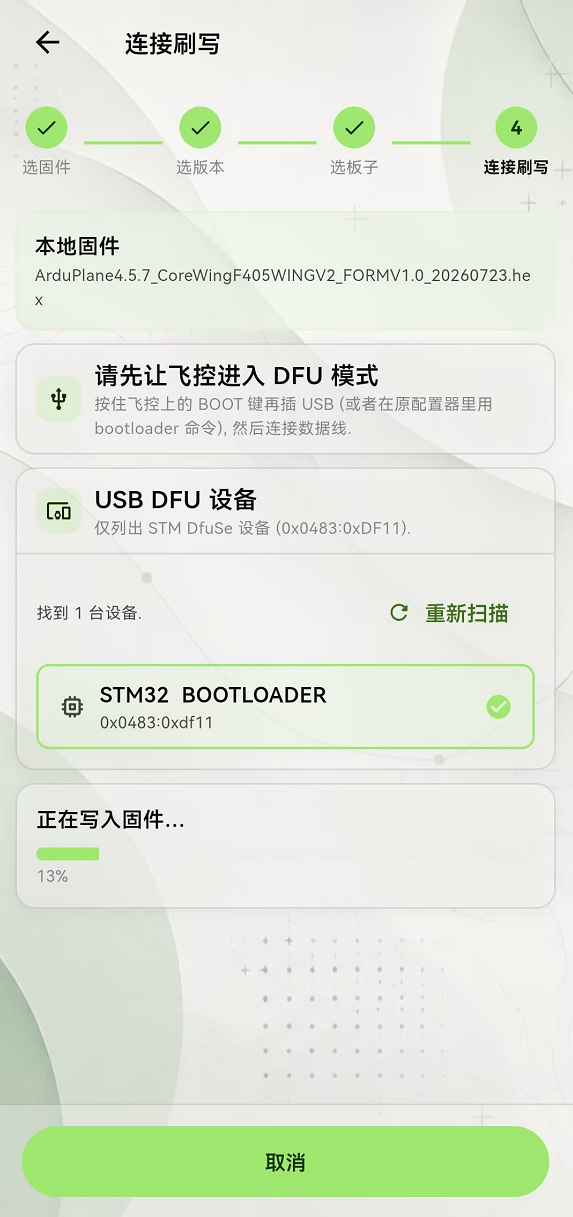
- Use the CoreWing APP to import the parameters from a
fully tunedaircraft
Important
Before importing parameters, perform a six-position accelerometer calibration on the flight controller, then import and overwrite.
Tips
How to import parameters via the CoreWing APP: How to Back Up / Import ArduPilot Flight Controller Parameters via CoreWing APP