
How to Update Flight Controller Firmware in CoreWing APP
How to Update Flight Controller Firmware with CoreWing APP
I. Principle
Through the firmware update function of the CoreWing APP, users can conveniently and quickly complete firmware upgrades, easily downloading and installing the latest firmware version. This function not only significantly improves the performance of the flight control system but also effectively resolves potential technical issues. Through timely updates, users can enjoy a smoother and more efficient flight experience, avoiding unnecessary failures caused by firmware problems.
II. Device Preparation
- Flight Controller: CoreWing F405 WING V2
- Data Cable: USB data cable with communication function and OTG adapter or dual C cable with communication function
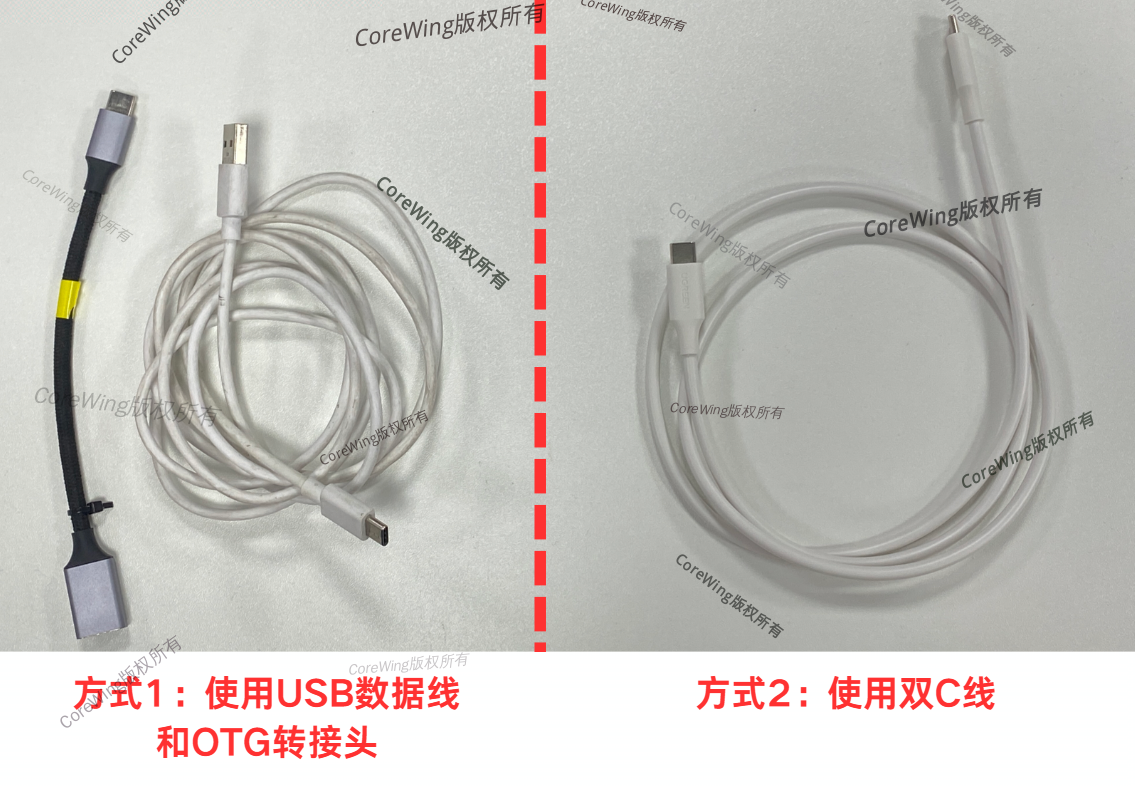
- Android phone with the latest version of CoreWing APP (Only Android phones support wired firmware upgrade via CoreWing APP, iOS version does not support wired firmware upgrade via CoreWing APP)
Important
CoreWing APP download link: https://www.corewing.com/website/download
III. Specific Operations
3.1 Network Download and Flash Firmware
- Enter the CoreWing APP's tools page, click Flight Controller Firmware Flashing
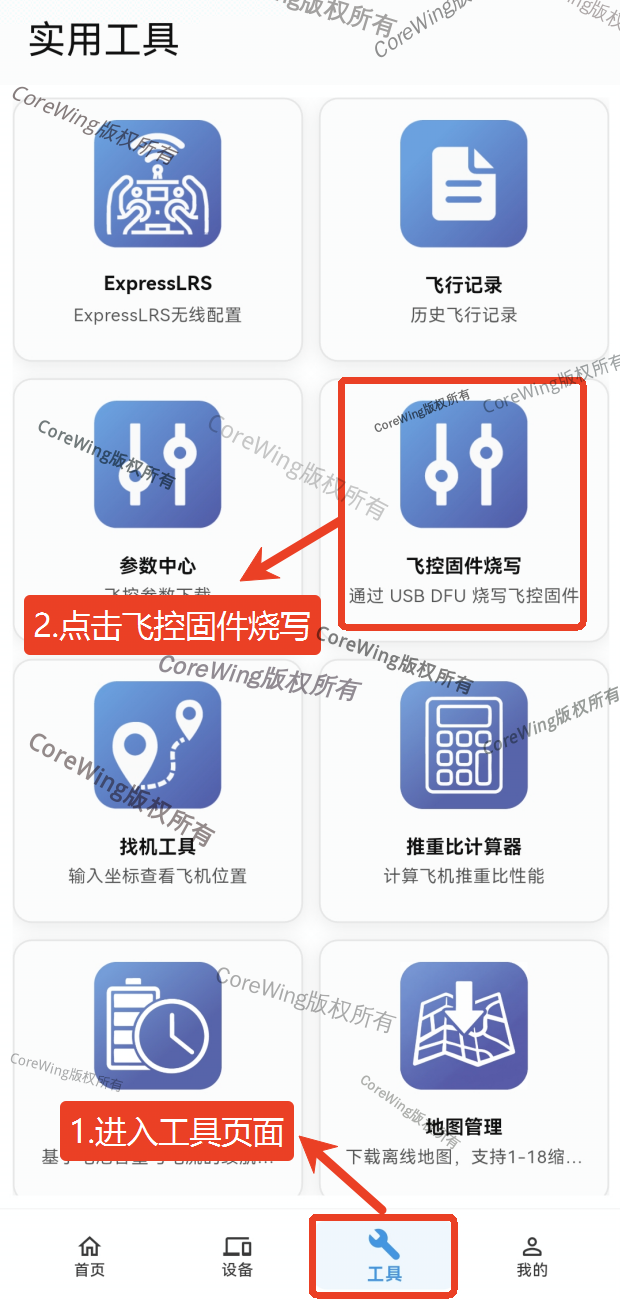
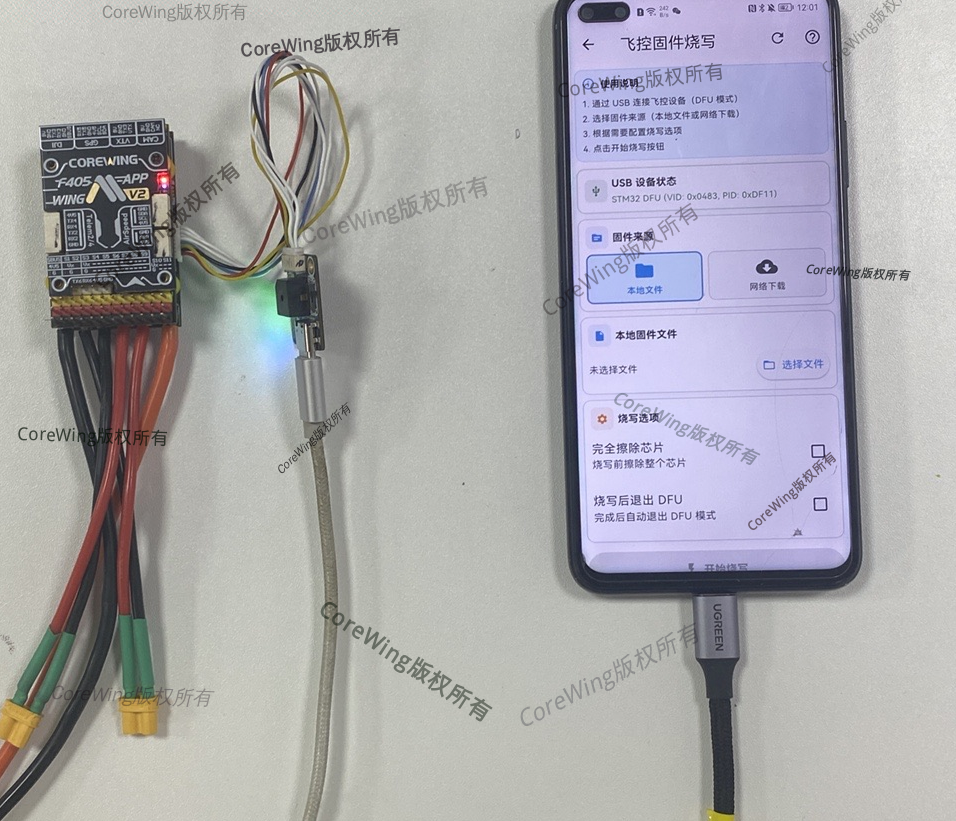
- Connect the data cable to the phone end
Important
Note: When using an OTG adapter + data cable, the OTG adapter end must be connected to the phone, otherwise the flight controller cannot be recognized, as shown in the connection diagram below!
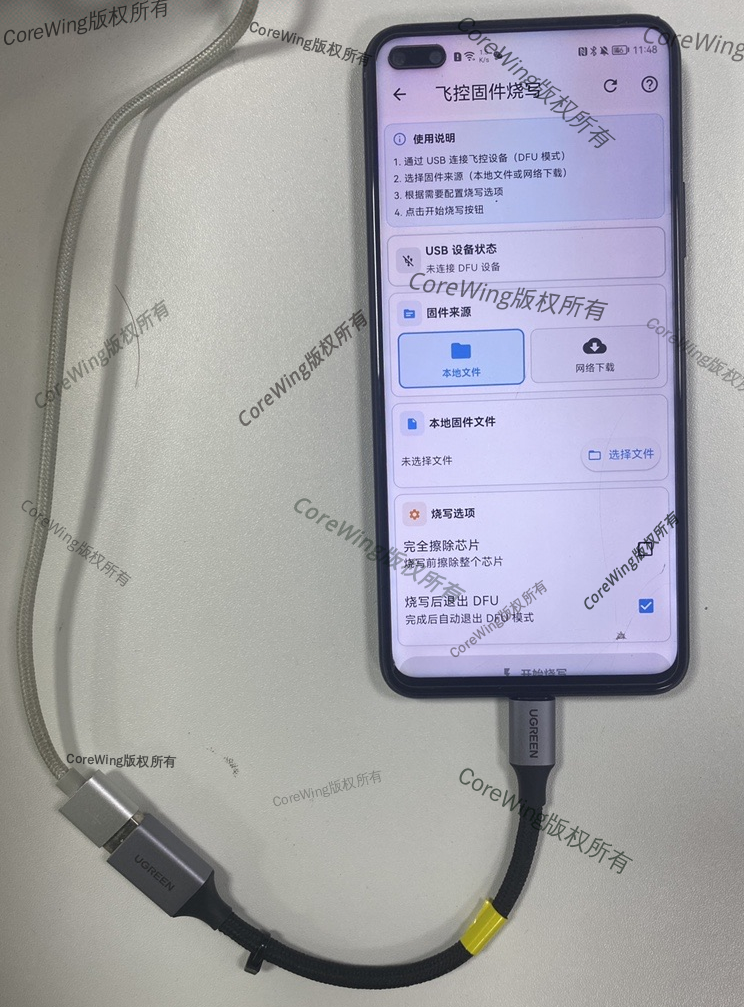
- Disconnect all power to the flight controller, including battery and data cable power
- Press and hold the wireless board's BOOT key, do not release the key yet
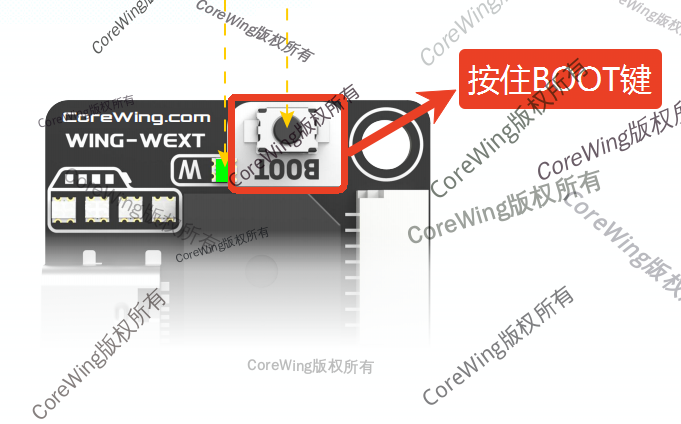
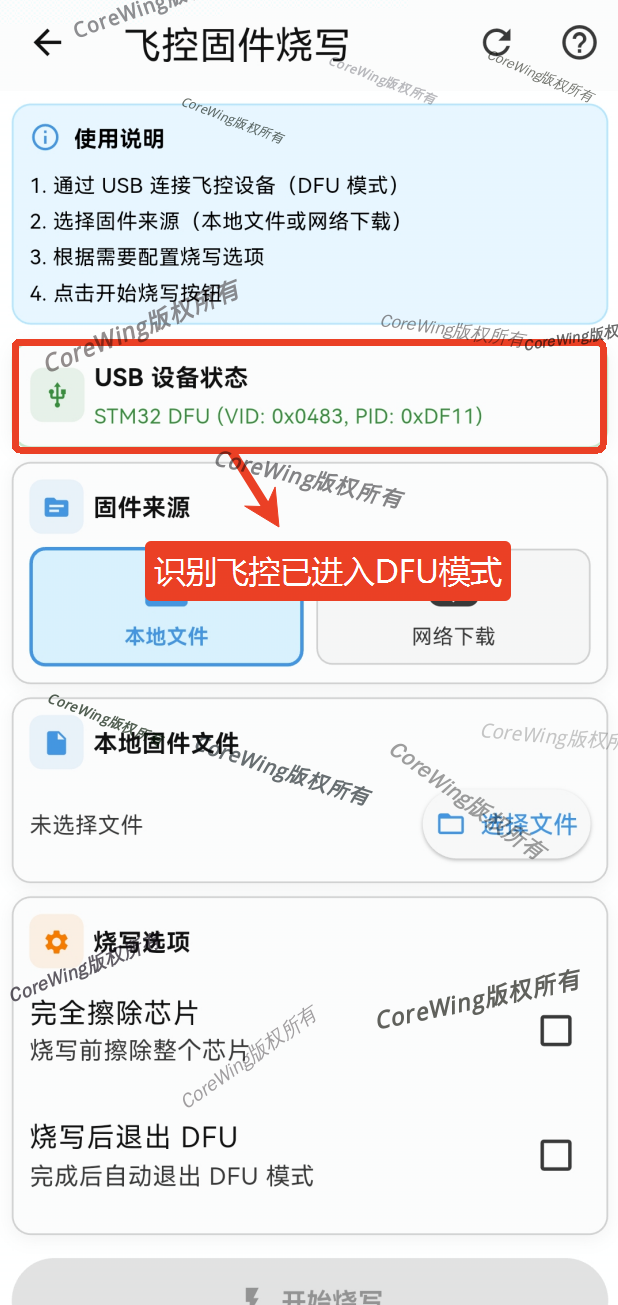
- Connect the other end of the data cable to the wireless board, then release the BOOT key, the USB device status shows the flight controller device is recognized
- Display STM32 DFU, indicating the flight controller has entered DFU mode
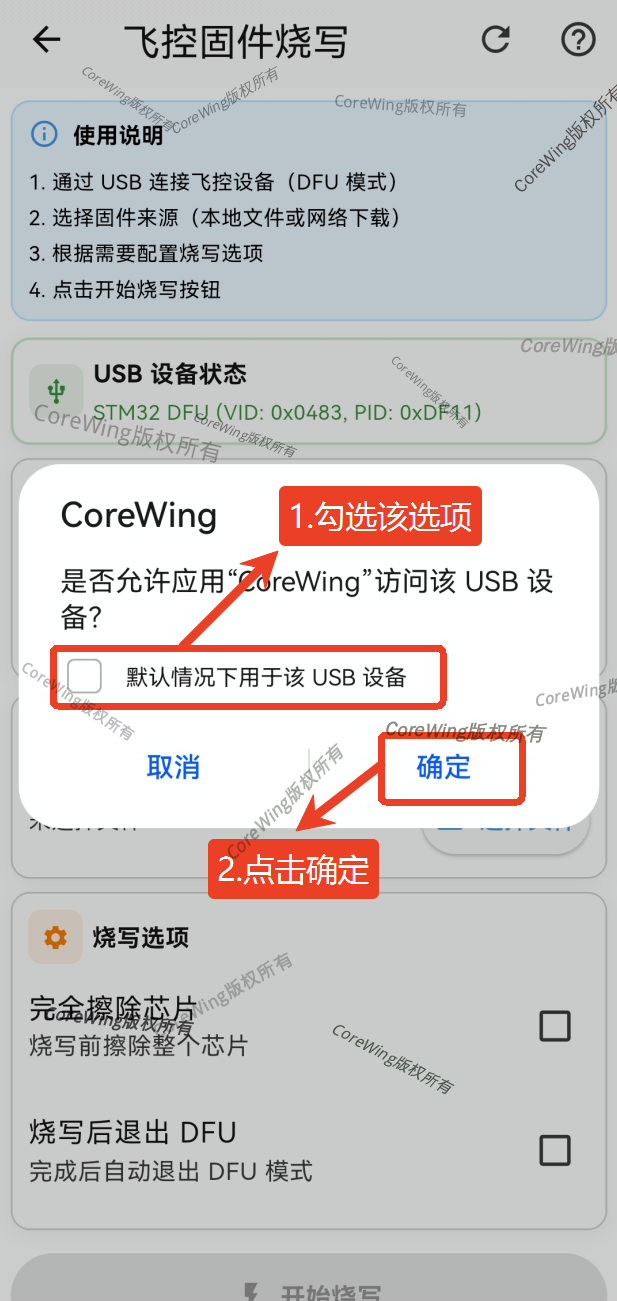
- If a pop-up prompts "Whether to allow application CoreWing to access this USB device", check "Use by default for this USB device", then click OK
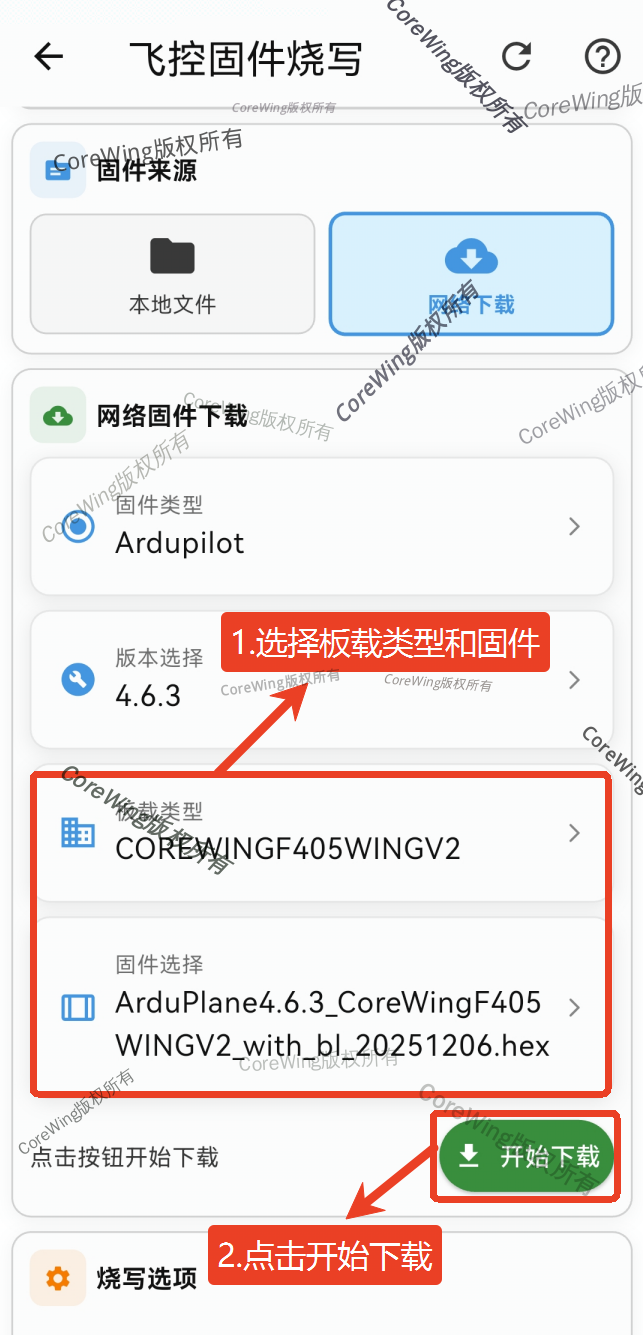
- Select Network Download, select Firmware Type, and select Version
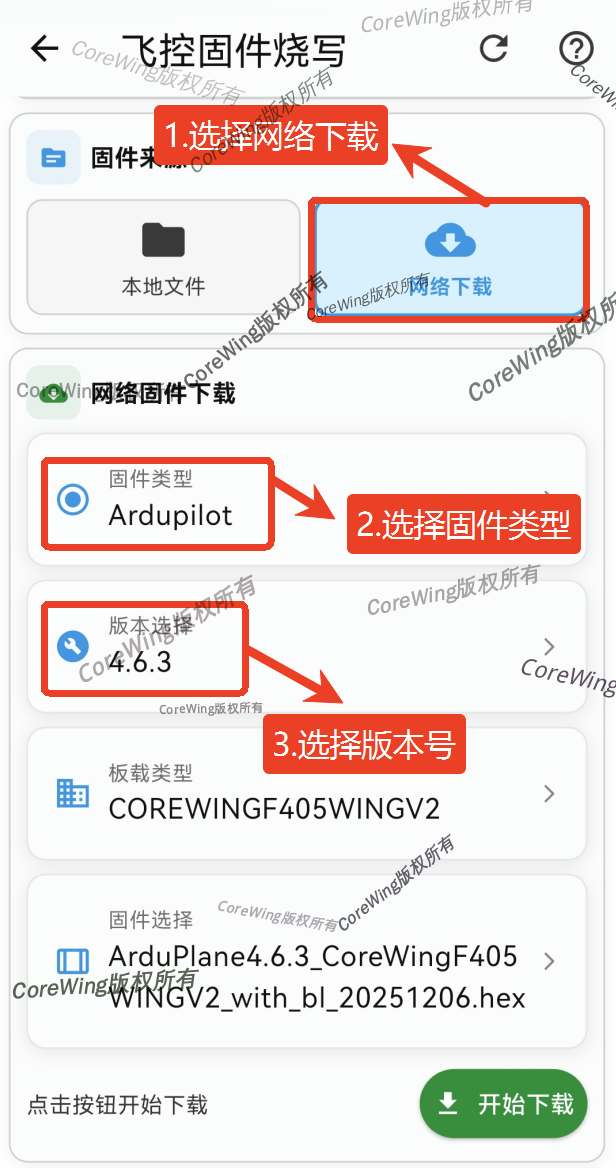
- Board type selection
COREWINGF405WINGV2, select Firmware - Click Start Download firmware
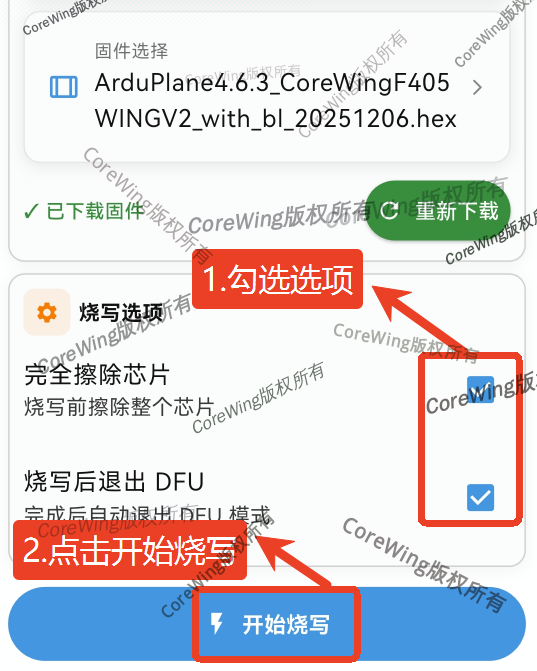
- Check Erase Chip Completely, check Exit DFU after flashing
- Click Start Flashing
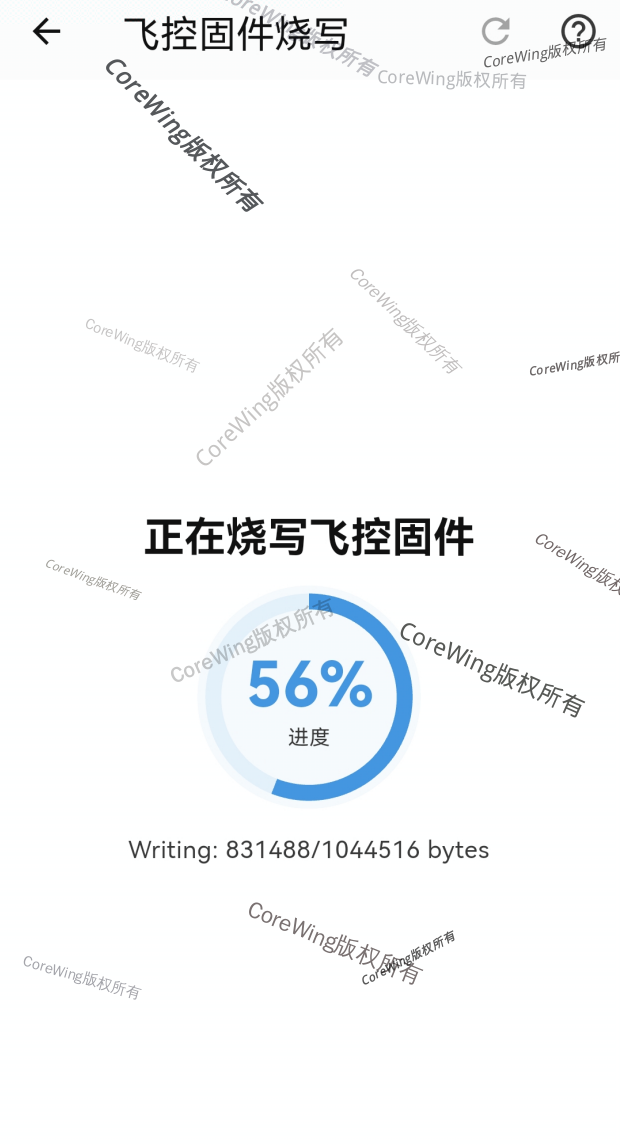
- Wait for the flight controller firmware flashing to complete
Important
During the flashing process, do not exit the flashing page or switch to phone background, to prevent the phone from killing background processes and causing flashing failure!!!
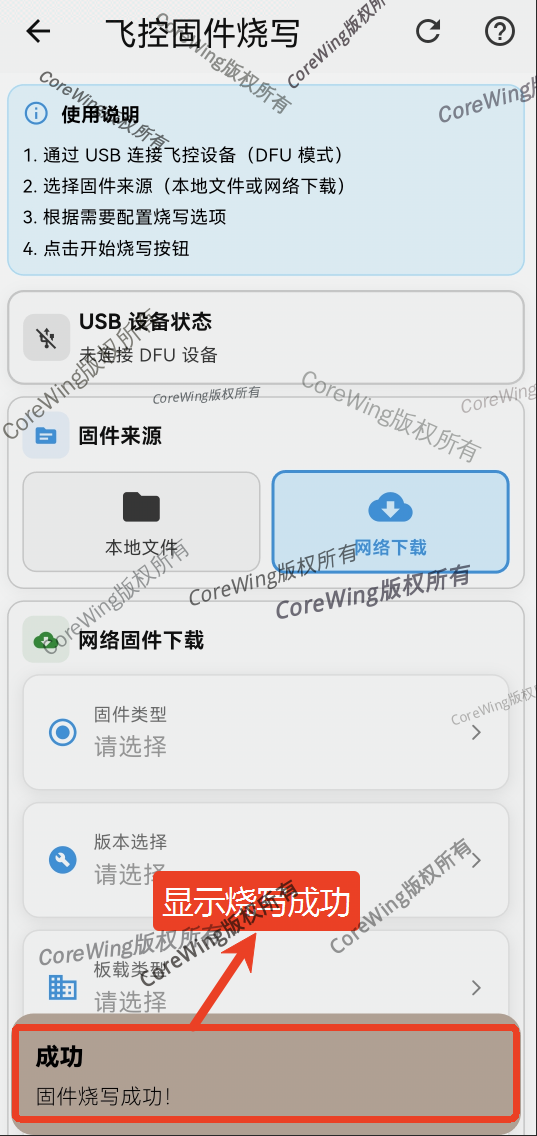
- Display Firmware flashing successful is sufficient
3.2 Local File Flash Firmware
- Enter the CoreWing APP's tools page, click Flight Controller Firmware Flashing
- Connect the data cable to the phone end
Important
Note: When using an OTG adapter + data cable, the OTG adapter end must be connected to the phone, otherwise the flight controller cannot be recognized, as shown in the connection diagram below!
- Disconnect all power to the flight controller, including battery and data cable power
- Press and hold the wireless board's BOOT key, do not release the key yet
- Connect the other end of the data cable to the wireless board, then release the BOOT key, the USB device status shows the flight controller device is recognized
- Display STM32 DFU, indicating the flight controller has entered DFU mode
- If a pop-up prompts "Whether to allow application CoreWing to access this USB device", check "Use by default for this USB device", then click OK
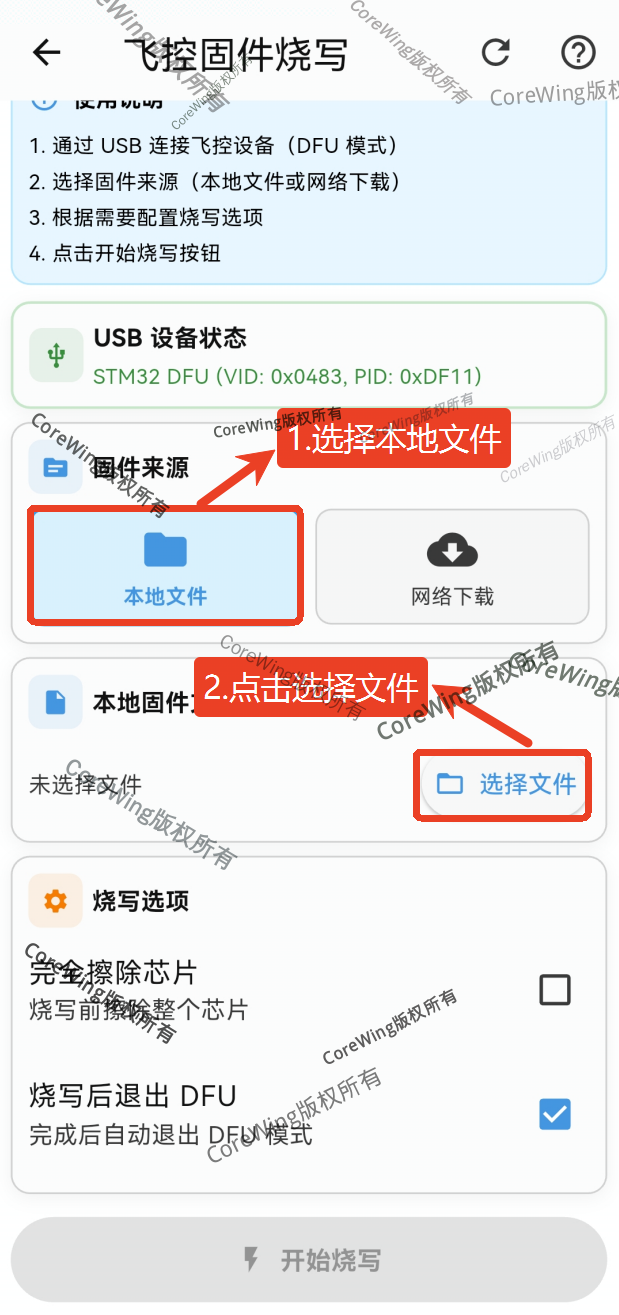
- Select Local File, click Select File
Important
CoreWing firmware download link: https://docs.corewing.com/plane/software/common-software/corewing-software-and-firmware-downloads.html
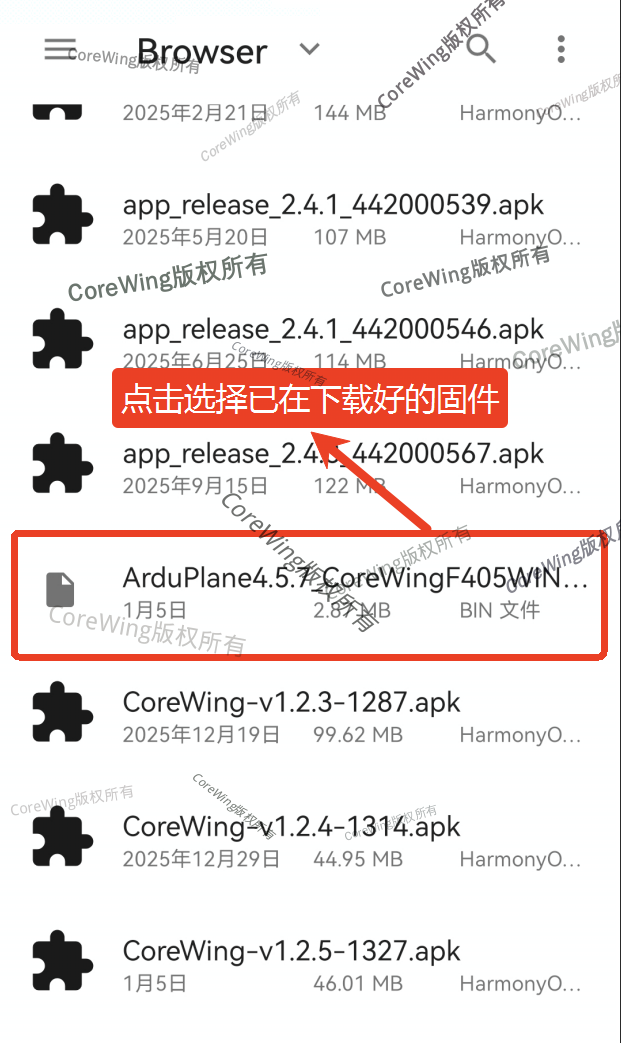
- Click to select the firmware file pre-downloaded on the phone
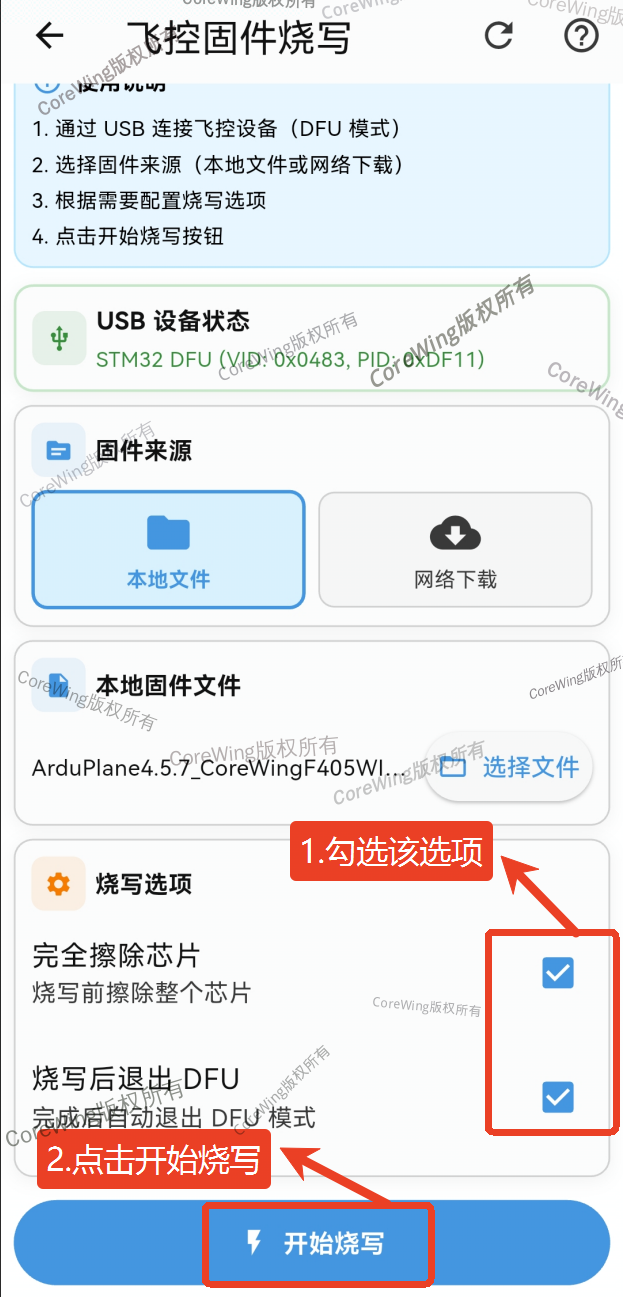
- Check Erase Chip Completely, check Exit DFU after flashing
- Click Start Flashing
- Wait for the flight controller firmware flashing to complete
Important
During the flashing process, do not exit the flashing page or switch to phone background, to prevent the phone from killing background processes and causing flashing failure!!!
- Display firmware flashing successful is sufficient
Important
If you encounter situations where firmware cannot be flashed, please contact technical support!!!
IV. Q&A
Technical Support QR Code
