
Troubleshooting: CoreWing F405 WING V2 Wireless USB Expansion Board Pro Connection to CoreWing APP
I. Problem Description
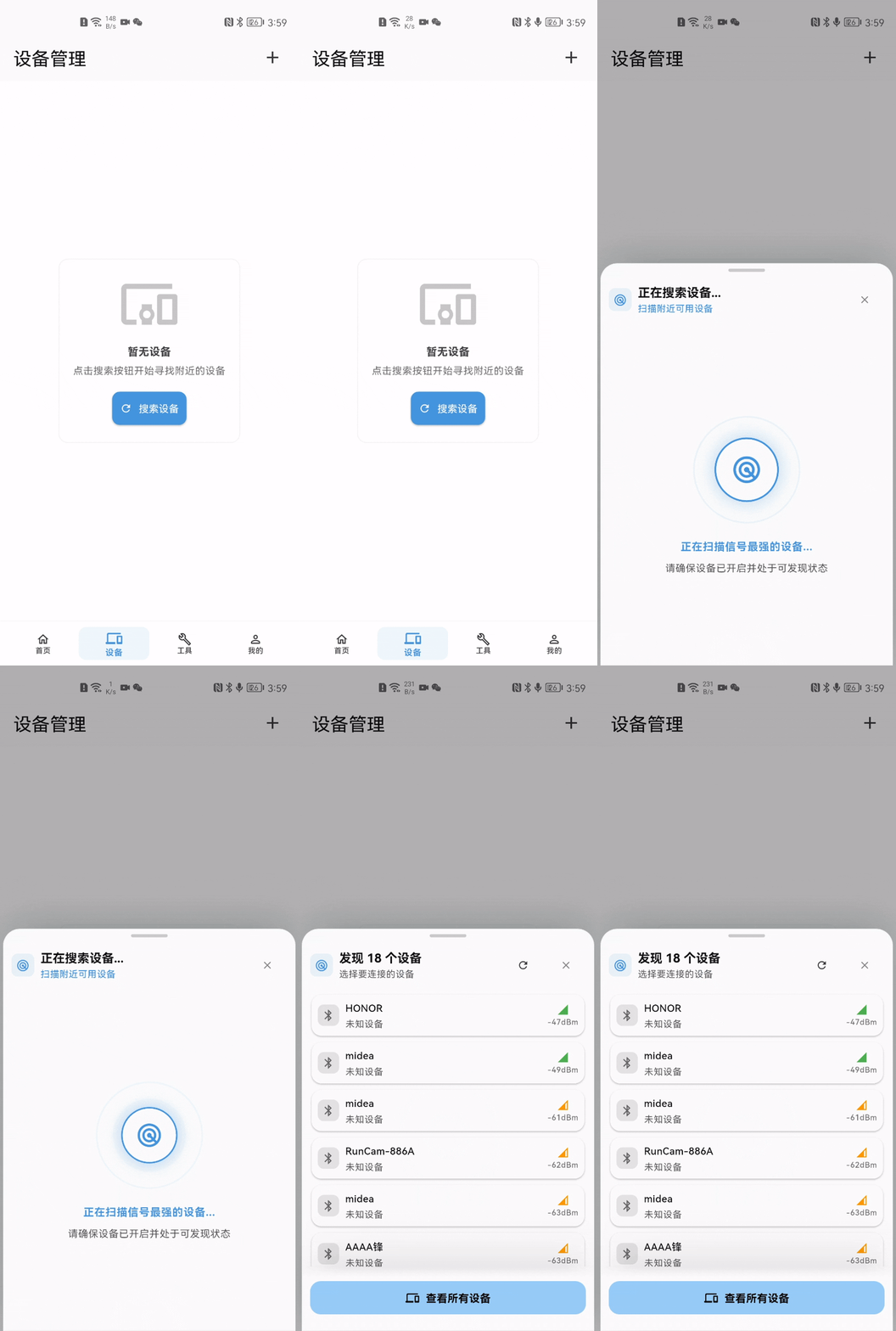
1.1 CoreWing APP cannot search for CoreWing WING - BLE
When searching for devices, devices with names starting with CoreWing cannot be found
1.2 After connecting to CoreWing APP, tuning functions cannot be used properly
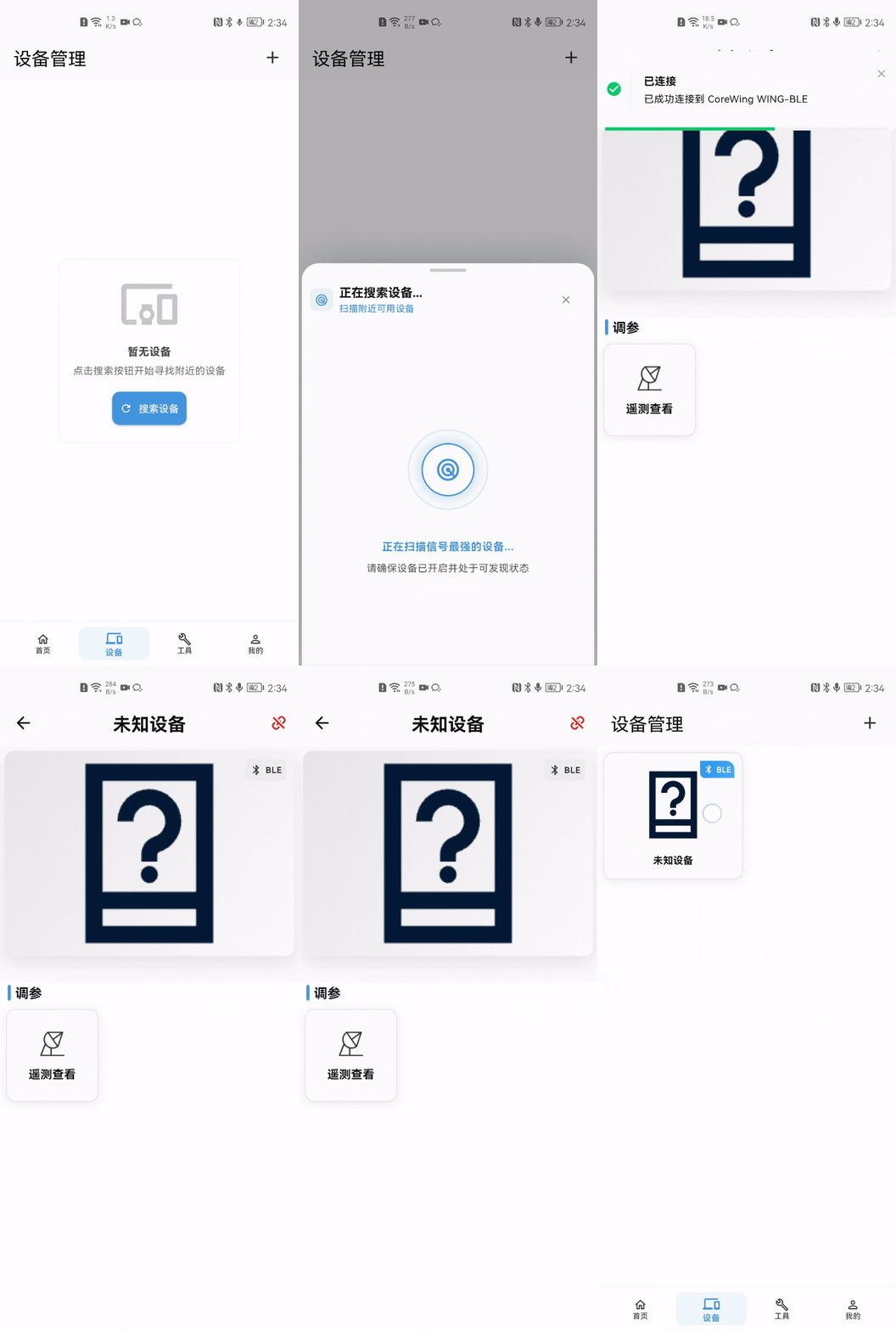
After CoreWing APP connects to the powered wireless USB expansion board (hereafter referred to as 'wireless board') in BLE mode,
no device search popup appears. Among discovered devices, there is CoreWing WING-BLE.
After clicking to connect, it enters the function card page, which only shows telemetry viewing, without the tuning page or other functions.
II. Causes of the Issue
2.1 The wireless board's wireless mode was not switched to BLE mode, using WiFi-AP mode and WiFi-STA mode instead
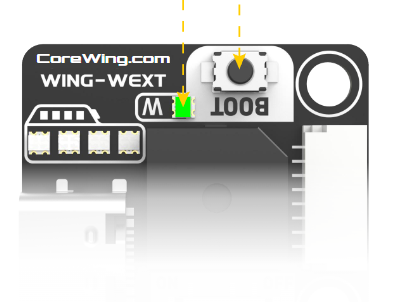
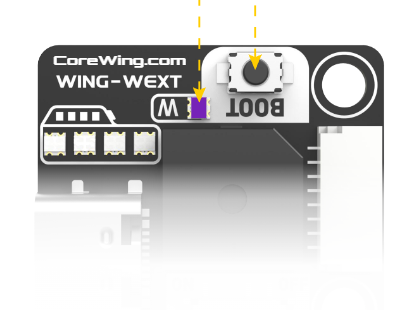
- Wireless board green light flashing indicates Bluetooth BLE mode:
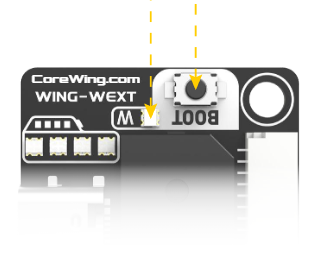
- Wireless board white light flashing indicates WiFi-AP mode:
- Wireless board purple light flashing indicates WiFi-STA mode:
2.2 CoreWing APP is compatible with wireless board USB expansion board firmware version 8.1.0 and above
Important
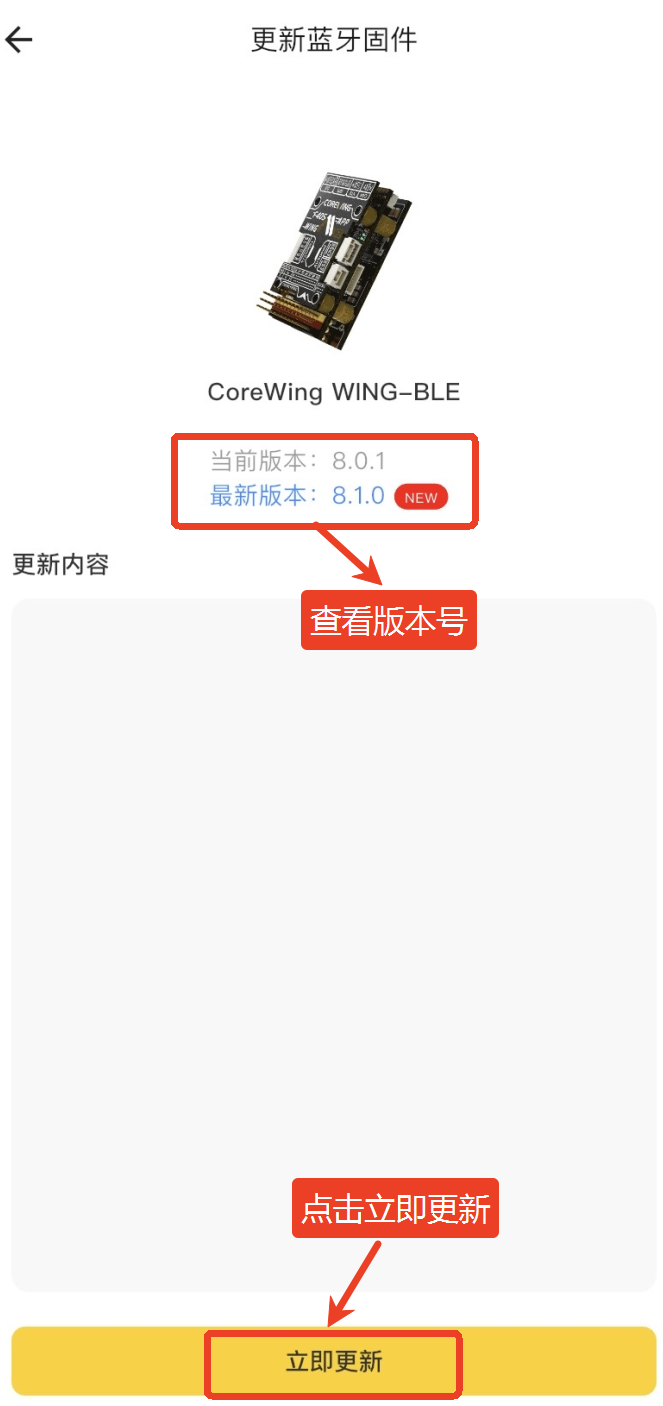
The wireless board's current factory firmware is 8.0.1. You need to use the SpeedyBee APP to upgrade the wireless board firmware to 8.1.0 in order to connect using the CoreWing APP.
Since CoreWing APP only supports version 8.1.0 and above, the 8.0.1 factory version cannot connect properly or use all functions.
III. Solutions
3.1 Operation Video
3.2 Graphic and Text Operation Guide
3.2.1 Download the latest version of SpeedyBee APP
Important
Go to the SpeedyBee official website to download the latest version of SpeedyBee APP :
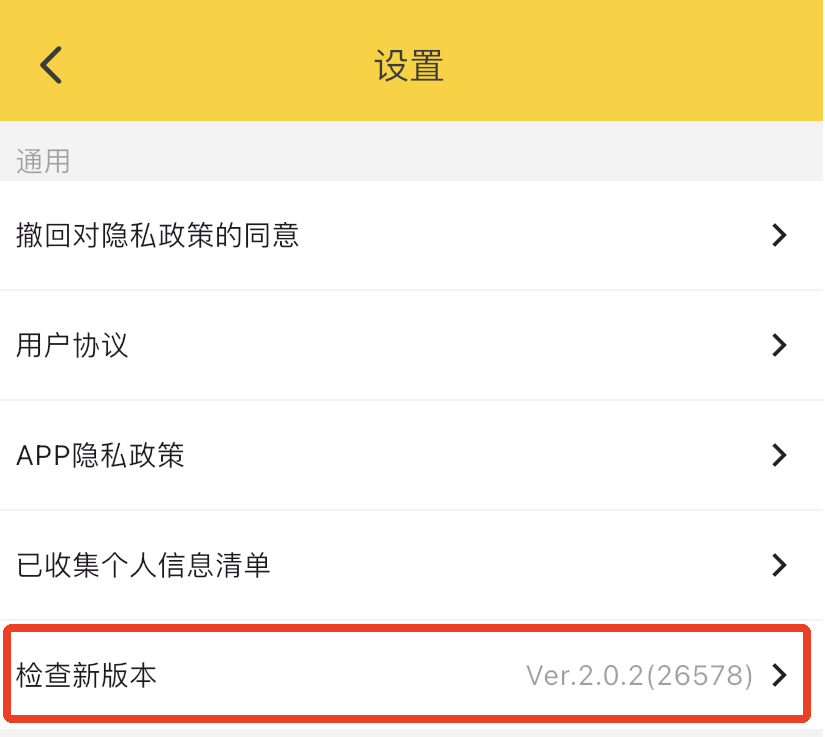
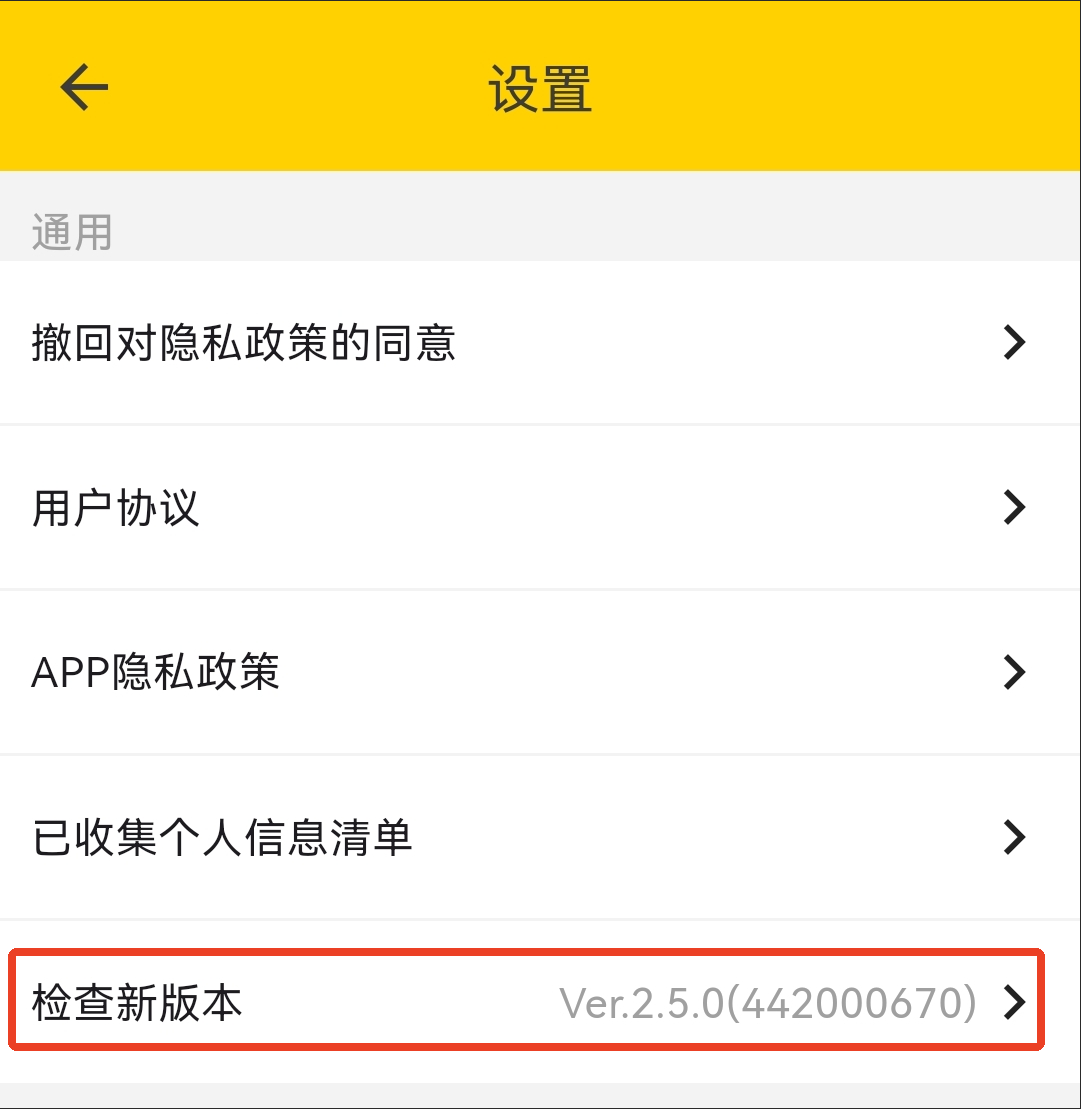
After downloading, open SpeedyBee APP, go to APP - bottom right corner "My" - "General Settings", where you can check the current APP version.
You need to confirm:
iOS version number must be greater than or equal to: Ver.2.0.2 (26578)
Android version number must be greater than or equal to: Ver.2.5.0(442000670)
3.2.2 Switch the wireless board's wireless mode
Power the wireless board using a USB data cable,
Important
Press and hold the BOOT key for 6 seconds → release the BOOT key → the wireless status indicator light will change → repeat this step until the indicator light changes to green slow flashing

3.2.3 Update the wireless board's Bluetooth firmware in SpeedyBee APP
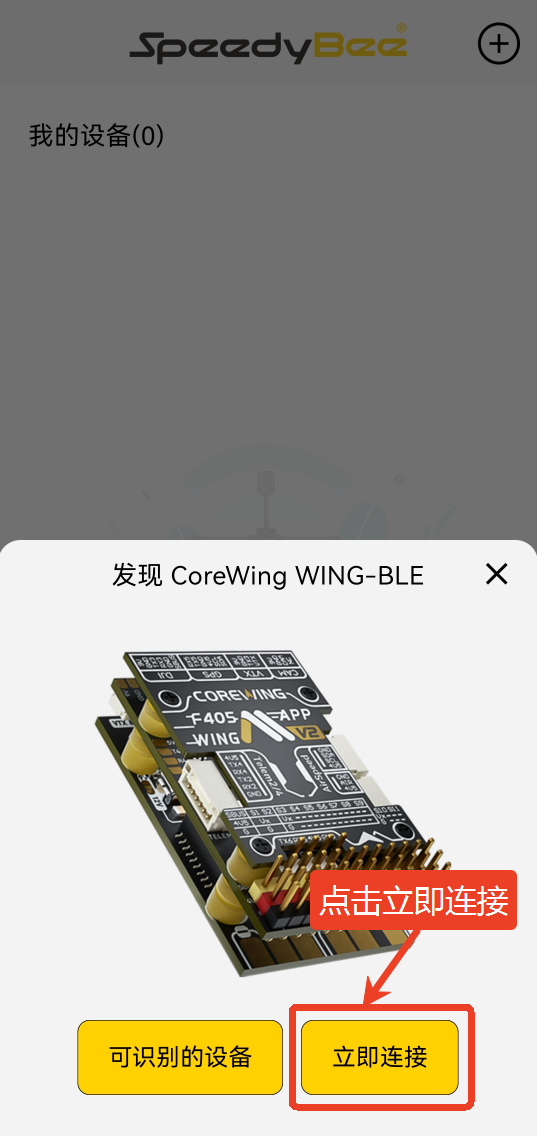
- Click the "+" icon to search for devices
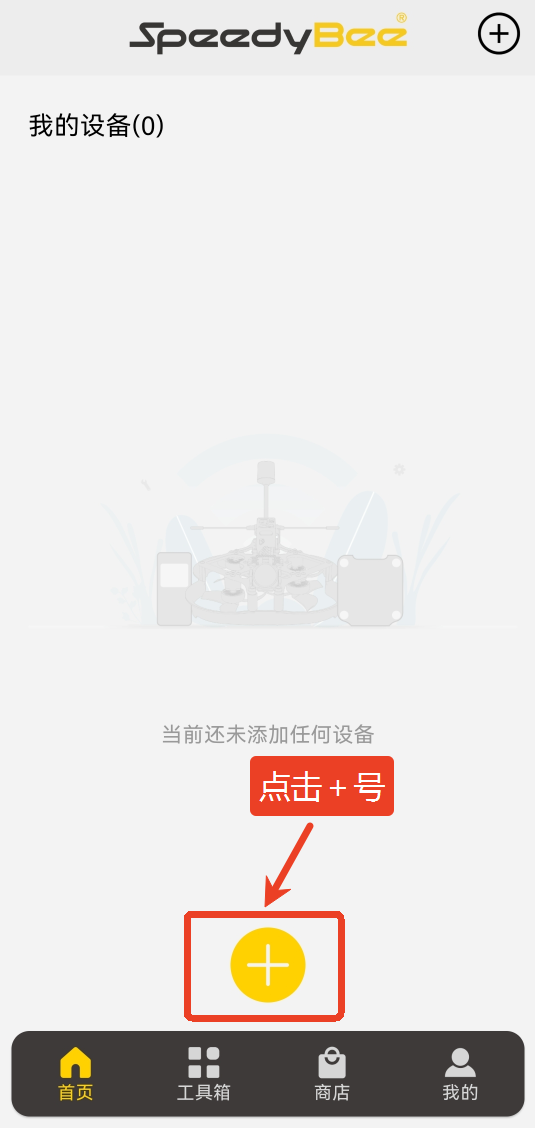
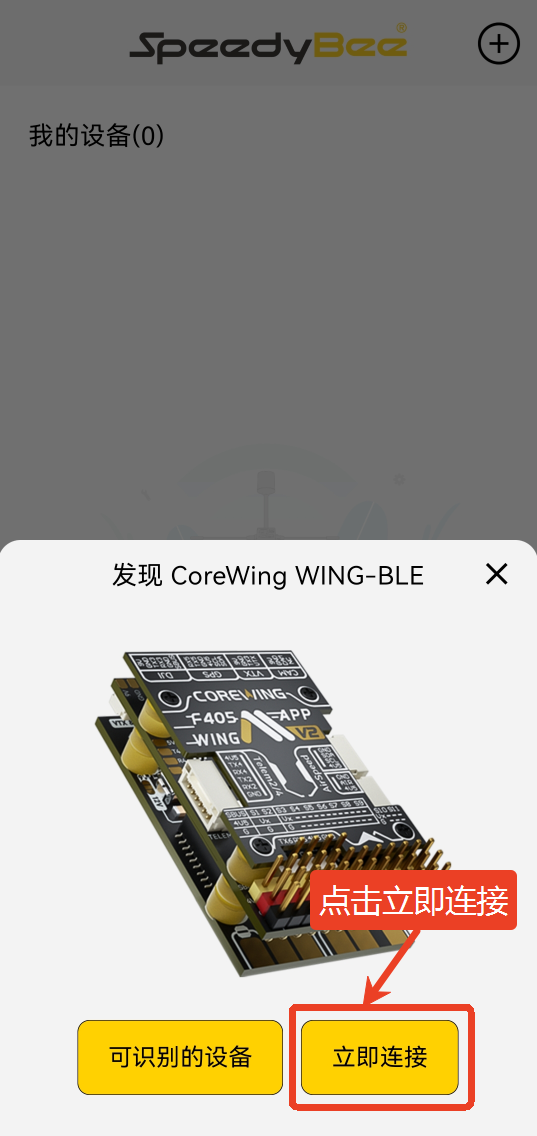
- When CoreWing WING-BLE is found, click "Connect Immediately"
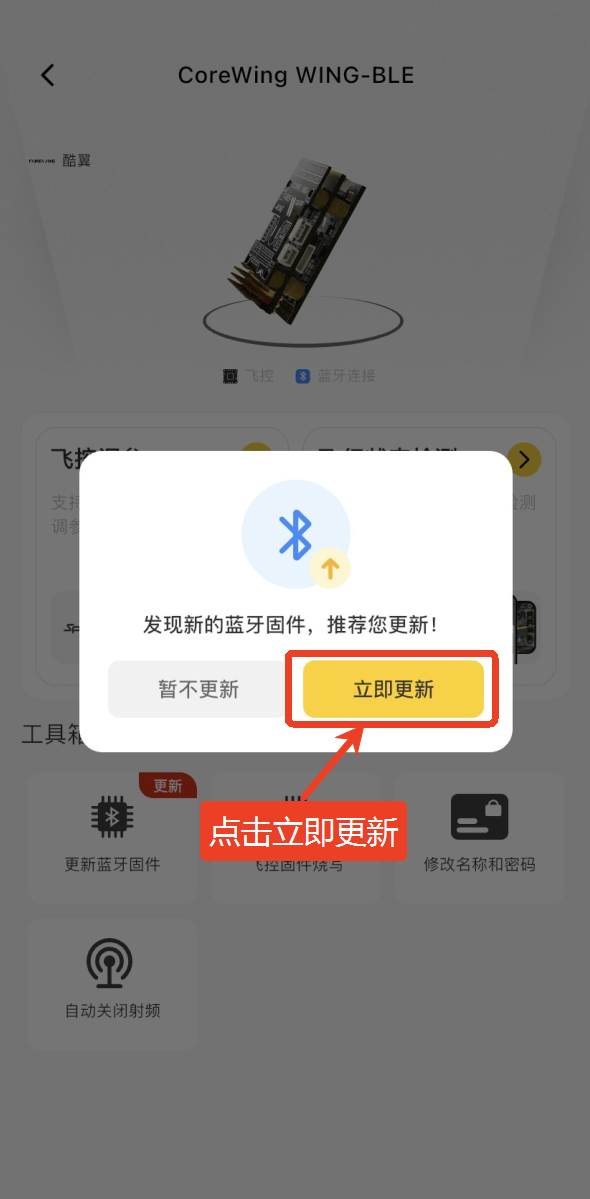
- After connecting immediately, a popup will display "New Bluetooth firmware found, recommend updating!", click "Update Now" to proceed
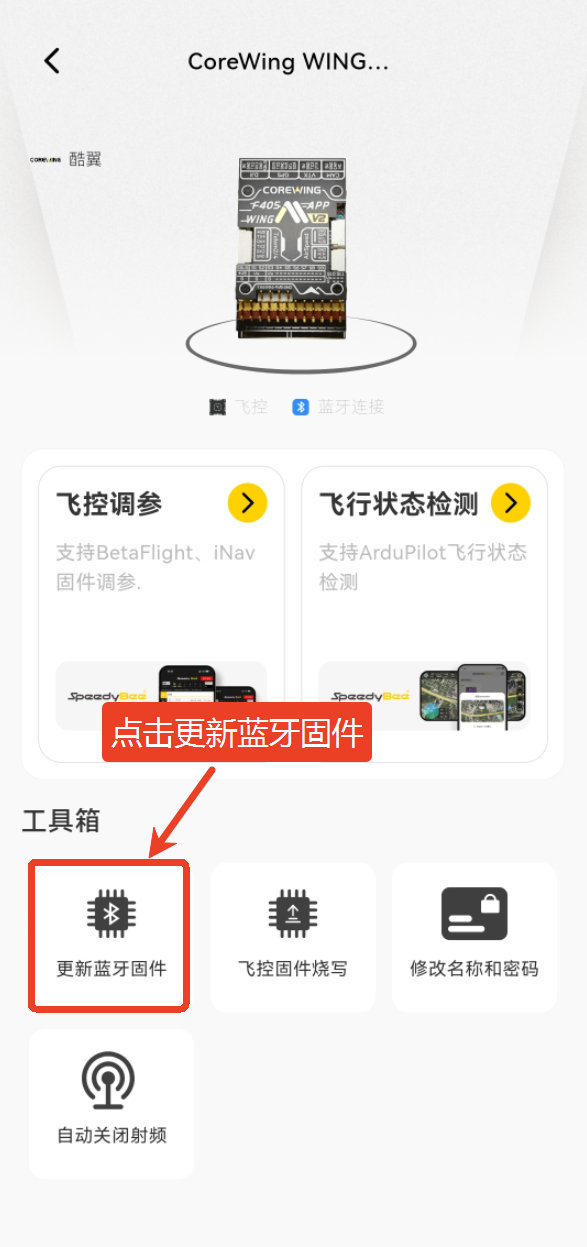
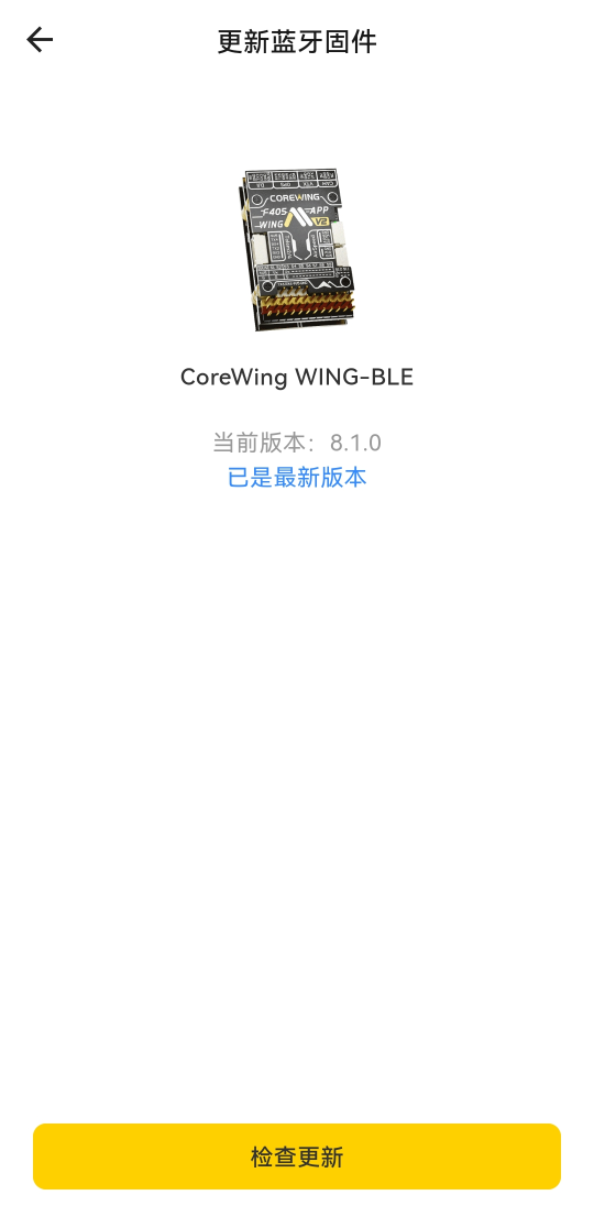
- If no upgrade popup appears, find Update Bluetooth Firmware in the toolbox below and click this function.
- A password setup popup will appear, select Skip.

- Wait for the version search, after finding the latest version: 8.1.0, click "Update Now".
Important
After the update is complete, the wireless board needs to be powered off and restarted
IV. Results Verification
4.1 Download the latest version of CoreWing APP
Important
Go to the CoreWing official website to download the latest version of the CoreWing APP:
4.2 Connect to the wireless board and confirm CoreWing APP functionality
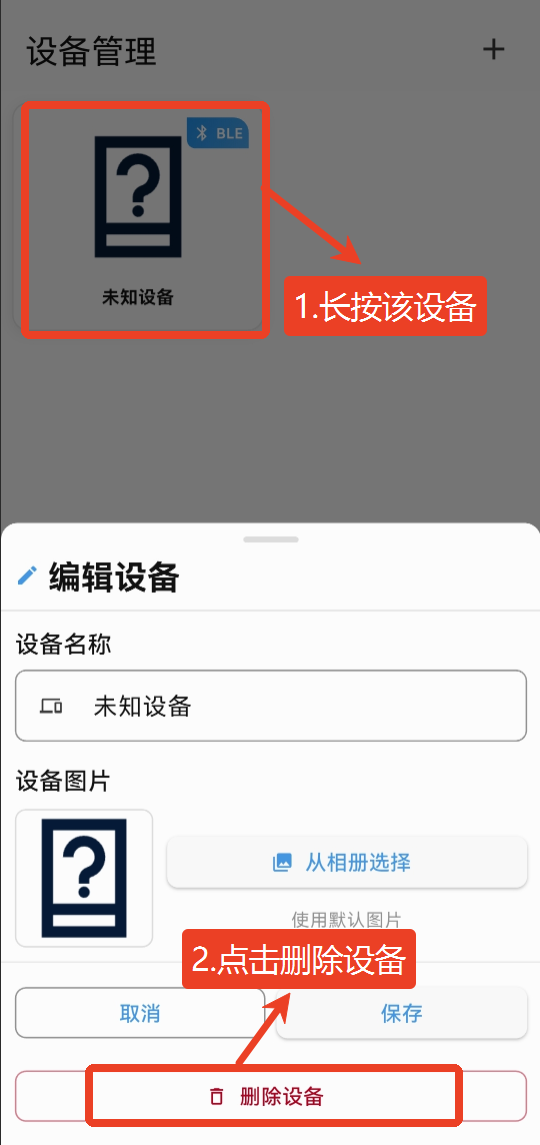
- If the flight controller was previously connected to the CoreWing APP before upgrading the Bluetooth firmware and displays as an unknown device, please long press the device in device management and delete it.
Important
Note: If the flight controller has been connected to the CoreWing APP before, the APP will cache the flight controller's information. Therefore, after the Bluetooth firmware upgrade is completed, you must delete this unknown device to avoid using old cached data, which would prevent the CoreWing APP from functioning properly!
Click to search for devices.

When CoreWing WING-BLE is found, click "Connect Immediately".
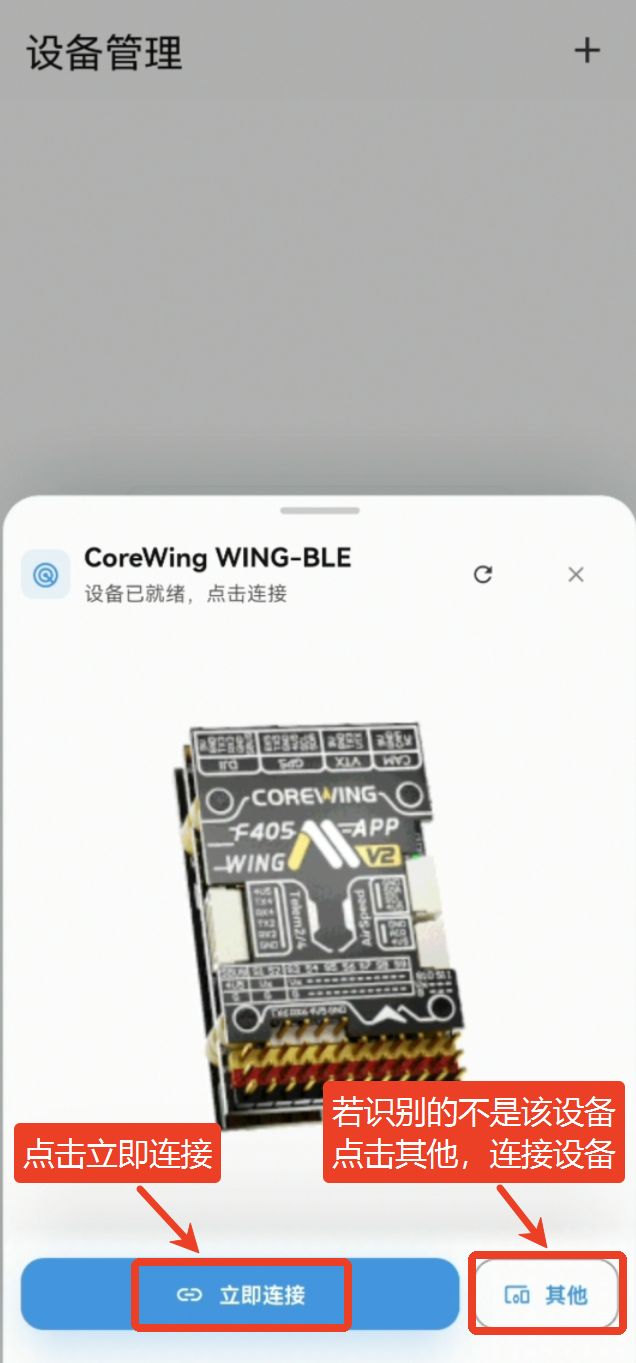
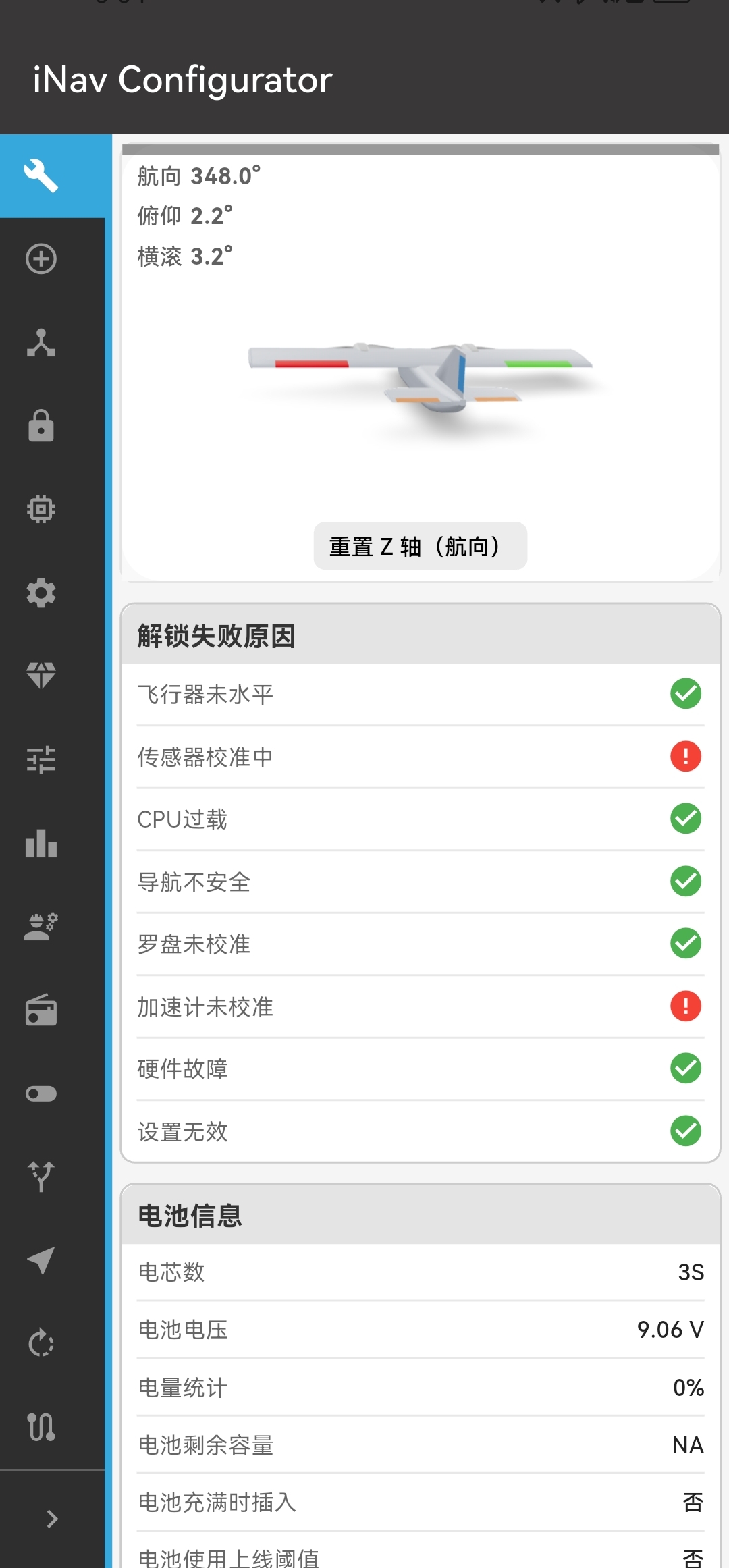
Check if the parameter setting functionality is working properly.
ArduPilot tuning page:

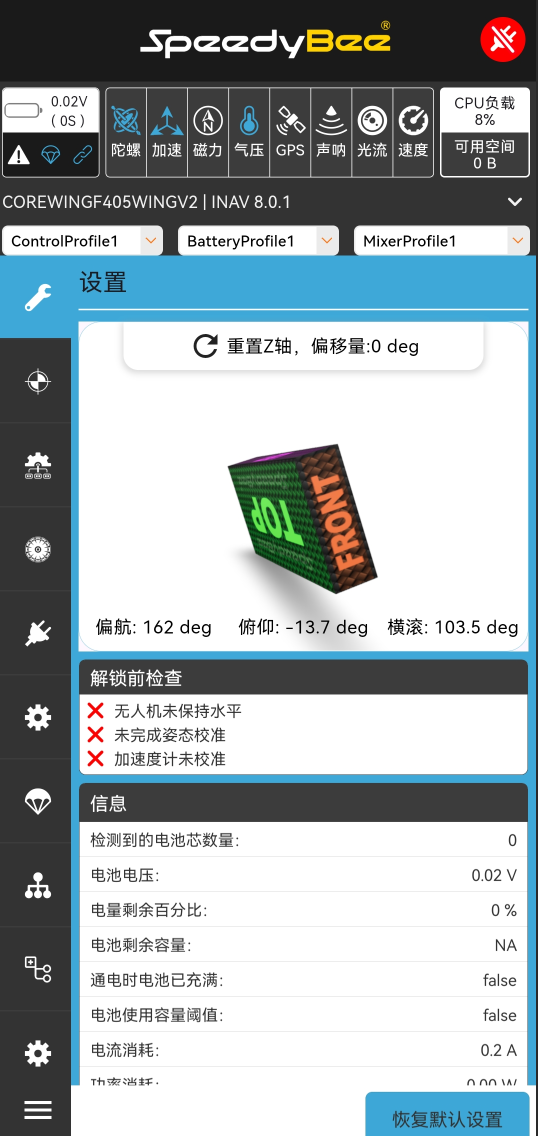
INAV tuning page:
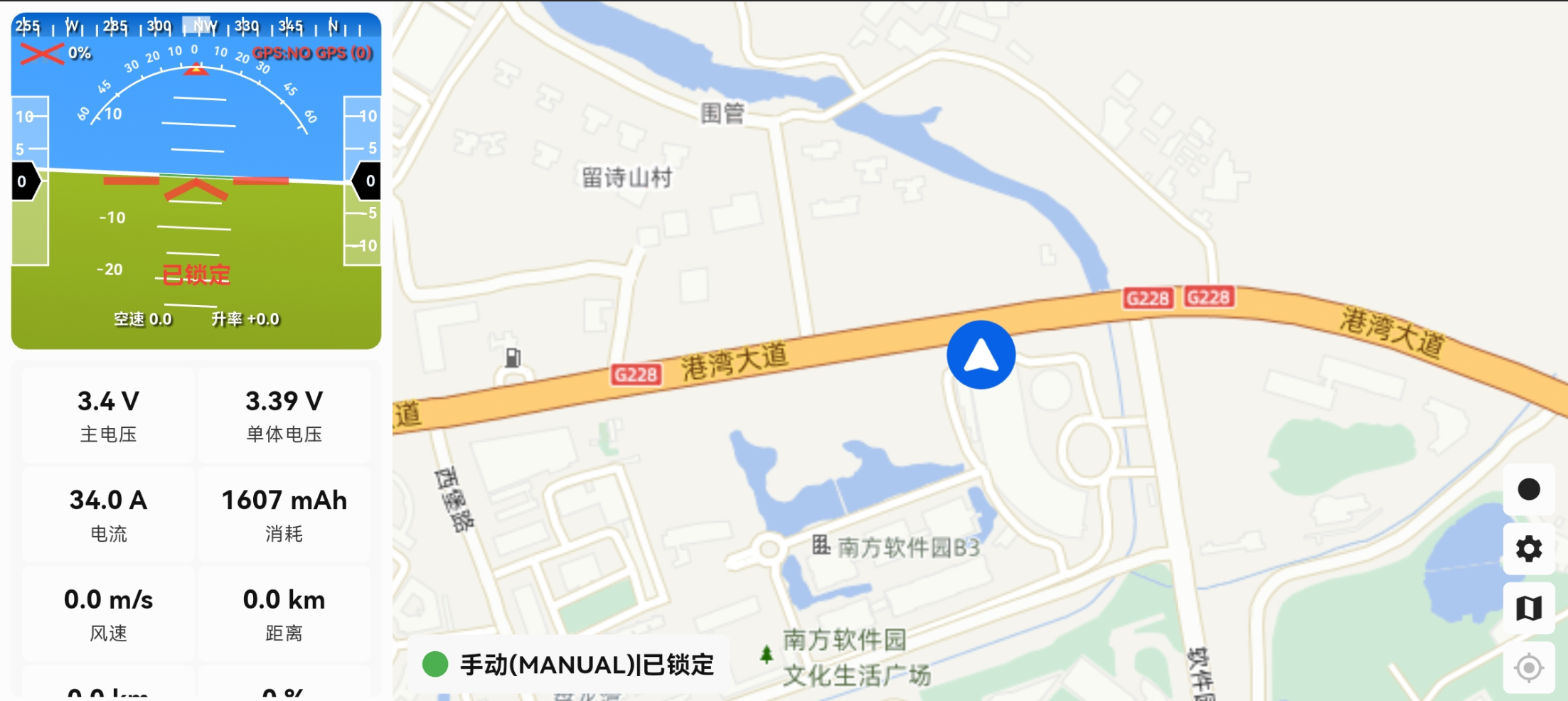
Click on telemetry view to check if it can connect properly.
Click on wireless functions to check if parameters can be set and saved.
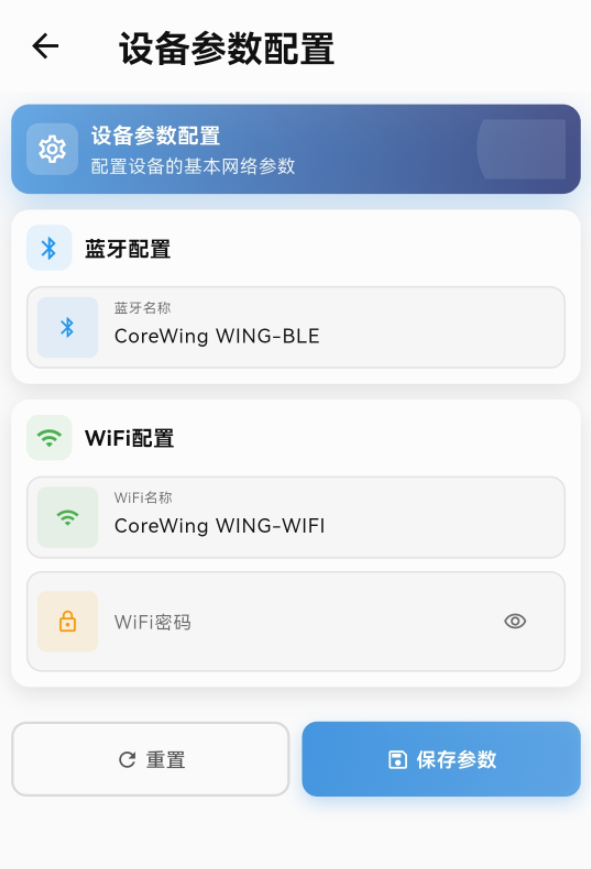
4.3 Connect to the wireless board and confirm SpeedyBee APP functionality
- Click the "+" button to search for devices.
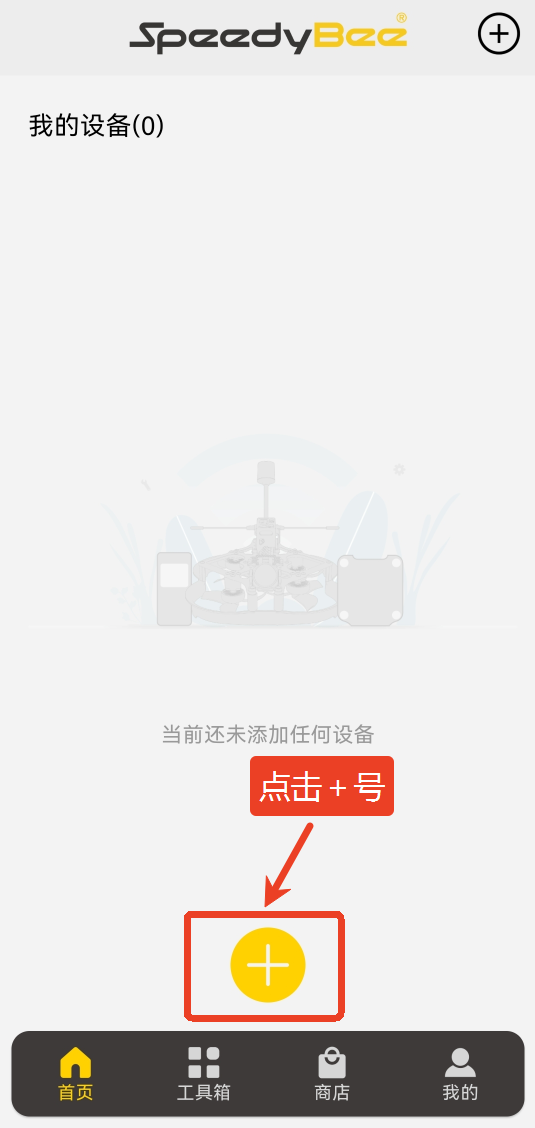
- When CoreWing WING-BLE is found, click "Connect Immediately".
- Click on flight controller tuning to check if it supports INAV firmware parameter tuning.
- Click on flight status detection to check if it supports ArduPilot firmware flight status detection.
- Click on update Bluetooth firmware to check if it is the latest firmware version.
- Click on flight controller firmware flashing to check if firmware flashing is supported.

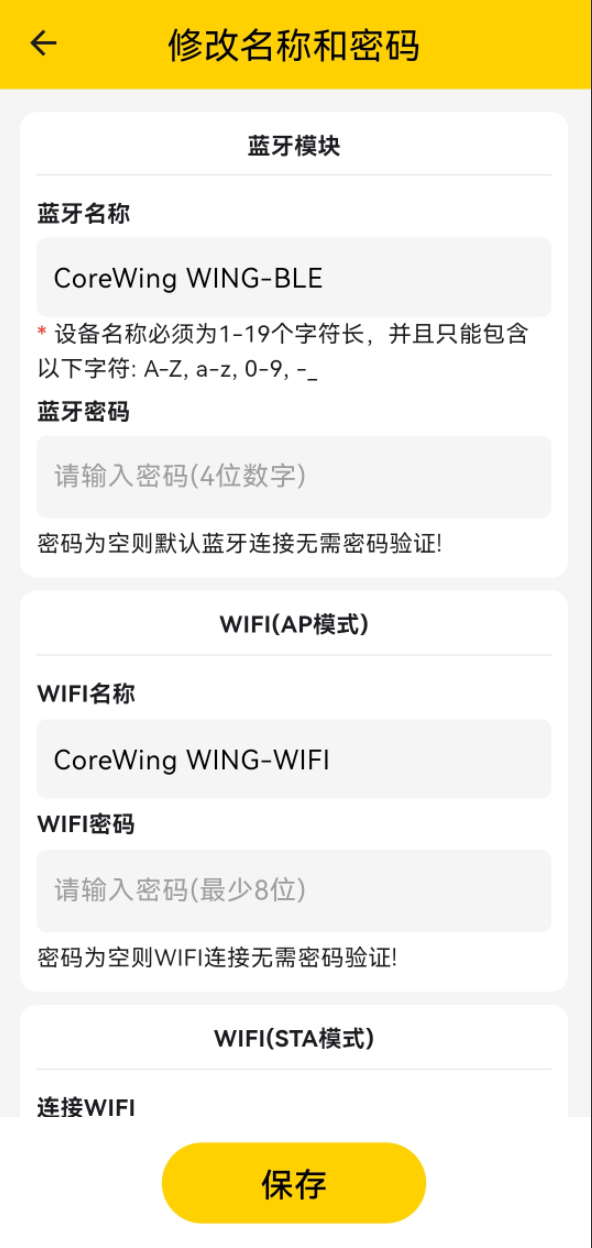
- Click on modify name and password to check if name and password modification is supported.
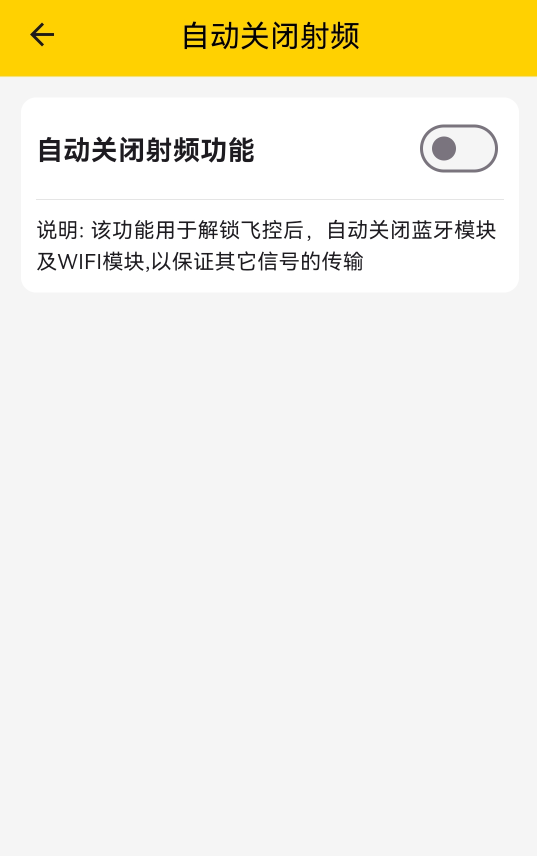
- Click on auto-disable RF to check if disabling Bluetooth and WiFi modules is supported.
V. Technical Support QR Code
If you encounter operational issues or software bugs (bugs) during use, feel free to consult technical support via the official account for feedback!
