
CoreWing Wireless USB Expansion Board SE User Guide
1. Product Overview
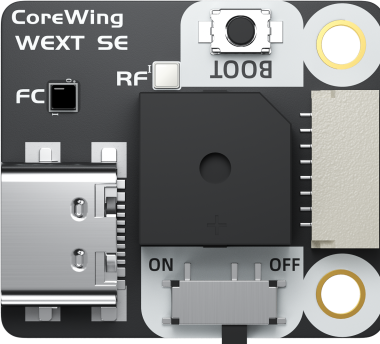
The CoreWing Wireless USB Expansion Board SE is a companion wireless module for the CoreWing F405 WING MINI V2. It supports BLE, WiFi-AP, and WiFi-STA, enabling wireless configuration, status monitoring, and firmware upgrades through a mobile APP or ground station.
Main Features:
- BLE / WiFi-AP / WiFi-STA wireless modes
- CoreWing APP configuration and wireless firmware upgrades
- Support for iNav Configurator and MissionPlanner ground stations
- Enter DFU mode and upgrade firmware without disconnecting peripherals
- RF and FC status LEDs indicate wireless and flight controller connection status
2. Hardware Description
2.1 RF Wireless Status LED
Warning
Connecting via BLE will disable the current WiFi mode; connecting via WiFi will disable BLE.
| LED | LED Status | Description |
|---|---|---|
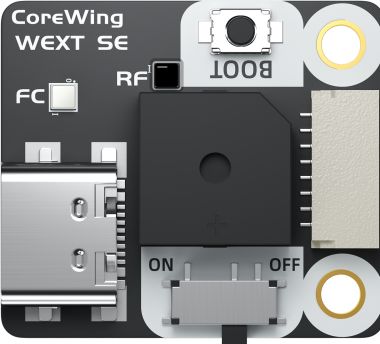 | Yellow blinking | Switching mode |
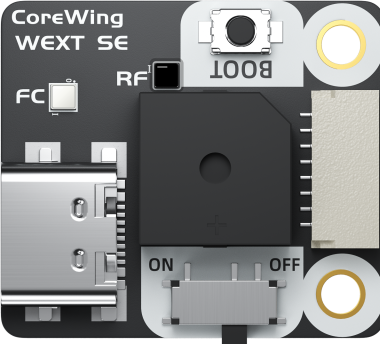 | Green/White breathing | BLE or WiFi-AP not connected |
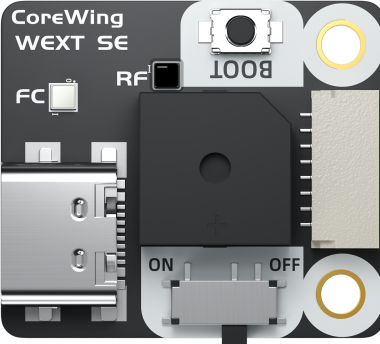 | Solid green | BLE connected |
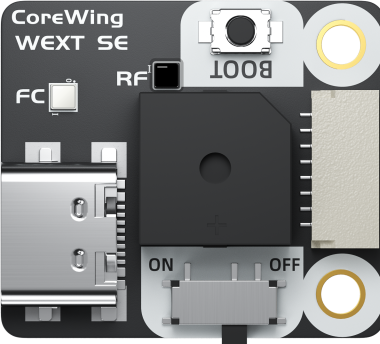 | Solid white | WiFi-AP connected |
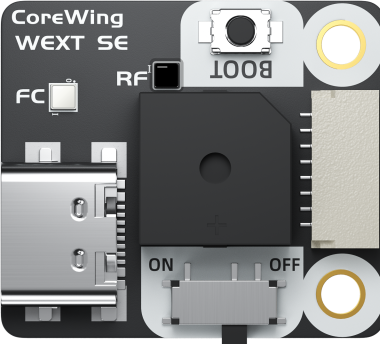 | Green/Purple breathing | BLE or WiFi-STA not connected |
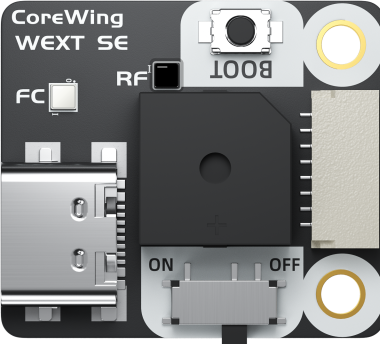 | Solid green | BLE connected |
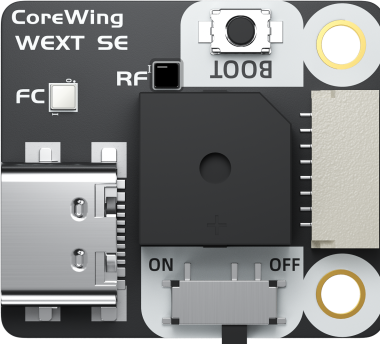 | Solid purple | WiFi-STA connected |
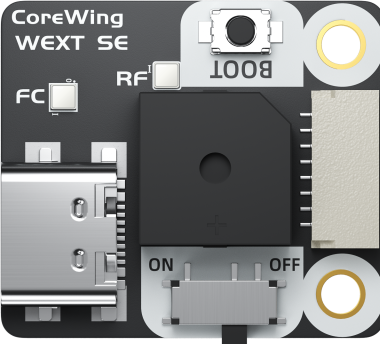 | RF LED off | Wireless disabled |
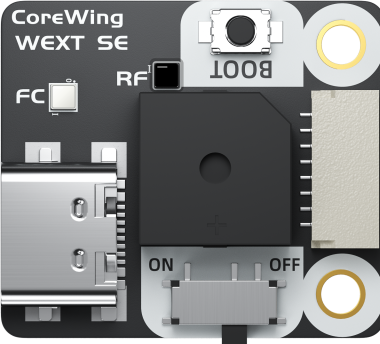 | Solid cyan | BOOT button pressed |
2.2 FC Flight Controller Status LED
| LED | LED Status | Description |
|---|---|---|
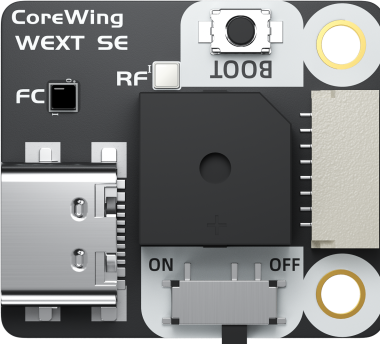 | Blue blinking | Wireless firmware upgrade in progress |
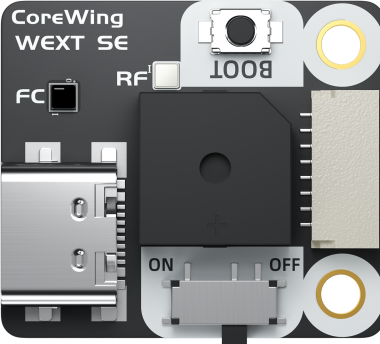 | Solid cyan, then red blinking | Entering DFU mode |
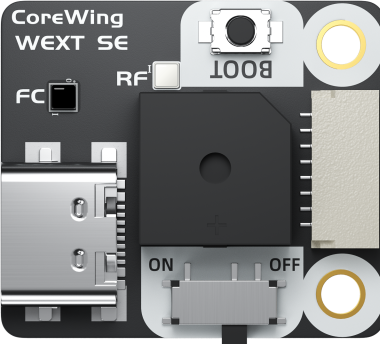 | Red blinking | Unable to get flight controller data |
 | Solid orange | Flight controller data normal |
3. Wireless Mode Switching
Press and hold the BOOT button for 6 seconds to switch wireless modes. Watch the RF LED and release the button when the target mode indication appears.
| Mode | Use Case | Supported Connections |
|---|---|---|
| BLE | Short-range mobile configuration, low power consumption | CoreWing APP, SpeedyBee APP, iNav Configurator |
| WiFi-AP | No existing WiFi available, direct connection to the module hotspot | CoreWing APP, iNav Configurator, MissionPlanner |
| WiFi-STA | Connect to an existing WiFi network for multi-device access | iNav Configurator, MissionPlanner |
| Wireless Off | Disable wireless functions | None |
Warning
If the yellow LED keeps blinking, the mode switch is still in progress. Wait until it completes before performing other operations.
4. CoreWing APP Connection
4.1 BLE Connection
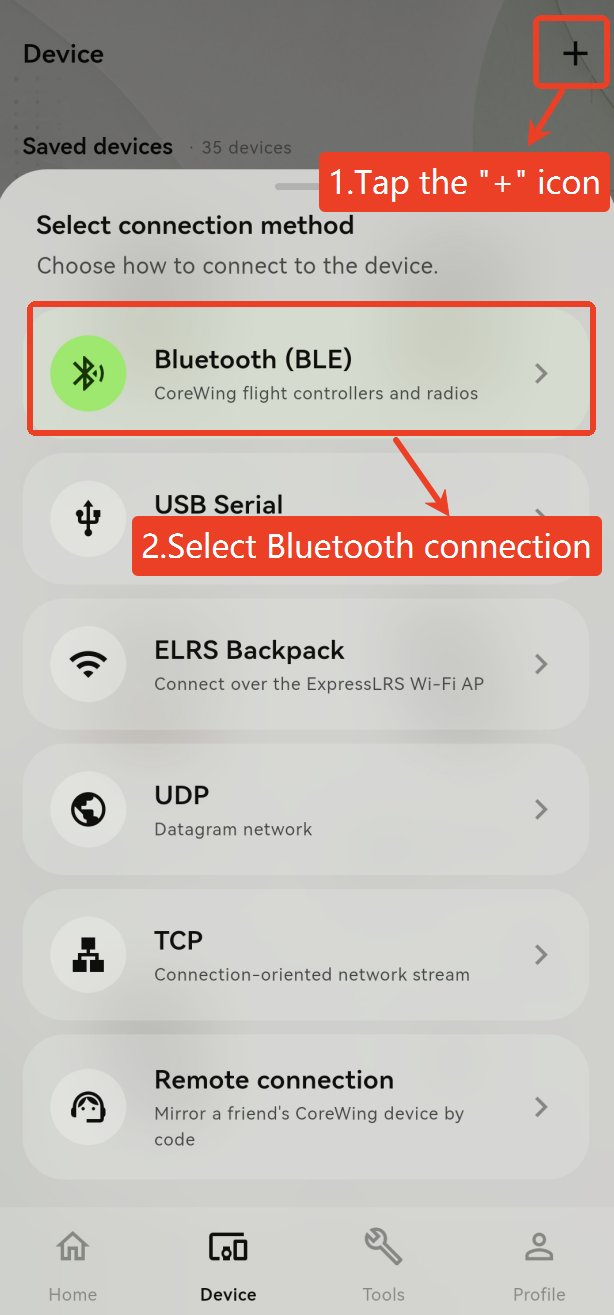
Ensure the wireless module is in BLE mode, indicated by a green/white or green/purple breathing LED
Open the CoreWing APP and tap the + icon to search
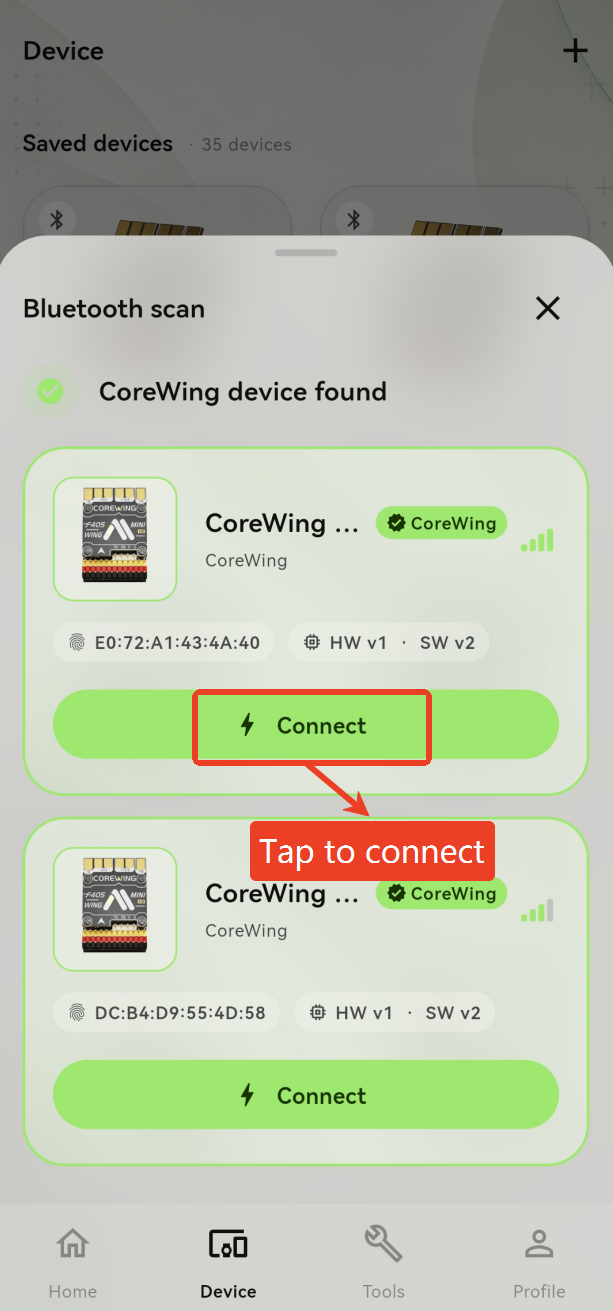
Tap the detected device to connect
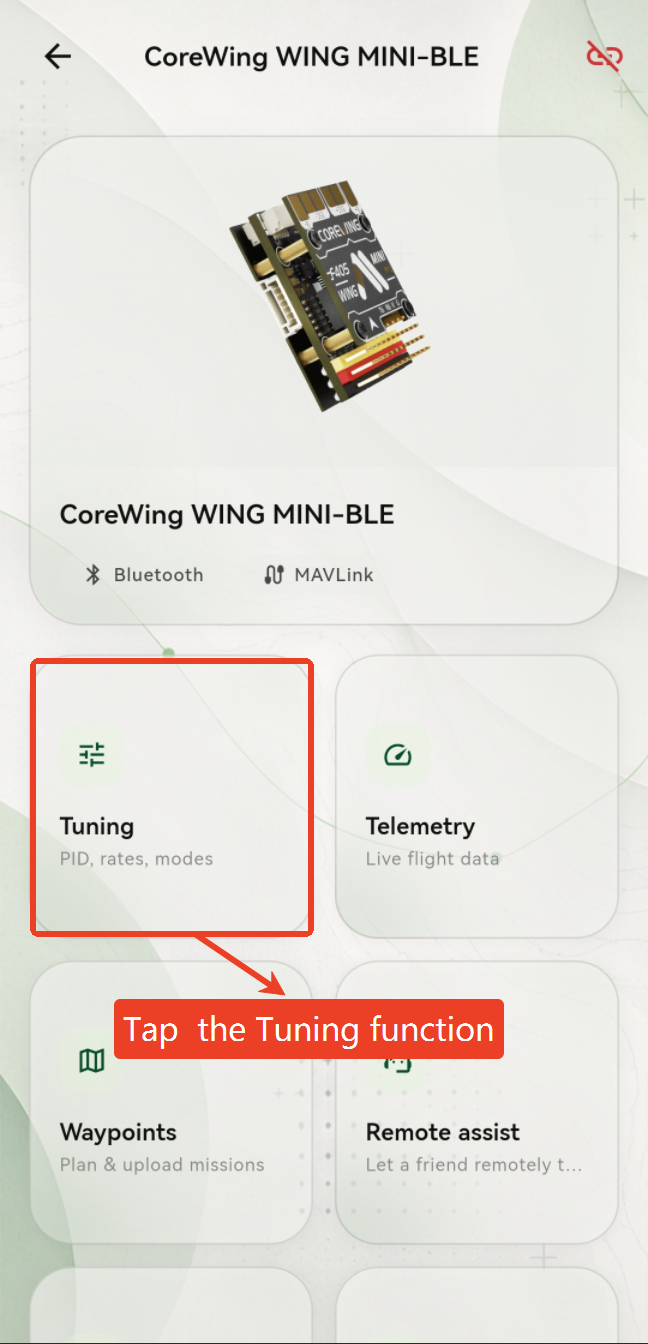
Tap the Tuning
Enter the corresponding configuration page
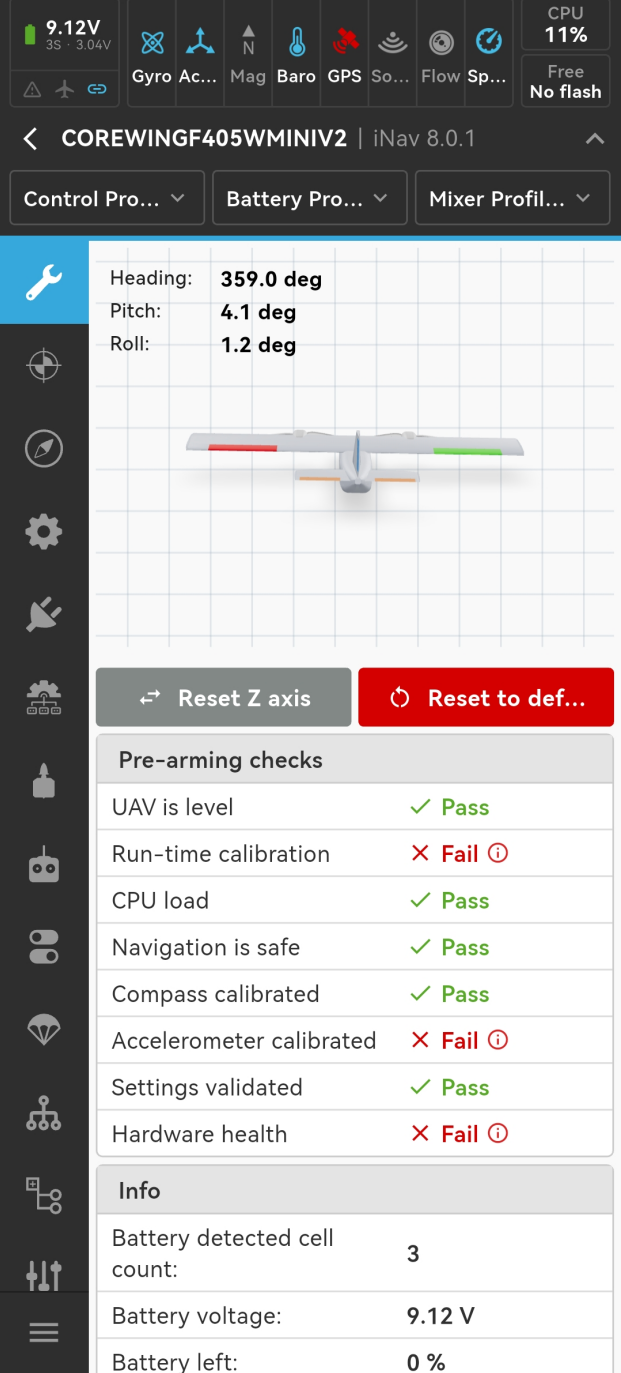
INAV firmware configuration interface:
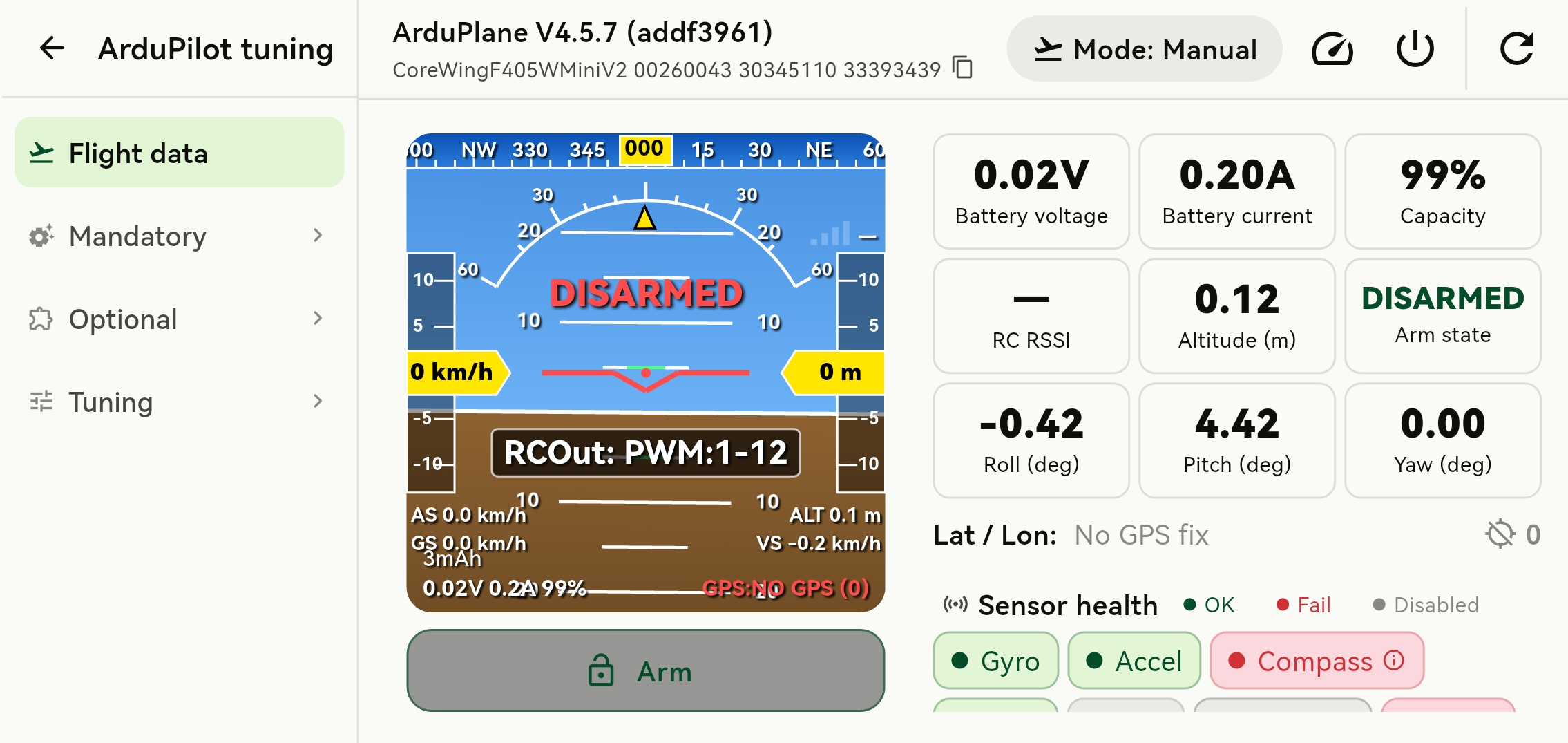
AP firmware configuration interface:
4.2 WiFi-AP Connection
Ensure the wireless module is in WiFi-AP mode, indicated by a green/white breathing LED
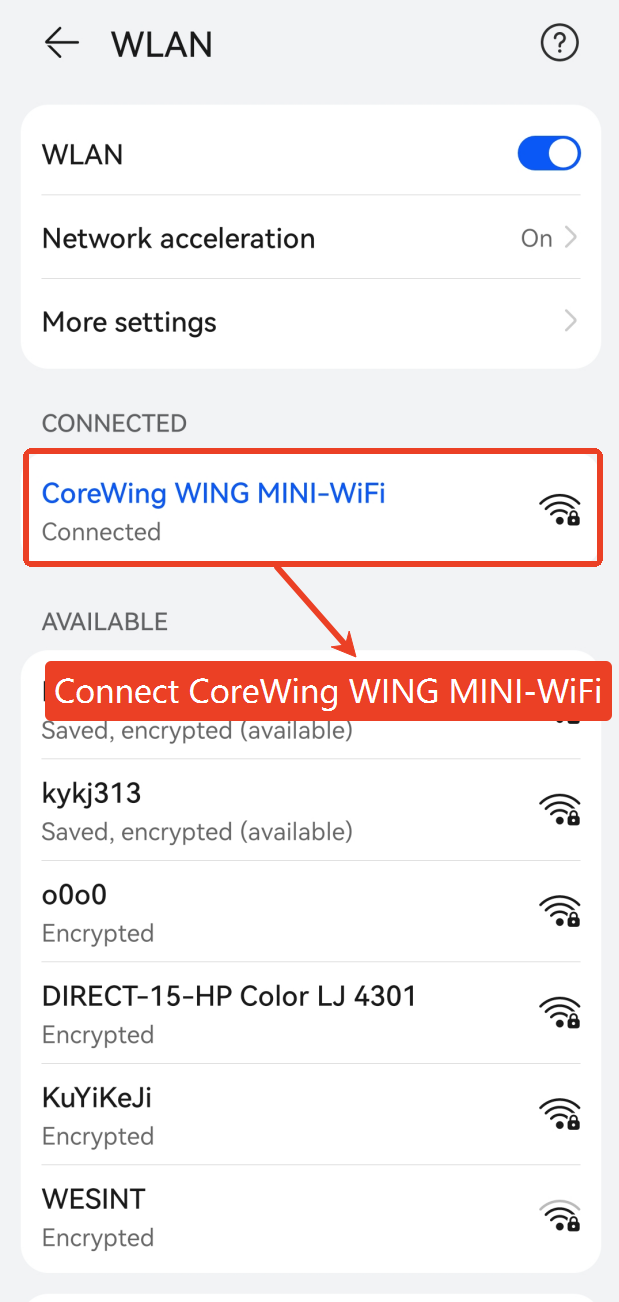
Connect your phone to CoreWing WING MINI-WIFI (default)
Important
The default password for CoreWing WING MINI-WIFI is 88888888
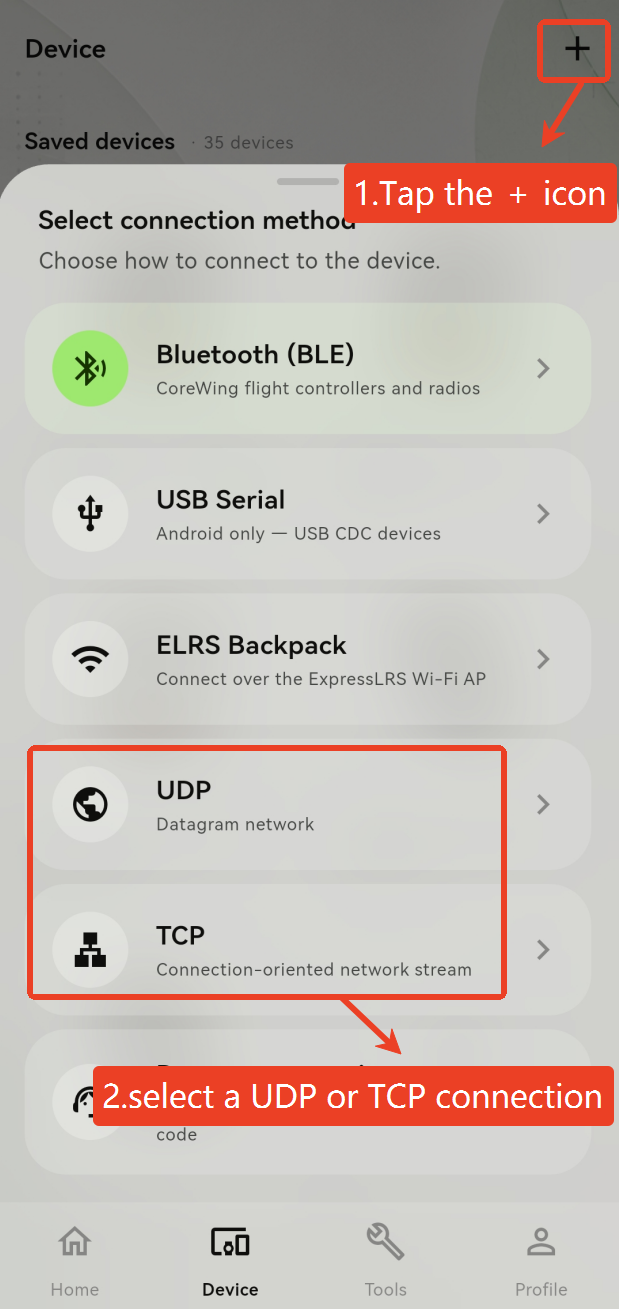
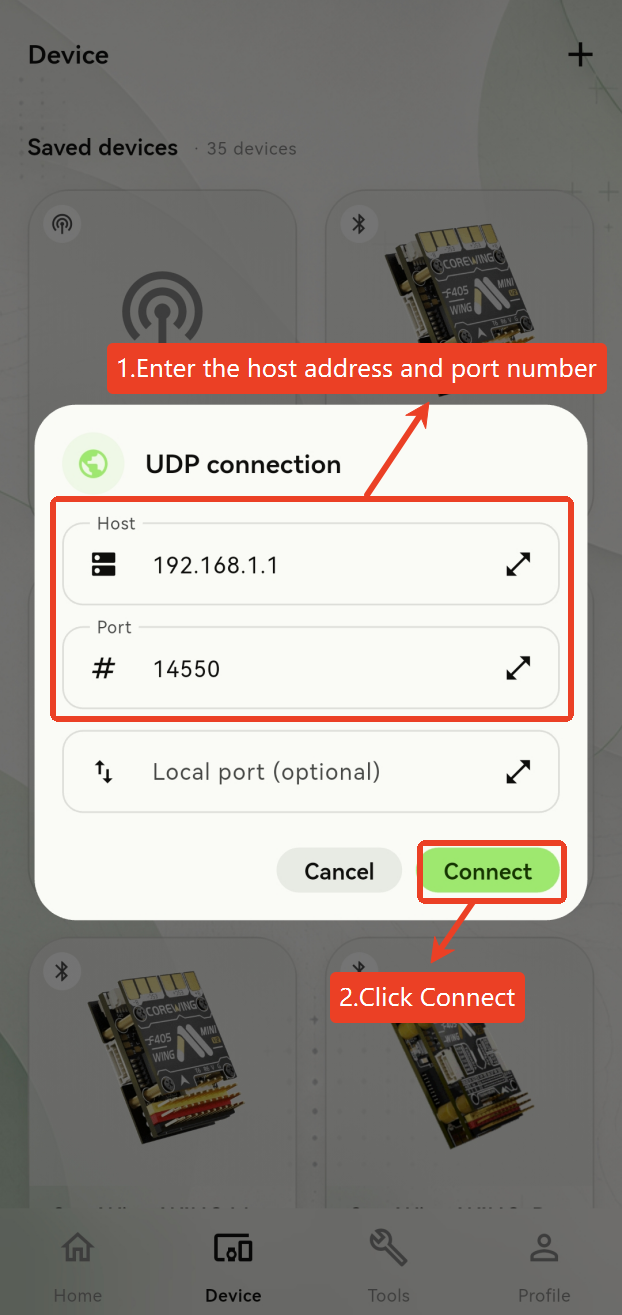
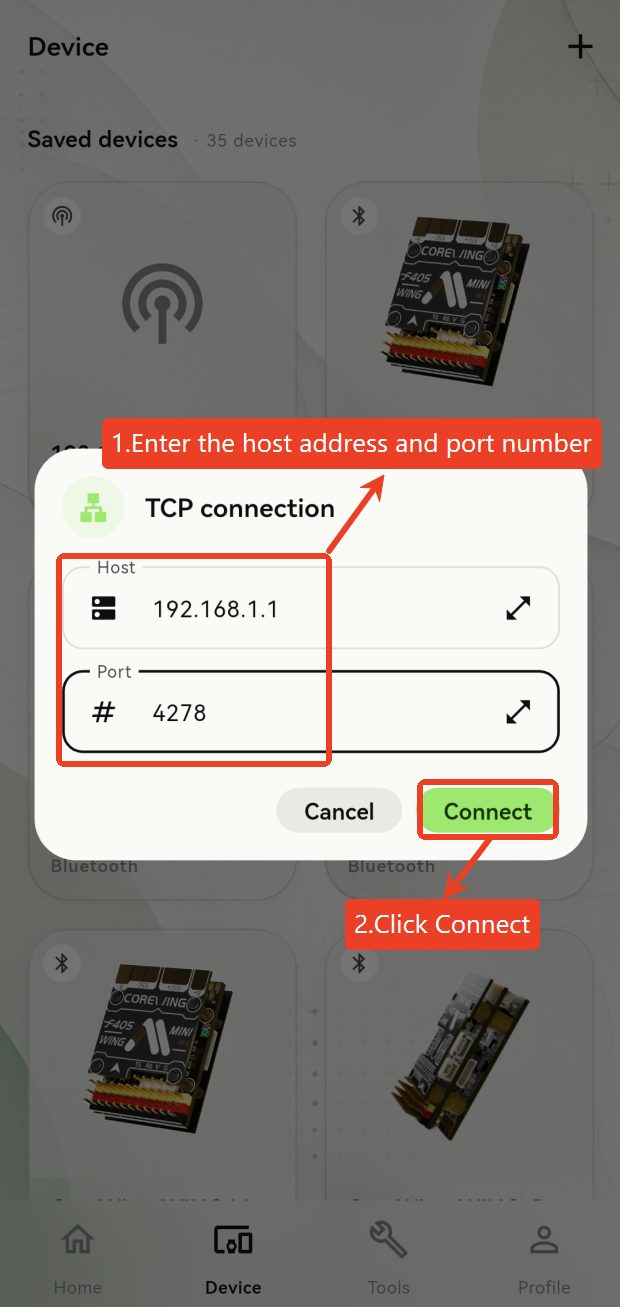
Open the CoreWing APP, tap the + icon, and select a UDP or TCP connection
Enter the host address and port number
UDP Connection:
Important
The host address is 192.168.1.1;The port number is14550
TCP Connection:
Important
The host address is 192.168.1.1;The port number is 4278
Tap the Tuning
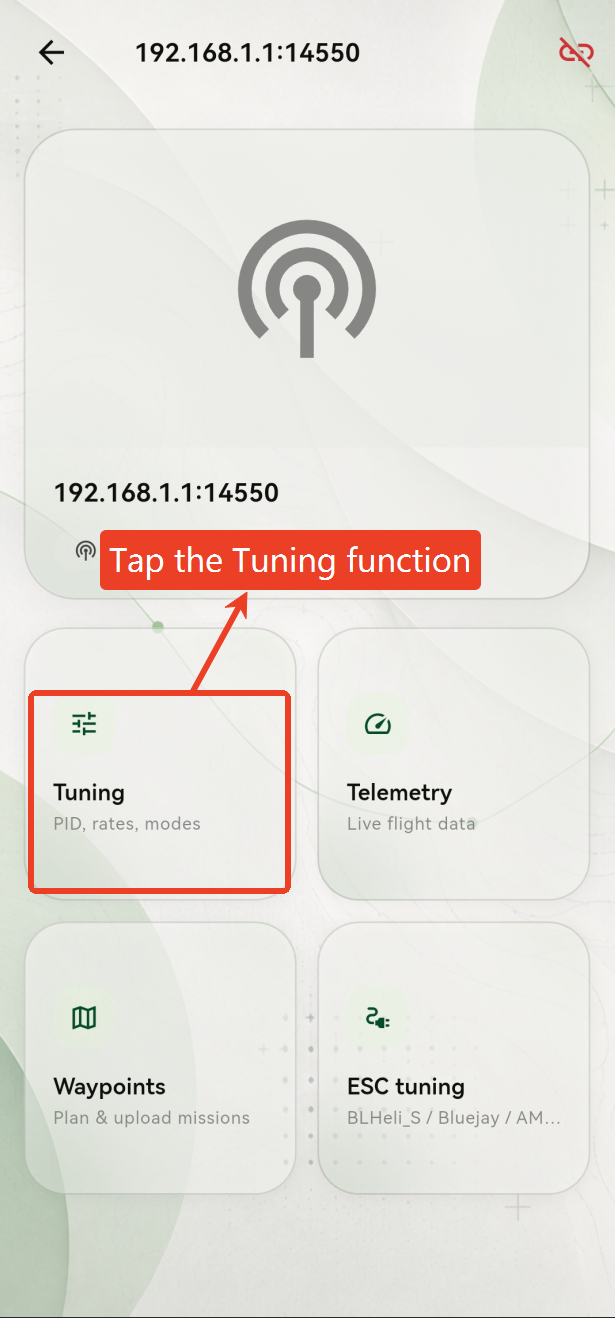
Enter the corresponding configuration page
INAV firmware configuration interface:
AP firmware configuration interface:
5. Ground Station Connection
5.1 BLE Connection
Warning
Only iNav firmware supports BLE connections!
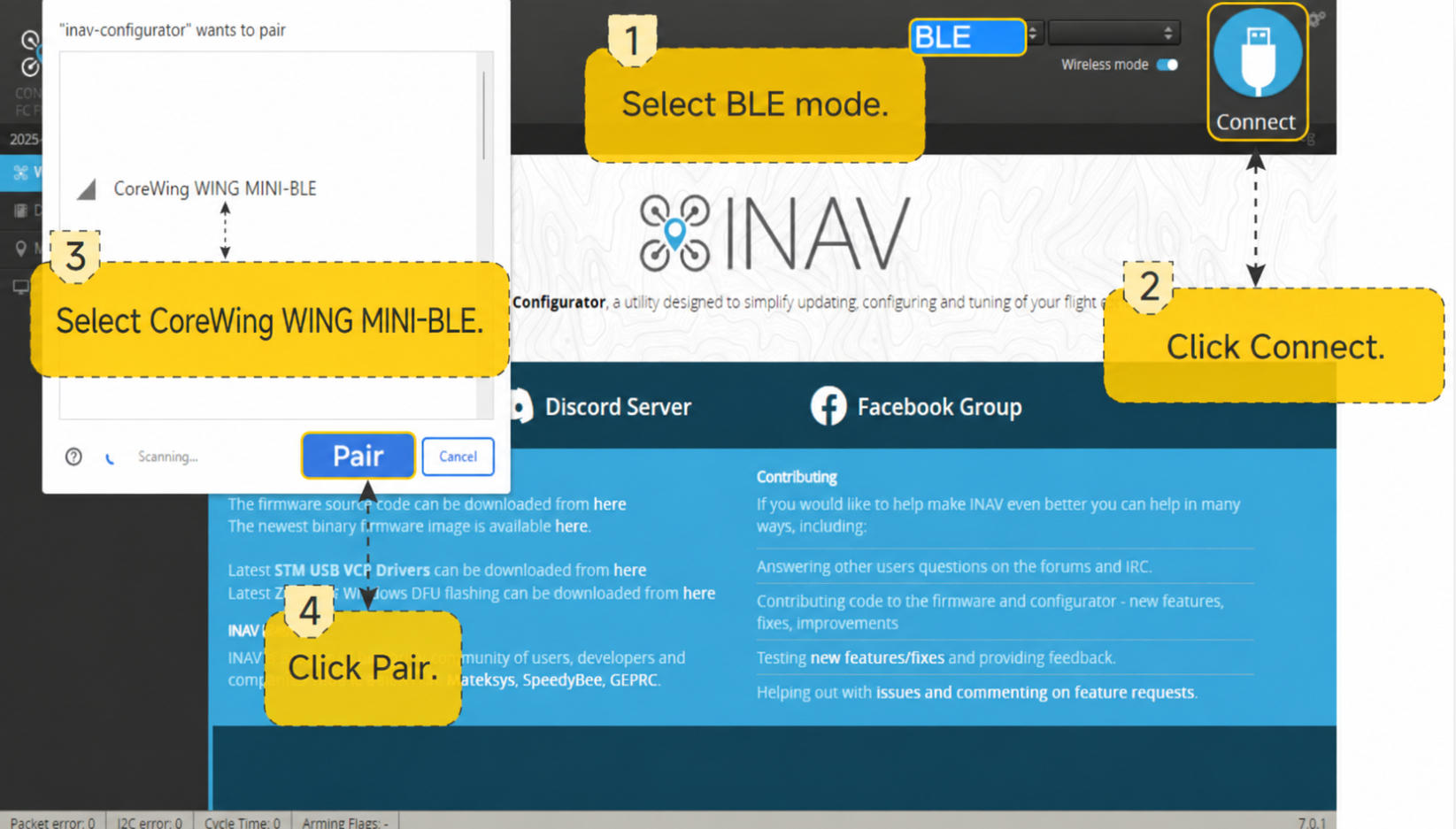
5.2 WiFi-AP Connection
After connecting your computer to CoreWing WING MINI-WIFI, follow the steps below.
- iNav Ground Station
UDP:

TCP:

- ArduPilot Ground Station
UDP:
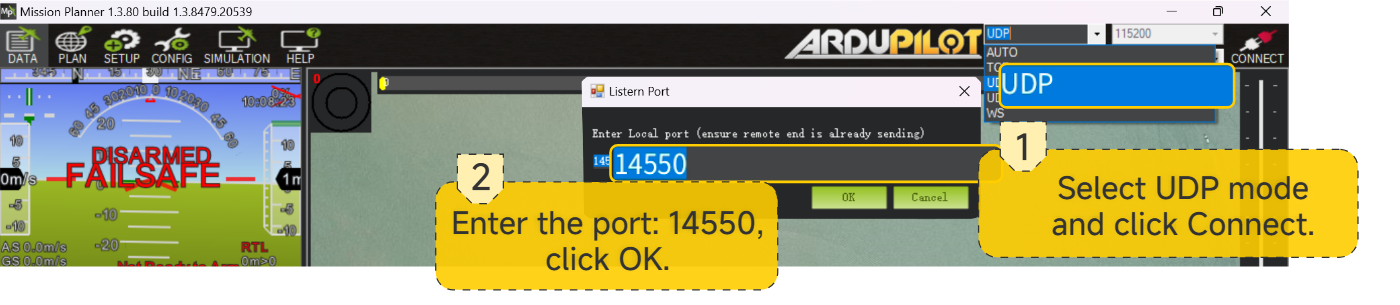
TCP:

5.3 WiFi-STA Connection
Warning
Set the computer hotspot name to: CoreWing WING MINI-WIFI (default), and the hotspot password to: 88888888 (default).
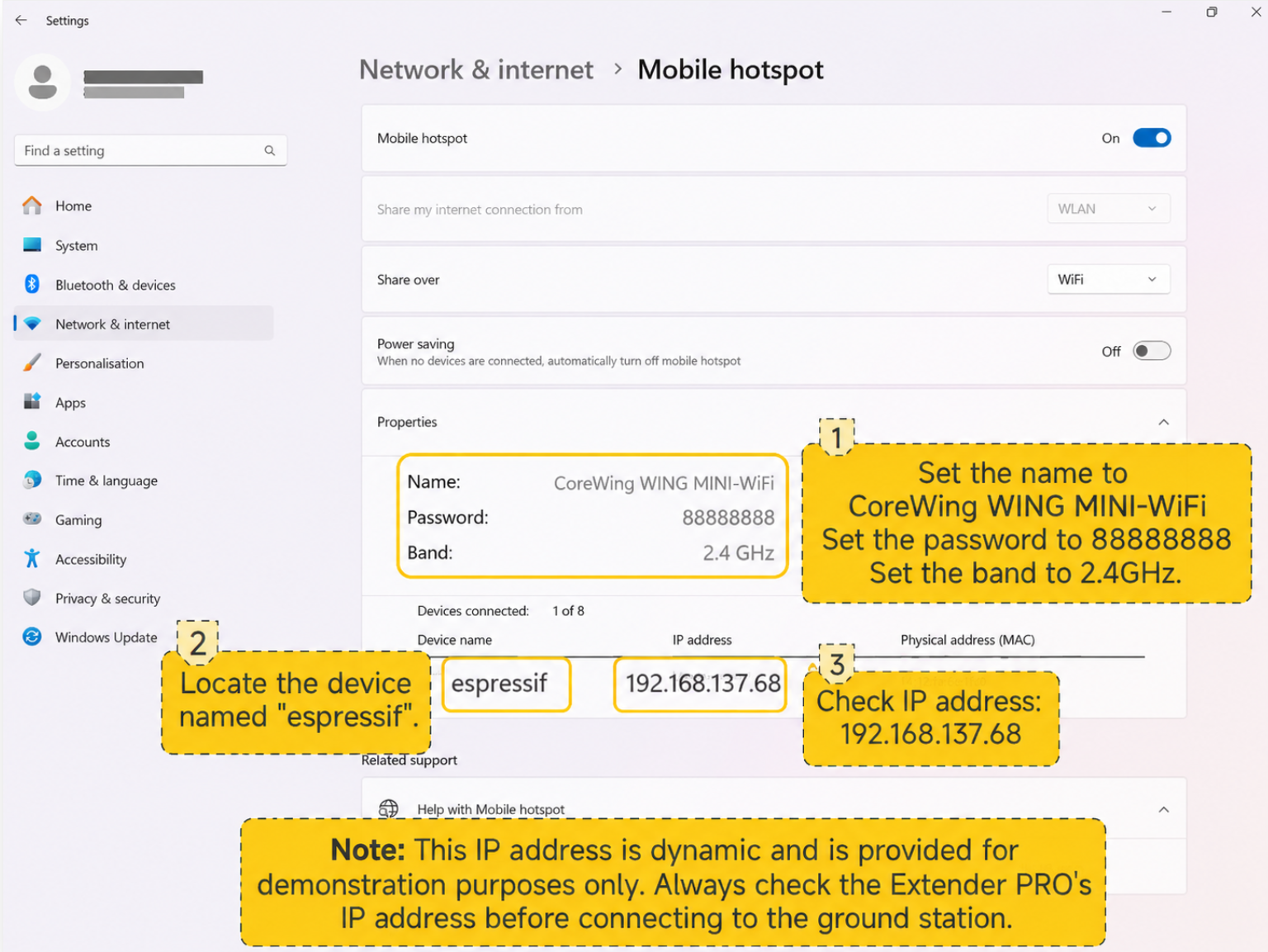
After the wireless module connects to the computer hotspot, follow the steps below.
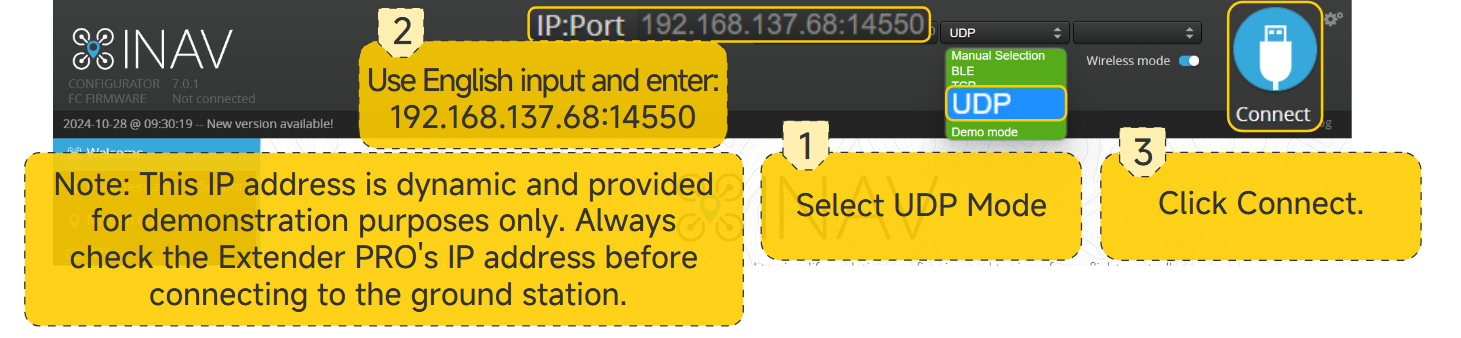
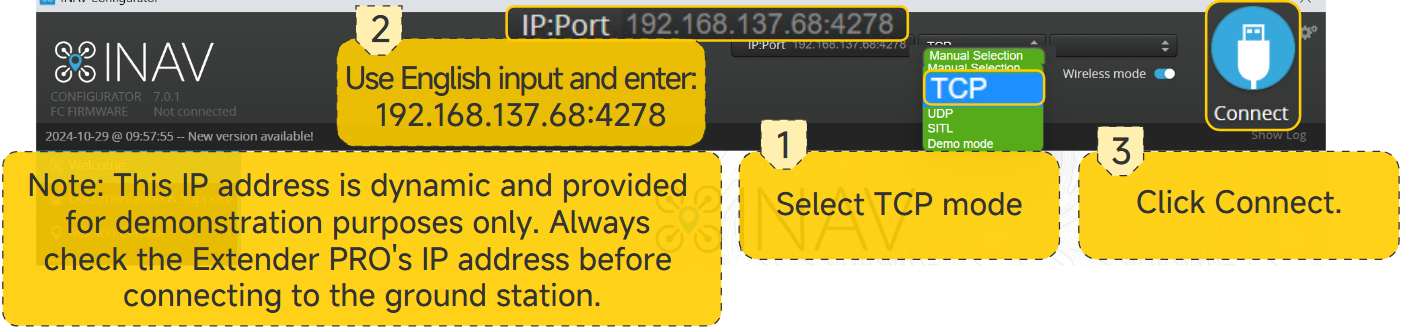
- iNav Ground Station
UDP:
TCP:
- ArduPilot Ground Station
UDP:
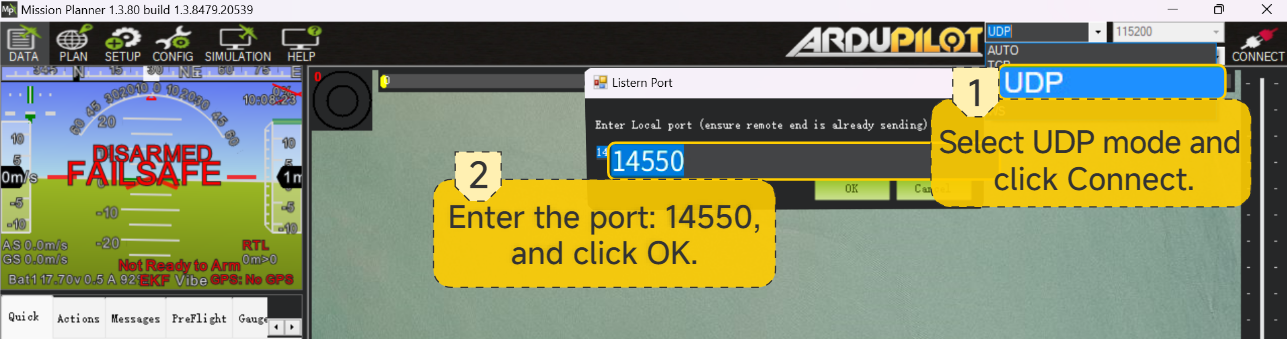
TCP:
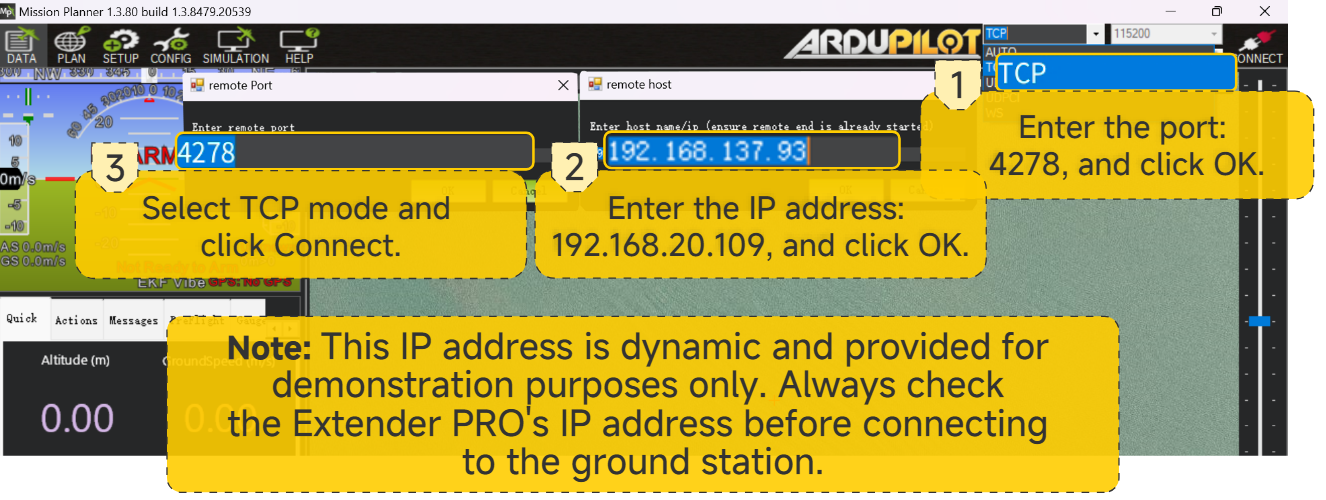
6. Flight Controller Firmware Upgrade
6.1 Standard Firmware Upgrade
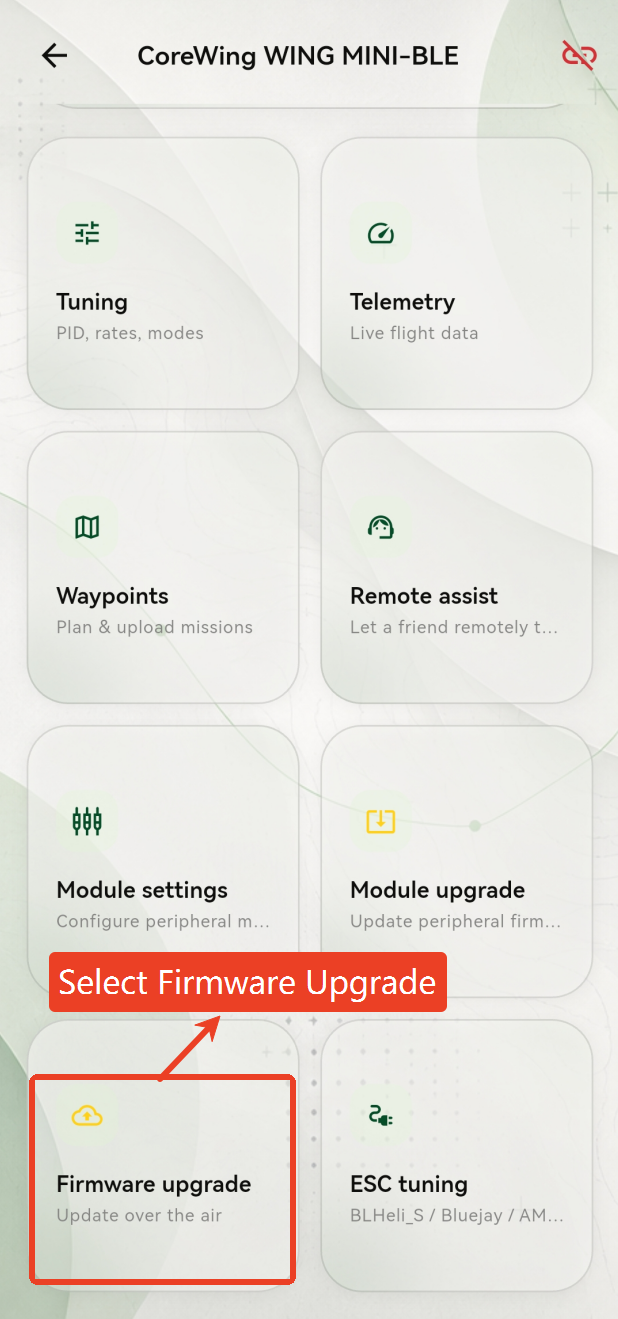
Open the CoreWing APP, select BLE Connection, and connect to the device
Select Firmware Upgrade
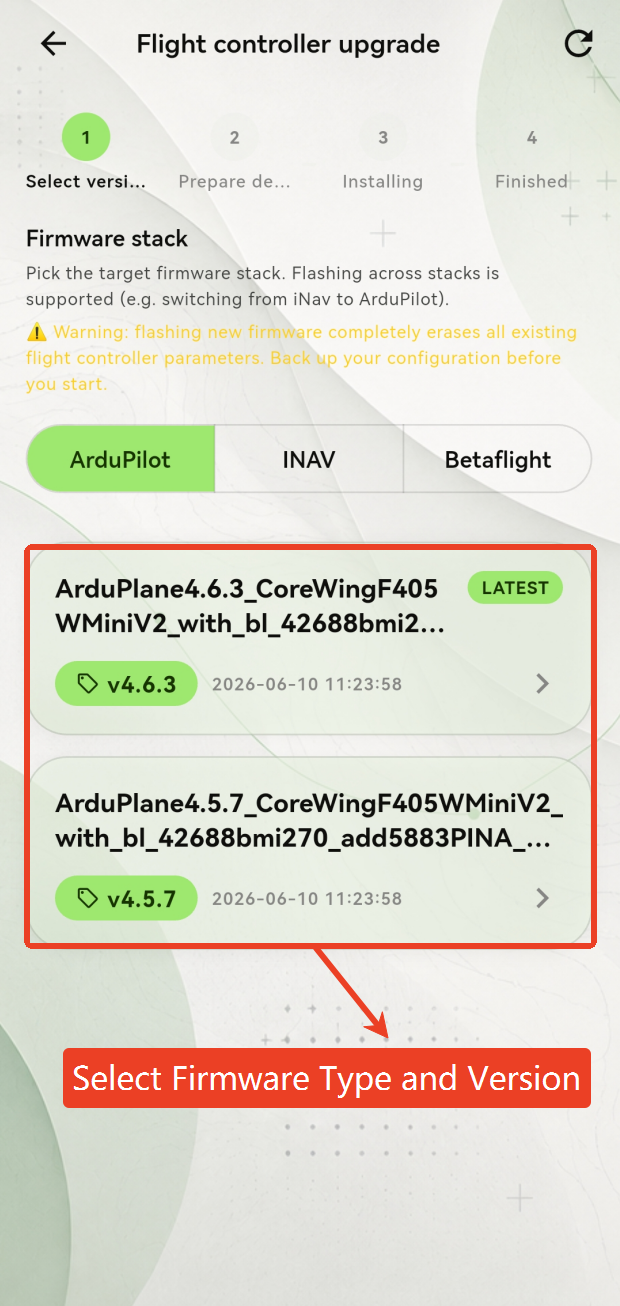
Select Firmware Type and Version
Important
Flashing new firmware will completely erase all existing flight controller parameters. Make sure you have backed up your flight controller data before proceeding.
Disconnect all peripherals from the flight controller and click Start Upgrade
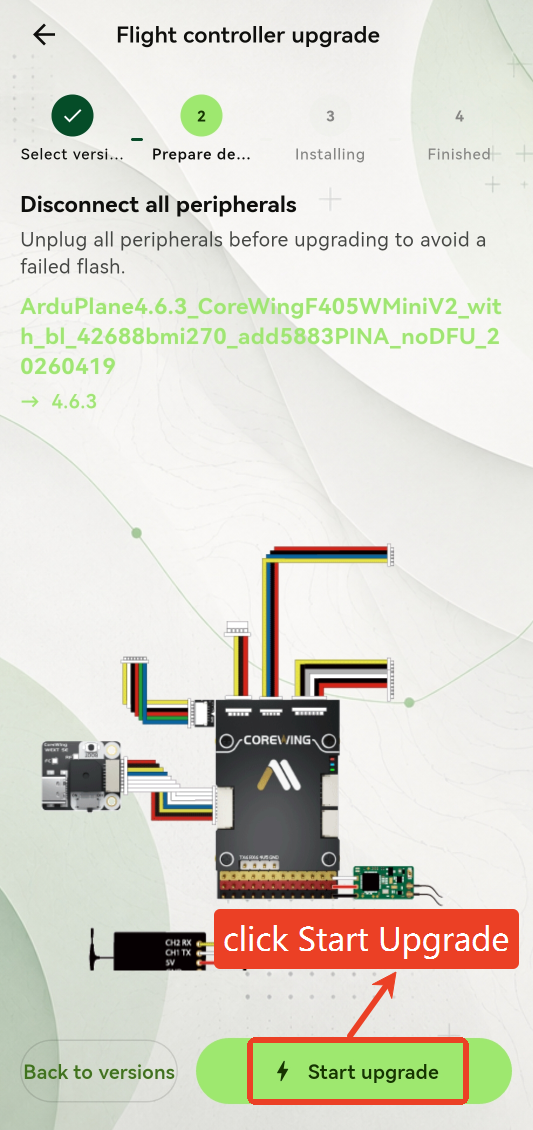
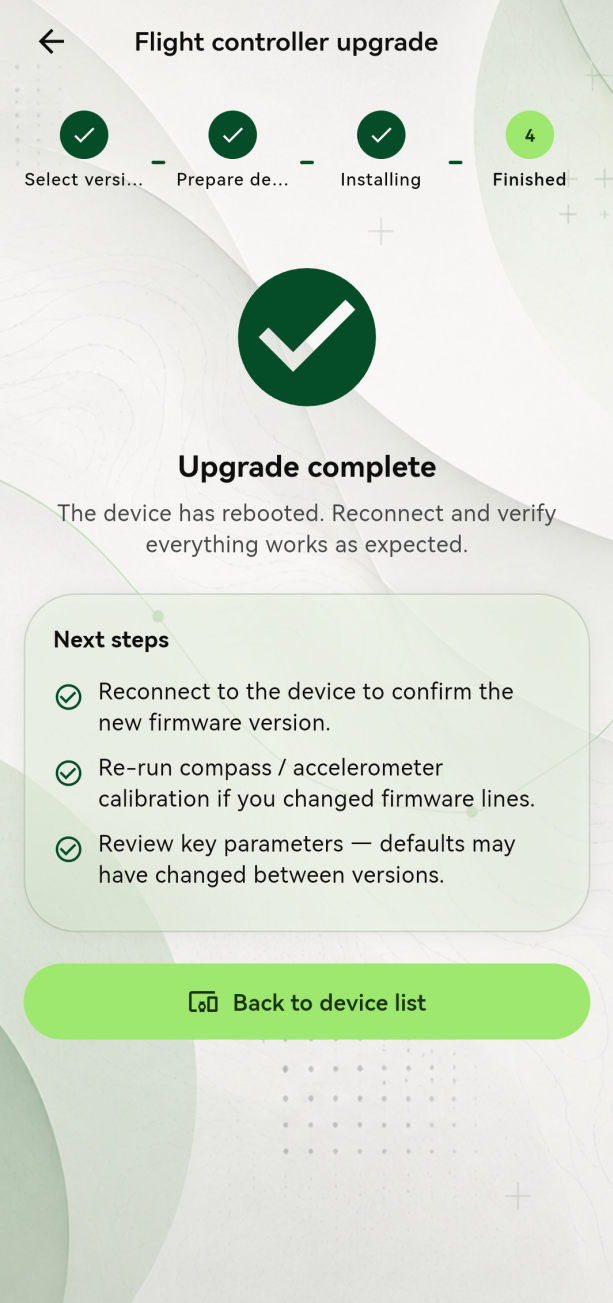
Wait for the upgrade to complete. The flight controller will restart automatically.
6.2 Recovery Firmware Upgrade
Important
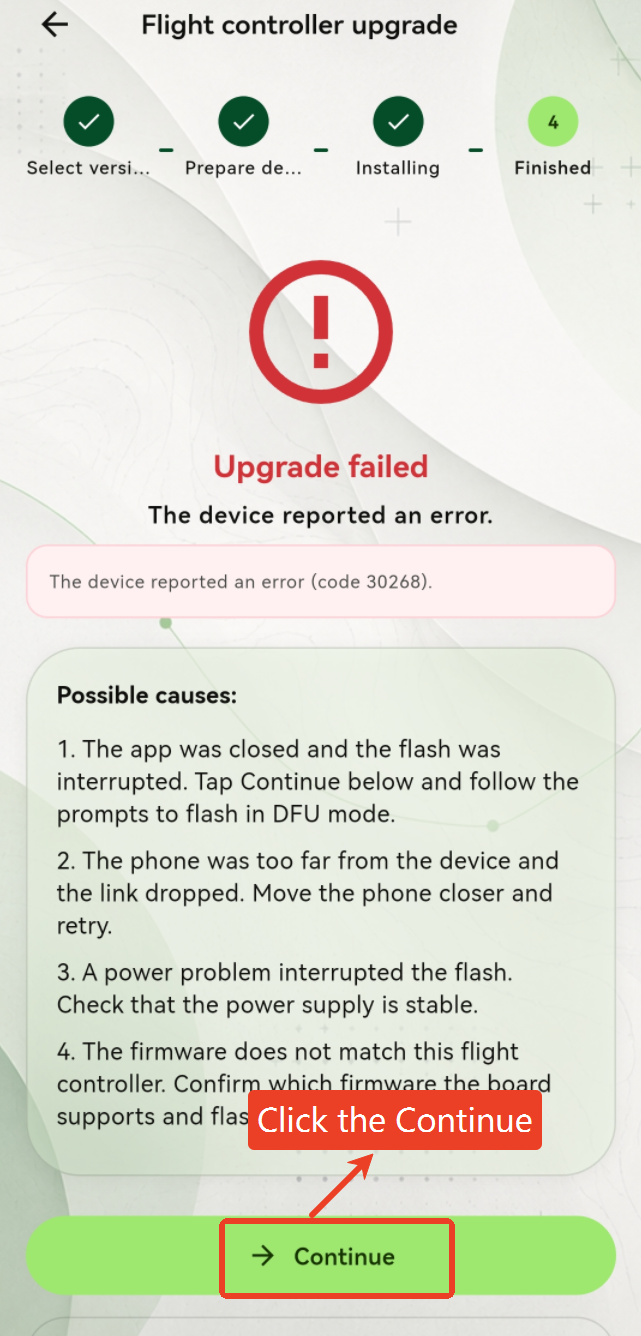
If the upgrade fails, follow the steps below to upgrade the firmware.
If the flight controller firmware upgrade fails, click the Continue button below.
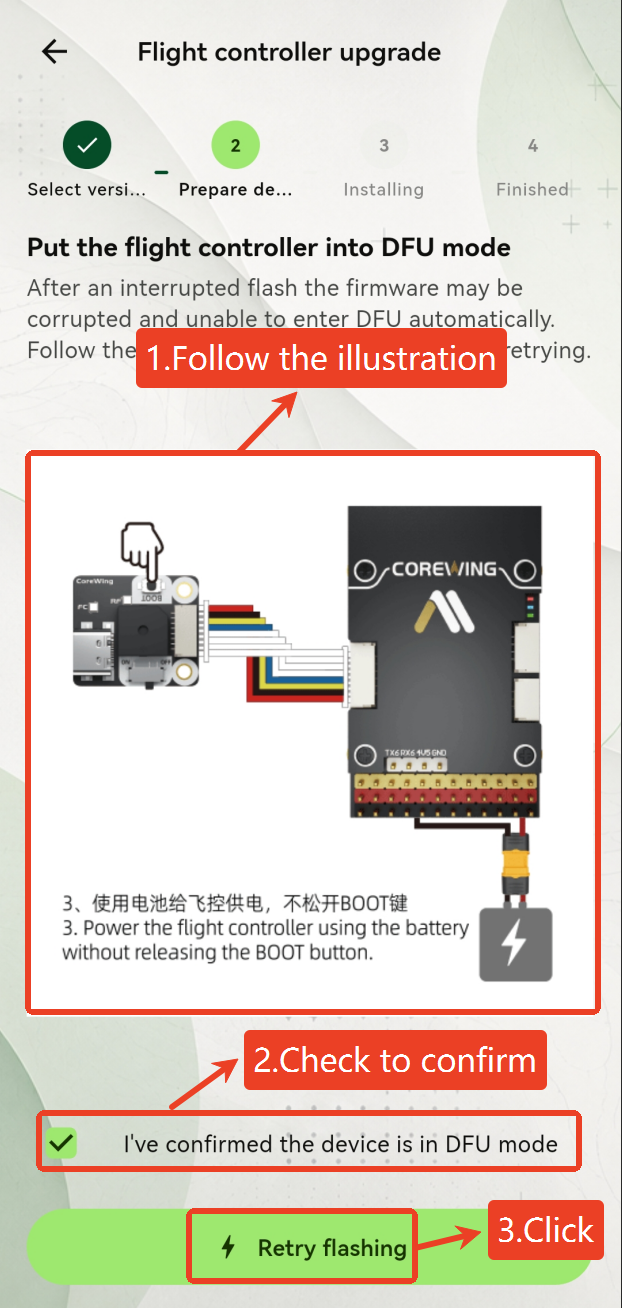
Follow the animation instructions to enter DFU mode. After confirming DFU mode has been entered, check the confirmation box and click Retry Flashing.
Important
How to Enter DFU Mode:
1. Disconnect the battery and USB cable power
2. Press and hold the BOOT button
3. Power the flight controller using the battery (do not use USB power, otherwise flashing may fail)
4. Wait until both FC and RF LEDs turn solid cyan, then release the BOOT button
5. The FC LED starts blinking blue slowly, indicating the flight controller has entered DFU mode
- Wait for the upgrade to complete. The flight controller will restart automatically.
7. Wireless Module Firmware Upgrade
7.1 Upgrade Standard Bluetooth Firmware
Open the CoreWing APP, select BLE connection, and connect to the device
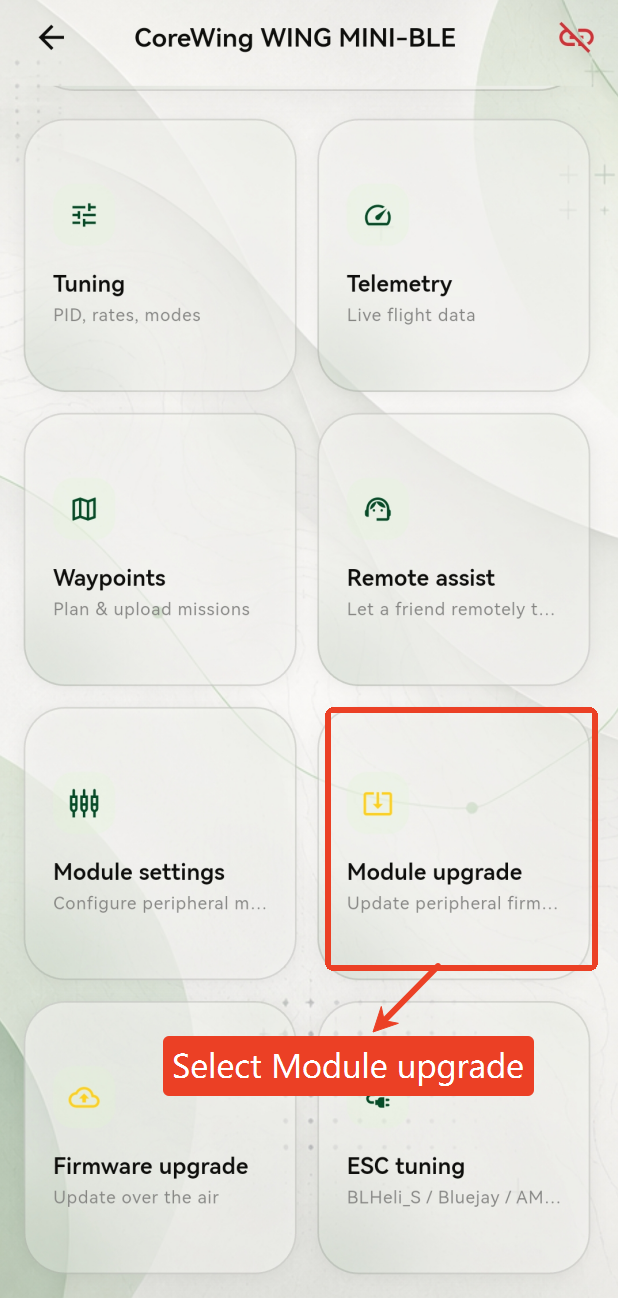
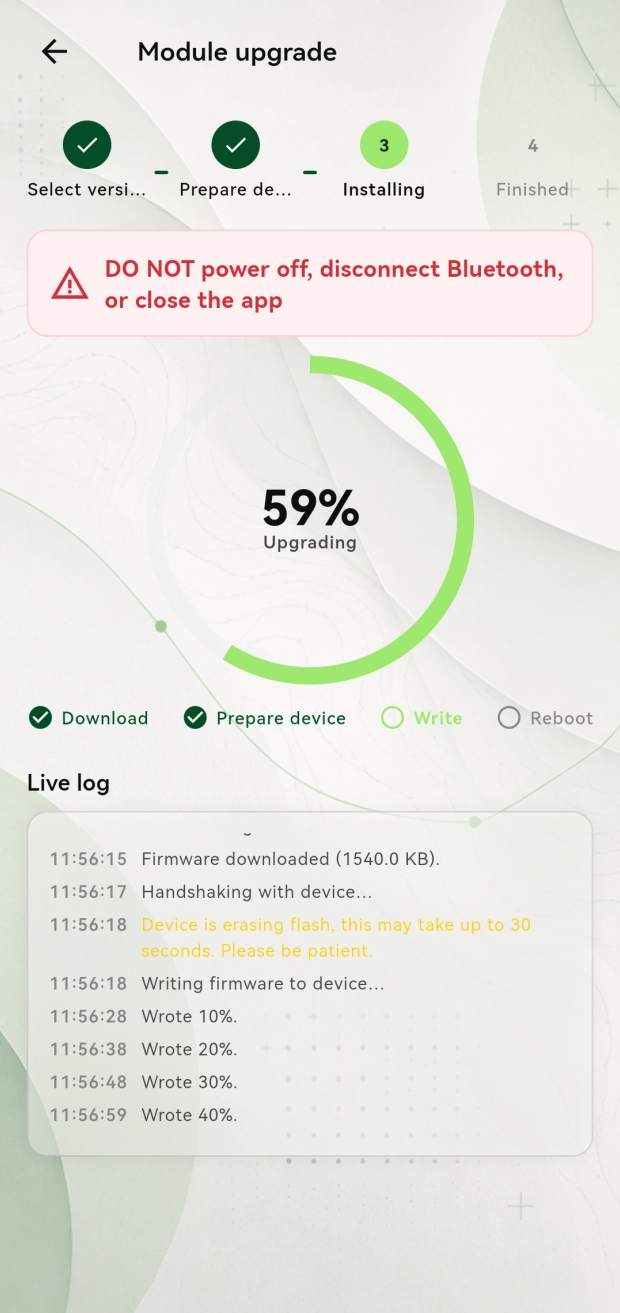
Select Module Upgrade
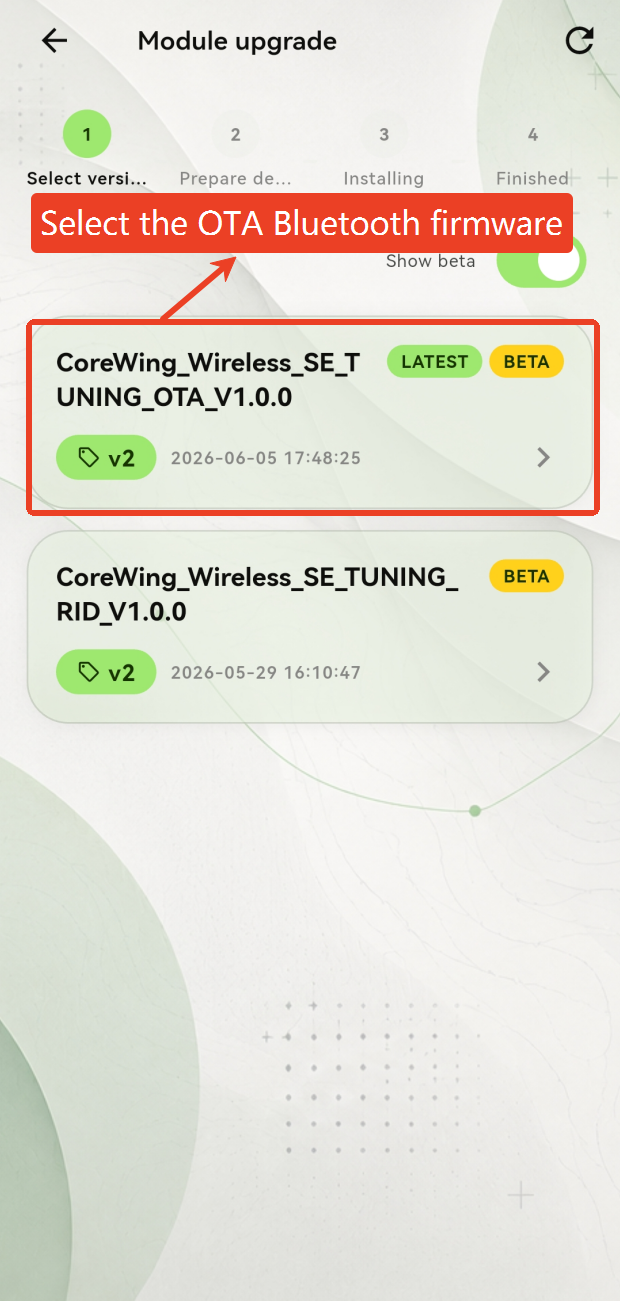
Select the OTA Bluetooth firmware type to flash
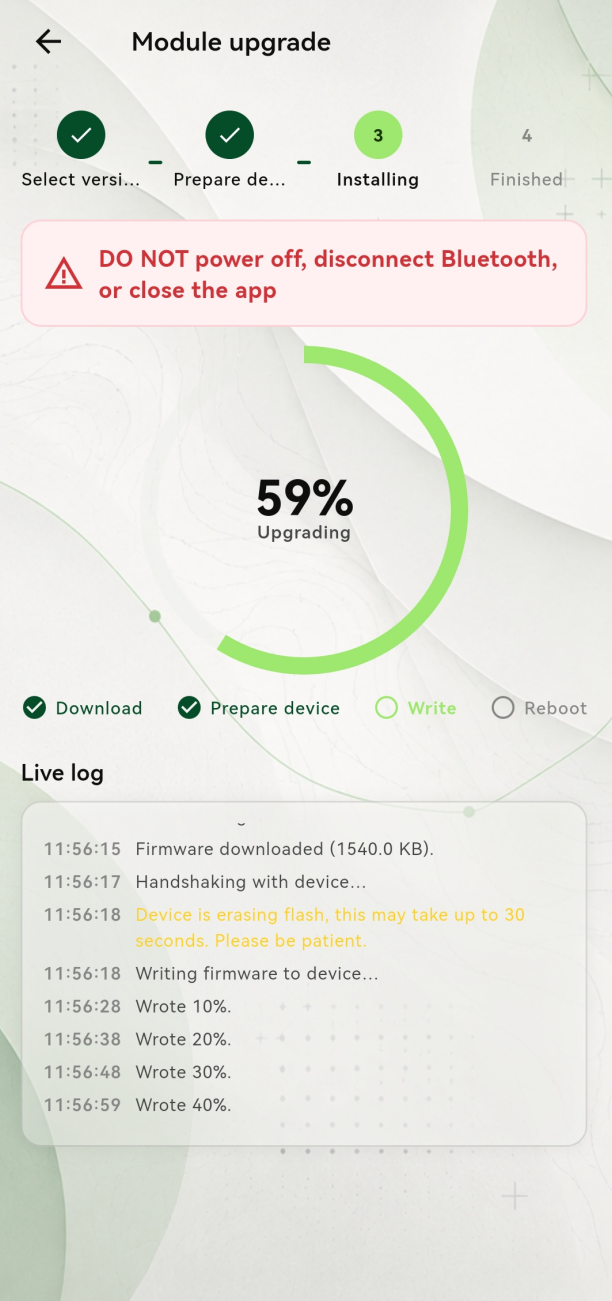
Wait for the Bluetooth firmware upgrade to complete. The flight controller will restart automatically.
7.2 Upgrade RID Firmware
Open the CoreWing APP, select BLE connection, and connect to the device
Select Module Upgrade
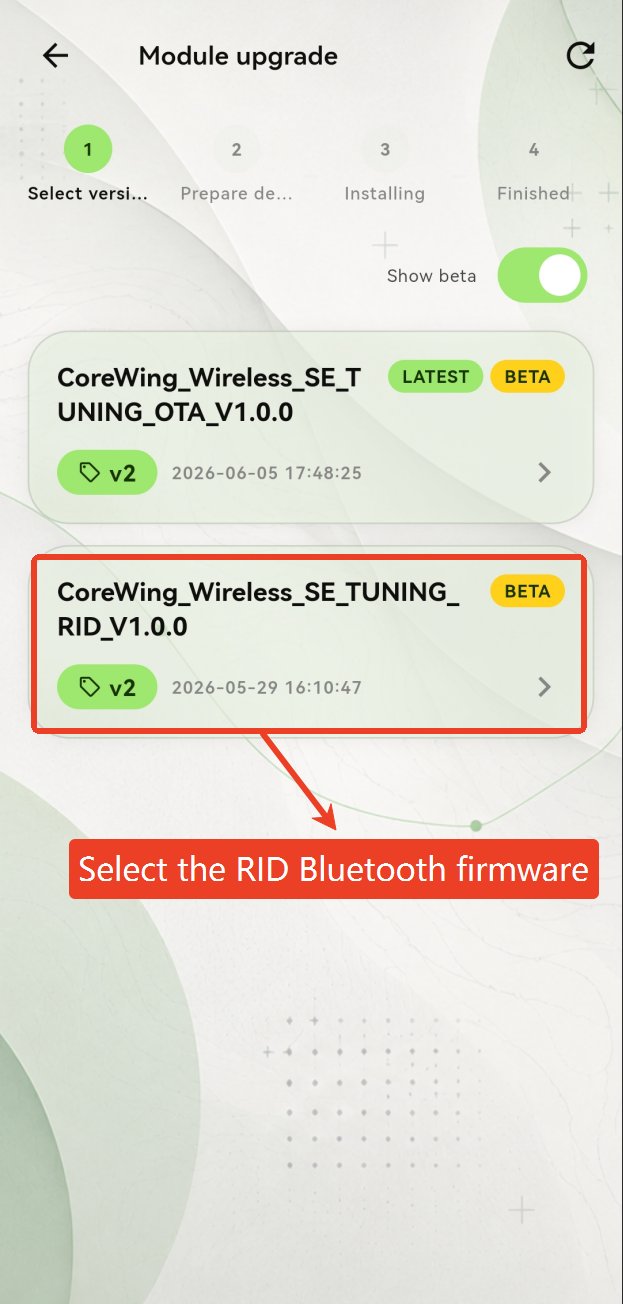
- Select the RID Bluetooth firmware type
- Wait for the Bluetooth firmware upgrade to complete. The flight controller will restart automatically.
Q&A
Q: What should I do if the wireless connection fails and the battery LED becomes a running light?
A: For ArduPilot firmware, check SERIAL1_BAUD=115200, SERIAL1_OPTIONS=0, and SERIAL1_PROTOCOL=2, then restart the flight controller after making changes.
For iNav firmware, check whether MSP is enabled on UART1.
Q: How can I determine the connection status between the wireless module and the flight controller?
A: Check the FC LED: a solid orange LED indicates normal flight controller data communication; a blinking red LED indicates that flight controller data cannot be obtained. Check the connection and serial port parameters.
Technical Support QR Code
