No VTX Power After Flashing Official ArduPlane 4.7.2 Firmware
If your flight controller connects normally but the video transmitter (VTX) has no power after flashing the official ArduPlane 4.7.2 firmware, check RELAY1_DEFAULT. If it is set to Off, change it to On, save, and restart the flight controller.
This tutorial applies to CoreWing F405 WING V2 and CoreWing F405 WING MINI V2, with the VTX powered through the flight controller's switched VTX power connection. If the VTX already powers on but the goggles show no image, further video troubleshooting is required.
1. Restore VTX Power
1.1 Find the Parameter
Connect the flight controller to the CoreWing APP. Open Config/Tuning → All Parameters, search for RELAY, and find RELAY1_DEFAULT.
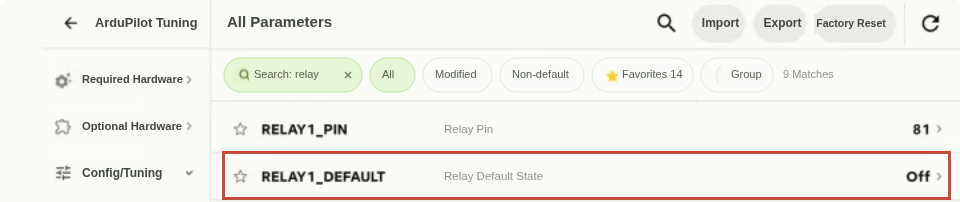
The red box marks the parameter to change. The screenshot shows its original Off state.
1.2 Change the Value to On and Save
Tap the current value of RELAY1_DEFAULT and select On. If the interface uses a numeric value, enter 1.
| Parameter | Before | After |
|---|---|---|
RELAY1_DEFAULT | Off (0) | On (1) |
Tap Save, check that the pending value for RELAY1_DEFAULT is 1, then tap Confirm Save. Wait for the parameter write to finish.
1.3 Restart the Flight Controller
After saving, disconnect all power sources, including the battery and USB, then reconnect power to fully restart the flight controller.
Remove the propeller before powered testing and keep the flight controller disarmed.
1.4 Check the Result
Reconnect the APP and read RELAY1_DEFAULT again. Confirm that it remains On (1). With the normal VTX power source connected, check that the VTX powers on and starts up, then check the image in your goggles.
If the VTX starts normally, its power supply has been restored. If it powers on but there is still no image, check VTX/goggle binding, the camera, and video connections.
2. Why Does This Happen?
On these two flight controllers, relay parameters control the switched VTX power connection. The official firmware and the CoreWing custom build have the following default settings. The official 4.7.2 values were read after clearing the saved parameters:
| Firmware | RELAY1_DEFAULT | RELAY1_INVERTED | VTX Power with These Defaults |
|---|---|---|---|
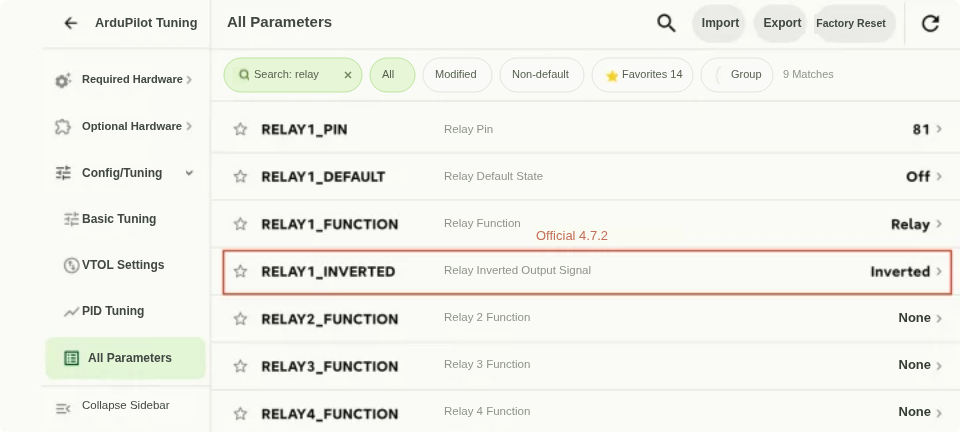
| Official ArduPlane 4.7.2 | Off | Inverted | Off |
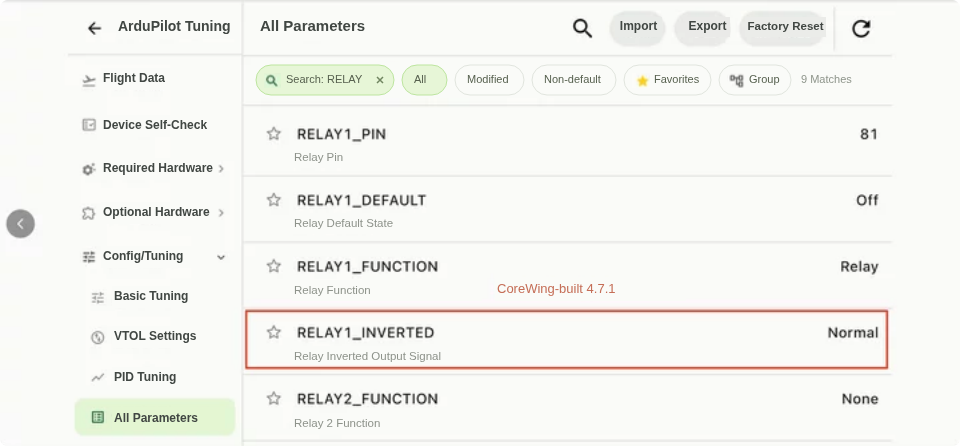
| CoreWing custom-built ArduPlane 4.7.1 | Off | Normal | On |
The official 4.7.2 combination leaves the VTX power connection switched off. Setting RELAY1_DEFAULT to On selects the startup state needed to restore power.
View the firmware comparison screenshots
Official ArduPlane 4.7.2: RELAY1_INVERTED is Inverted.
CoreWing custom-built 4.7.1: RELAY1_INVERTED is Normal. This is for comparison only. Do not copy this setting as part of the fix.
3. Q&A
Q: Should I also change RELAY1_INVERTED to Normal?
A: For this fix, change only RELAY1_DEFAULT to On, save, and restart. Keep the official 4.7.2 setting of RELAY1_INVERTED=Inverted to avoid changing multiple parameters at once.
Q: The VTX still has no power after changing the value to On. What should I check?
A: Read the parameter again to confirm that On was saved, and make sure the flight controller has been fully power-cycled. Check the required VTX power source, connector seating, and wiring. If you previously configured an RC switch for VTX power, check that its current position is not switching the VTX off. Contact technical support below if power is still not restored.
Q: Will this still happen with 4.8.0?
A: We tested a CoreWing-built 4.8.0-dev firmware and confirmed that the VTX powers on normally. The related startup-default issue is fixed in this development build. However, firmware upgrades normally retain saved parameters. If your controller already has Off stored, check the actual value after upgrading and follow this tutorial if needed.
Q: Can I still use an RC switch to control VTX power?
A: RELAY1_DEFAULT sets the state after the flight controller starts. To configure RC control, see How to Configure the VTX Power Switch, and physically verify the power state at each switch position.
Technical Support QR Code
If VTX power is still not restored, scan the QR code to contact technical support. Include your flight controller model, firmware version, a screenshot of the RELAY1 parameters, and a photo of the VTX wiring.