
Receiver using mLRS firmware for MSP communication - iNav firmware
I. Working Principle
After flashing the CoreWing Sirius high-frequency module with mLRS firmware, it integrates remote control and telemetry functions into a single device, achieving telemetry-control integration with the following advantages:
- Device Simplification: Only one module needs to be configured to complete both remote control signal uplink and MSP bidirectional transparent communication, reducing device count and connection complexity
- Strong Anti-Interference Capability: Remote control signals and MSP data share the same radio link, reducing mutual interference
- USB Transparent Transmission: Connect the high-frequency module to a computer via USB data cable for direct parameter tuning using iNav configurator
II. Device Preparation
2.1 Flight Controller
- CoreWing F405 WING V2
2.2 Wireless Communication Module
- High-frequency module: Sirius 2.4G (requires mLRS firmware)
- Receiver: SkyGuy Nano 2G4 RX (requires mLRS firmware)
Tips
The high-frequency module and receiver must first be flashed with mLRS firmware. Refer to the following article for firmware upgrade:
Sirius High-frequency Module ELRS/mLRS Firmware Switching Tutorial
2.3 RC Transmitter
- Recommended: RadioMaster TX16S
- Compatible: Other RC transmitters that support external modules
III. RC Transmitter Setup and Lua Script Import
3.1 RC Transmitter External RF Parameter Setup
Important
mLRS officially only supports 400k baud rate! If using the ELRS 1.87M/3.75M/5.25M baud rate, it will not work properly.
- Enter the RC transmitter
MODEL SETUP - Disable
Internal RF - Enable
External RF - Set
ModetoCRSF - Set
Baudrateto400k


3.2 Import mLRS Lua Script
mLRS Lua Script Import Tutorial
mLRS Lua Script Download:
IV. Receiver Connection to Flight Controller
Important
CoreWing F405 WING V2 Flight Controller to Receiver Connection Method:
- Interface Requirement: Must connect to Serial 6
- Reason:
- Serial 6 has built-in DMA support
- Supports MSP transparent communication
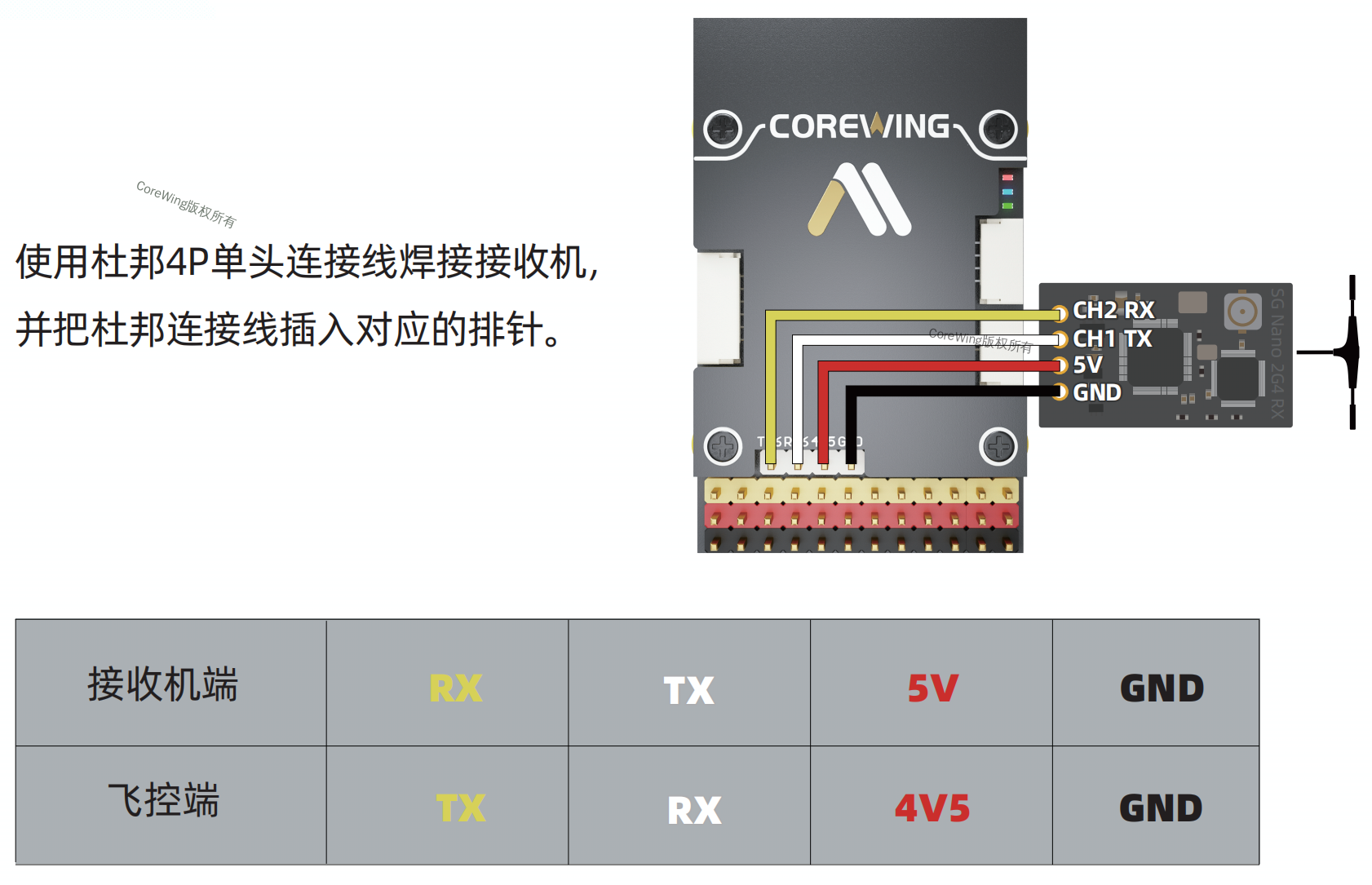
V. High-frequency Module and Receiver Binding
Click to view mLRS high-frequency module and receiver binding
VI. mLRS Parameter Setup
6.1 High-frequency Module Parameter Setup
Enter the mLRS Lua script and modify the following parameters:
Warning
Remember to click Save to save the parameters!!!
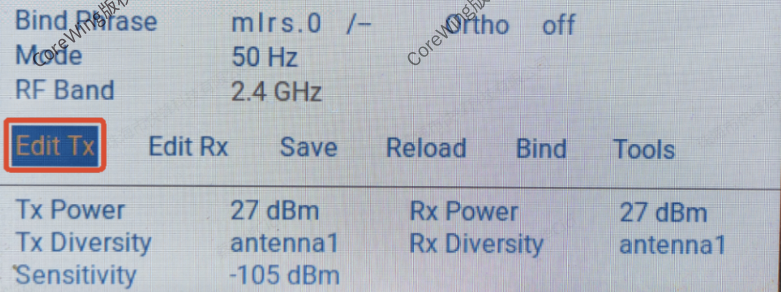
Click Edit Tx to enter high-frequency module parameter editing
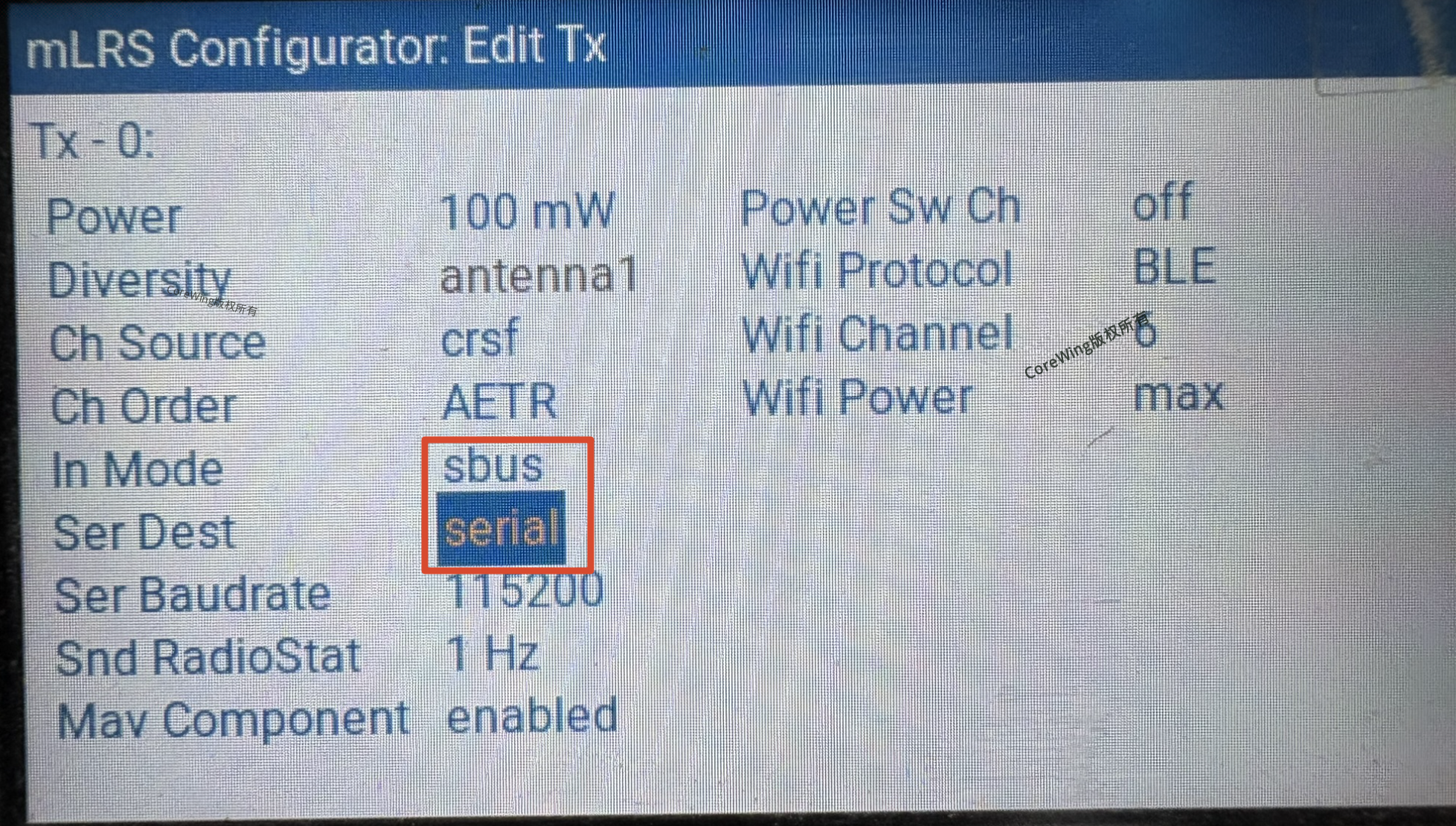
Click next to find Tx-related parameters
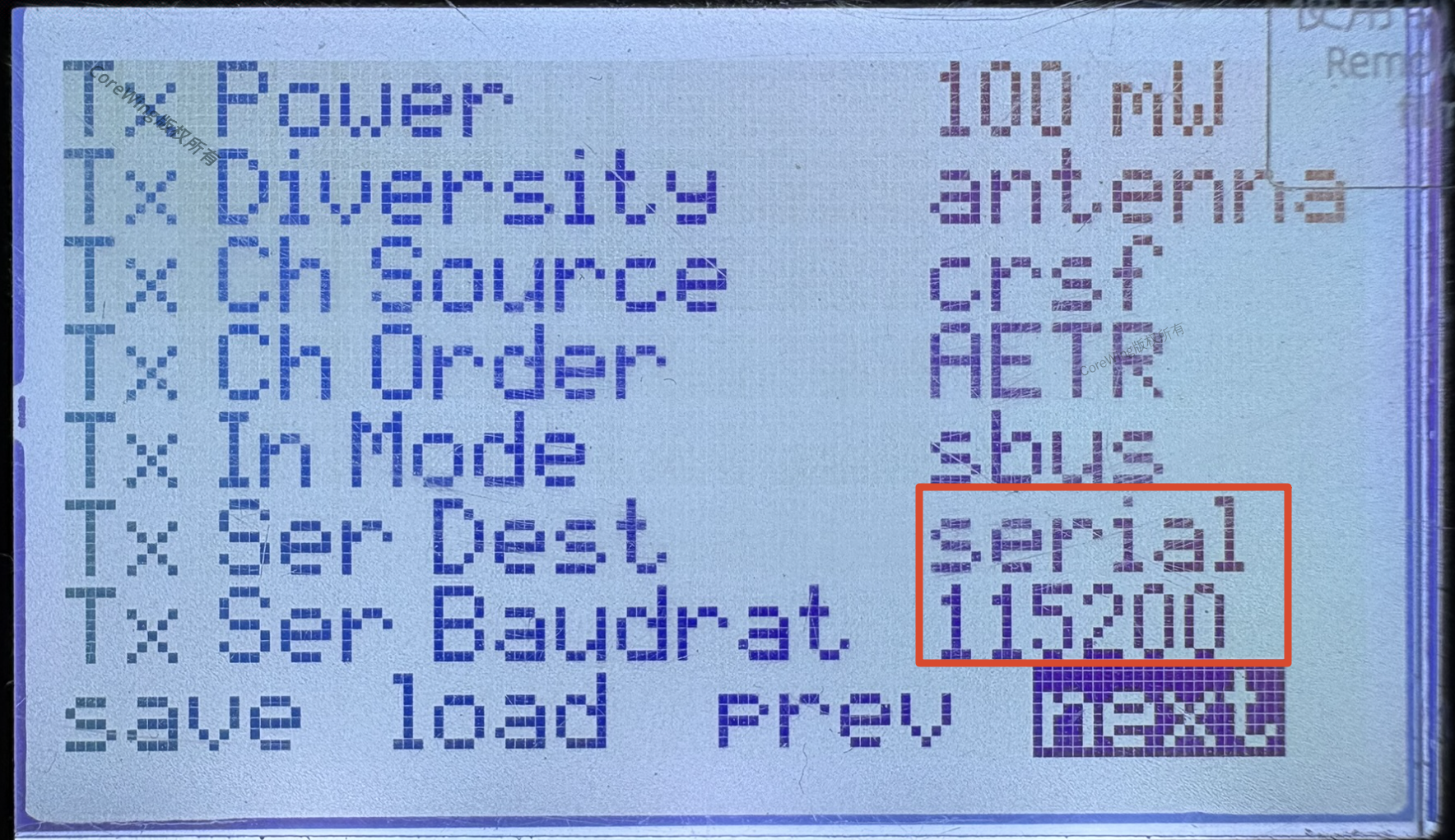
| Parameter | Set to |
|---|---|
| Tx Ser Dest | serial |
| Tx Ser Baudrate | 115200 |
Tips
Tx Ser Dest Setting Description:
serial: Enable high-frequency module USB output, allowing connection to computer via USB data cableserial2: Enable BLE Bluetooth function, USB connection cannot be used
This article requires using a USB data cable to connect to the iNav configurator, so set to serial.
6.2 Receiver Parameter Setup
Enter the mLRS Lua script and modify the following parameters:
Warning
Remember to click Save to save the parameters!!!
Click Edit Rx to enter receiver parameter editing
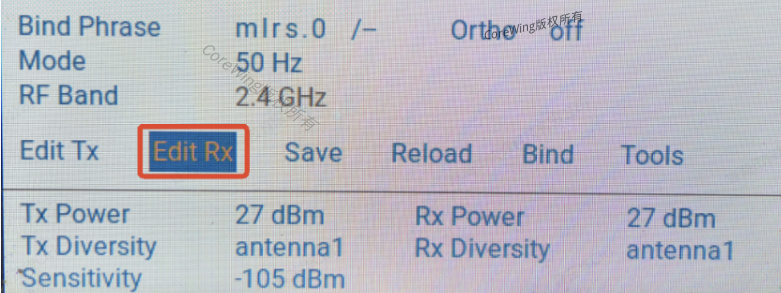
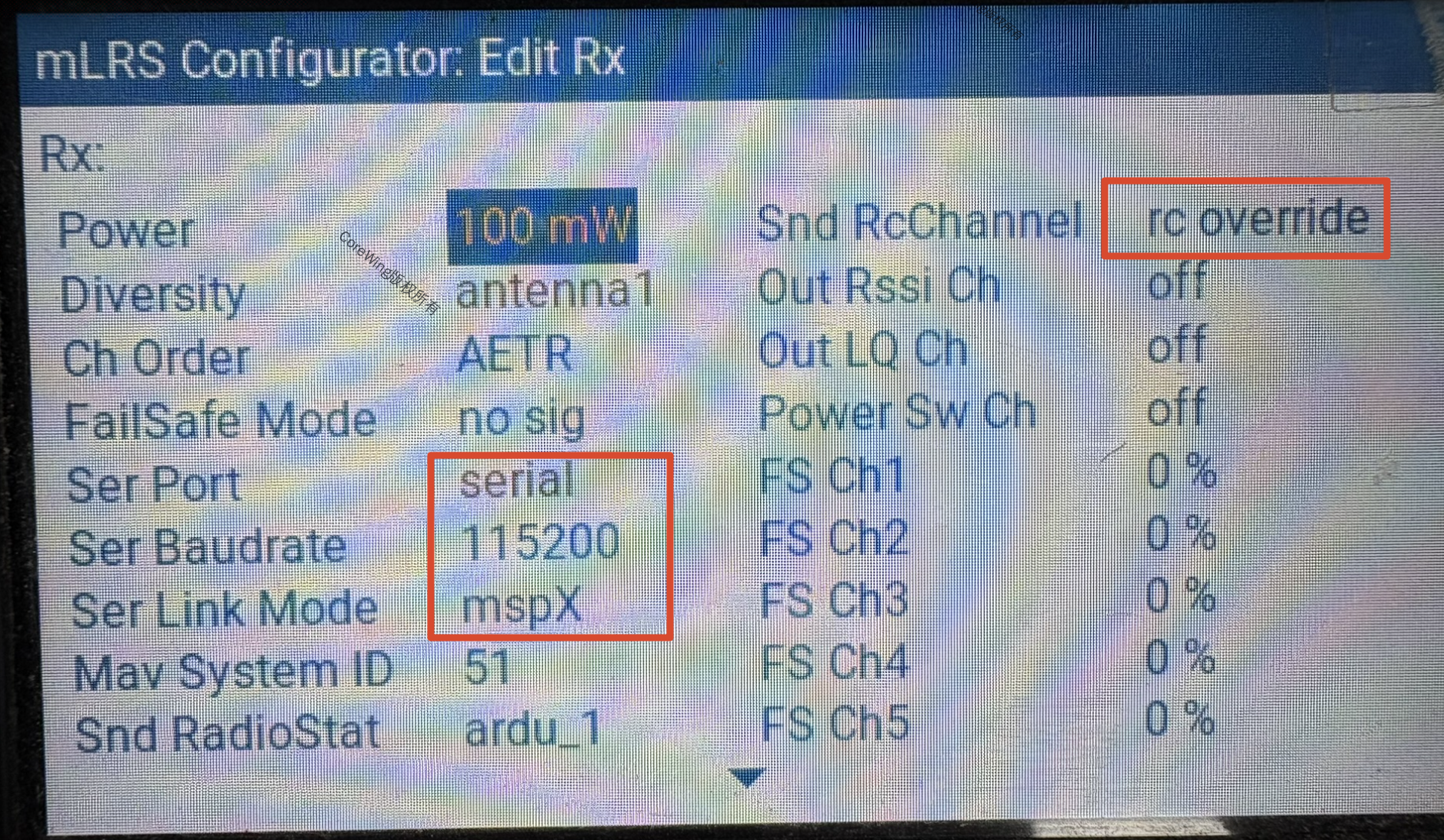
Click next to find Rx-related parameters
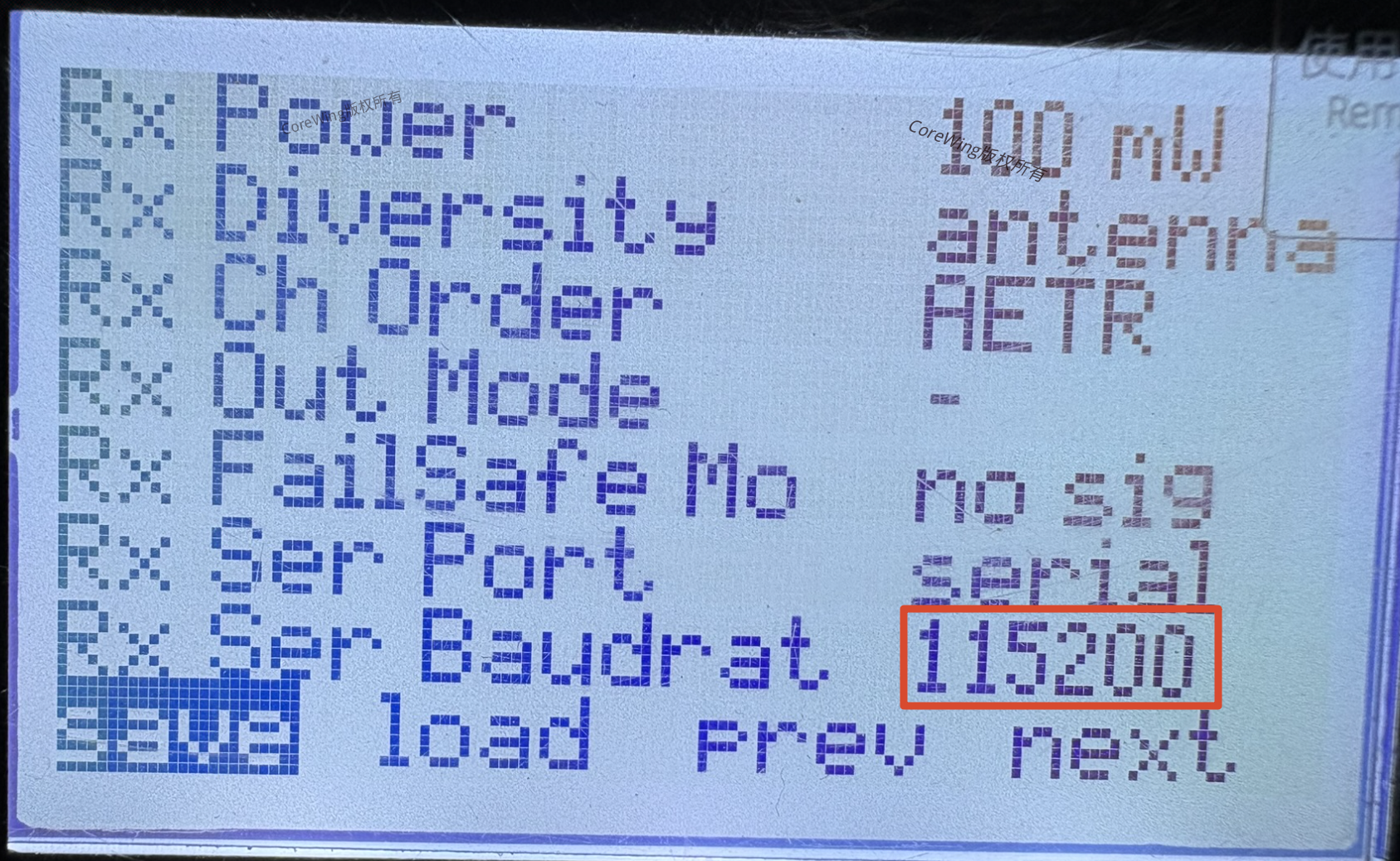
| Parameter | Set to |
|---|---|
| Rx Ser Baudrate | 115200 |
| Rx Ser Link Mode | mspX |
| Rx Snd RcChannel | rc_override |
Tips
MSP Transparent Mode Description:
mspX: Enable MSP transparent function, supporting iNav configurator communication with flight controller through the high-frequency module- Baud rate set to 115200 to match MSP communication standards
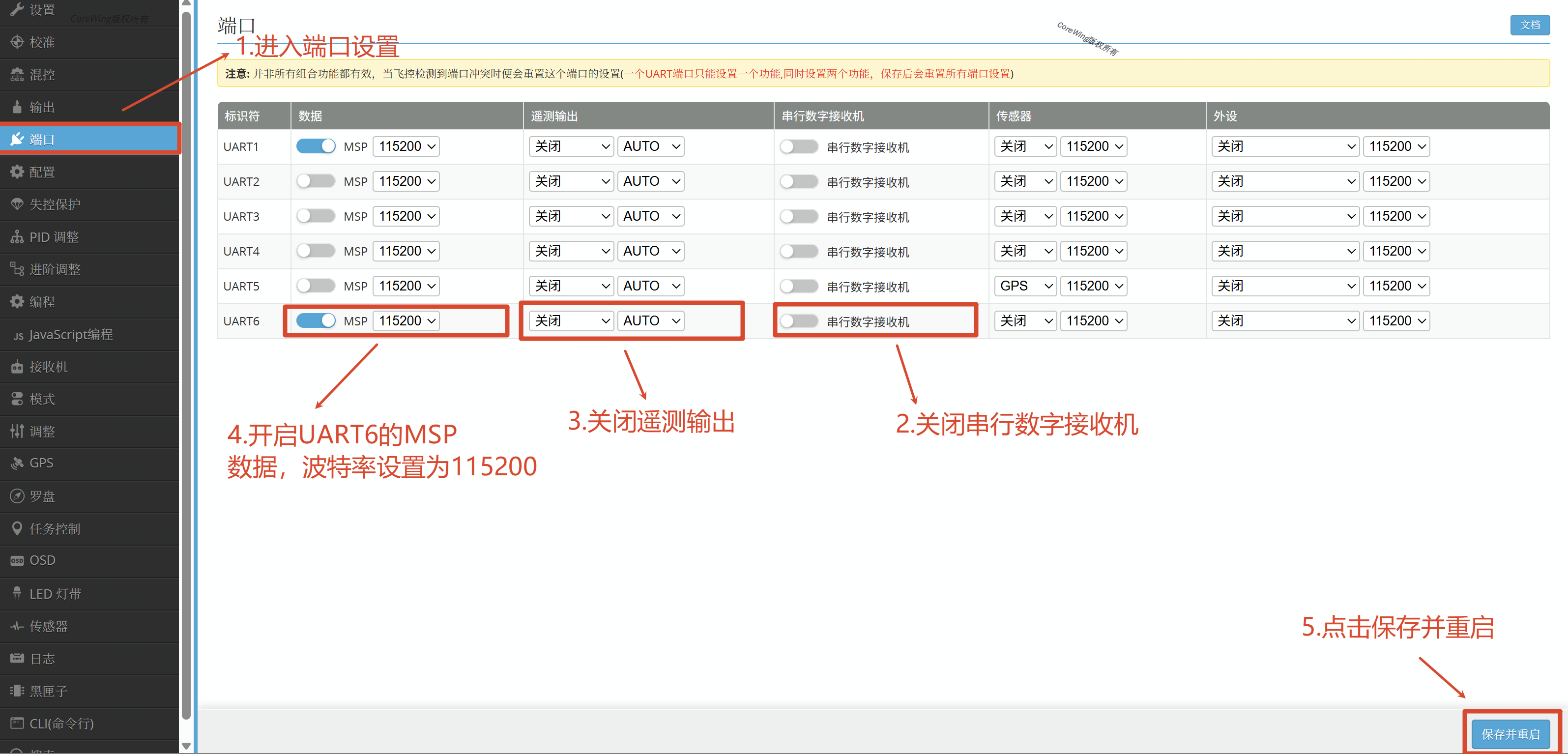
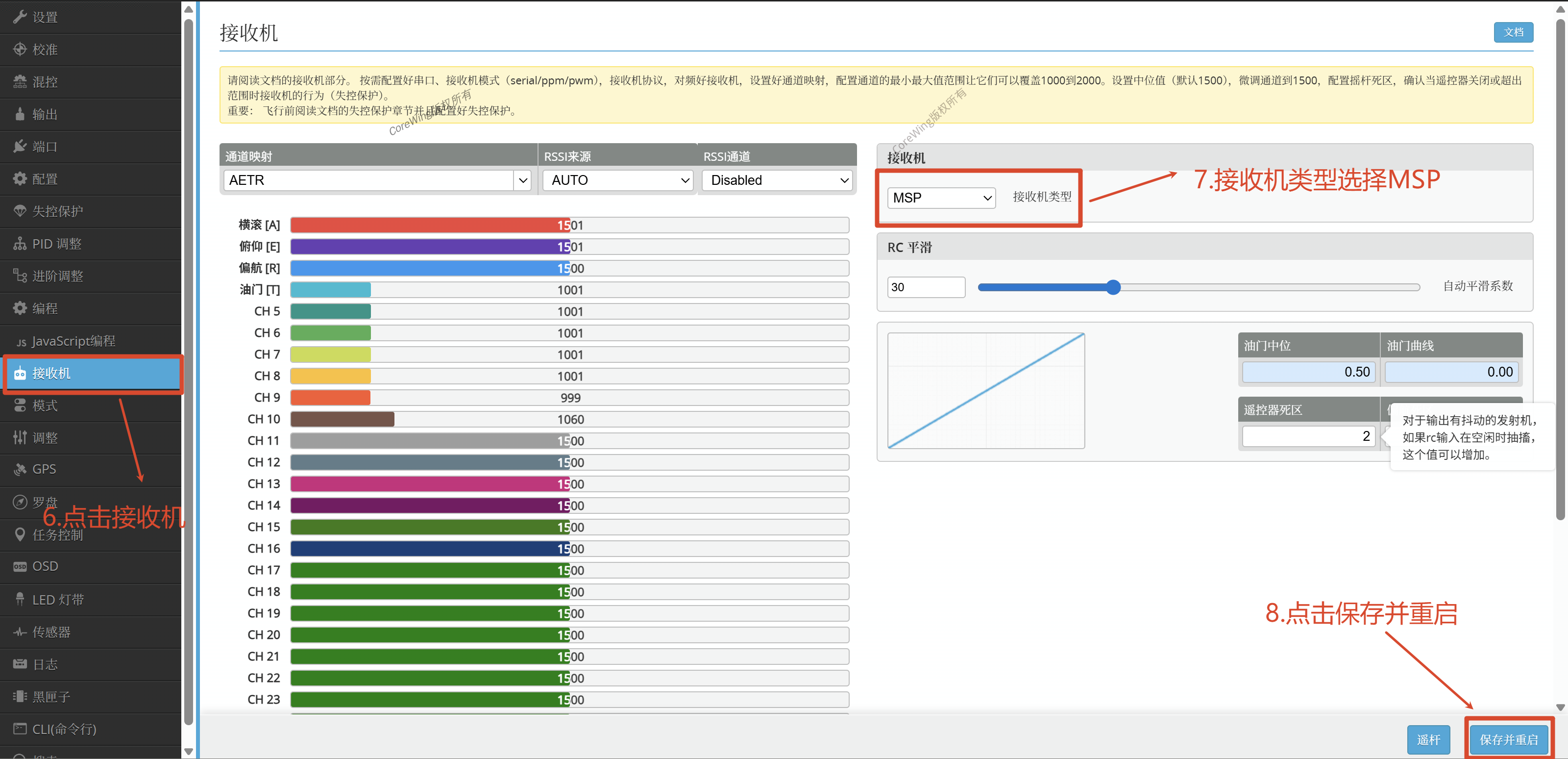
VII. Flight Controller Parameter Setup
Connect the flight controller to the computer using a data cable
Open iNav ground control station
Modify the following parameter settings
VIII. Ground Control Station Connection Setup
8.1 USB Data Cable Connection
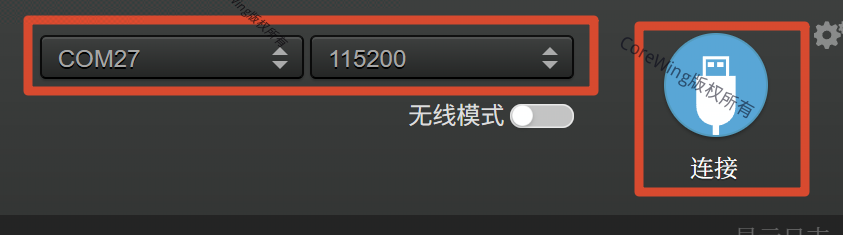
Connect the high-frequency module to the computer using a USB data cable
Open iNav ground control station
In the port selection dropdown menu, find the serial port corresponding to the high-frequency module (usually displayed as
COMxor/dev/ttyUSBx)Select baud rate 115200
Click the Connect button
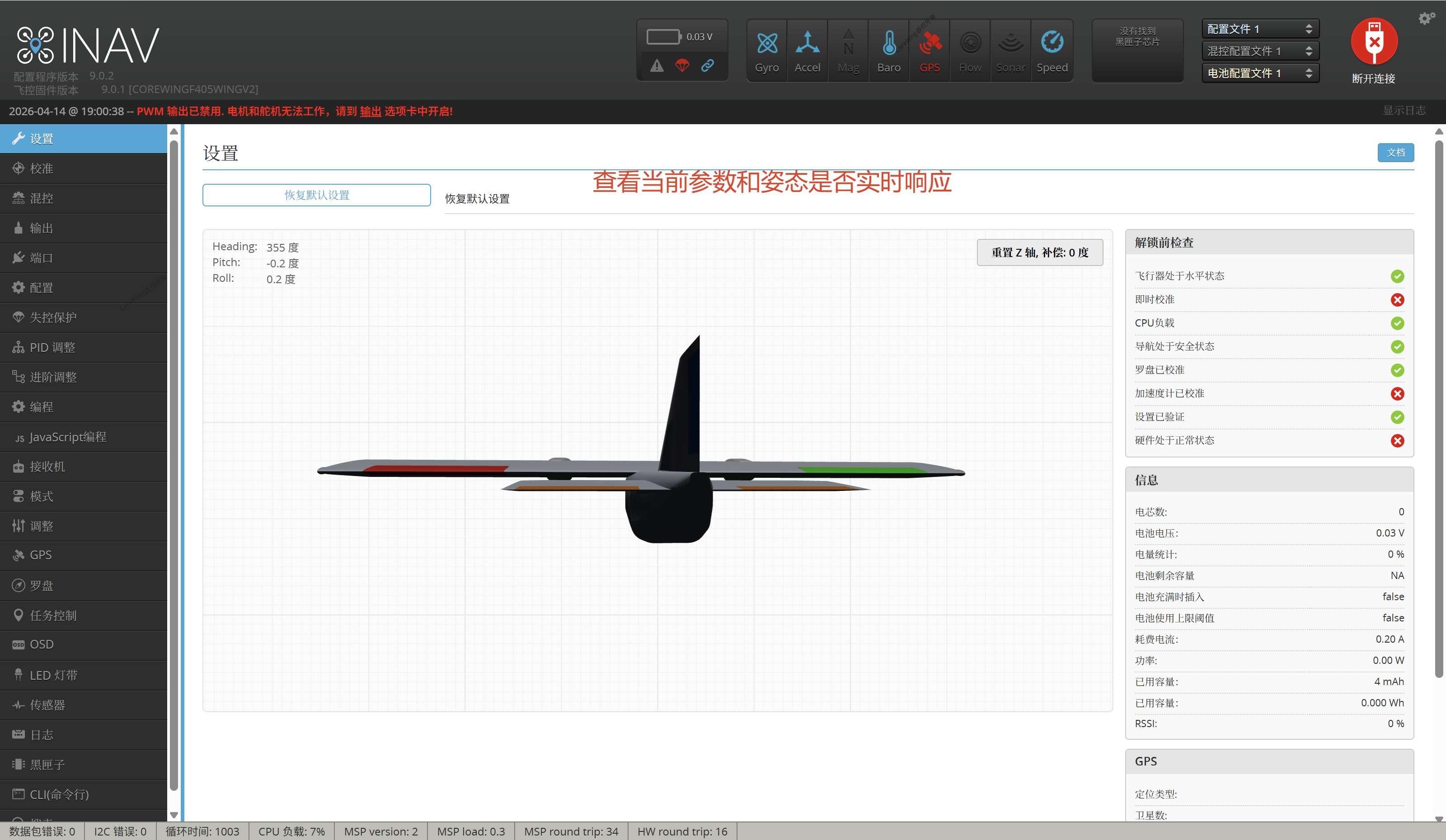
- Check if the ground control station is receiving data
9. Q&A
Q1: What is the difference between setting Tx Ser Dest to serial and serial2?
A1:
serial: Enables high-frequency USB output, allowing connection to a computer ground control station via USB cable, but BLE Bluetooth cannot be used.serial2: Enables BLE Bluetooth functionality, allowing connection to a mobile phone app via Bluetooth, but USB cable connection cannot be used.
Q2: Why must Rx Ser Baudrate be set to 115200?
A2: The standard communication baud rate for the MSP protocol is 115200, which differs from the MAVLink (57600) used by ArduPilot.
Q3: How to confirm that MSP passthrough is working properly?
A3: After connecting to the iNav configurator, if you can successfully read flight controller parameters and display flight data in real-time, it indicates that the MSP passthrough function is working properly.
Technical Support QR Code
If you have any questions, scan the code to contact technical support:
